How to use screen and keys on your Apple Watch SE 3
See how to use the screen and keys on your Apple Watch.

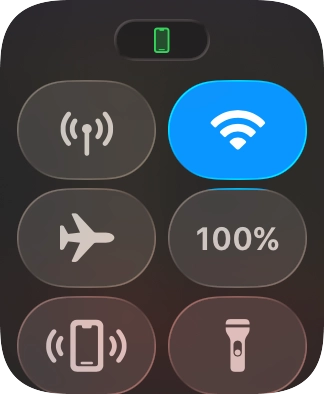
- Press the Side button to open and close Control Panel.

- Press the required function to open an application or turn the function on or off.
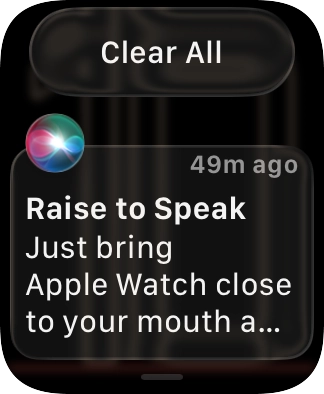
- Slide your finger downwards starting from the top of the screen to view notifications.
- Press the required notification to open it.
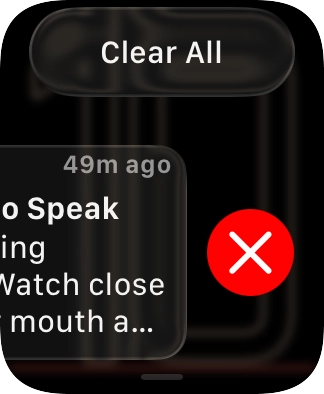
- Slide your finger left on the required notification.
- Press the delete icon to remove it.
- Slide your finger upwards starting from the bottom of the screen to open Smart Stack.See how to use Smart Stack.
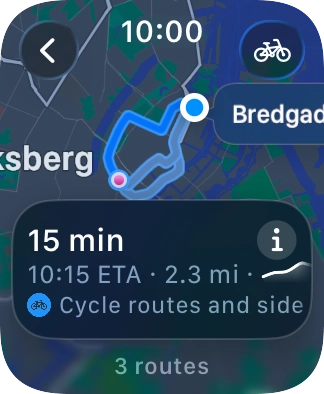
- Hard press the screen to access extra functions and shortcuts in selected apps.
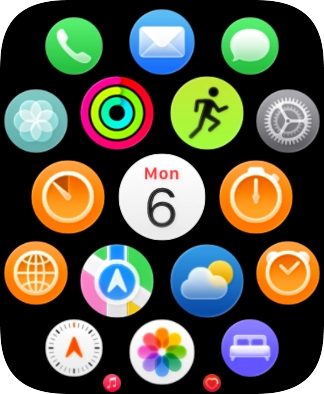
- Press the Digital Crown to open the main menu.
- Press the Digital Crown several times to return to the home screen.
- Turn the Digital Crown to navigate in a menu.
- Press the Digital Crown twice in quick succession to open the list of the most recently used apps.
- Press and hold the Digital Crown to turn on Siri.
- Press and hold the Side button to turn your Apple Watch on or off.
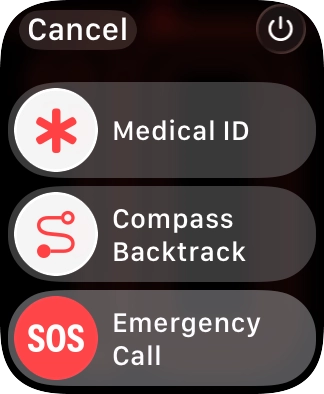
- Press and hold the Side button to access the emergency call function.
- Press the Side button to open and close Control Panel.
- Press the Side button twice in quick succession to open Wallet and Apple Pay.To use Apple Pay, you need to set it up on your phone.