I can't use GPS navigation on my Samsung Galaxy Watch7
If you can't use GPS navigation, there may be several causes of the problem.
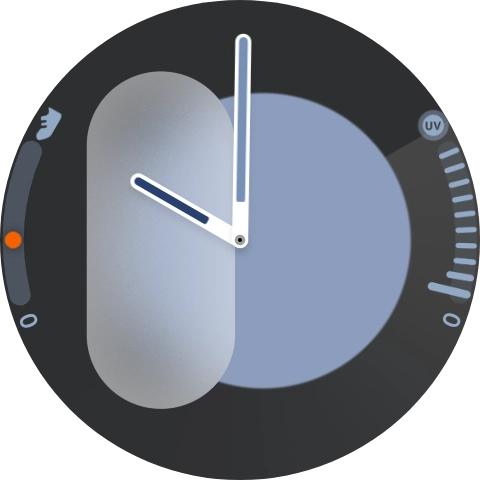
- Slide your finger upwards starting from the bottom of the screen.
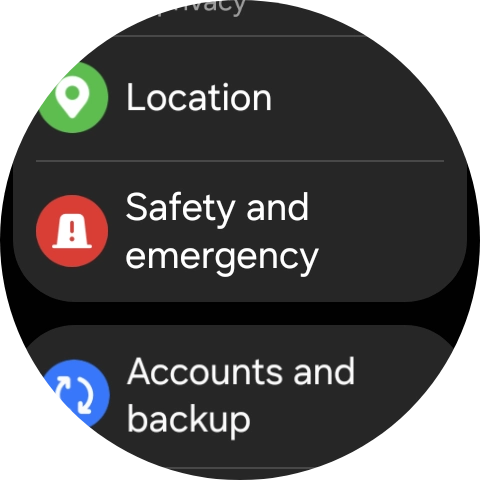
- Press the settings icon.
- Press Location.
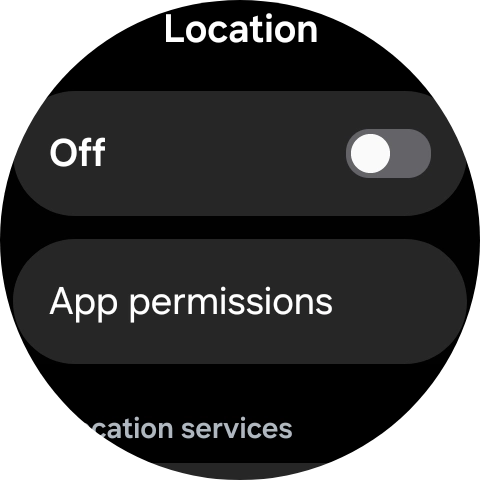
- Press the indicator below 'Location' to turn the function on or off.If you turn on this function, your phone can find your exact position using GPS. If you turn off the function, you can't use any GPS functions on your phone.
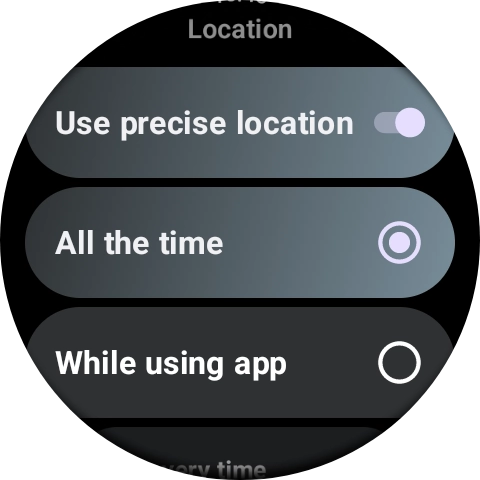
- Press App permissions.
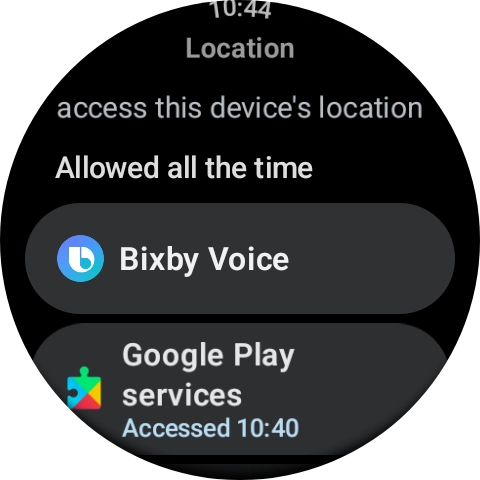
- Press the required app.
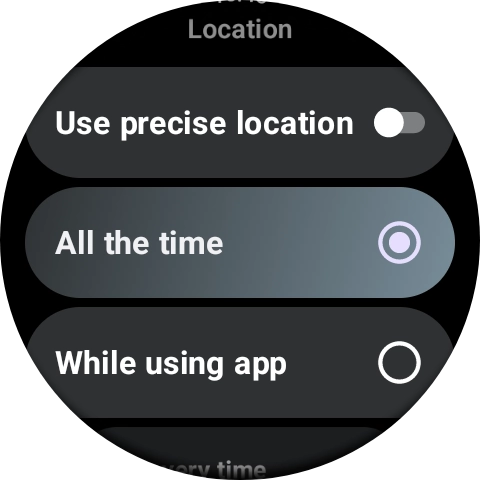
- Follow the instructions on the screen to select the required settings and turn the function on or off.
- Press the Return key twice.
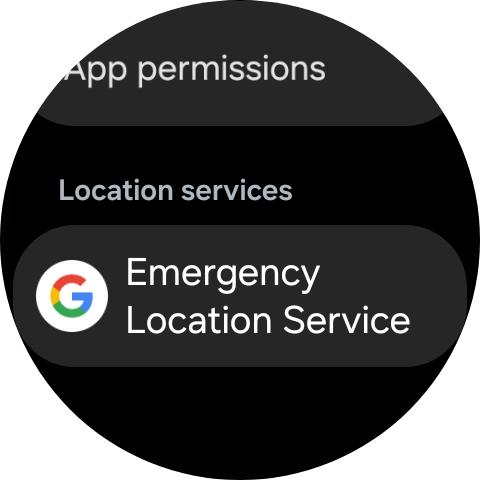
- Press Emergency Location Service.
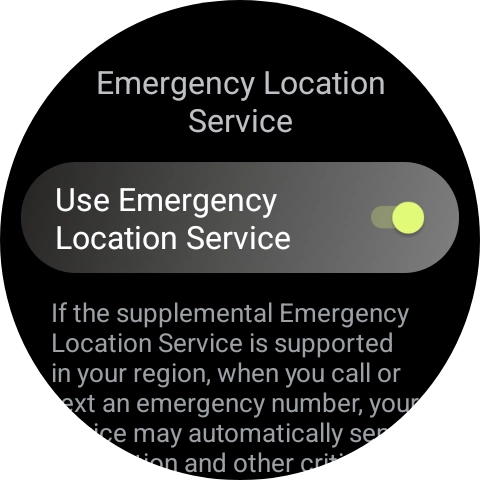
- Press the indicator next to 'Use Emergency Location Service' to turn the function on or off.If use of GPS location for emergency calls is turned on, your location will automatically be shared with the emergency dispatch centre during emergency calls in countries where the function is supported.
- Press the Home key to return to the home screen.
Go to a place with a clear view of the sky and wait a few minutes while your phone searches for a GPS signal.
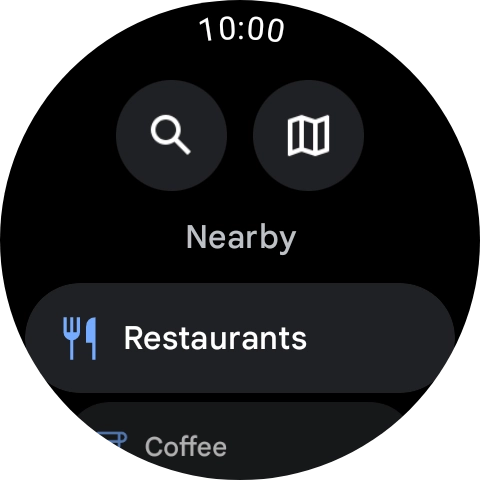
- Slide your finger upwards starting from the bottom of the screen.

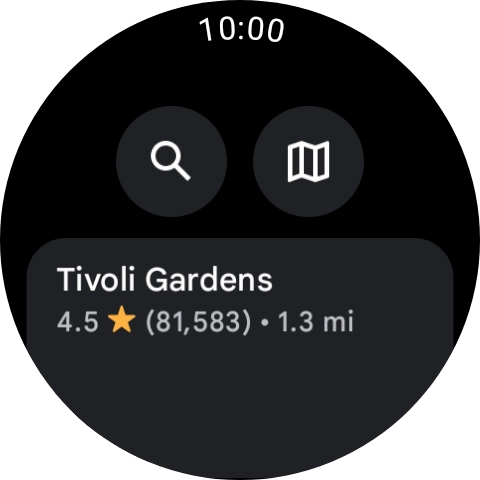
- Press the Google Maps icon.
- Press the search icon.
- Key in the required destination and press the search icon.
- Press the required destination.
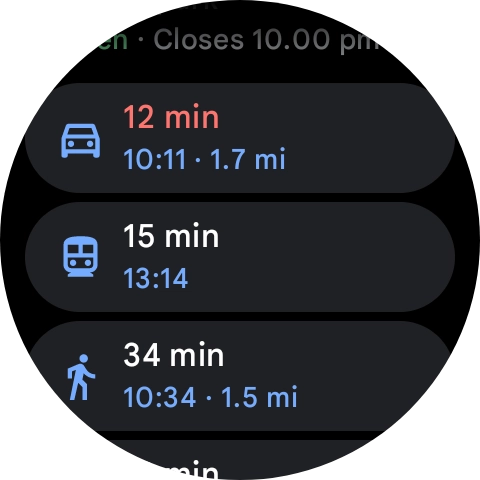
- Press the required mode of transportation.
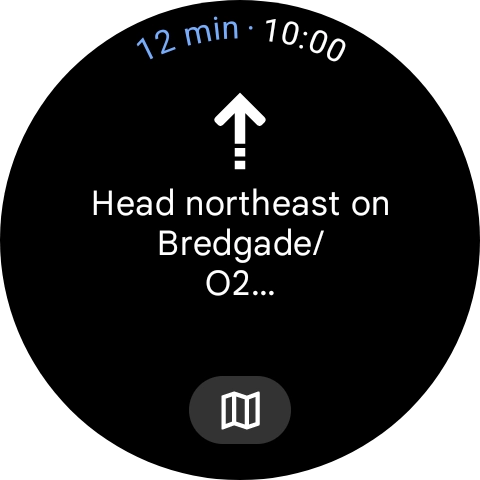
- Follow the instructions on the screen to navigate to the selected destination.
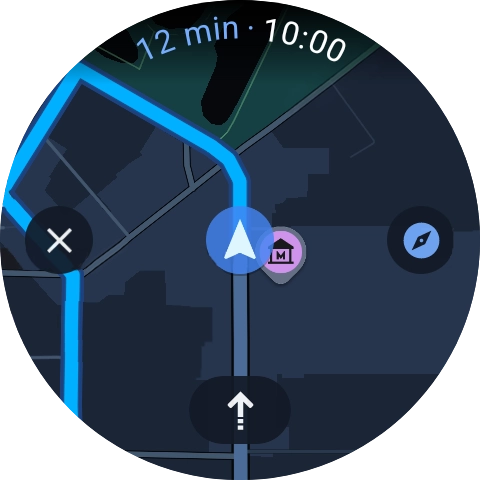
- Press the map icon to see the route on a map.
- Press the route description icon to return to the directions.
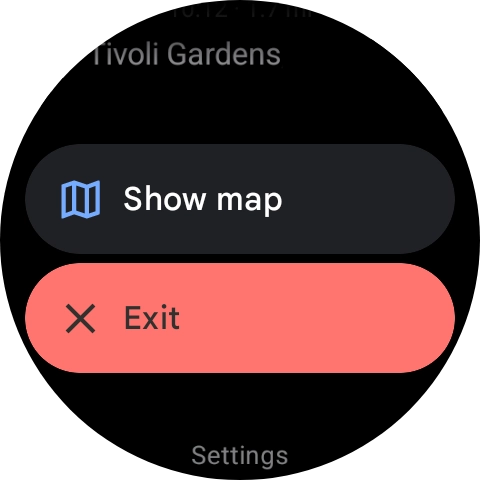
- Slide your finger upwards starting from the bottom of the screen.
- Press Exit.
- Press the Home key to return to the home screen.