The battery life on my Samsung Galaxy Tab A 10.1 (2016) is short
If your tablet uses too much power and the battery life is short, there may be several causes of the problem.
Lower the screen brightness.
Turn on automatic screen lock.
Turn off live wallpapers.
1. Find 'Accounts'
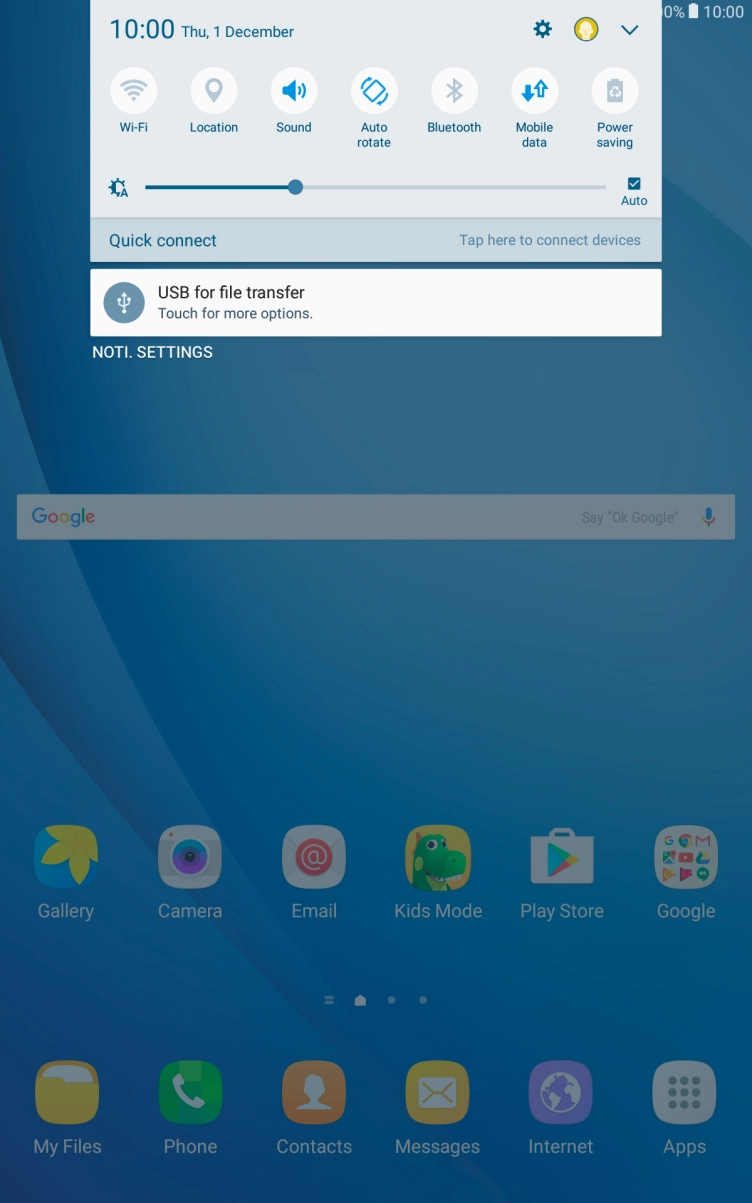
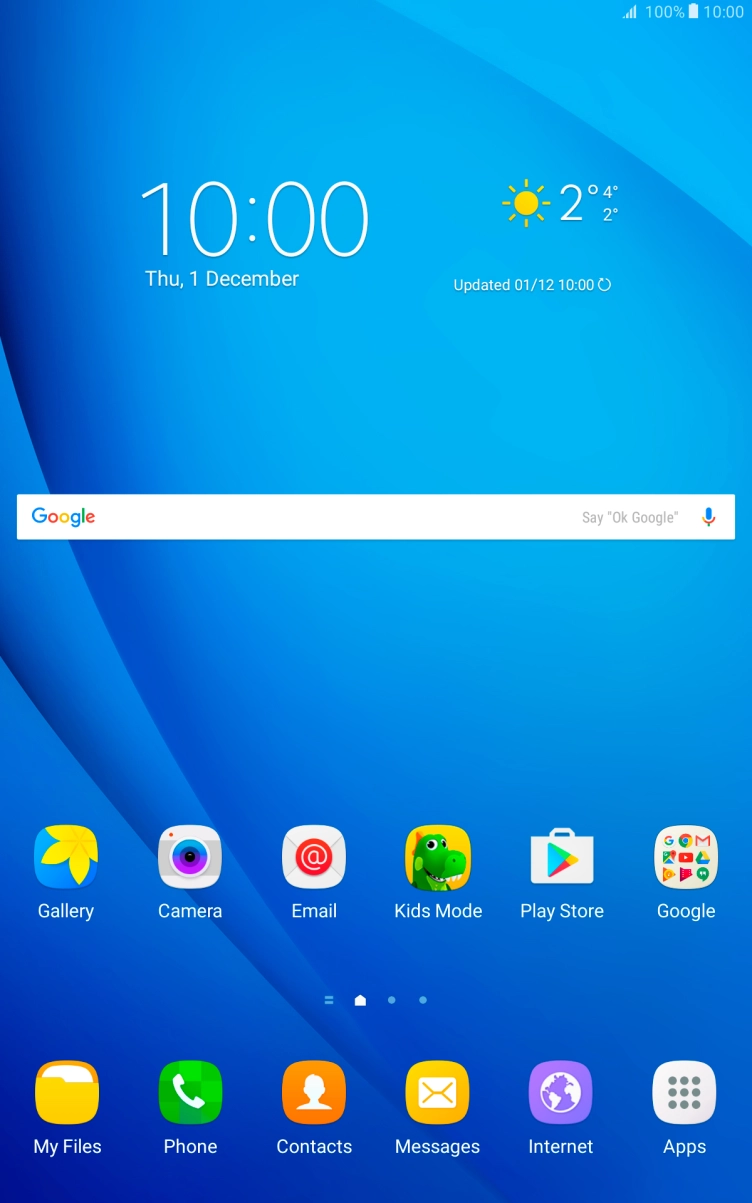
Slide your finger downwards starting from the top of the screen.
- Slide your finger downwards starting from the top of the screen.
- Press the settings icon.
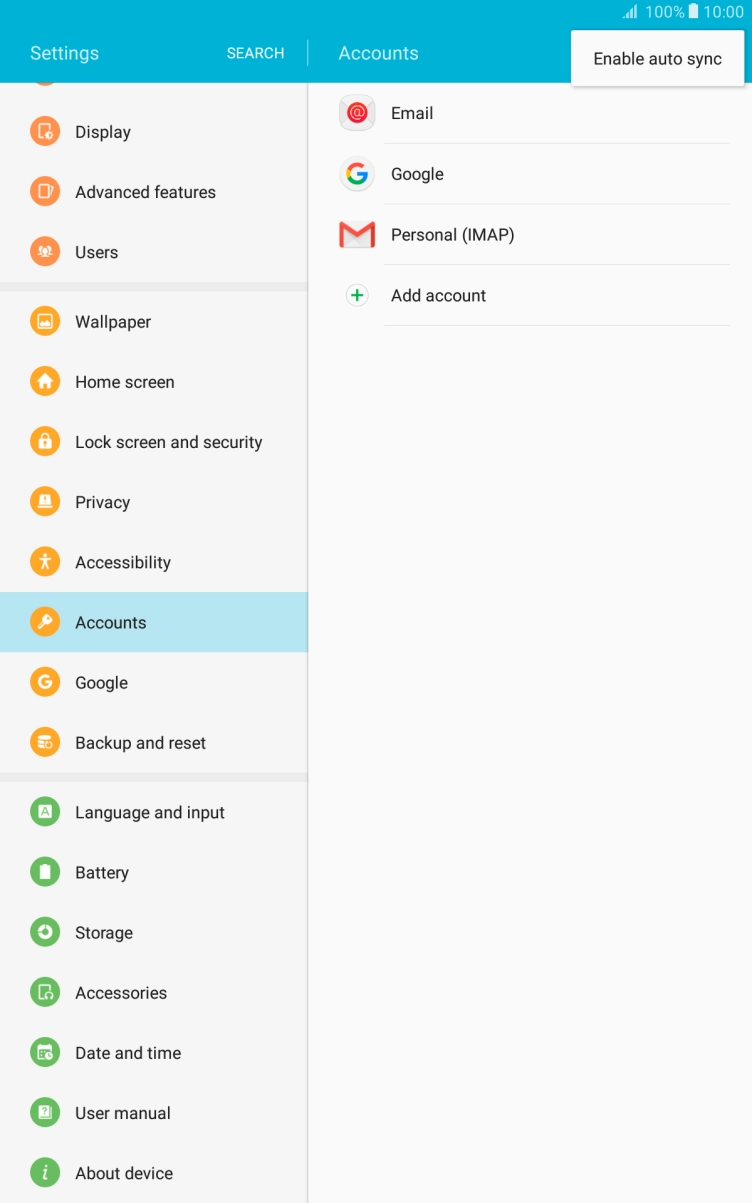
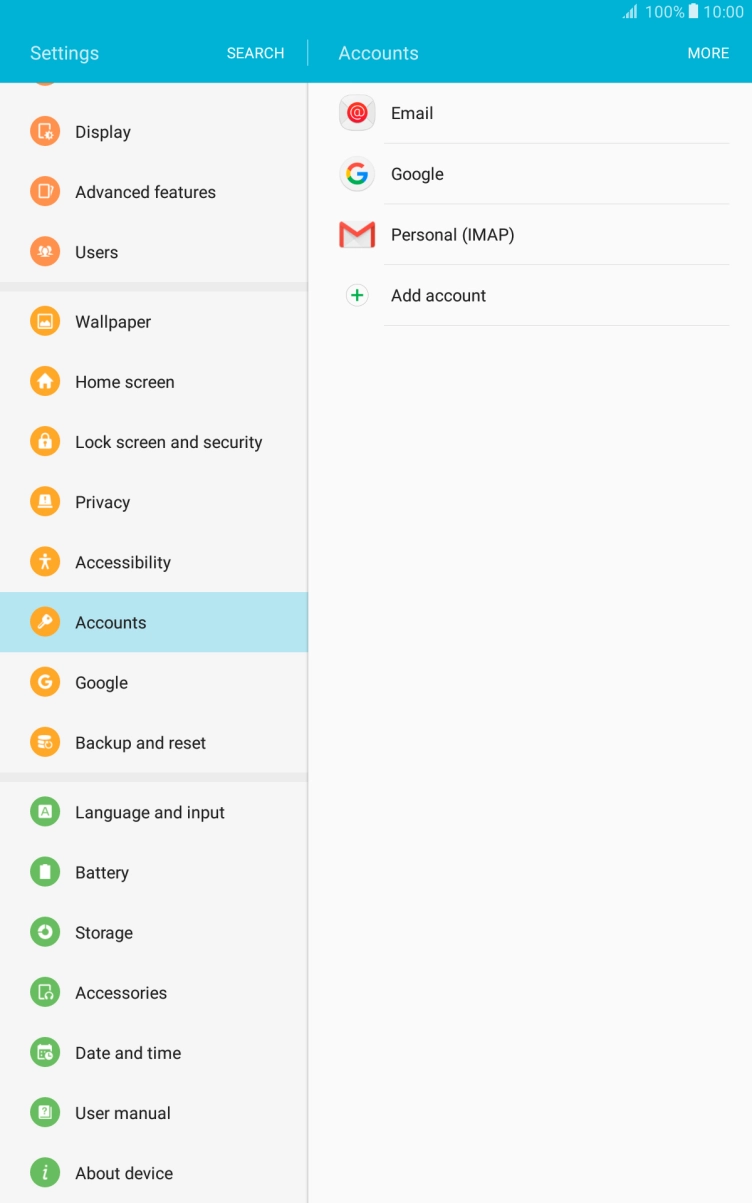
- Press Accounts.
- Press MORE.
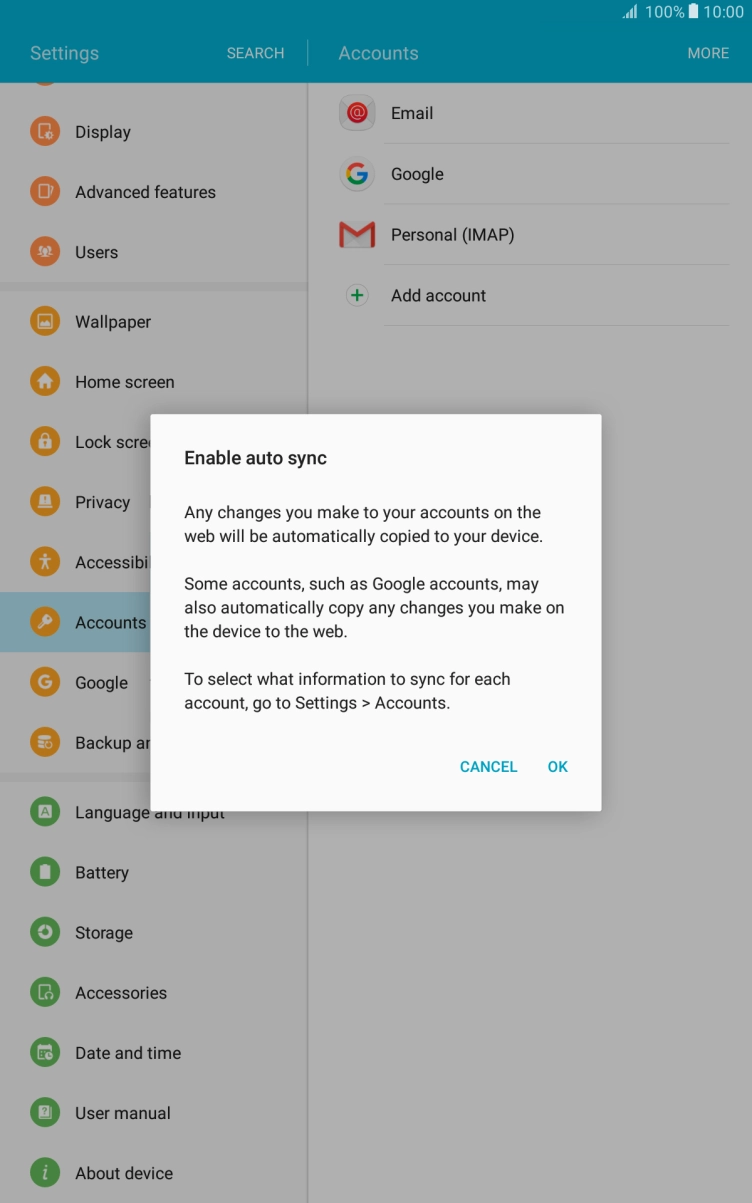
- Press Enable auto sync.
- Press OK to turn on the function.
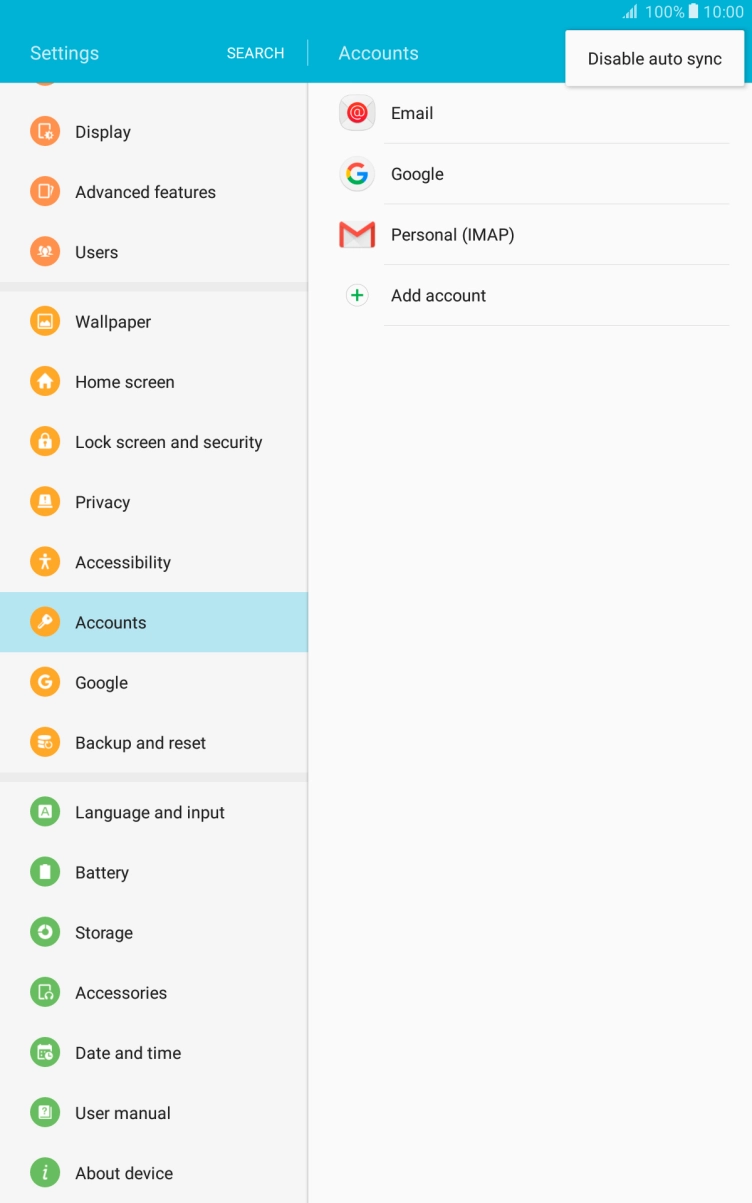
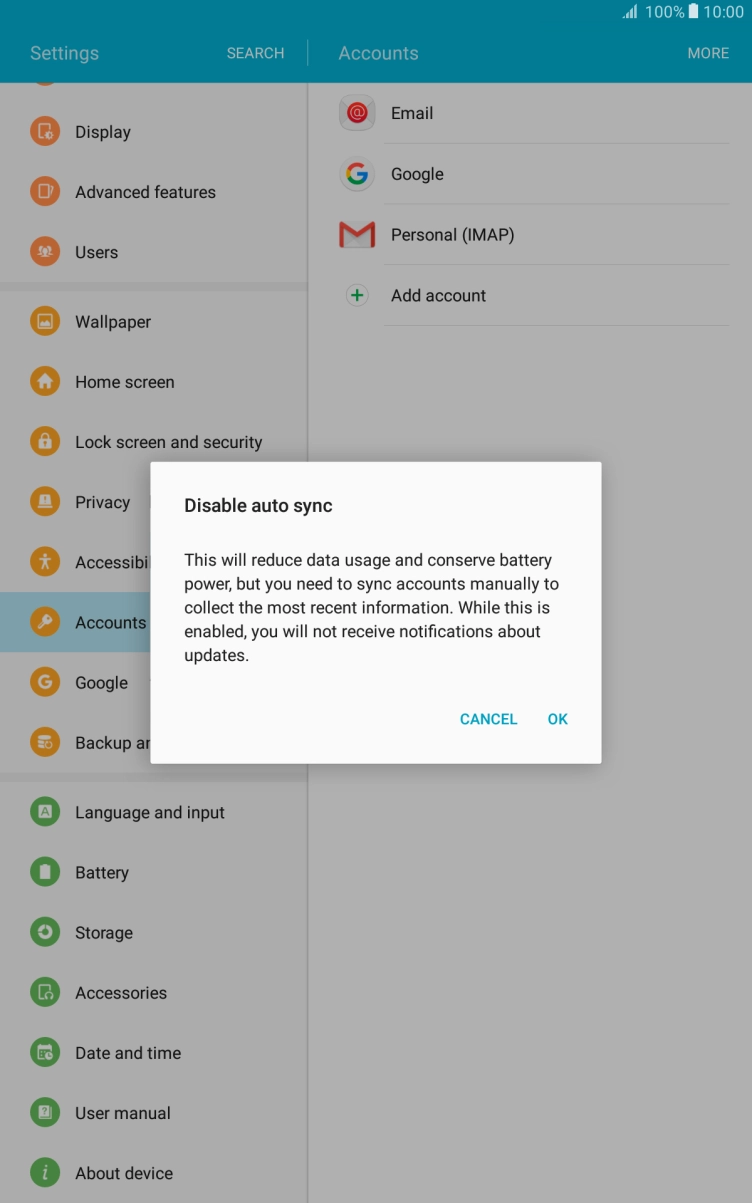
- Press Disable auto sync.
- Press OK to turn off the function.
- Press the Home key to return to the home screen.
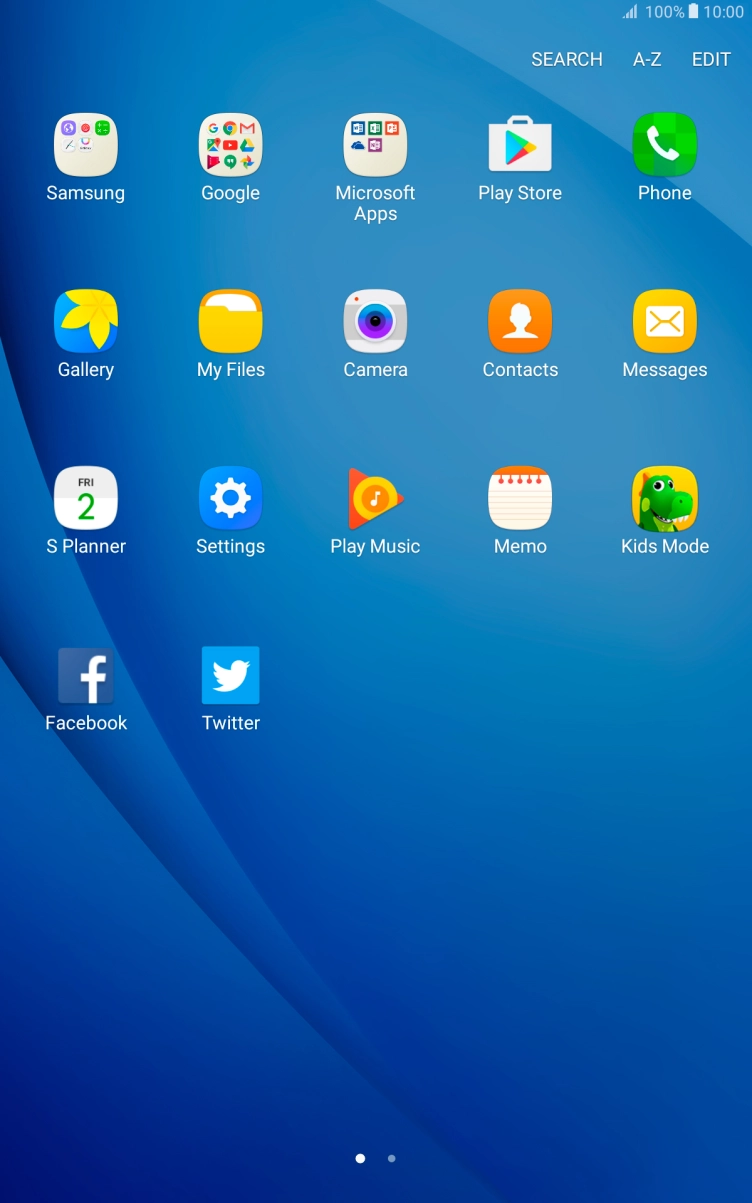
- Press Apps.
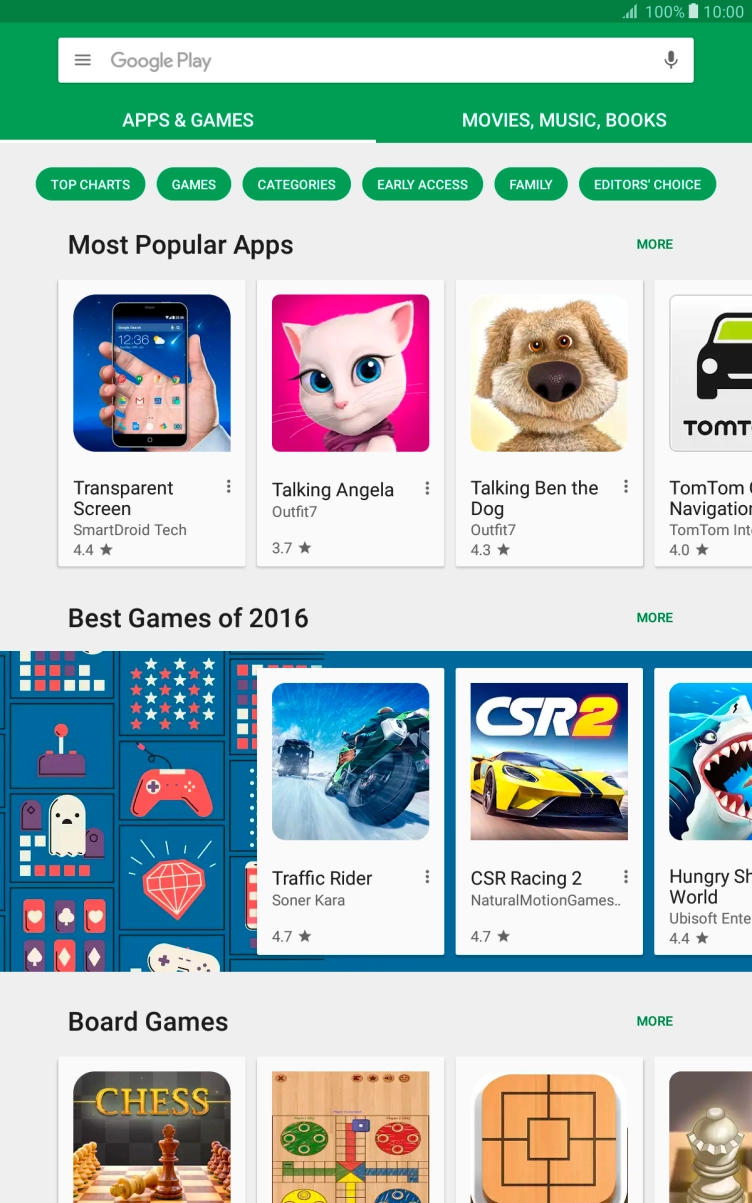
- Press Play Store.
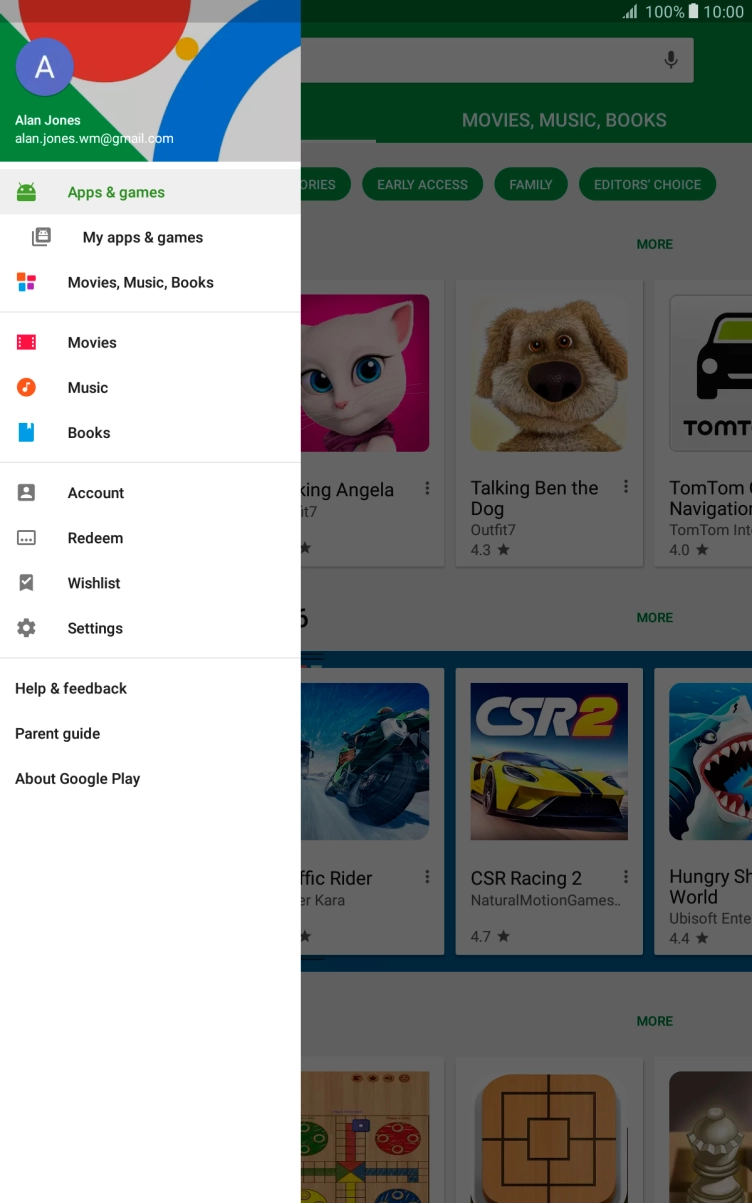
- Slide your finger right starting from the left side of the screen.
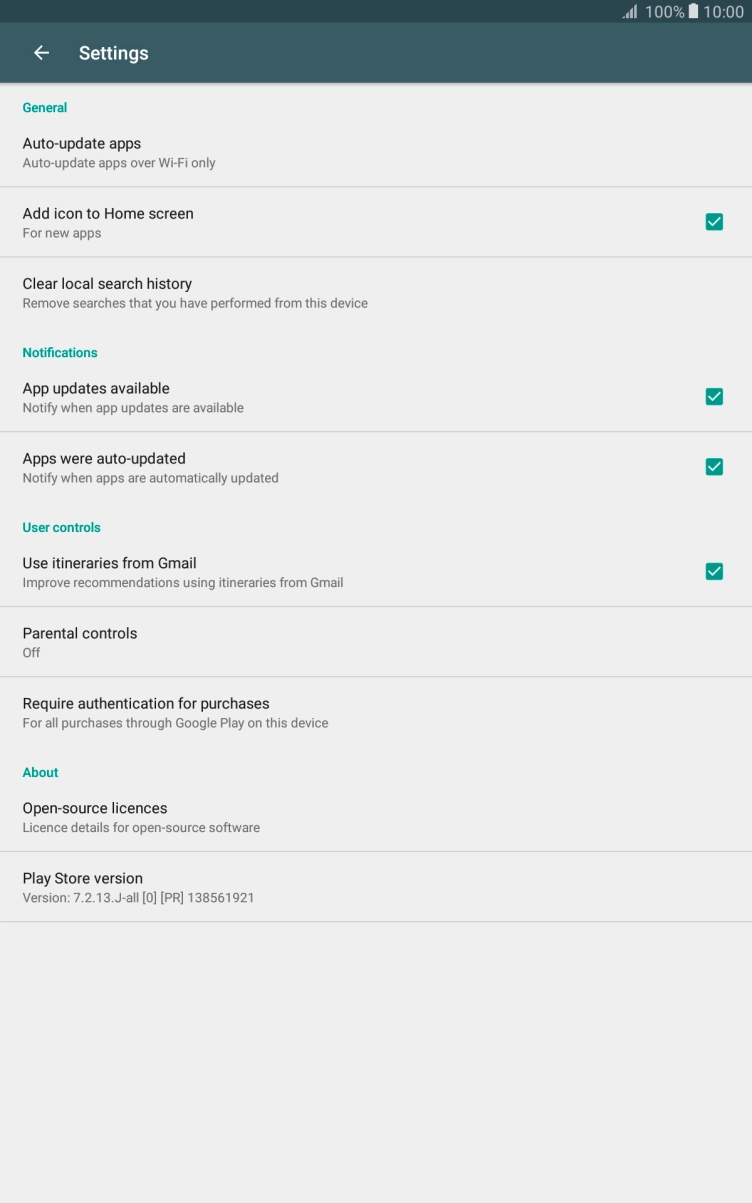
- Press Settings.
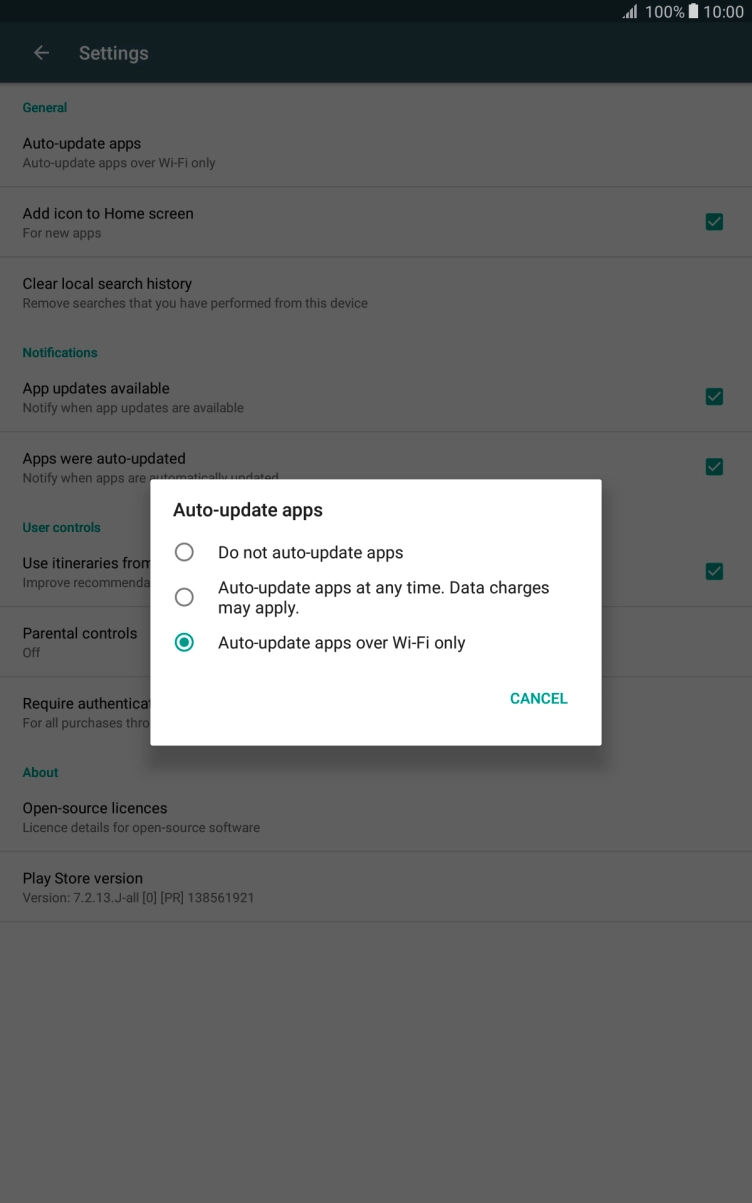
- Press Auto-update apps.
- Press Do not auto-update apps to turn off the function.
- Press Auto-update apps over Wi-Fi only to turn on the function.
- Press the Home key to return to the home screen.
1. Find 'Notifications'
Slide your finger downwards starting from the top of the screen.
- Slide your finger downwards starting from the top of the screen.
- Press the settings icon.
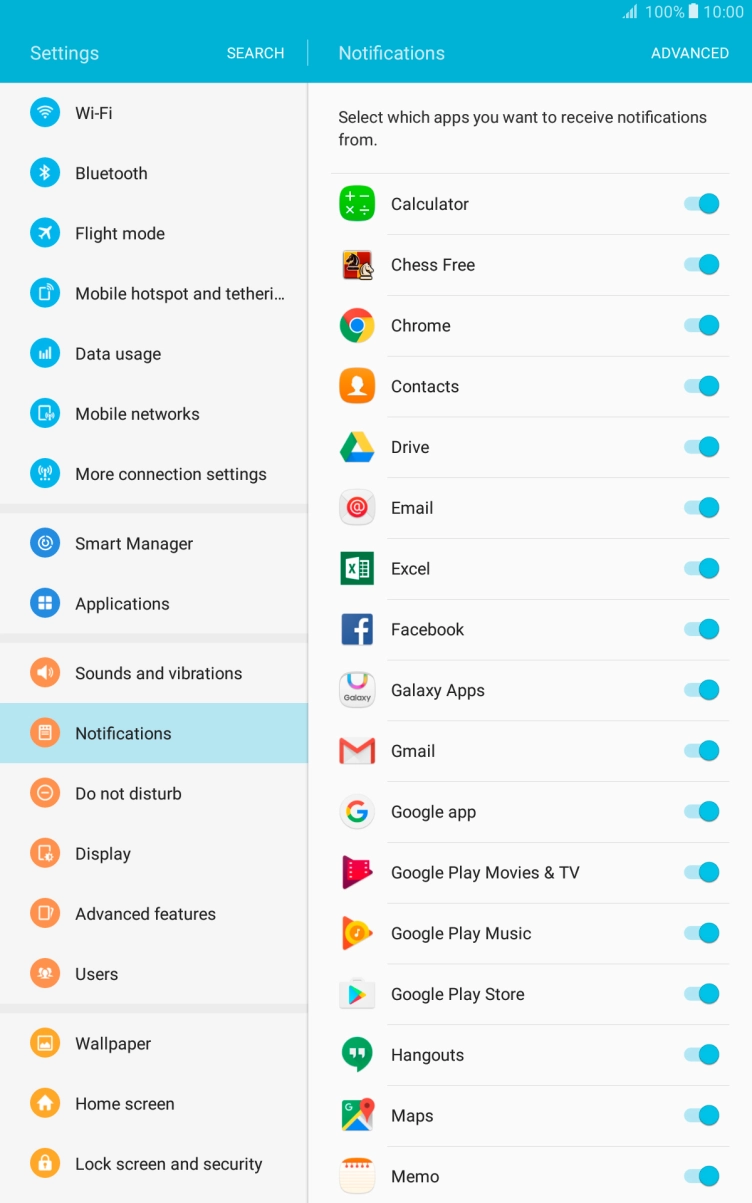
- Press Notifications.
- Press the indicator next to the required app to turn the function on or off.
- Press the indicator next to 'Email' to turn the function on or off.
- Press the Home key to return to the home screen.
Turn off Bluetooth.
Turn off vibration.
Turn off NFC.
Go to the manufacturer's website to see if it's possible to change the battery.
1. Find 'Power saving mode'
Slide your finger downwards starting from the top of the screen.
- Slide your finger downwards starting from the top of the screen.

- Press the settings icon.
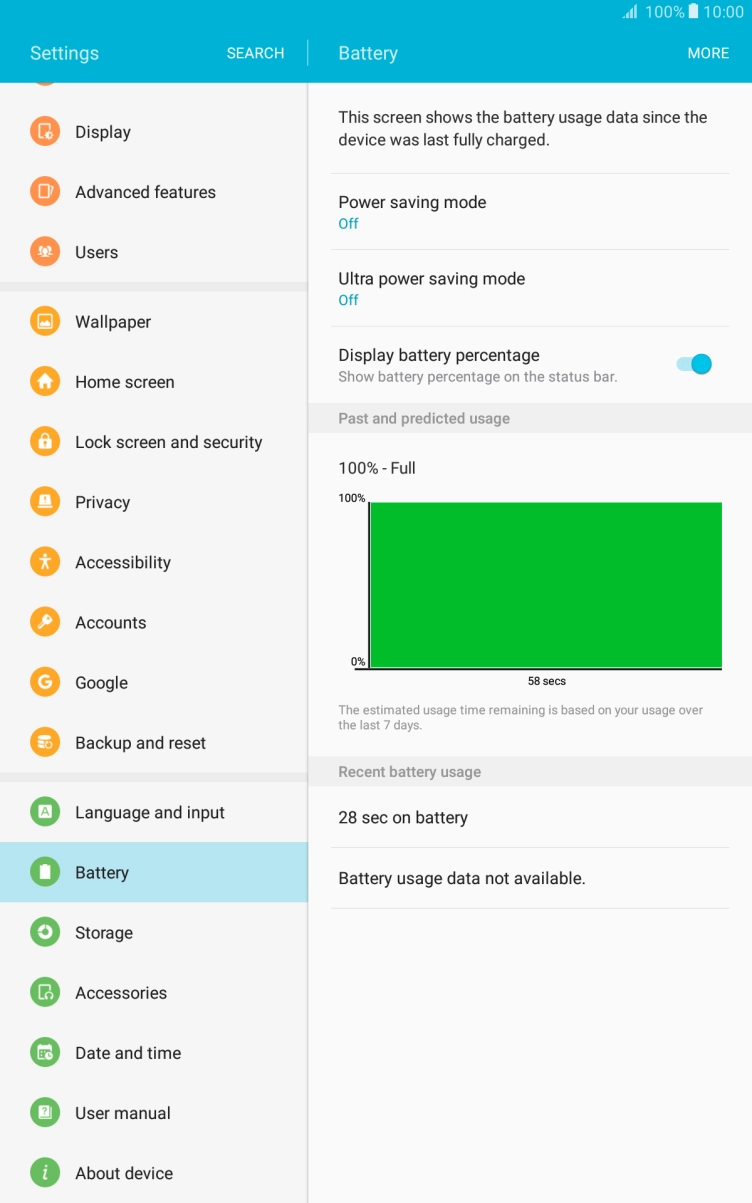
- Press Battery.
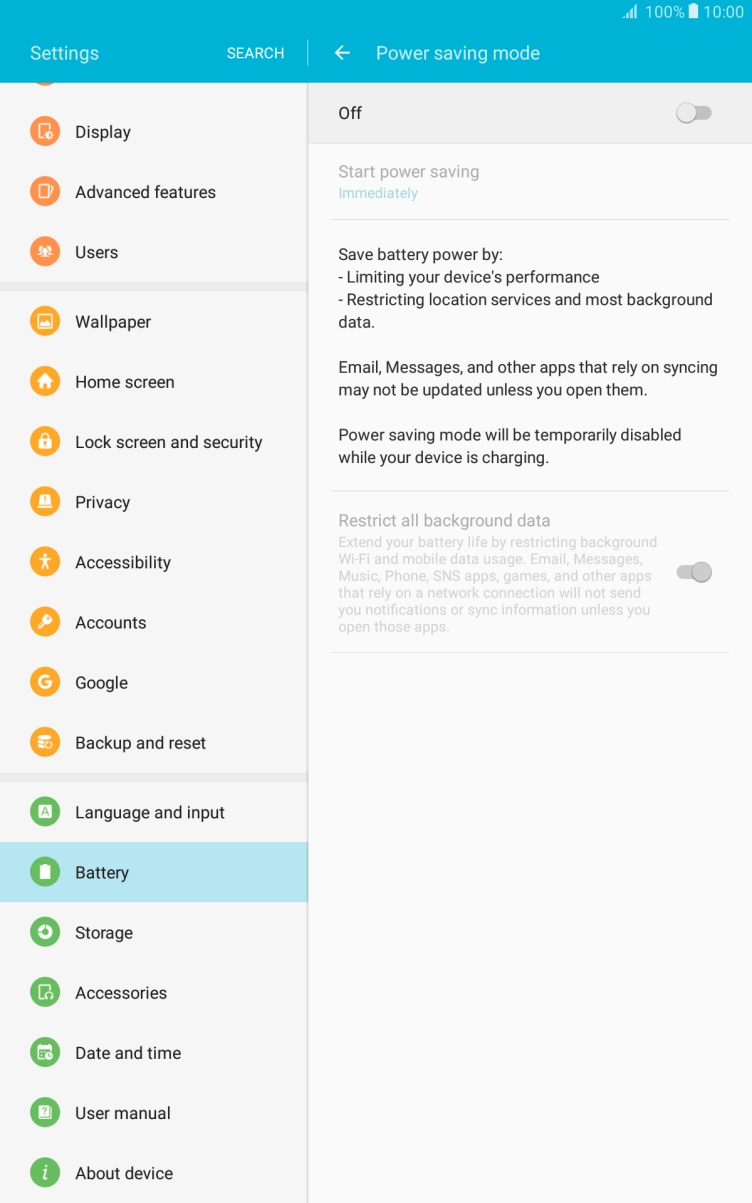
- Press Power saving mode.
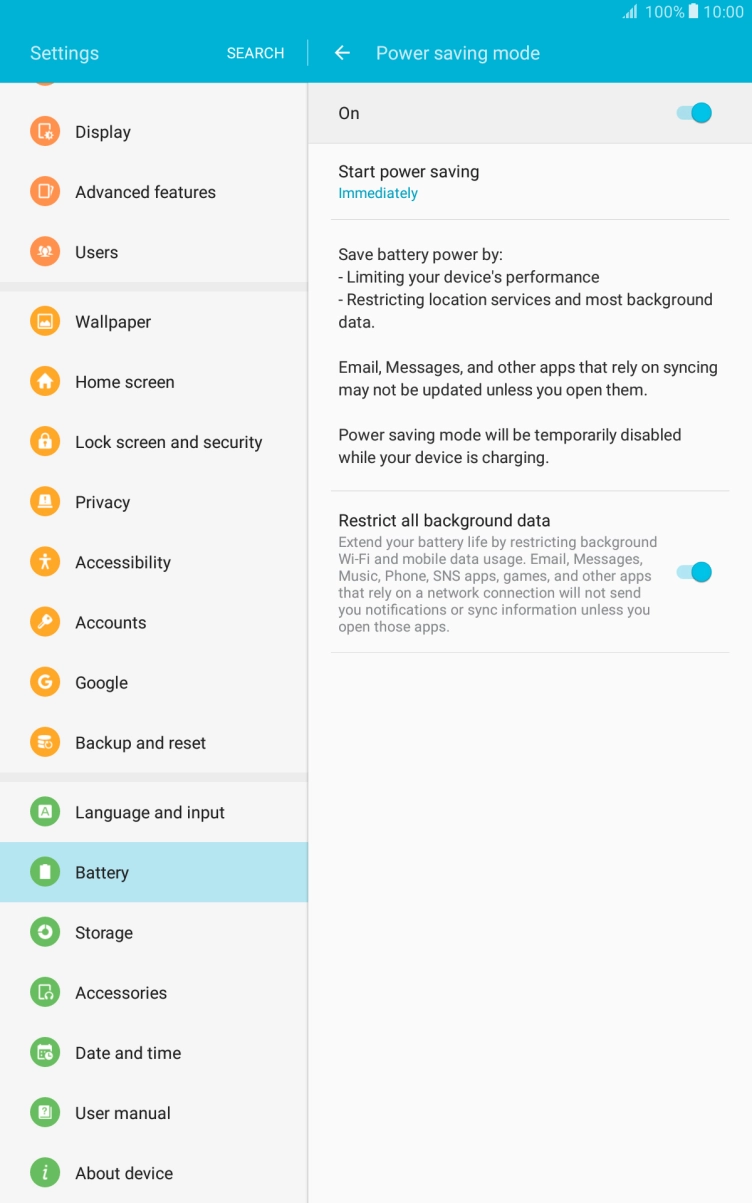
- Press the indicator to turn on the function.
- Press the Home key to return to the home screen.
1. Find 'Location'
Slide your finger downwards starting from the top of the screen.
- Slide your finger downwards starting from the top of the screen.
- Press the settings icon.
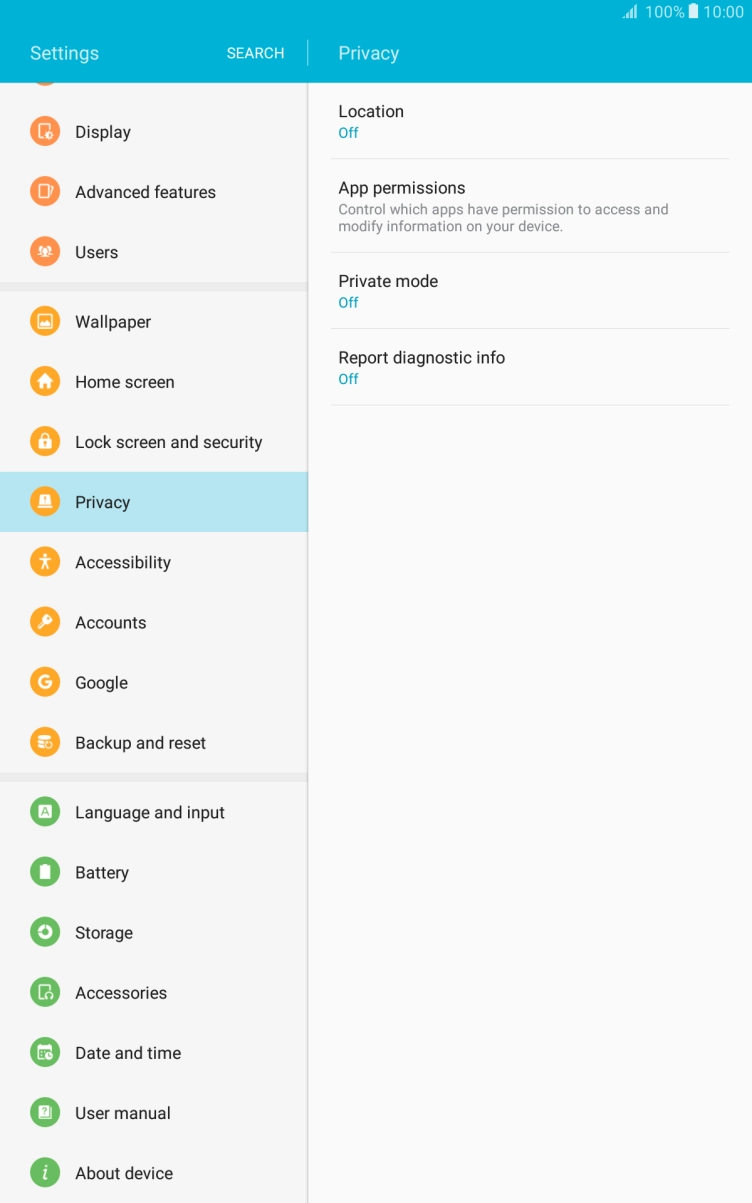
- Press Privacy.
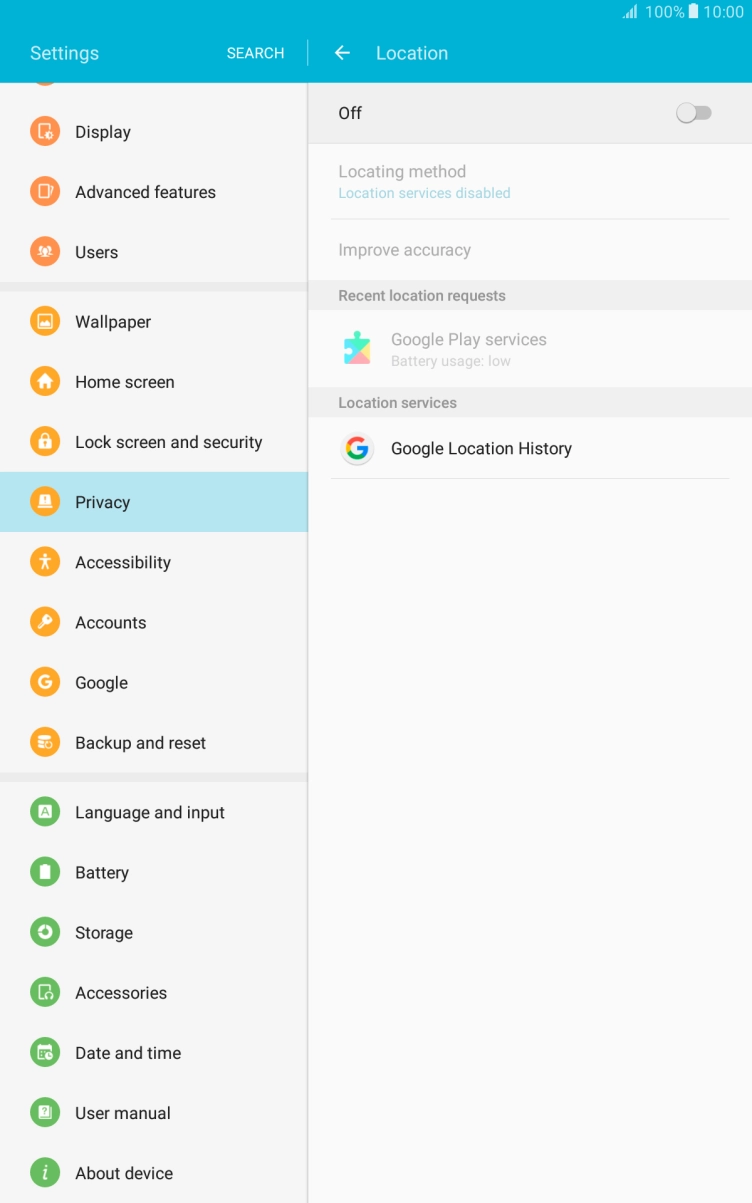
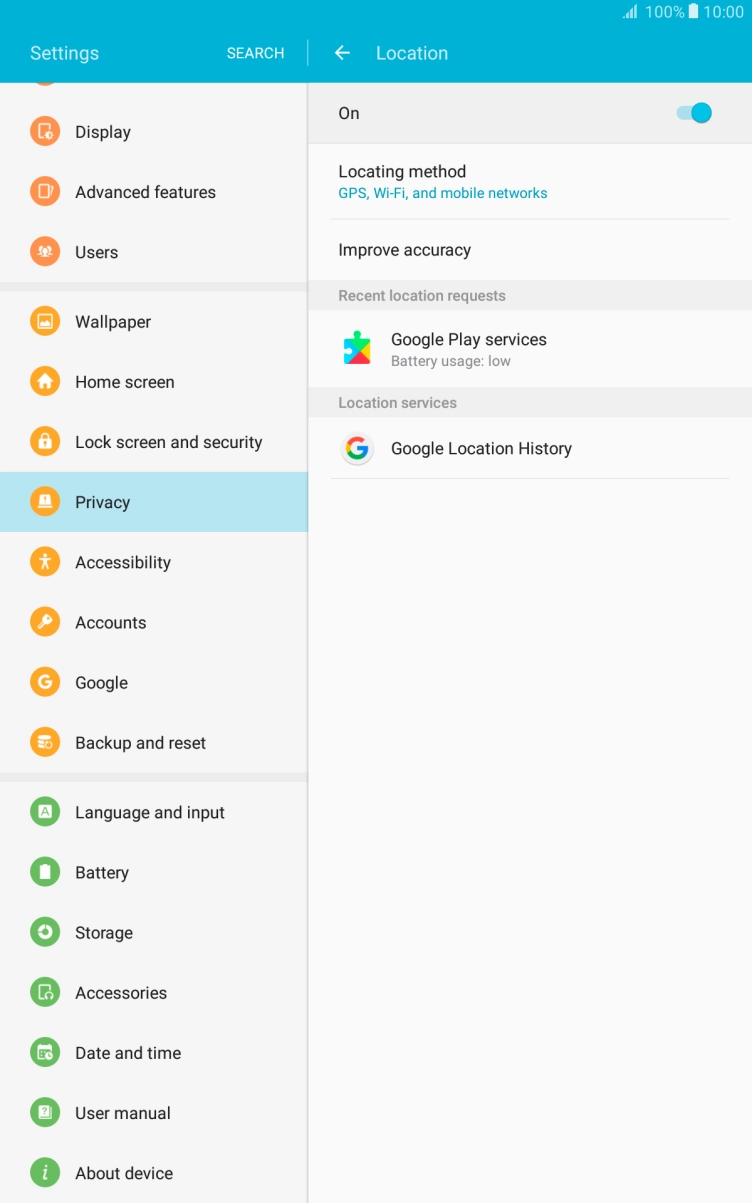
- Press Location.
- Press the indicator to turn the function on or off.If you turn on use of GPS position, your tablet can find your position using GPS. If you turn off the function, you can't use any GPS functions on your tablet.
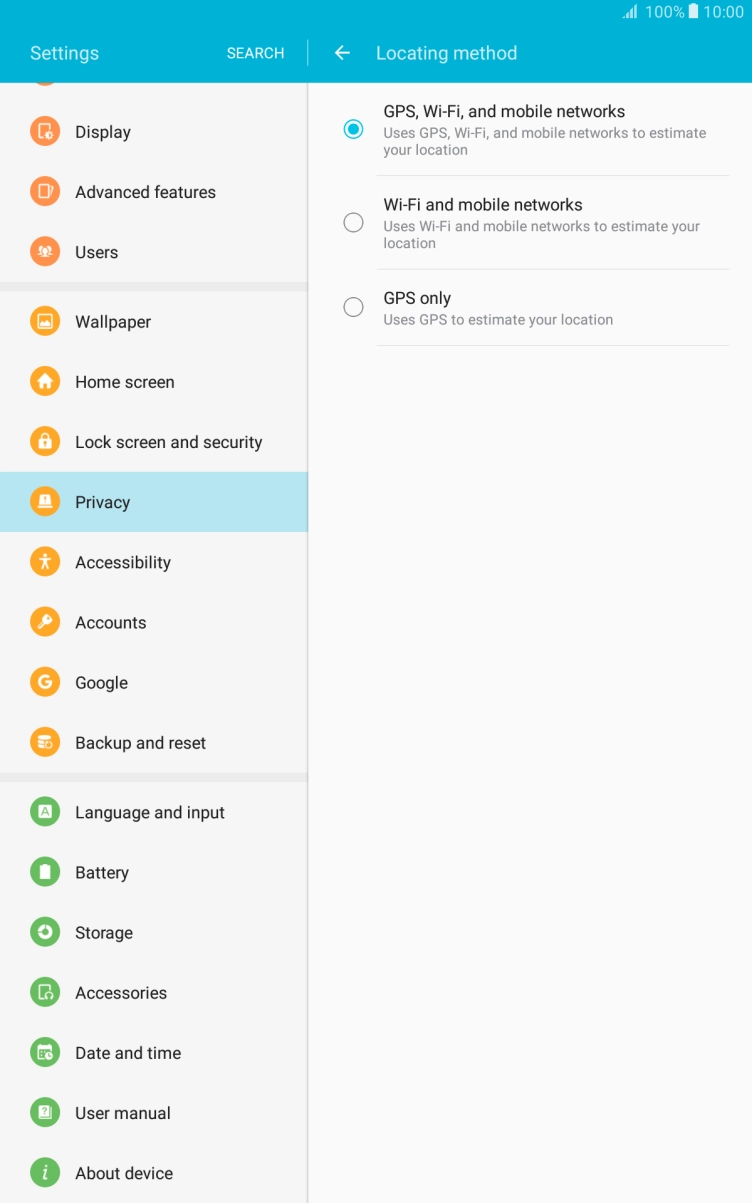
- Press Locating method.
- If you select GPS, Wi-Fi, and mobile networks, your tablet can find your exact position using the GPS satellites, the mobile network and nearby WiFi networks. Satellite-based GPS requires a clear view of the sky.
- If you select Wi-Fi and mobile networks, your tablet can find your approximate position using the mobile network and nearby WiFi networks.
- If you select GPS only, your tablet can find your exact position but it may take longer as there is no access to supplementary information from the mobile network or nearby WiFi networks.
- Press the Home key to return to the home screen.
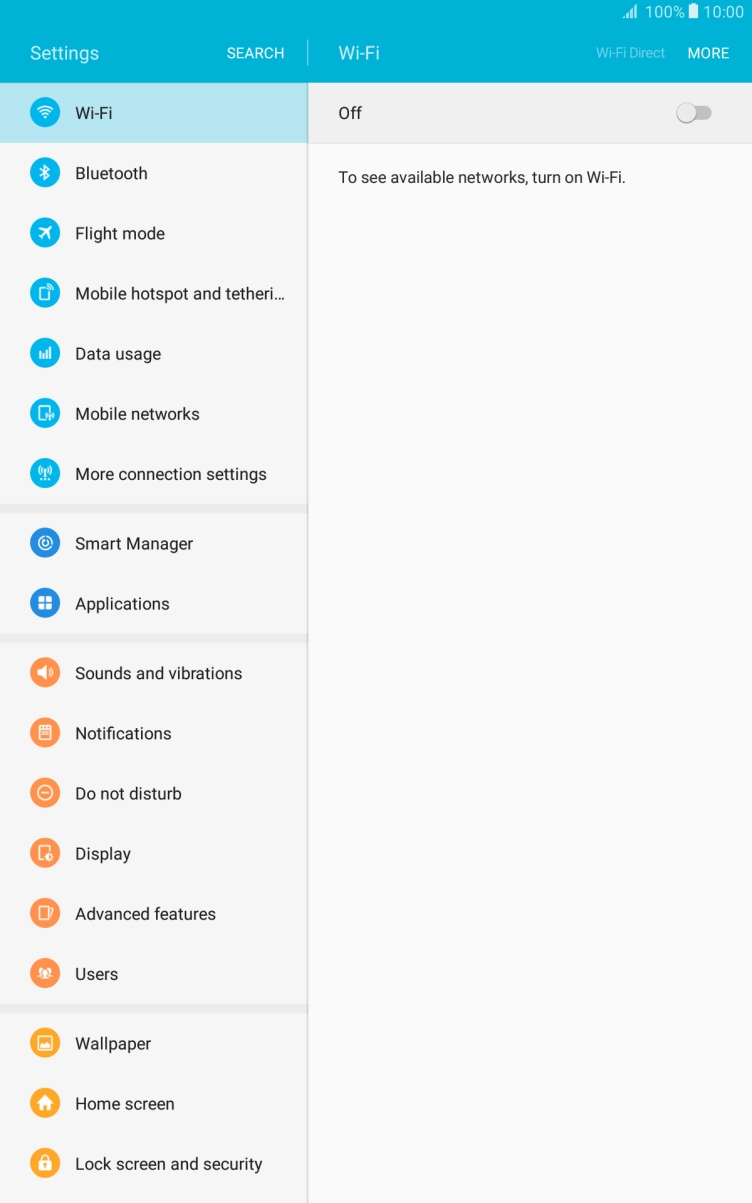
Turn off WiFi.