I have problems sending and receiving picture messages on my OPPO Find X2 Pro
If you can't send and receive picture messages, there may be several causes of the problem.
Step 1 of 30
Step 1 of 30
1. Find 'Access Point Name'
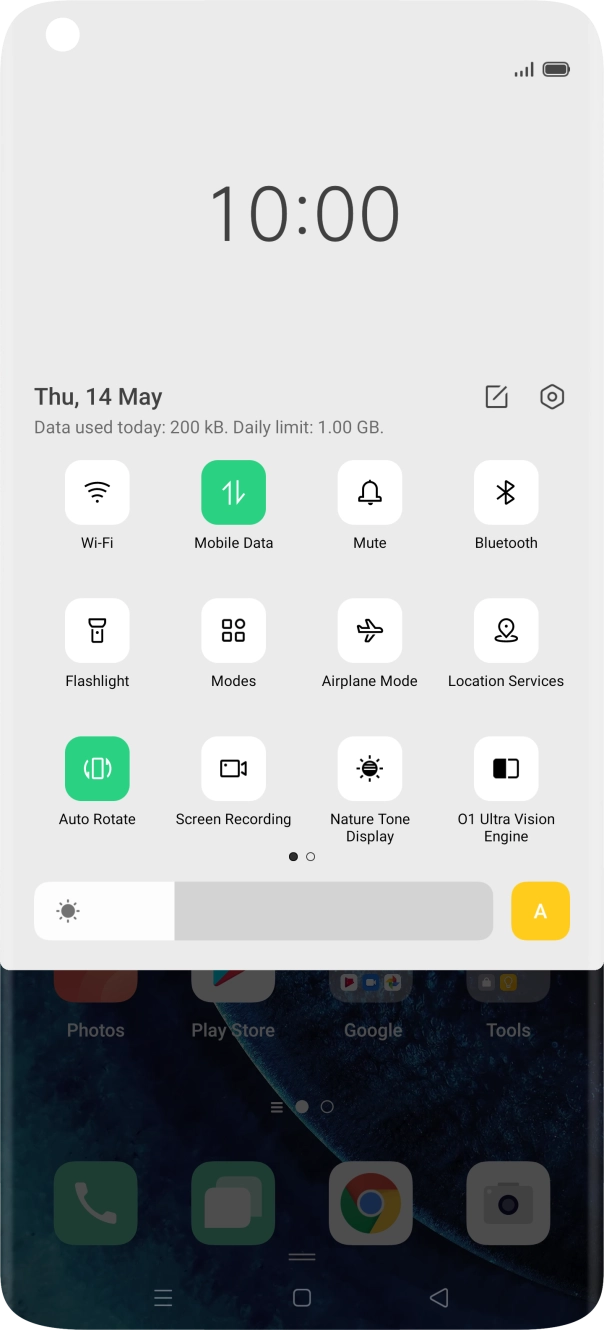
Slide two fingers downwards starting from the top of the screen.
- Slide two fingers downwards starting from the top of the screen.
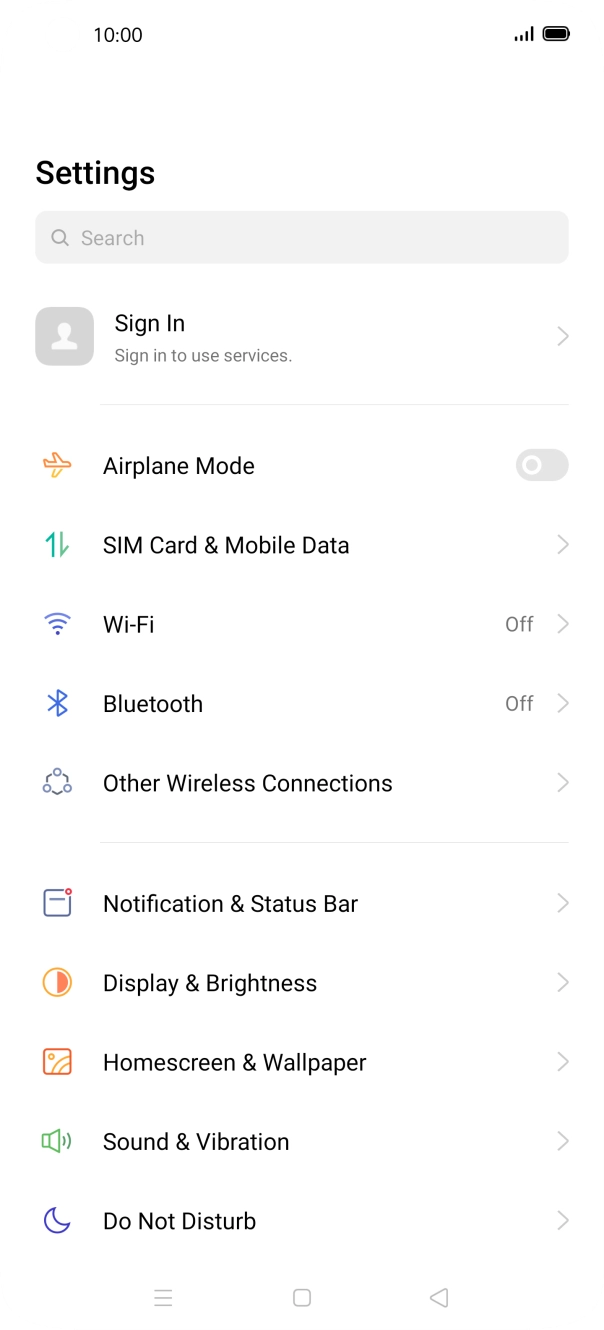
- Press the settings icon.
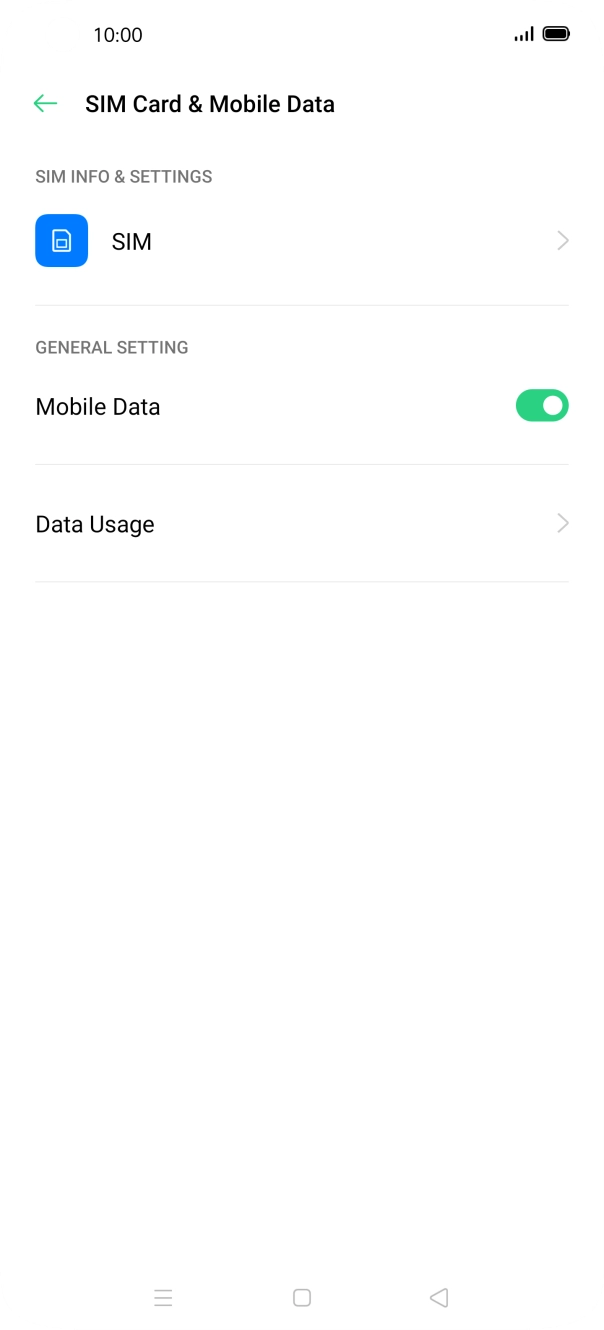
- Press SIM Card & Mobile Data.
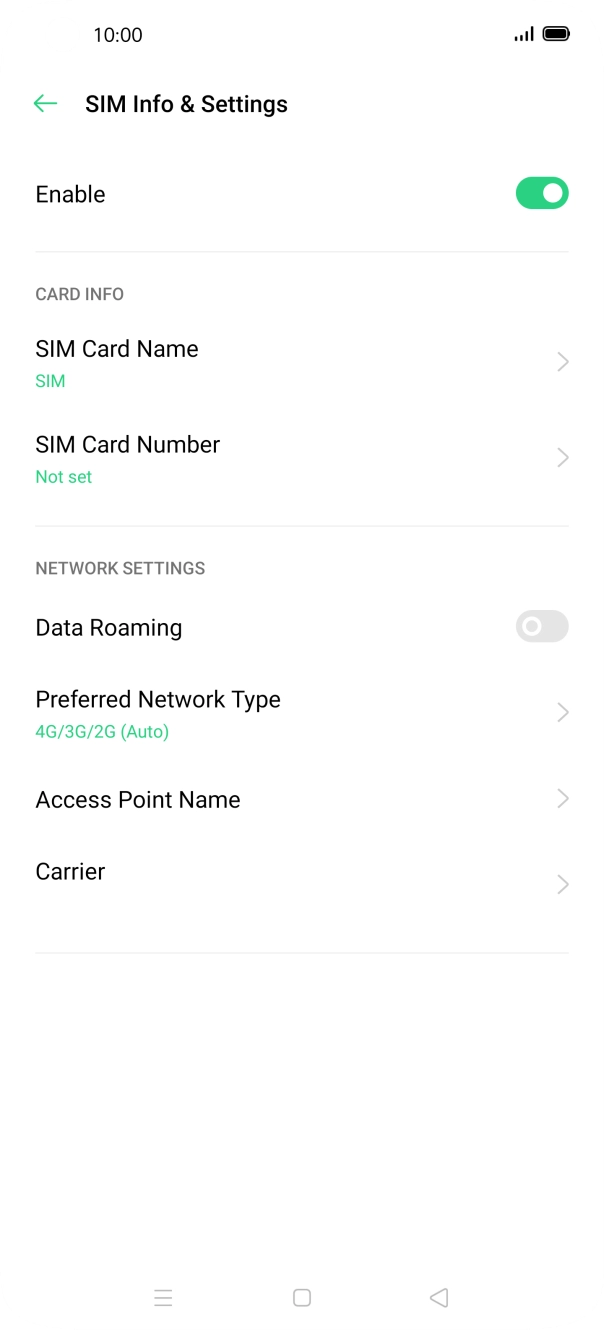
- Press the name of the SIM.
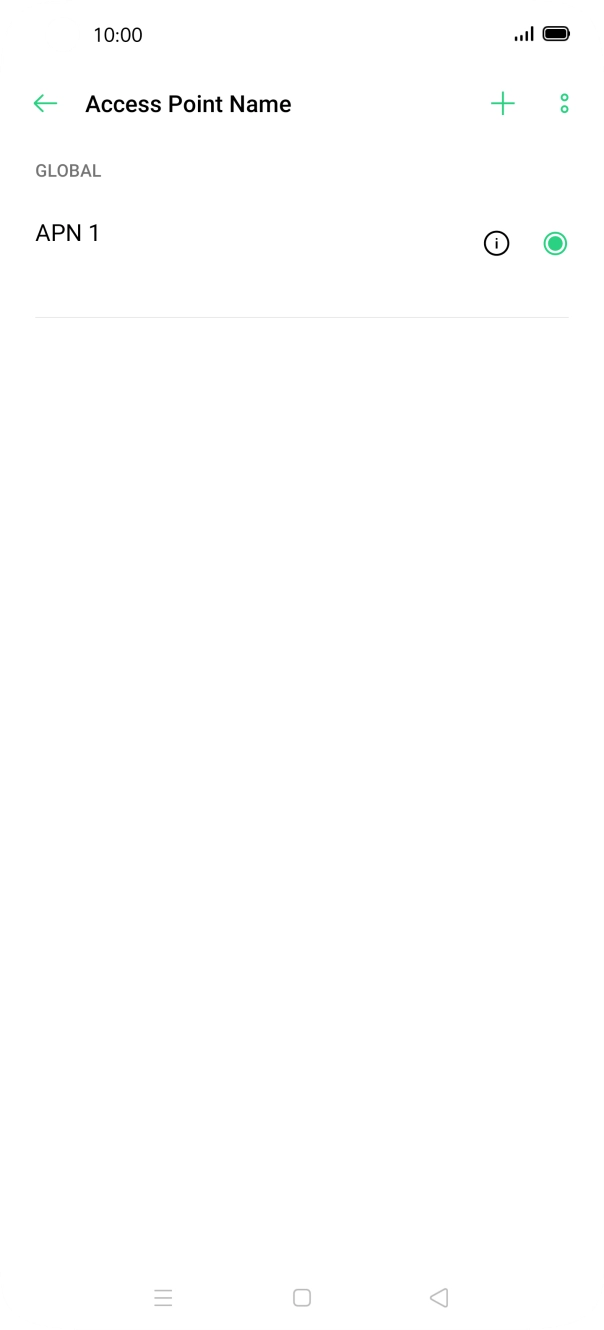
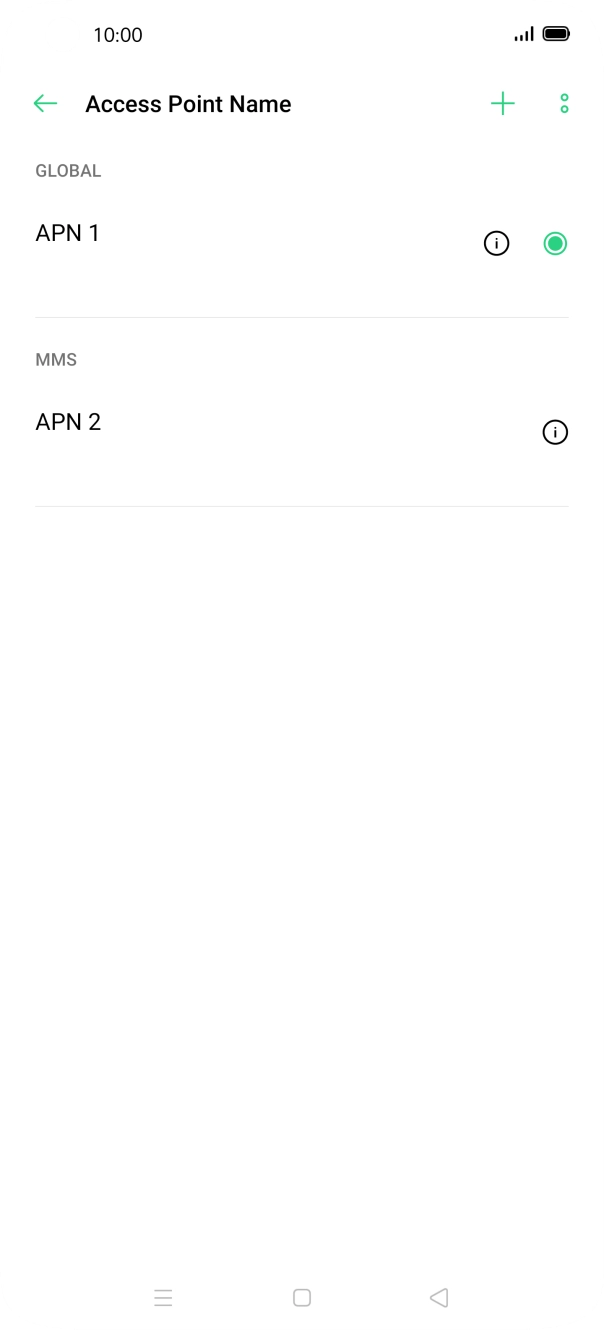
- Press Access Point Name.
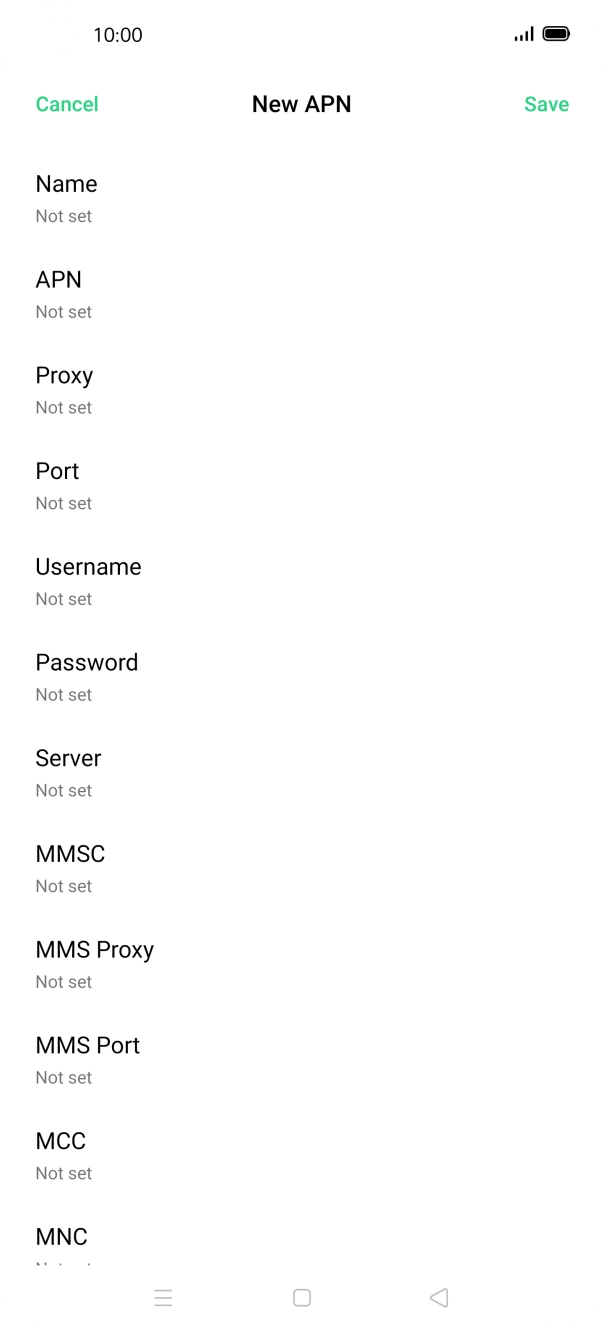
- Press the add icon.
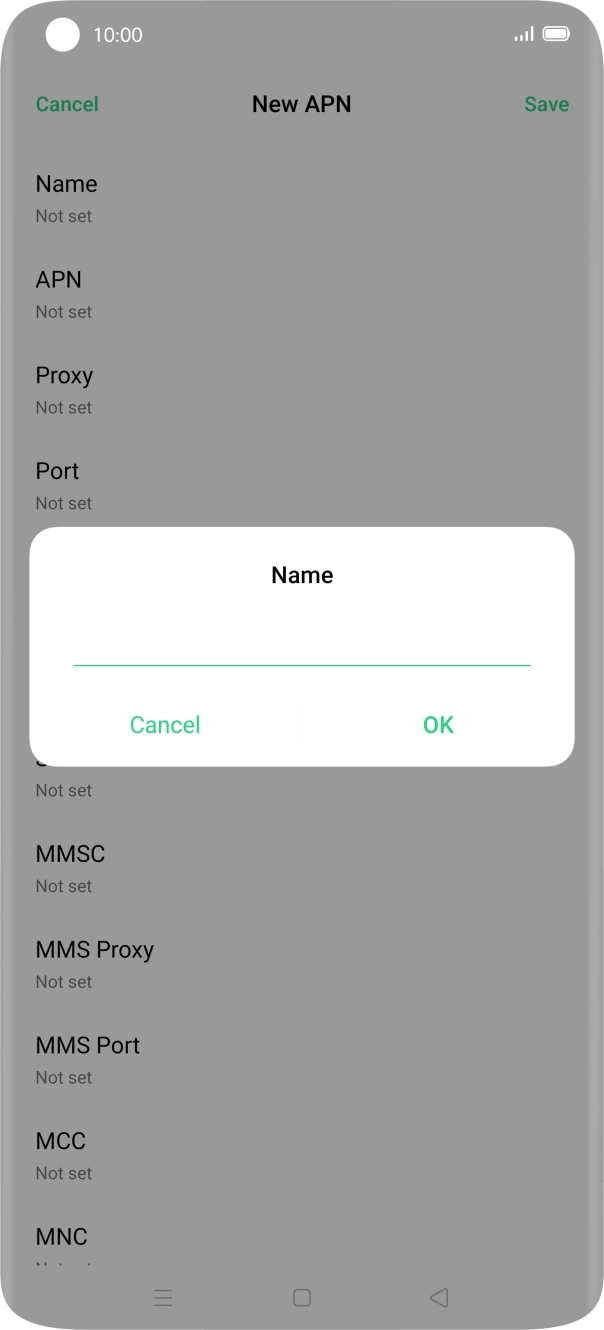
- Press Name.
- Key in O2 UK MMS and press OK.
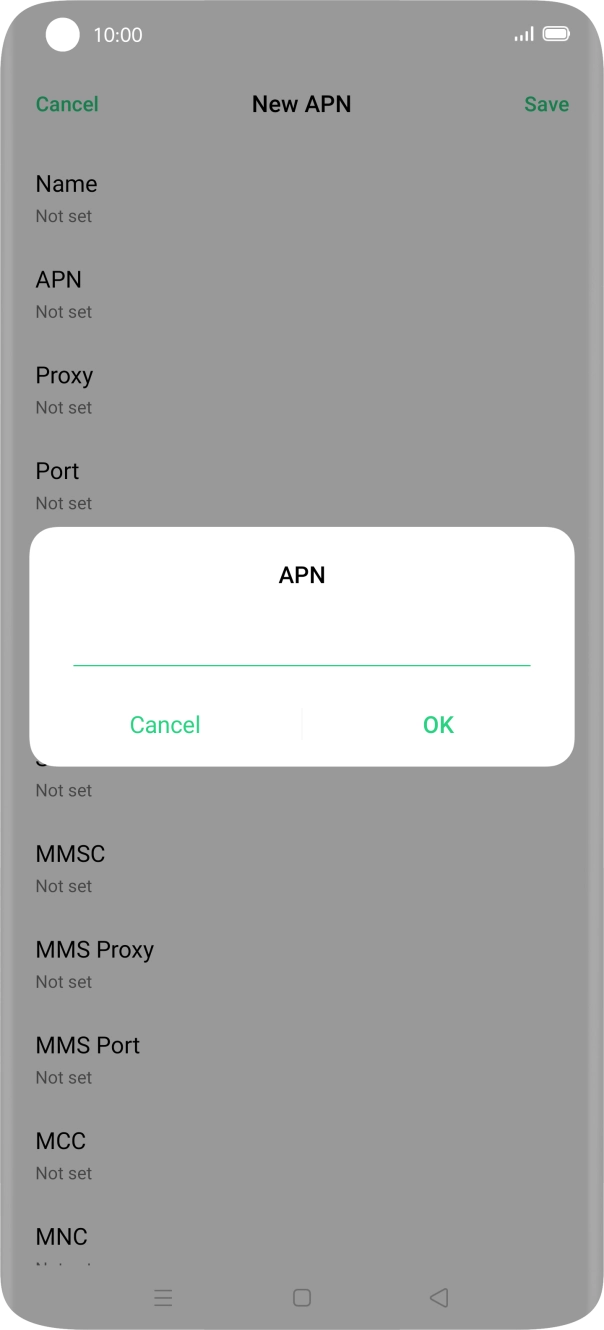
- Press APN.
- Key in wap.o2.co.uk and press OK.
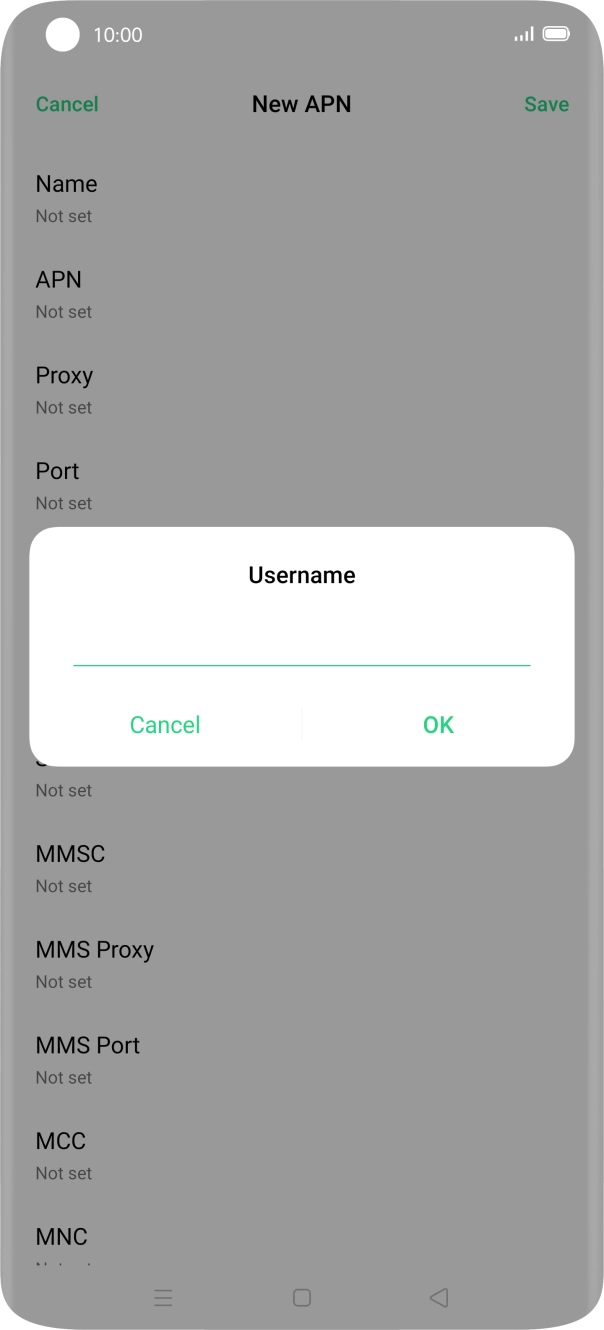
- Press Username.
- Key in o2wap and press OK.
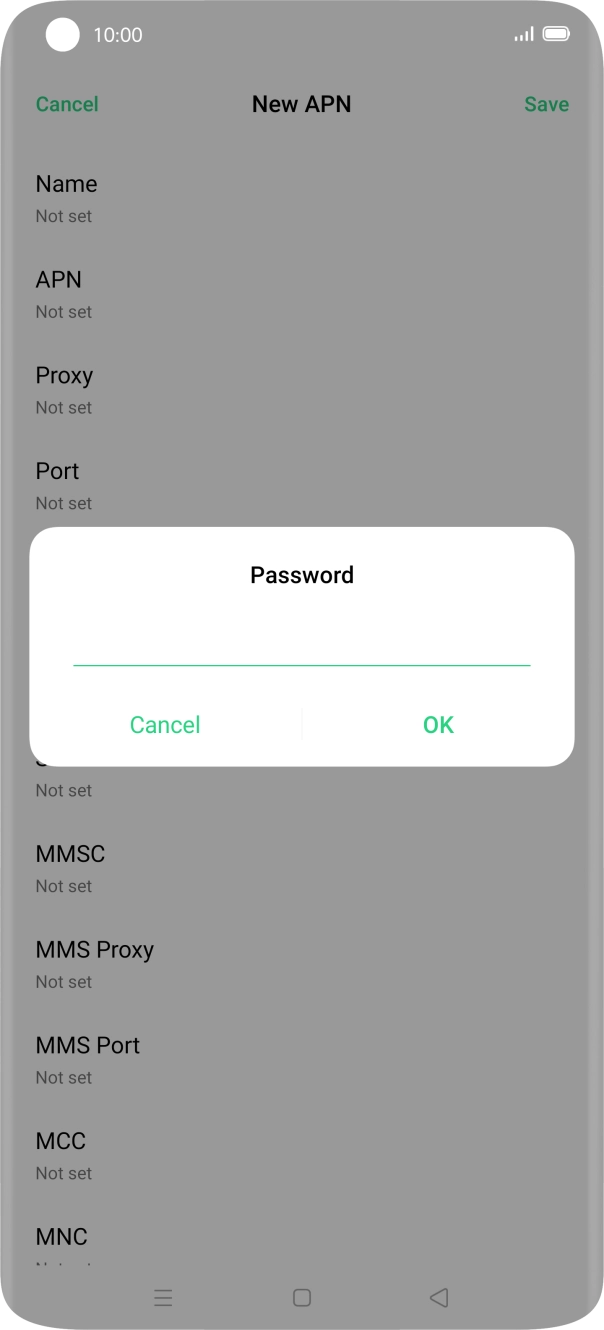
- Press Password.
- Key in password and press OK.
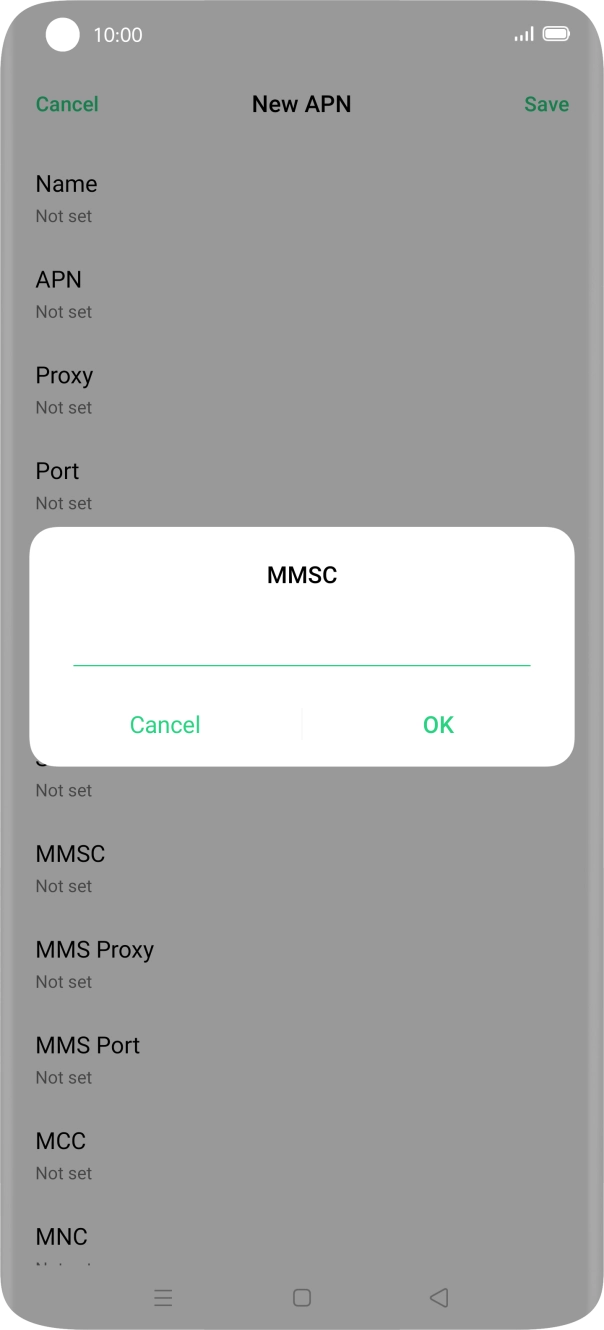
- Press MMSC.
- Key in http://mmsc.mms.o2.co.uk:8002 and press OK.
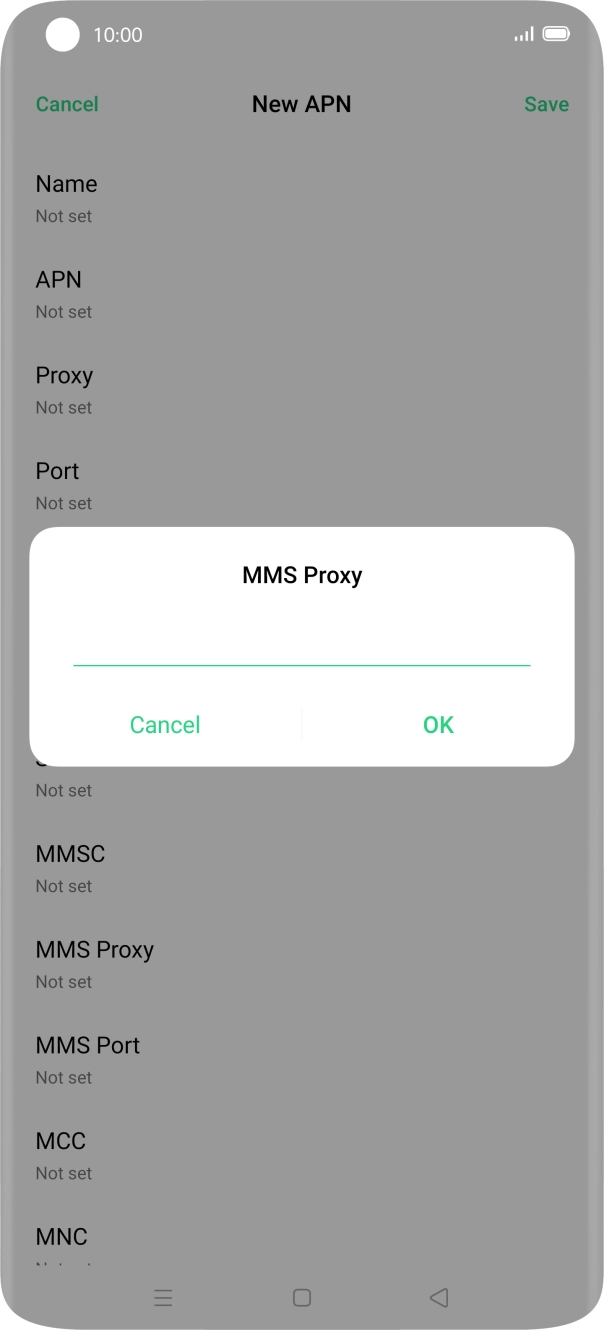
- Press MMS Proxy.
- Key in 82.132.254.1 and press OK.
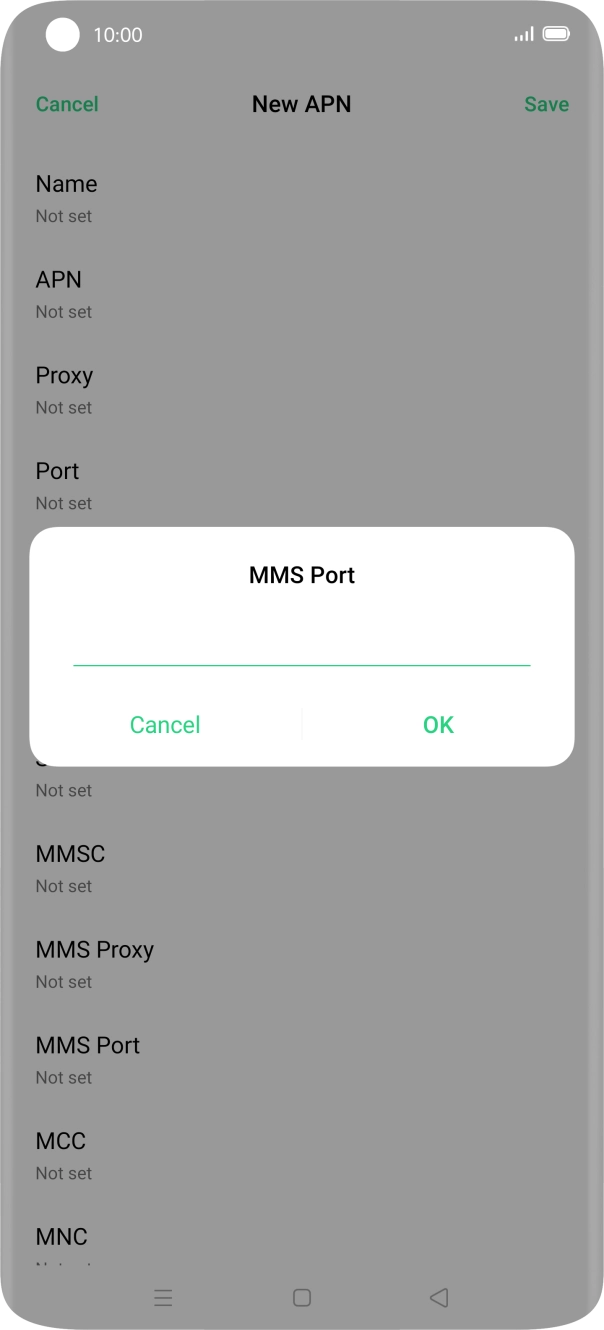
- Press MMS Port.
- Key in 8080 and press OK.
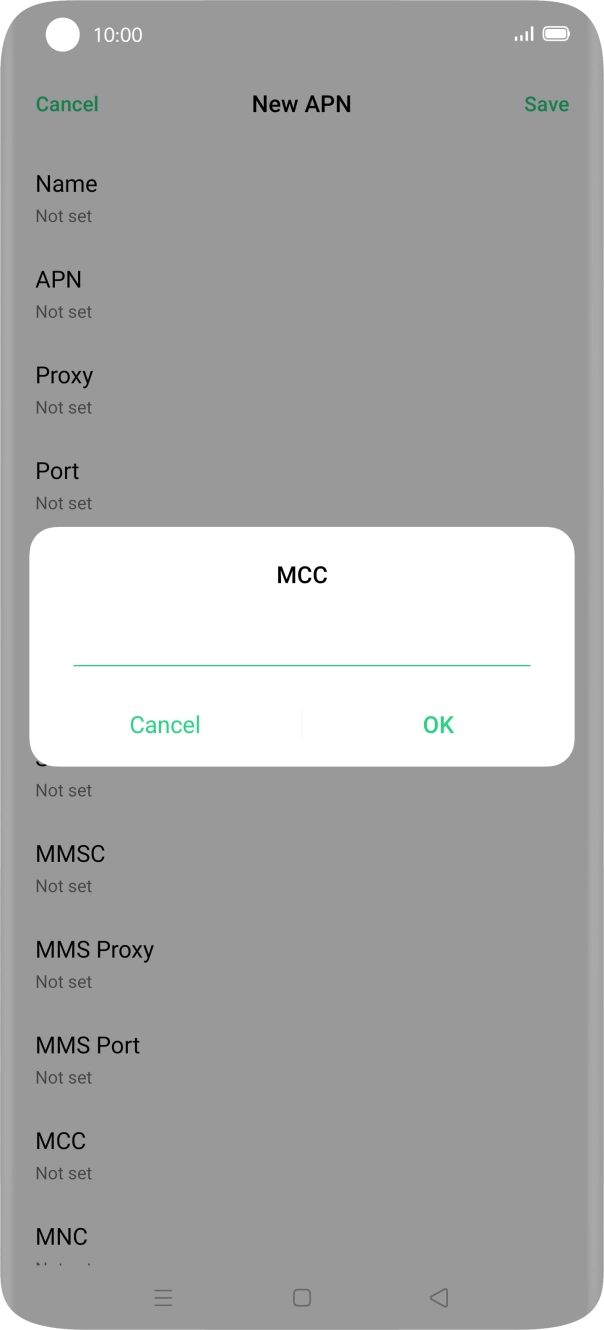
- Press MCC.
- Key in 234 and press OK.
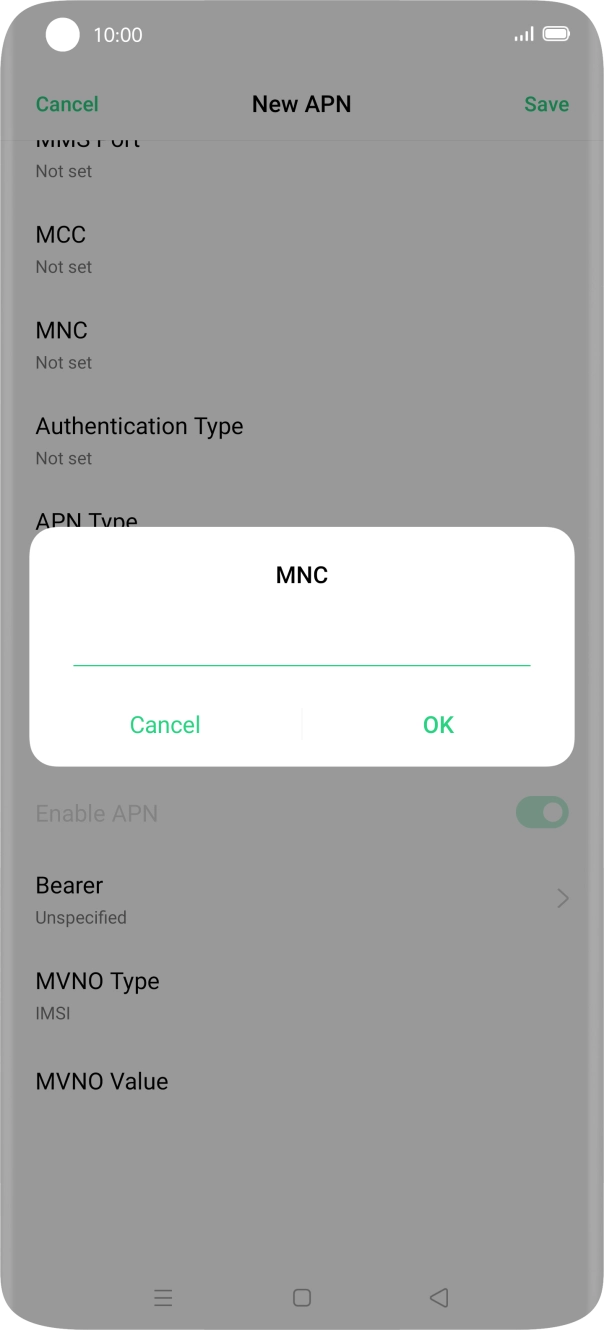
- Press MNC.
- Key in 10 and press OK.
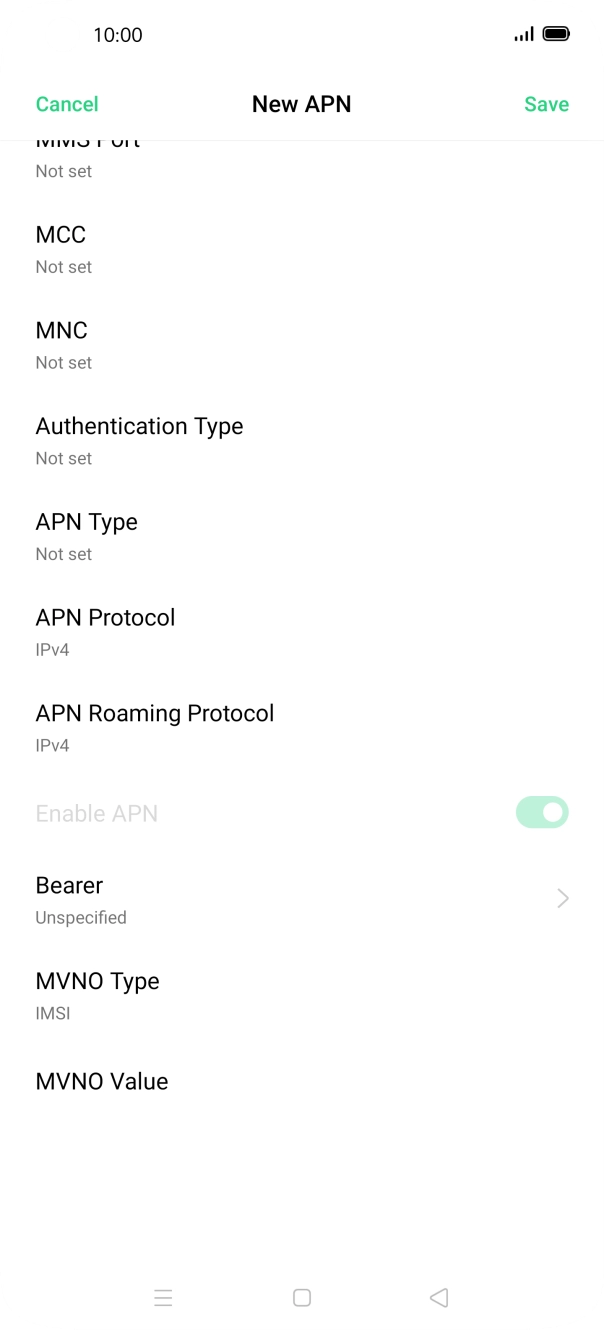
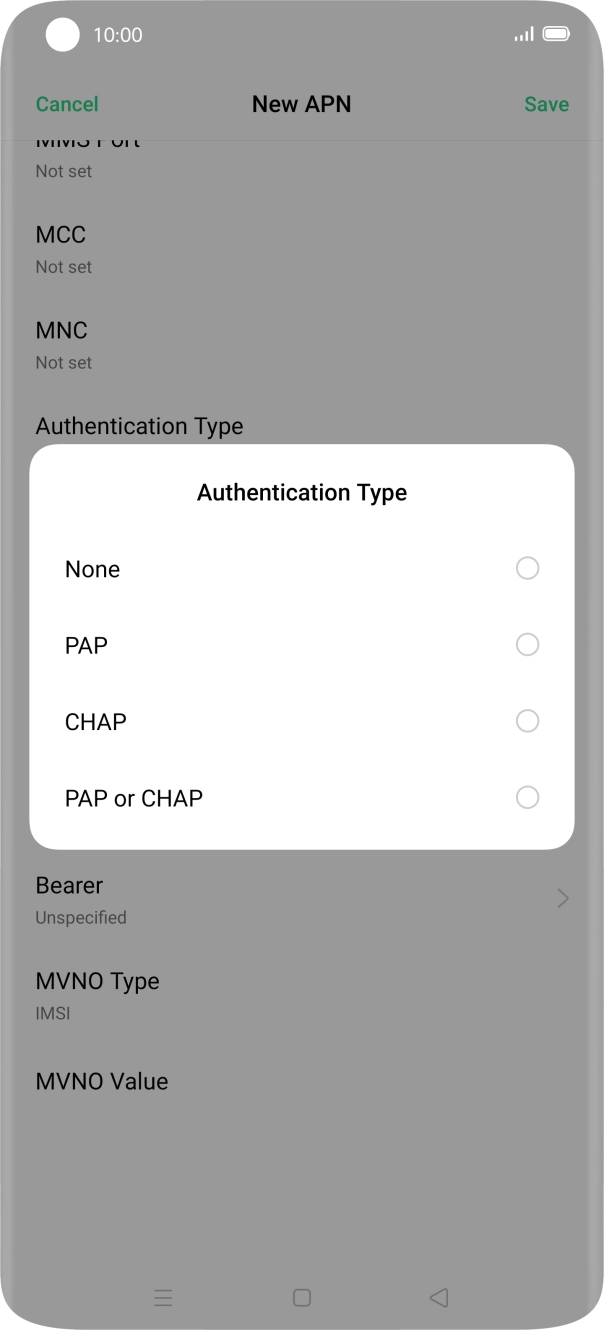
- Press Authentication Type.
- Press PAP.
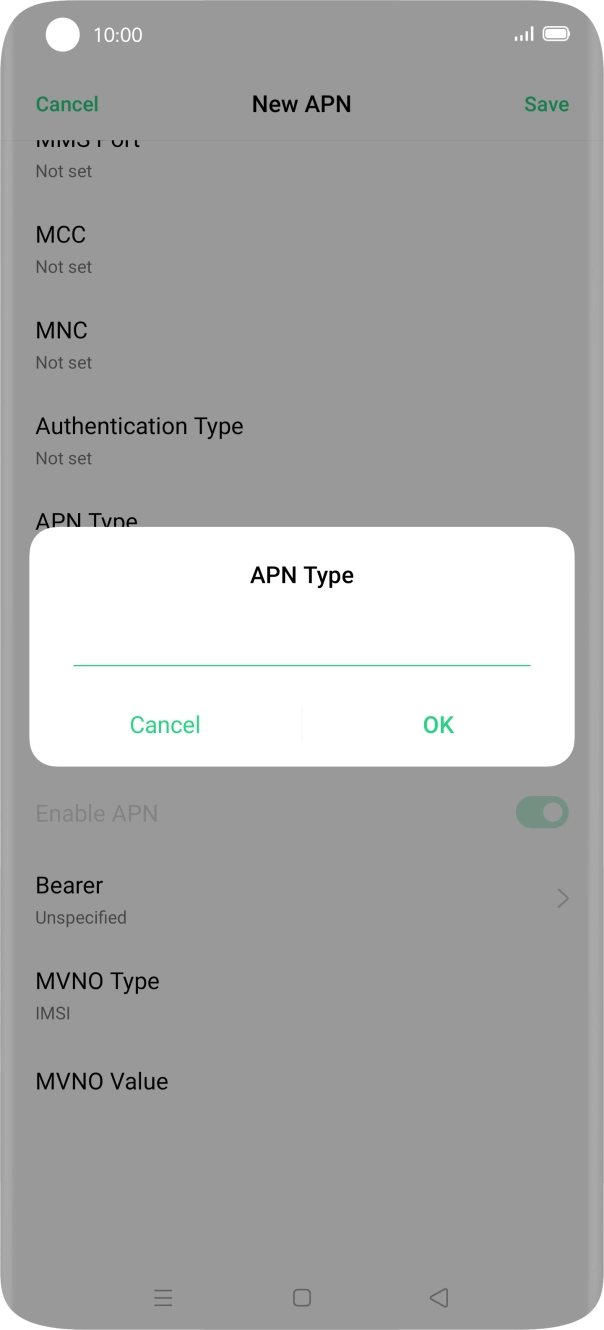
- Press APN Type.
- Key in mms and press OK.
- Press Save.
- Press the Home key to return to the home screen.
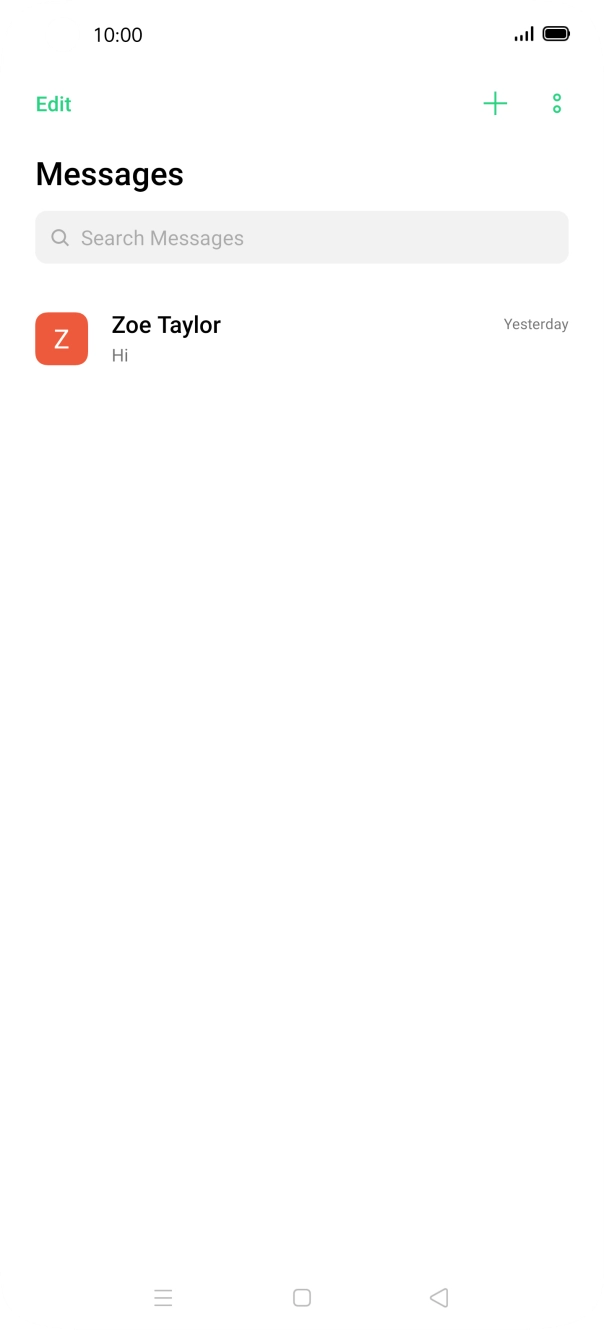
- Press the message icon.
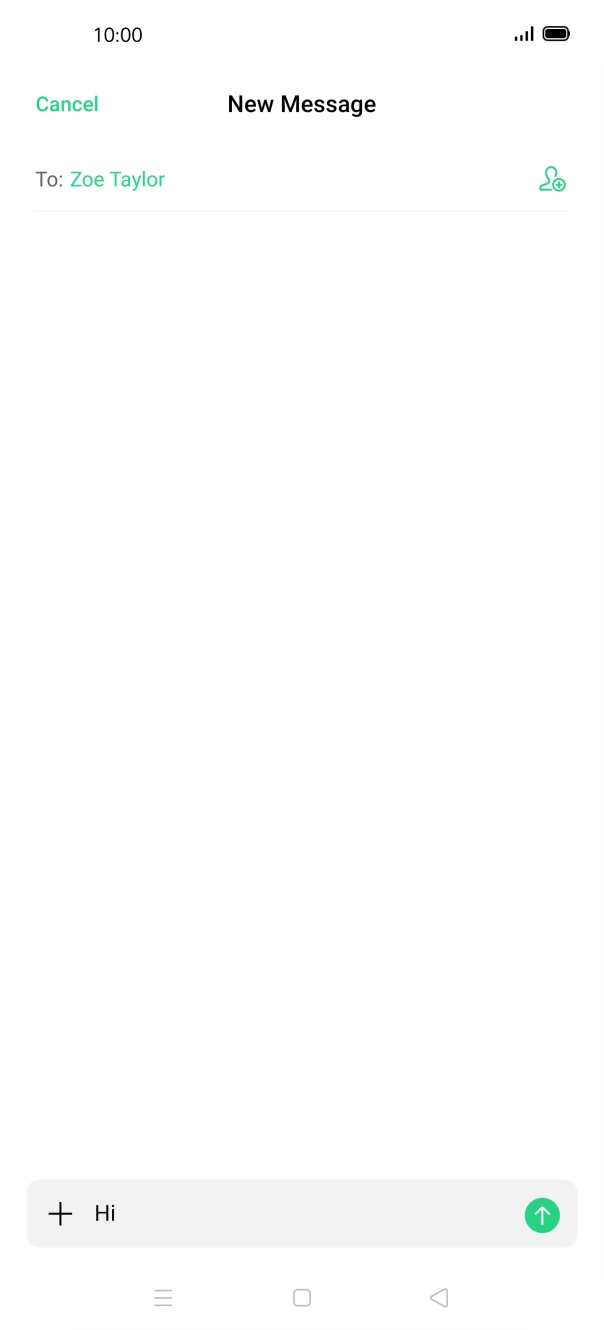
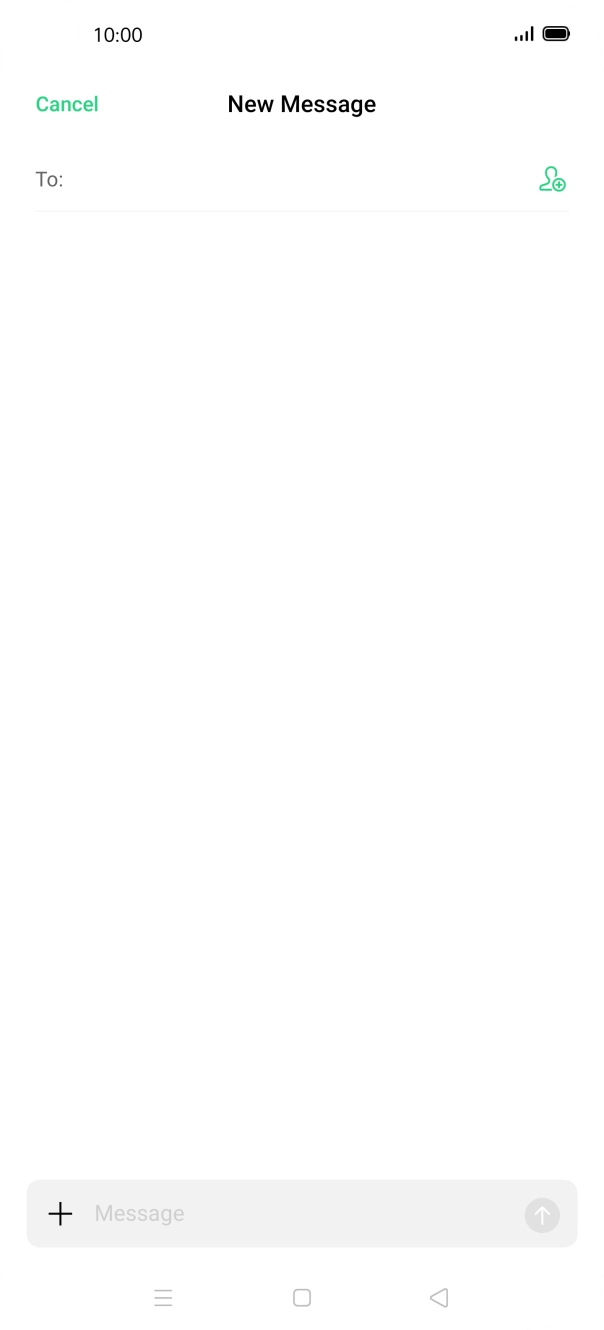
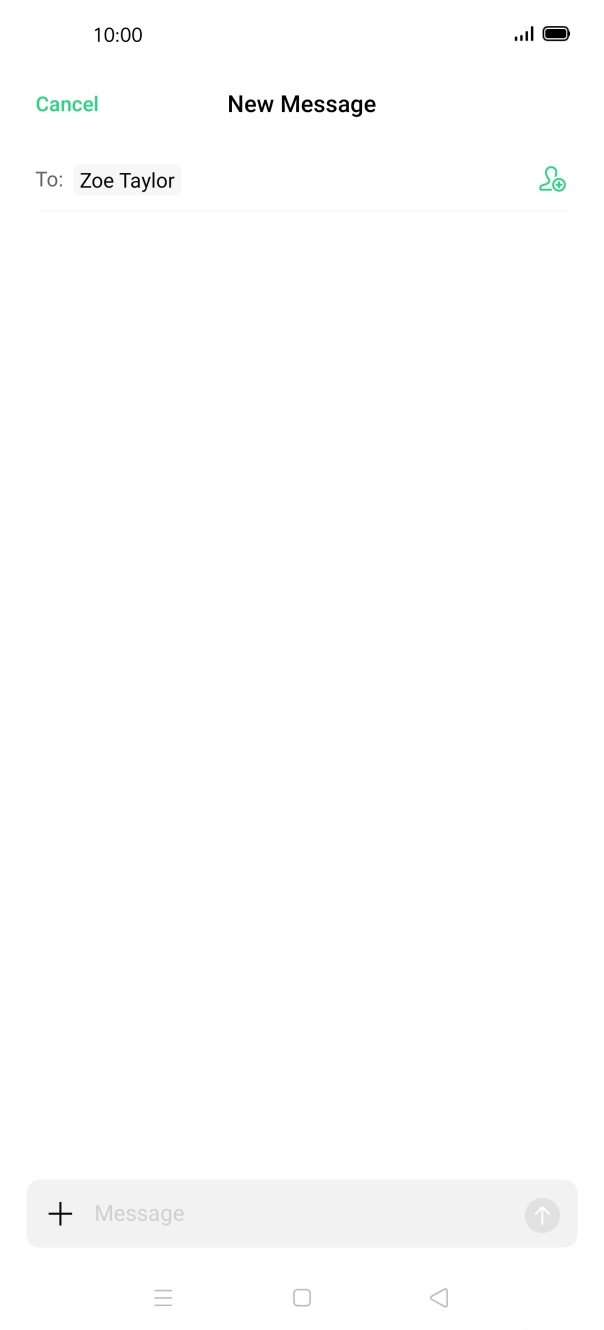
- Press the new message icon.
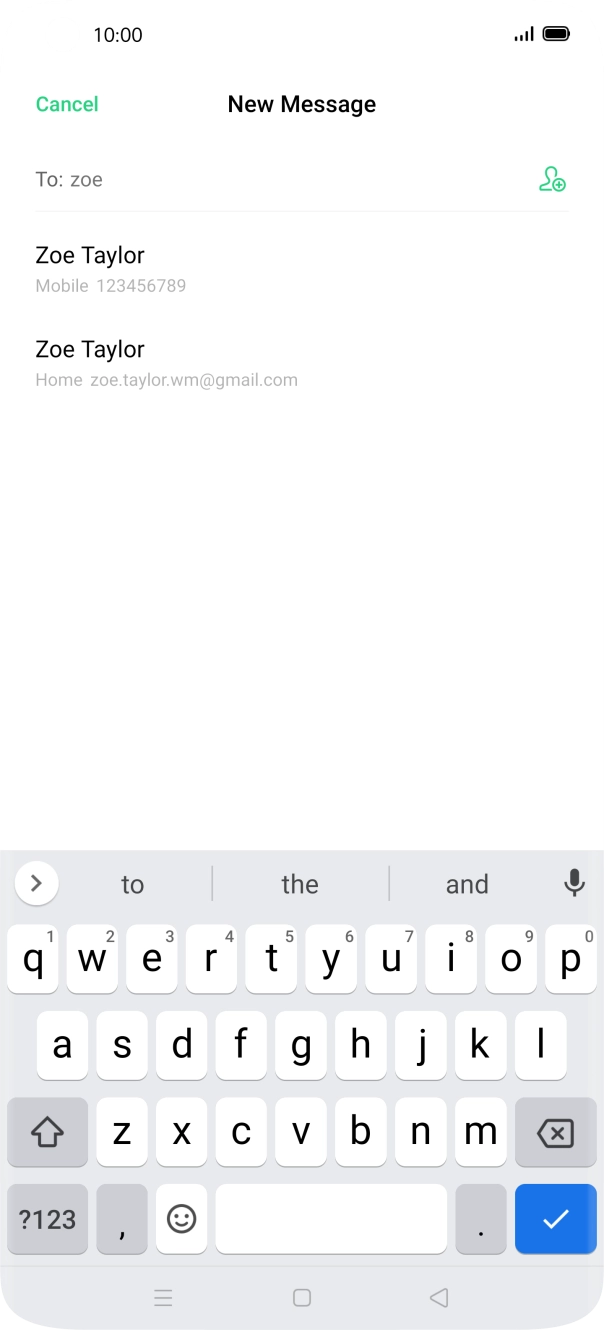
- Press the search field and key in the first letters of the recipient's name.
- Press the required contact.
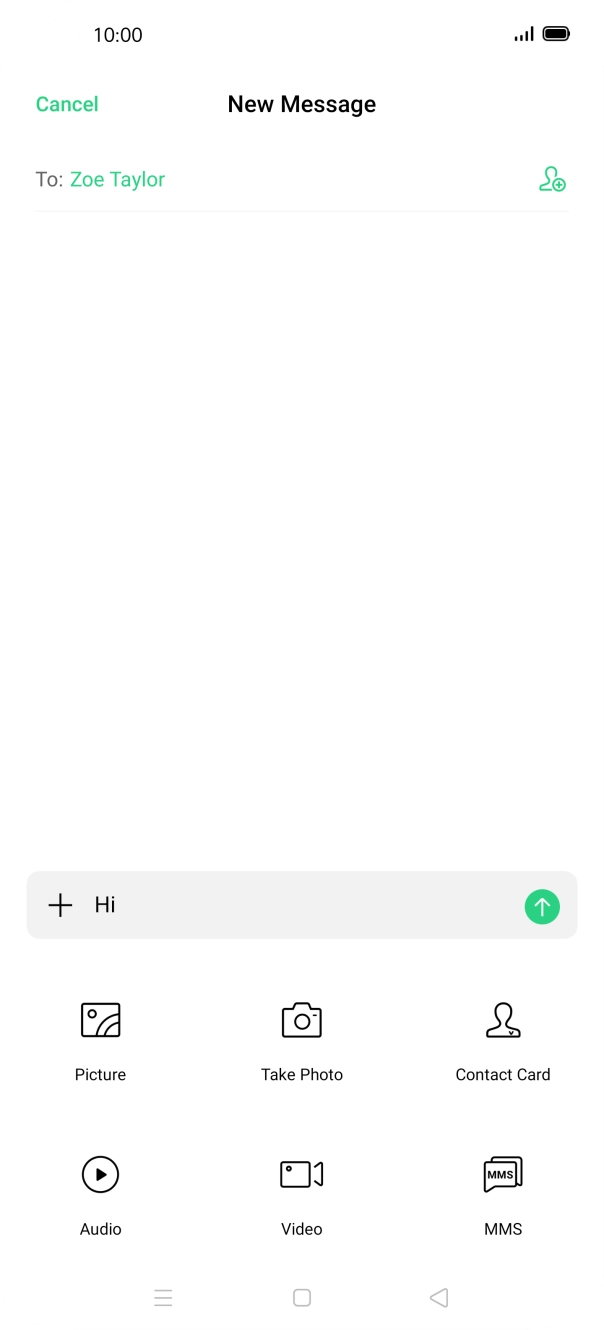
- Press the text input field and write the text for your picture message.
- Press the add icon.
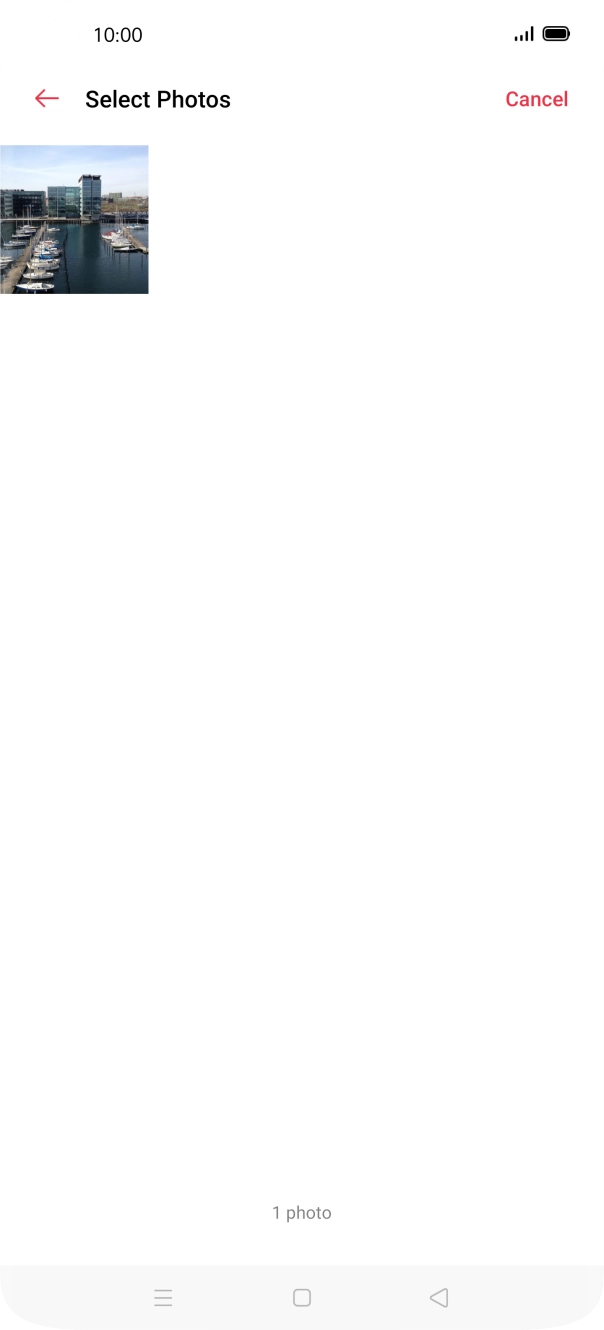
- Press Picture and go to the required folder.
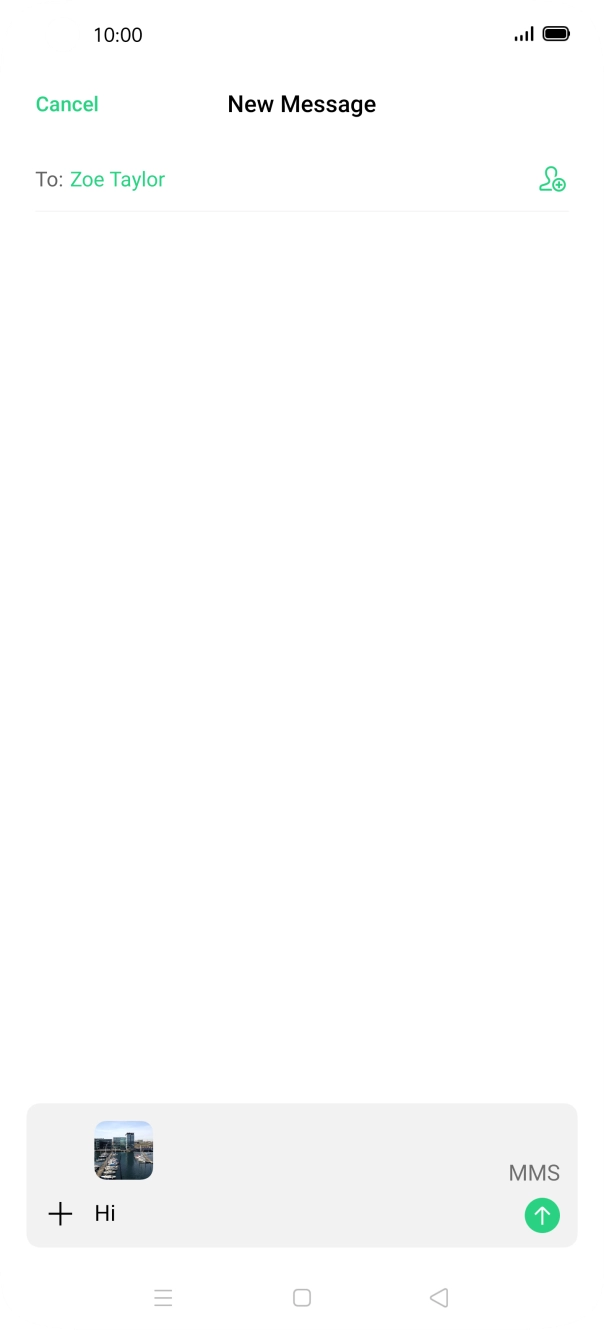
- Press the required picture.
- Press the send icon when you've finished your picture message.
- Press the Home key to return to the home screen.
1. Find 'SIM Card & Mobile Data'
Slide two fingers downwards starting from the top of the screen.
- Slide two fingers downwards starting from the top of the screen.
- Press the settings icon.
- Press SIM Card & Mobile Data.
- Press the name of the SIM.
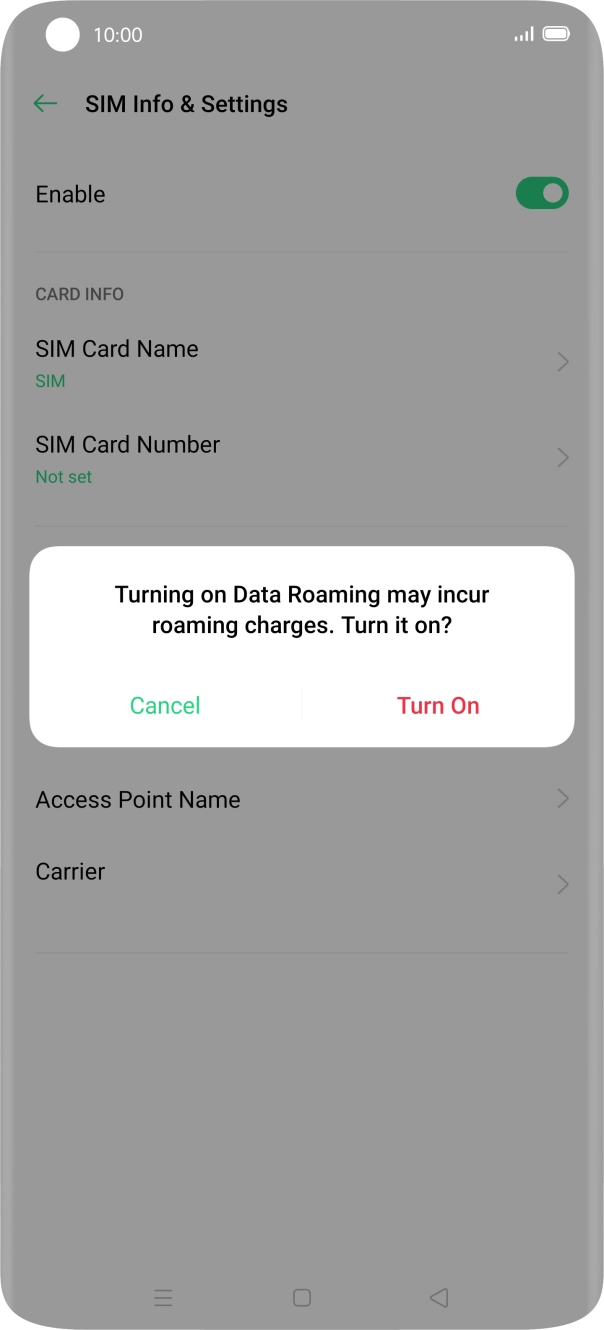
- Press the indicator next to 'Data Roaming' to turn the function on or off.
- If you turn on the function, press Turn On.
- Press the Home key to return to the home screen.
Try sending a picture message to another number.