I have problems using the internet connection on my OPPO A6 Pro 5G
If you can't use your phone's internet connection, there may be several causes of the problem.
1. Find 'Access point names'
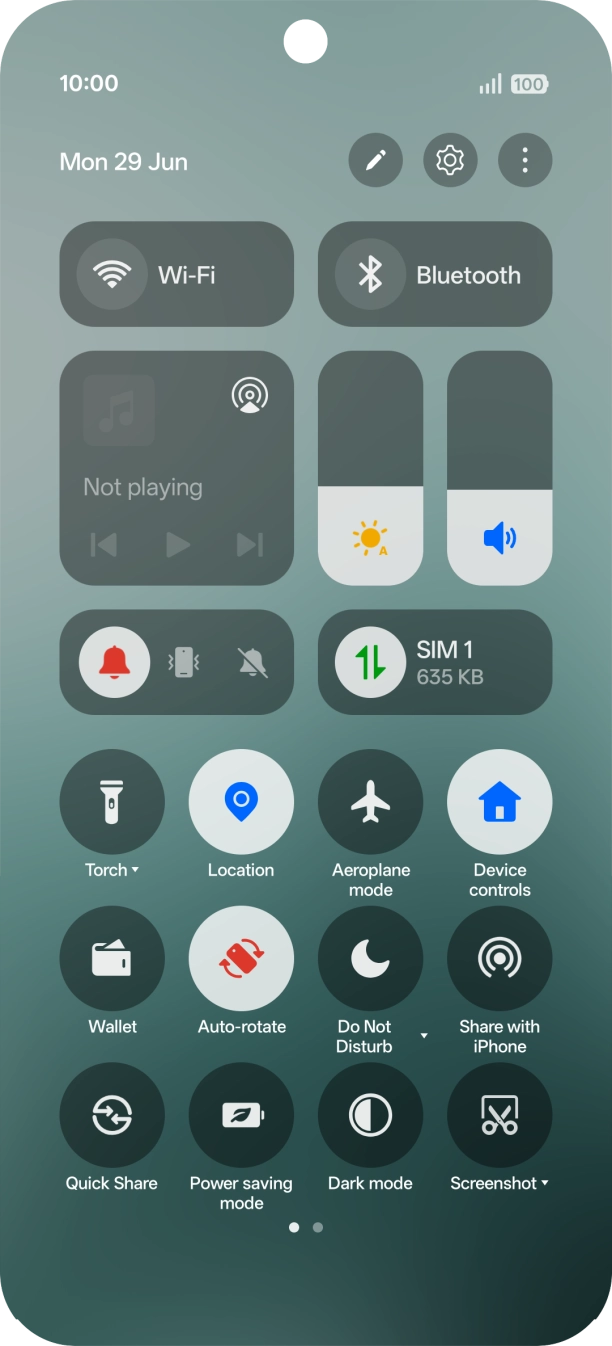
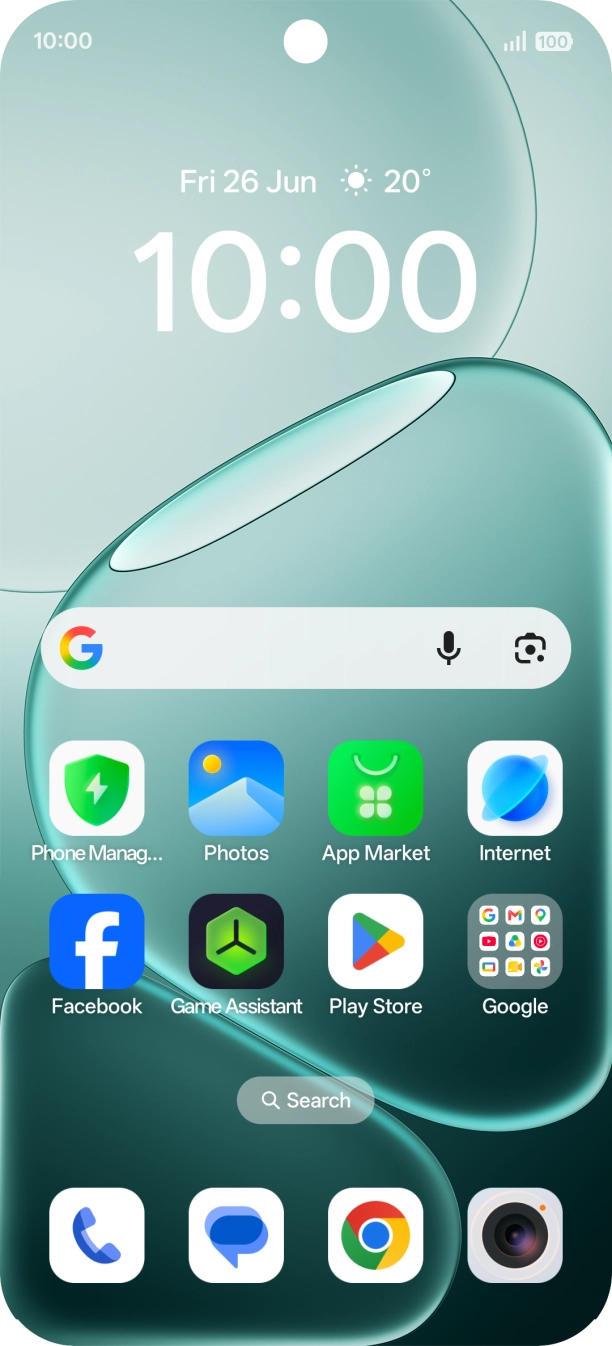
Slide your finger downwards starting from the top right side of the screen.
- Slide your finger downwards starting from the top right side of the screen.
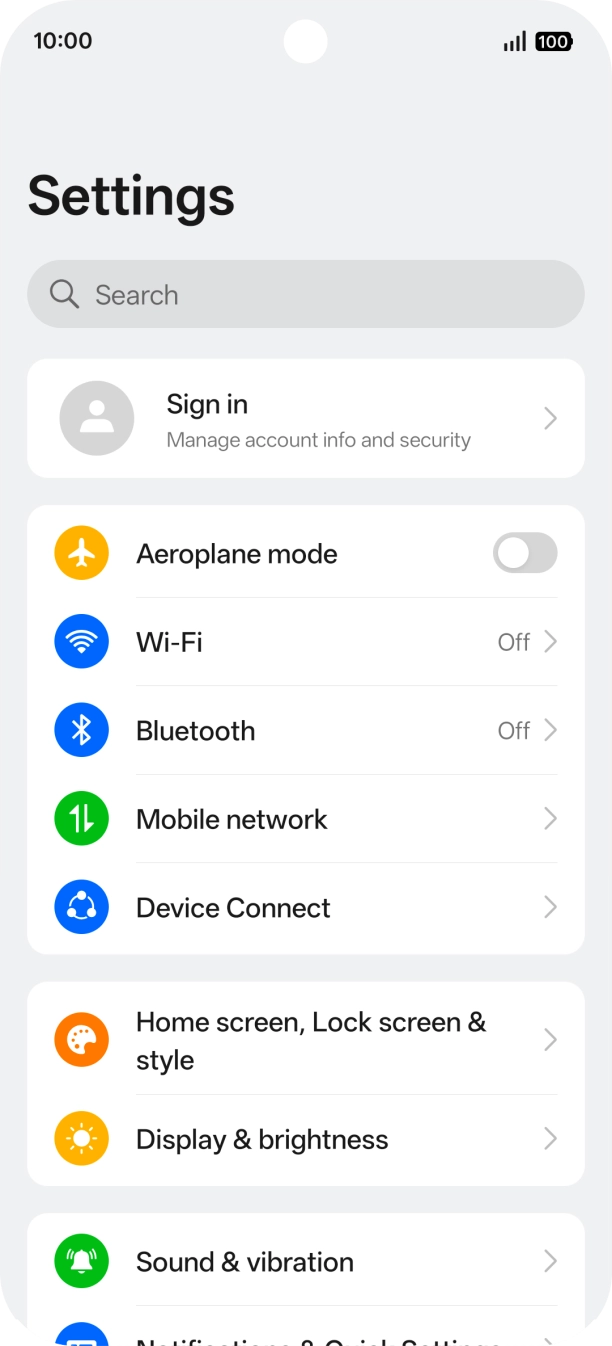
- Press the settings icon.
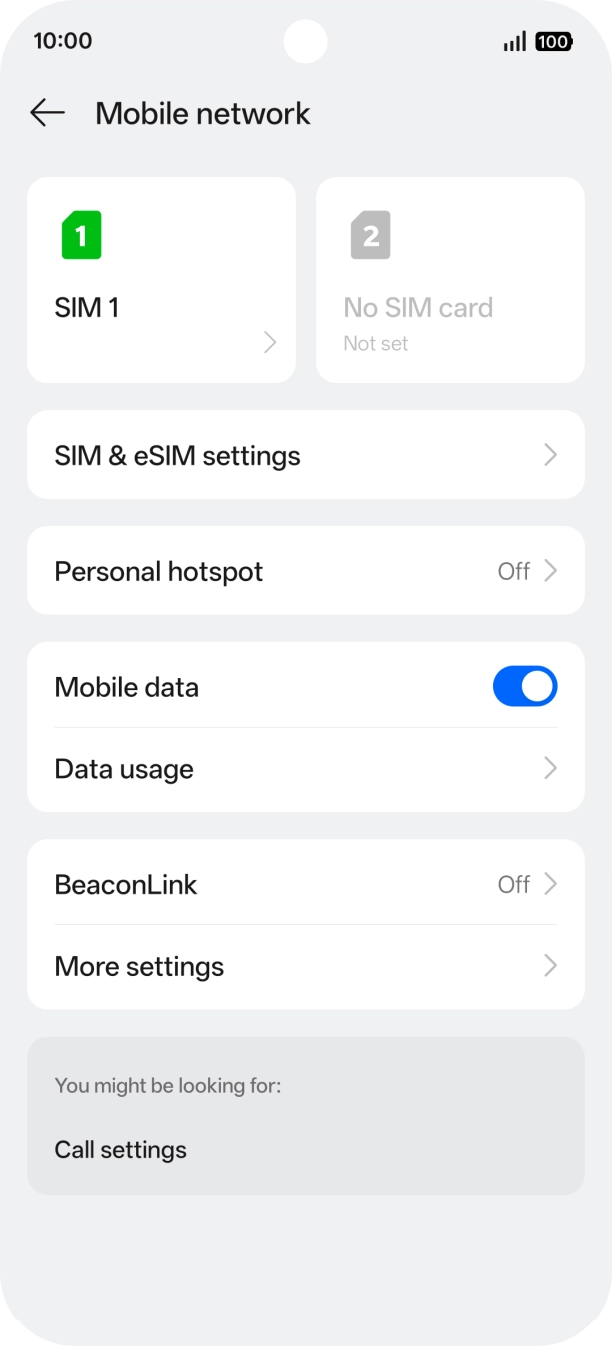
- Press Mobile network.
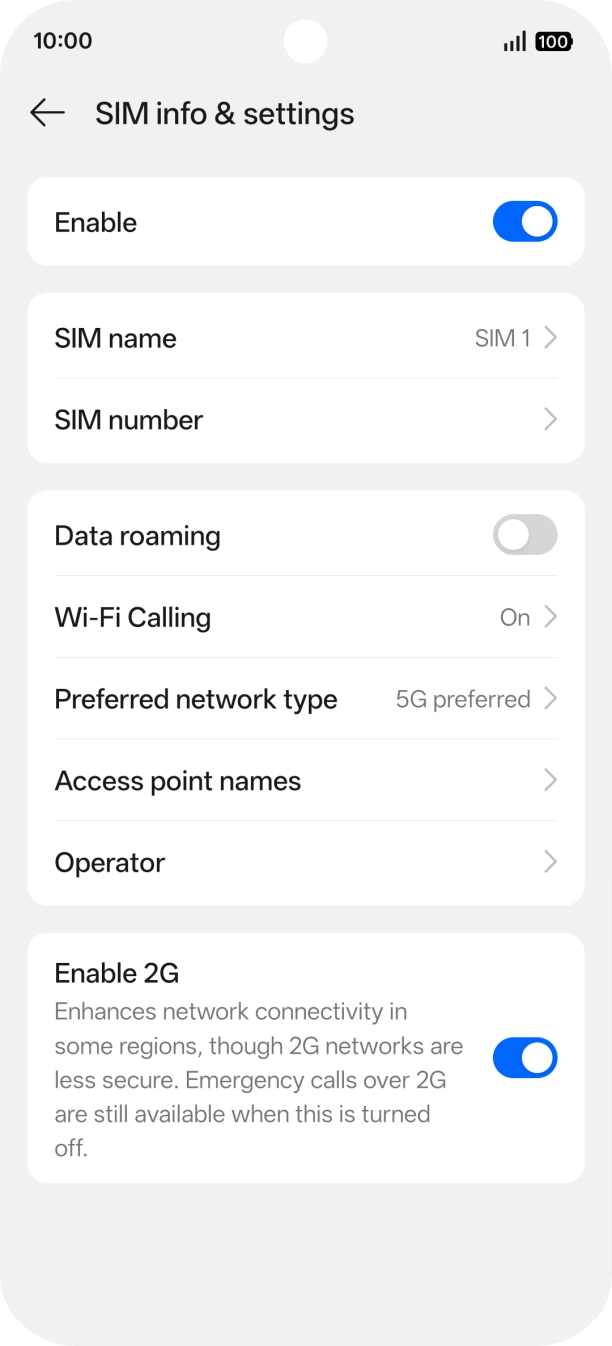
- Press the name of the SIM.
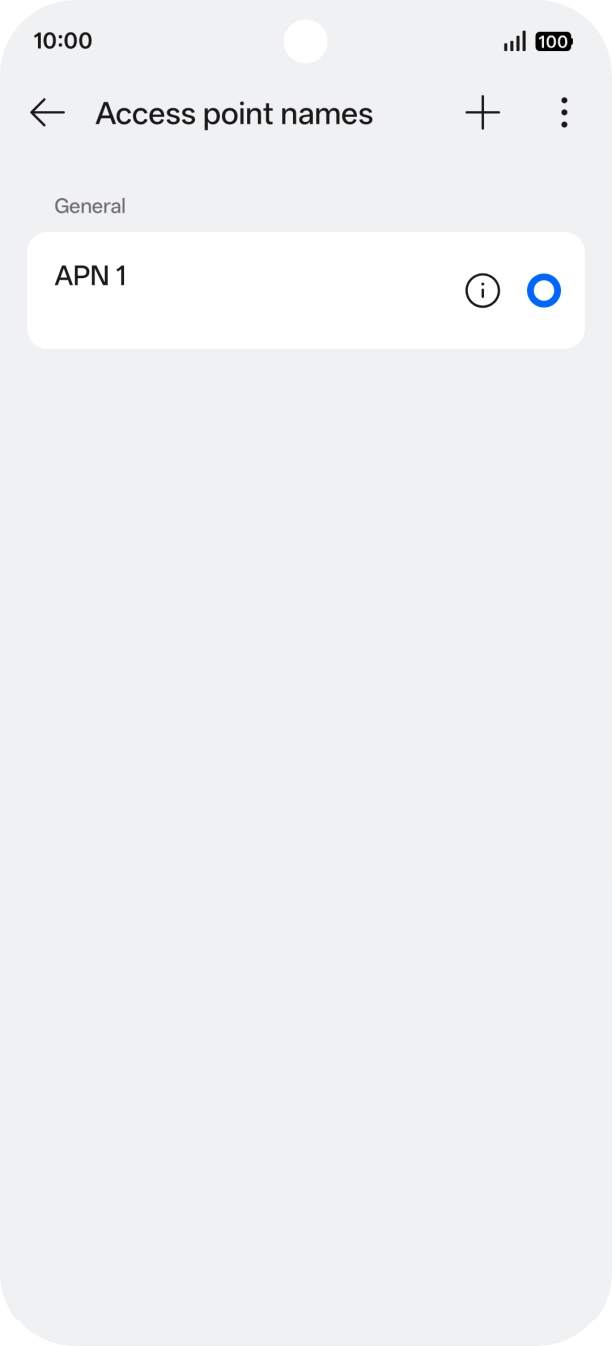
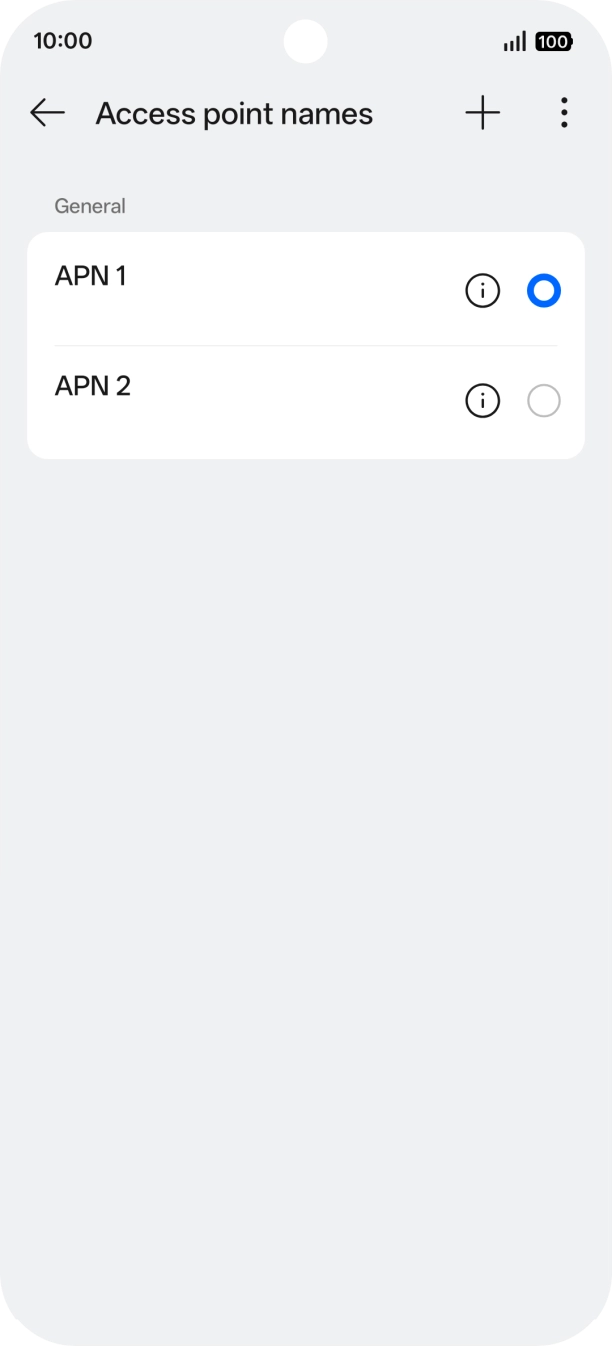
- Press Access point names.
- Press the new data connection icon.
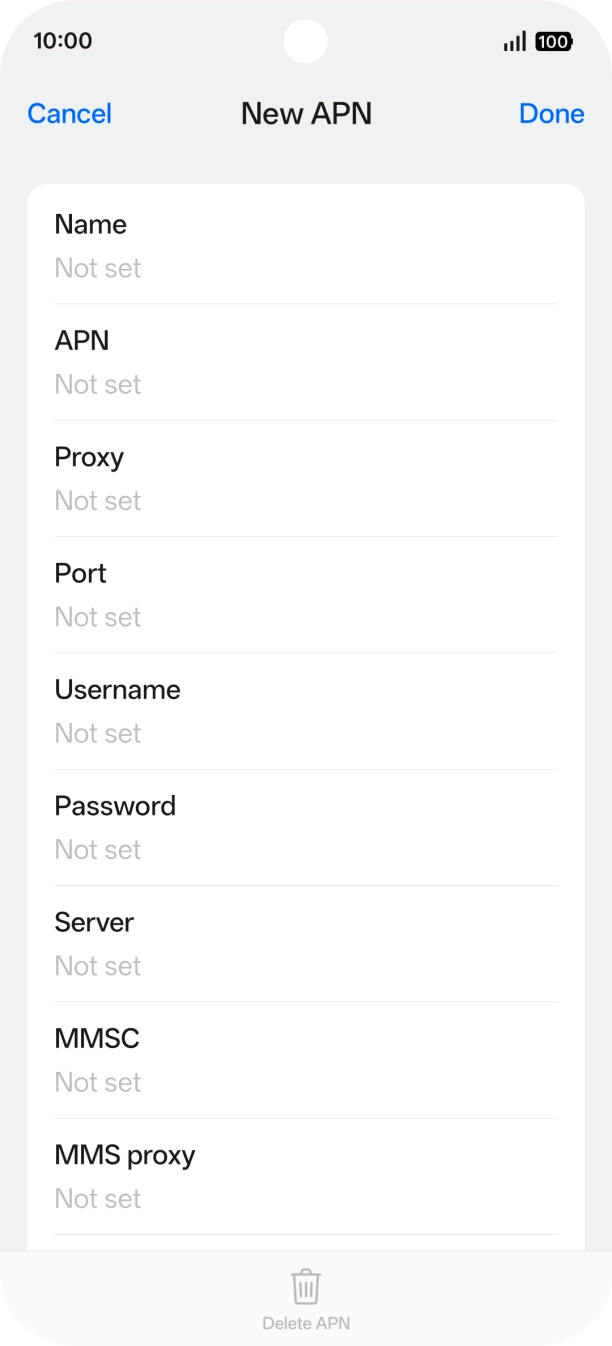
- Press the field below 'Name' and key in O2 UK Internet.
- Press the field below 'APN' and key in mobile.o2.co.uk.
- Press the field below 'Username' and key in o2.
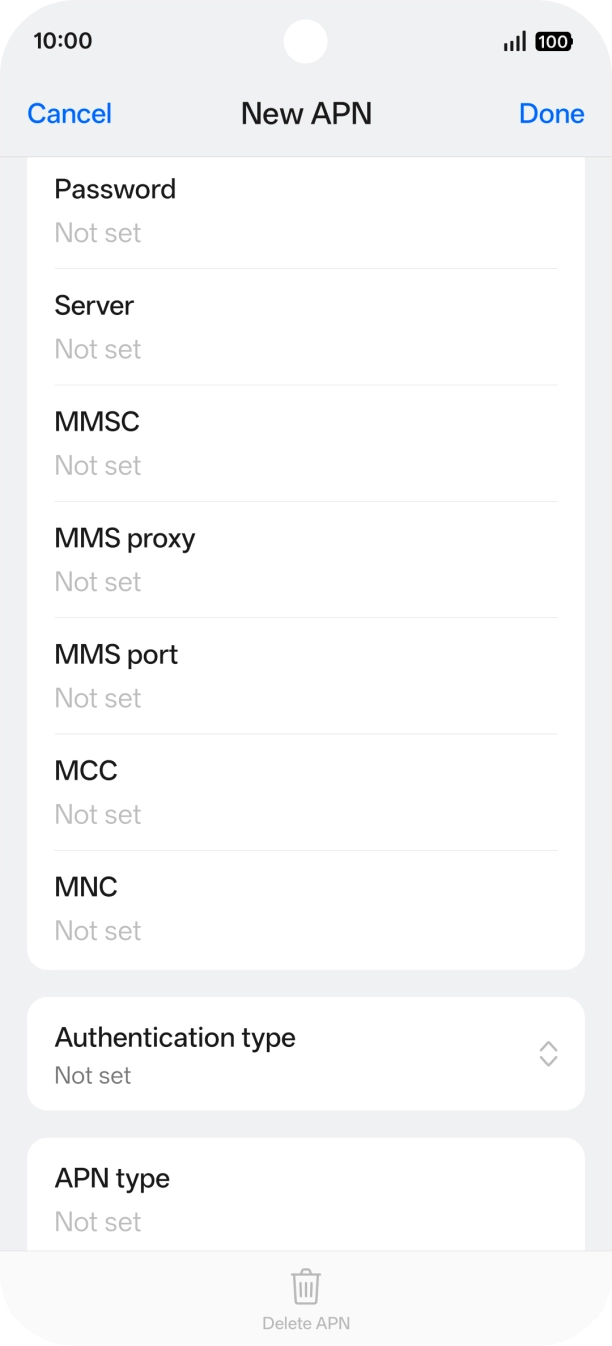
- Press the field below 'Password' and key in p.
- Press the field below 'MCC' and key in 234.
- Press the field below 'MNC' and key in 10.
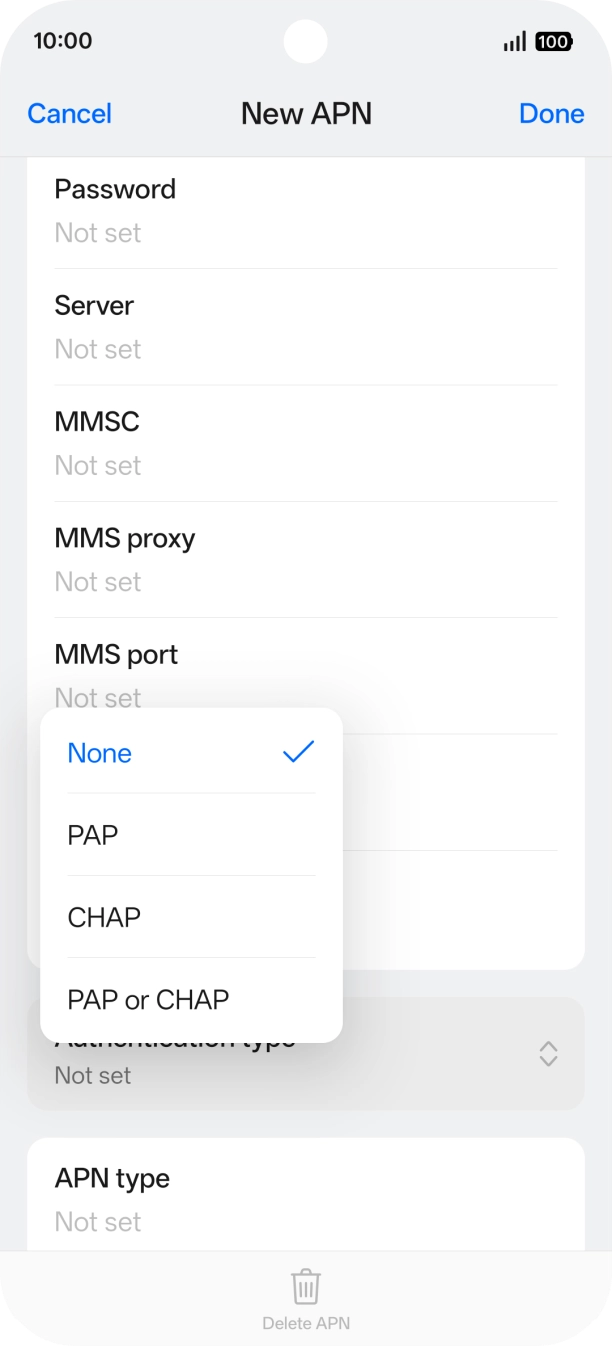
- Press Authentication type.
- Press PAP.
- Press the field below 'APN type' and key in default.
- Press Done.
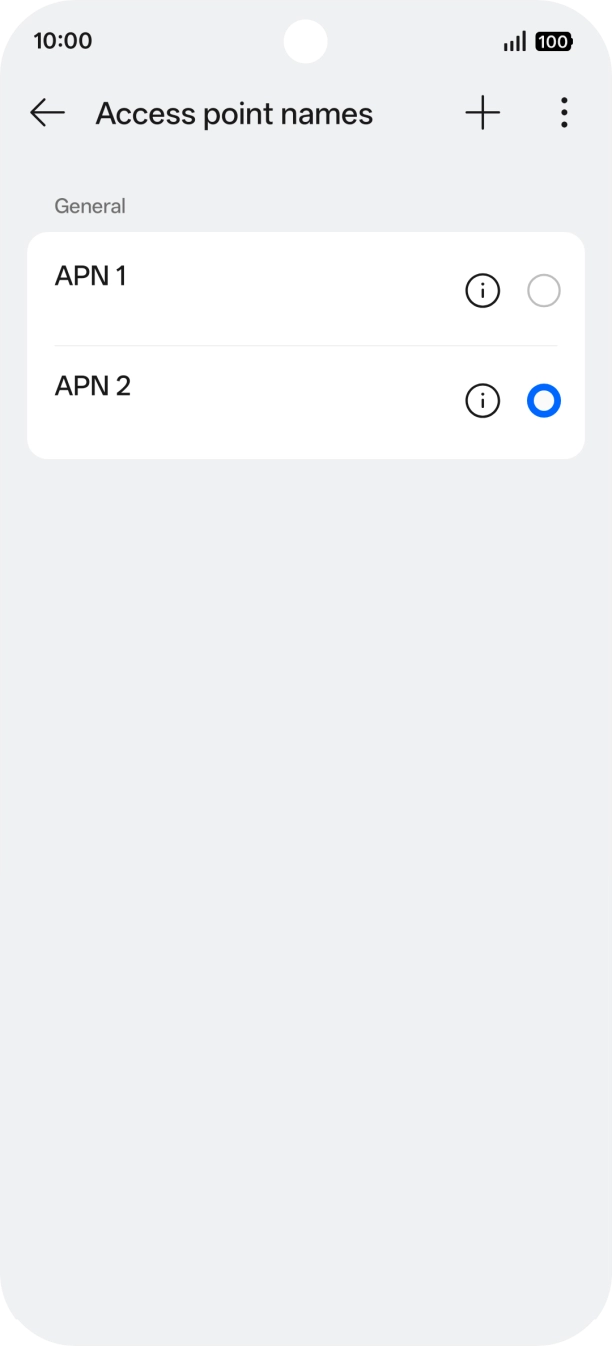
- Press the field next to the data connection to activate it.
- Slide your finger upwards starting from the bottom of the screen to return to the home screen.
1. Turn mobile data on or off
Slide your finger downwards starting from the top right side of the screen.
- Slide your finger downwards starting from the top right side of the screen.
- Press the mobile data icon to turn the function on or off.
- Slide your finger upwards starting from the bottom of the screen to return to the home screen.
1. Find 'Mobile network'
Slide your finger downwards starting from the top right side of the screen.

- Slide your finger downwards starting from the top right side of the screen.
- Press the settings icon.
- Press Mobile network.
- Press the name of the SIM.
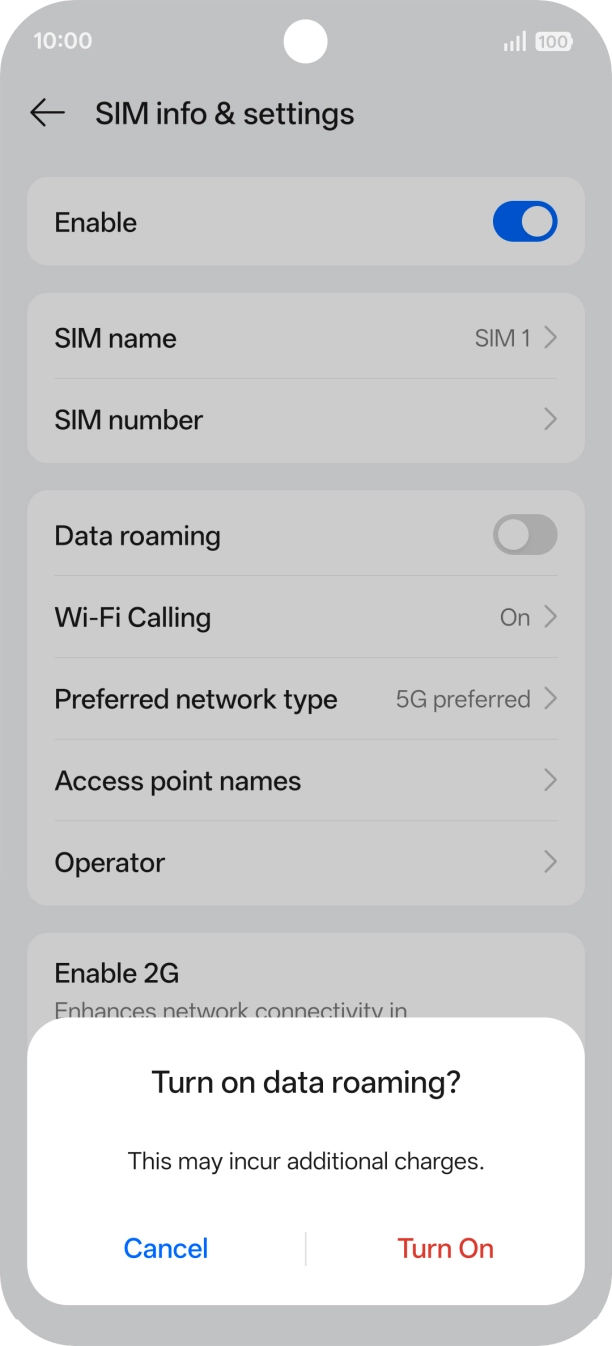
- Press the indicator next to 'Data roaming' to turn the function on or off.
- If you turn on the function, press Turn On.
- Slide your finger upwards starting from the bottom of the screen to return to the home screen.