How to use split screen view on your HONOR Magic V5
You can use multiple applications at the same time in split screen view.
1. Turn on split screen view
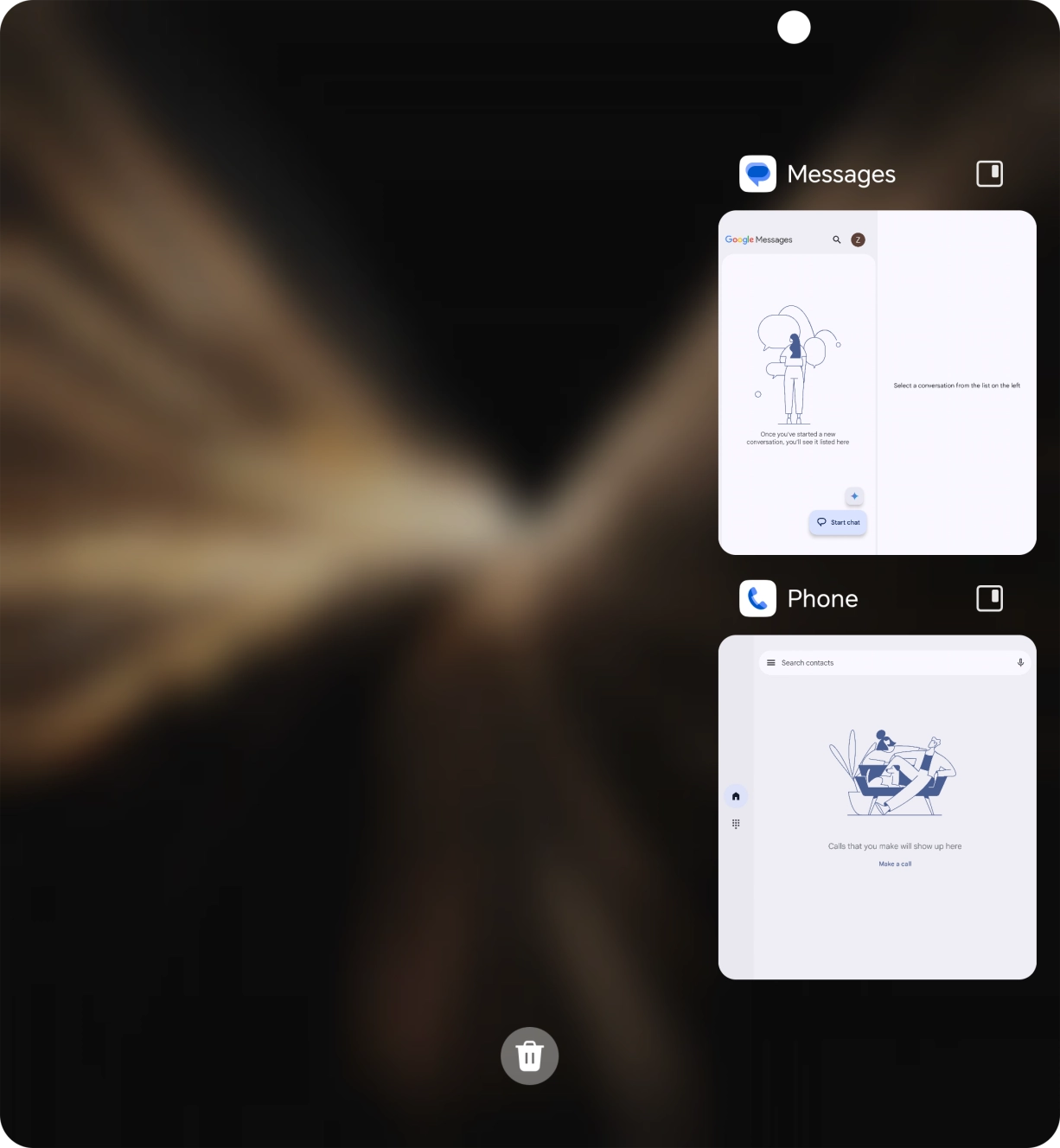
Slide your finger slowly upwards starting from the bottom of the screen until the list of running applications is displayed.
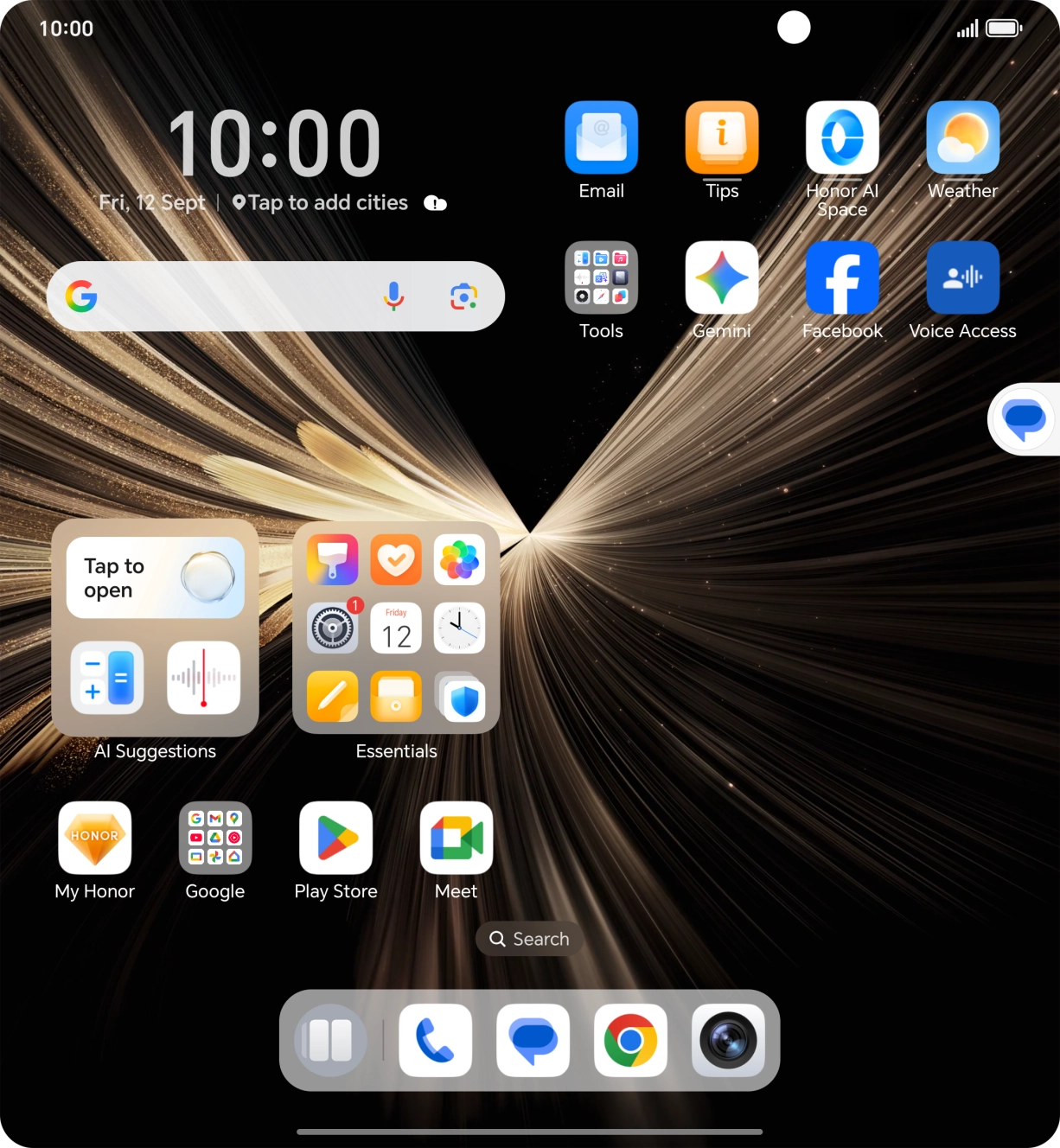
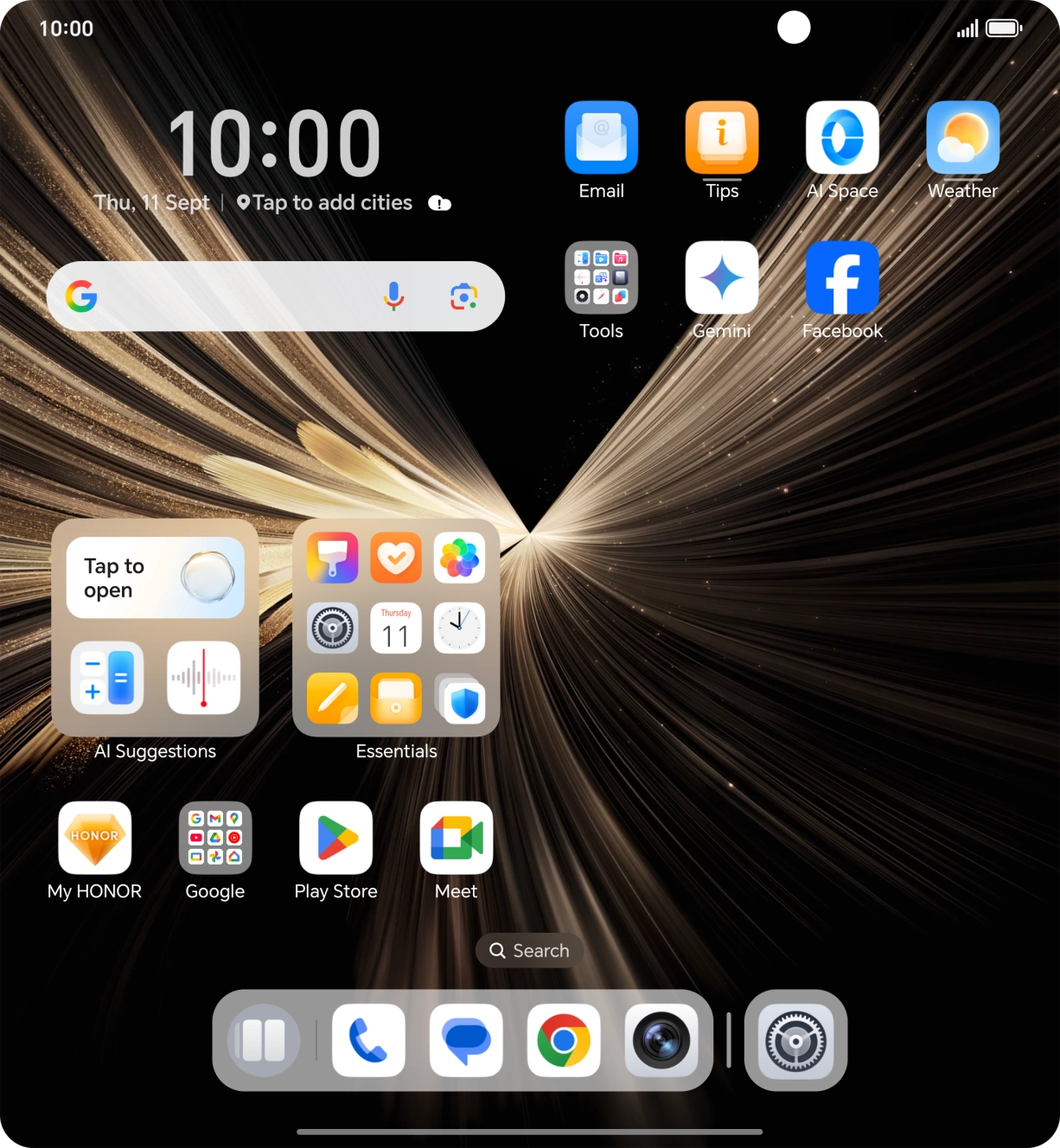
To use split screen view, you need to have opened the required application.

- Slide your finger slowly upwards starting from the bottom of the screen until the list of running applications is displayed.To use split screen view, you need to have opened the required application.
- Press the split screen view icon above the required application.
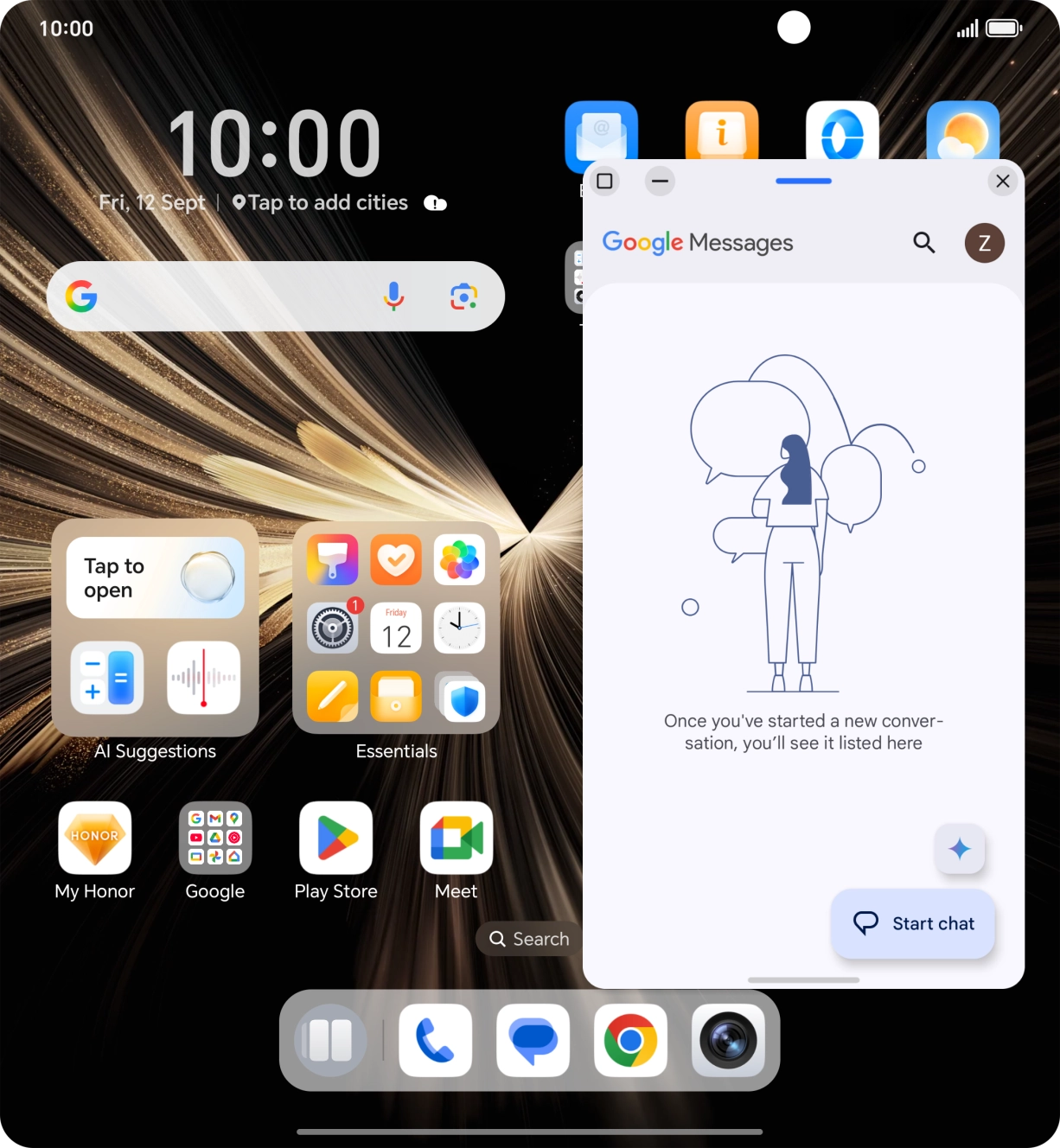
- The application is now shown in split screen view. You can now open another application in the background and use both applications at the same time.
- Drag the top of the application window to move the application window to the required position.
- Drag the bottom of the application window to adjust the size of the application window.
- Press the full screen icon to open the application window in full screen view.
- Press the minimise icon to minimise the application window.
- To open the application when minimised, press the application icon.
- Press the close icon to exit split screen view.