I have problems sending and receiving picture messages on my HONOR Magic V3
If you can't send and receive picture messages, there may be several causes of the problem.
Step 1 of 30
Step 1 of 30
1. Find 'Access Point Names (APNs)'
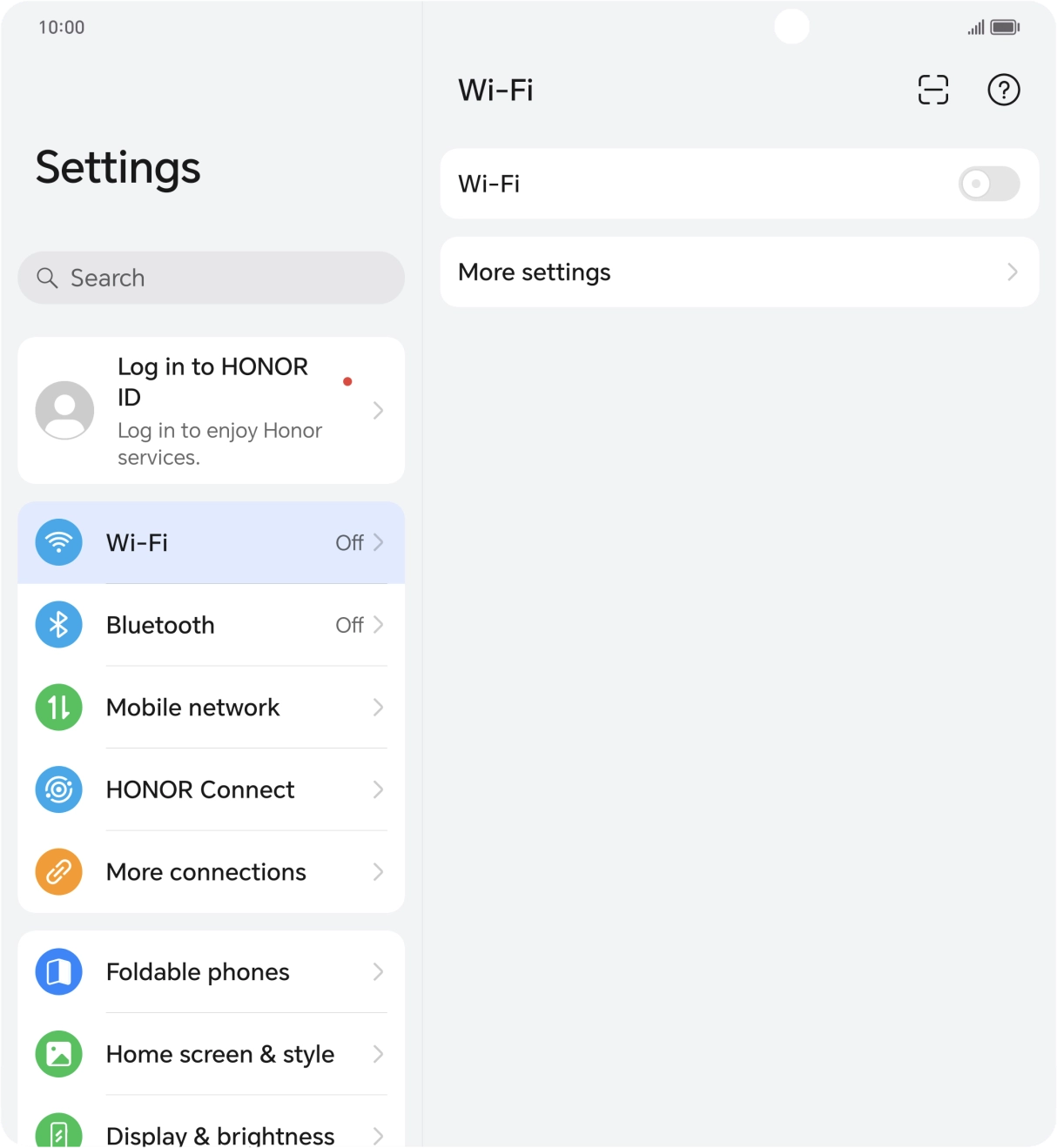
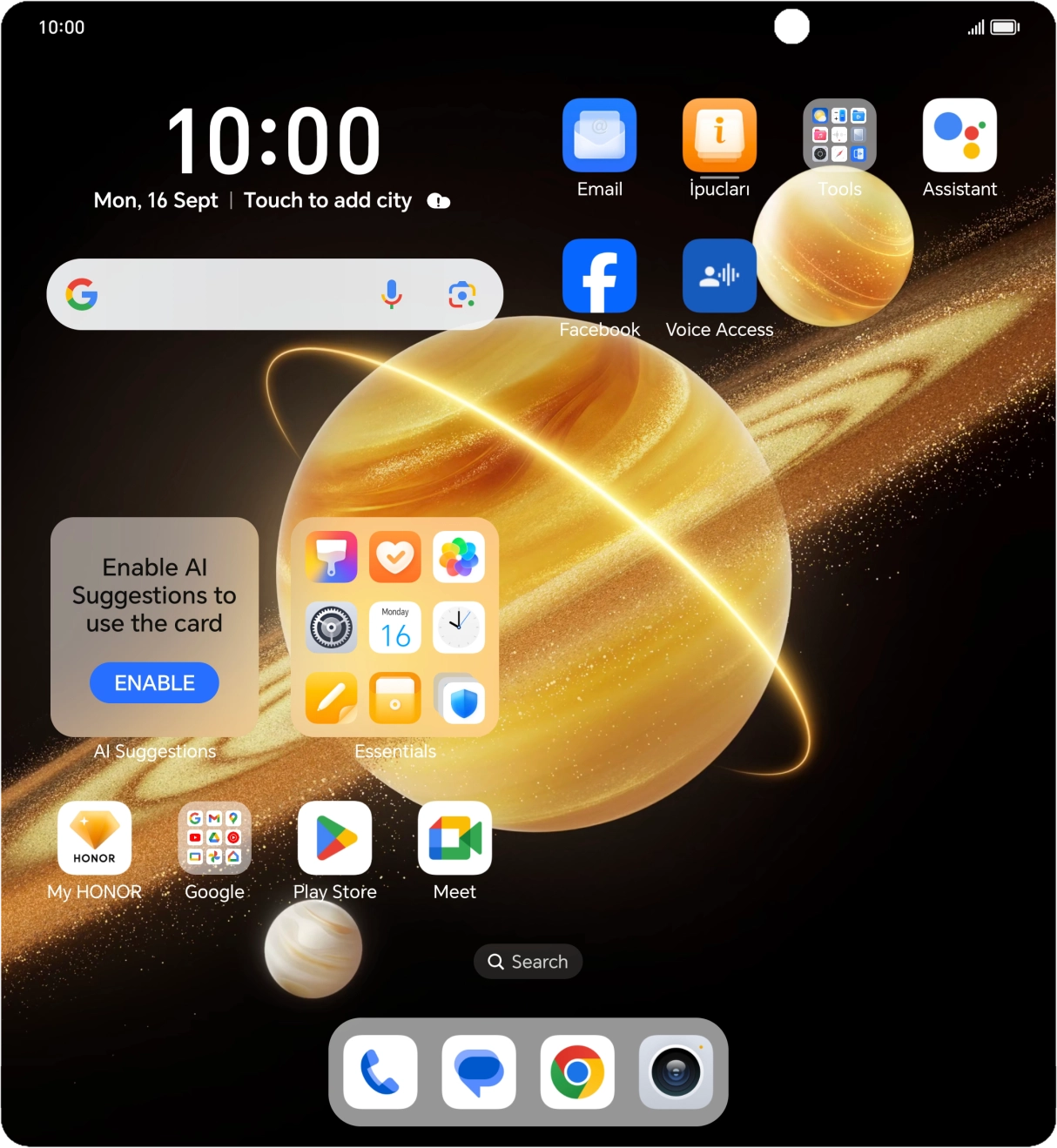
Press the settings icon.
- Press the settings icon.
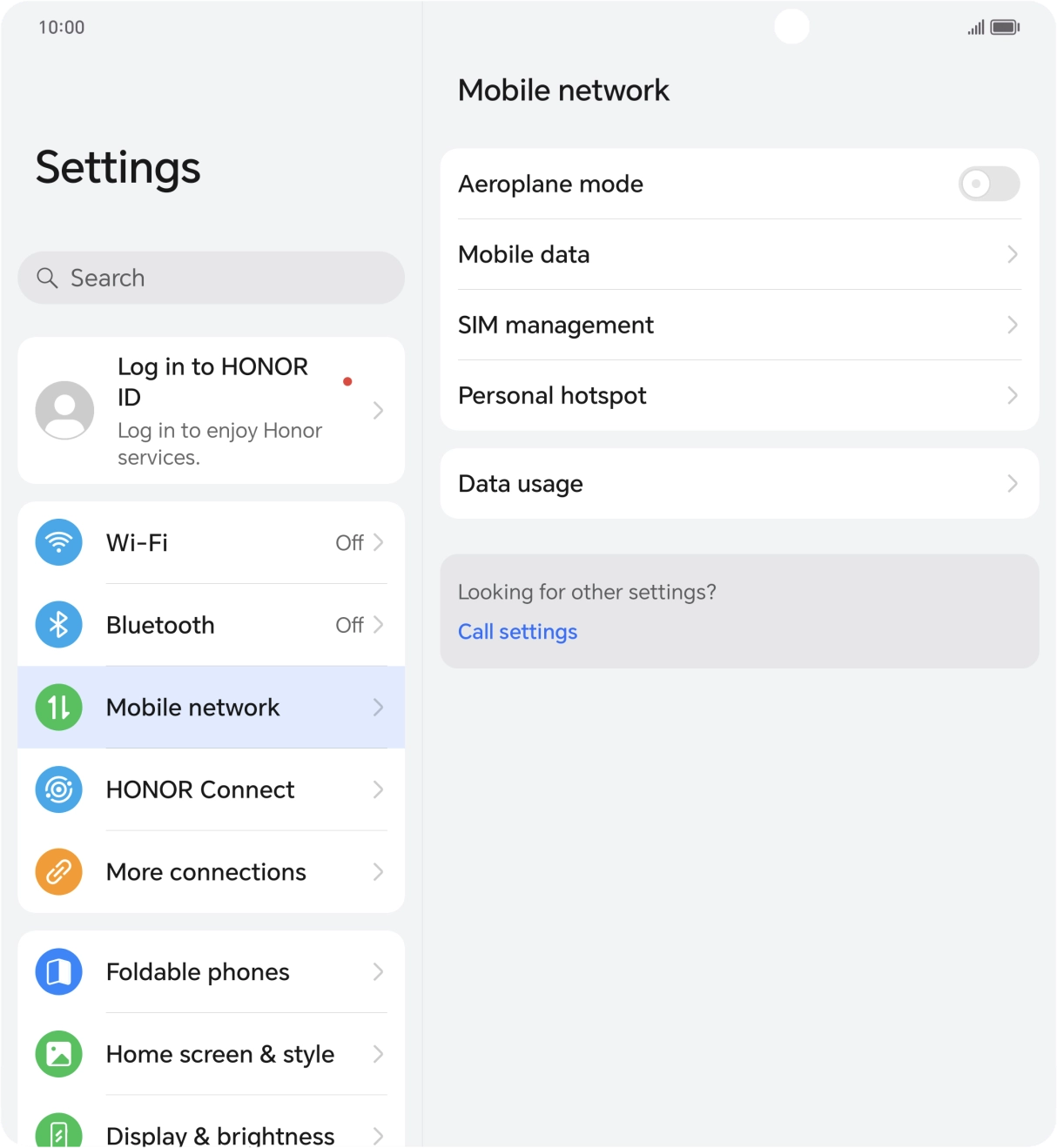
- Press Mobile network.
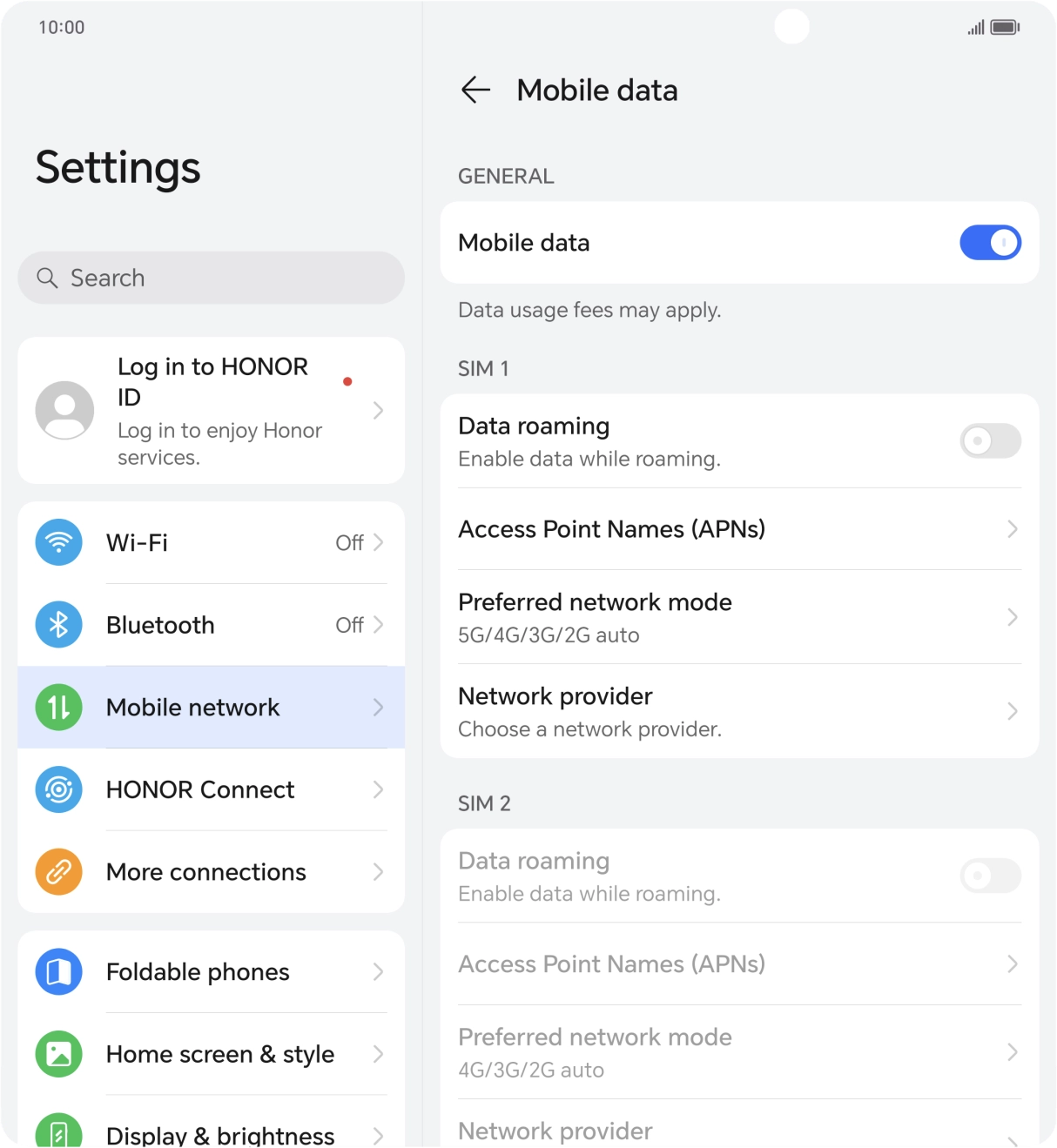
- Press Mobile data.
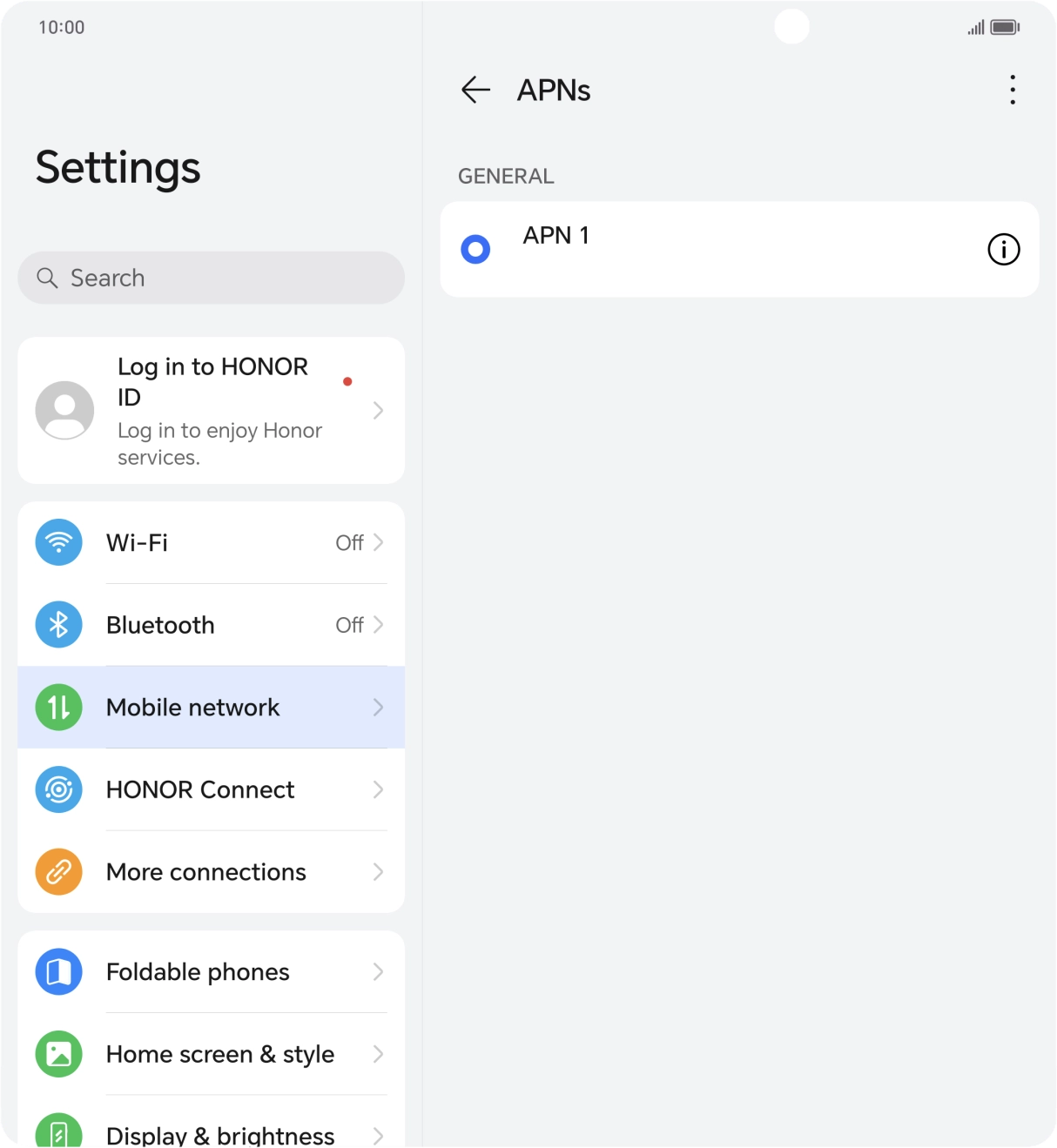
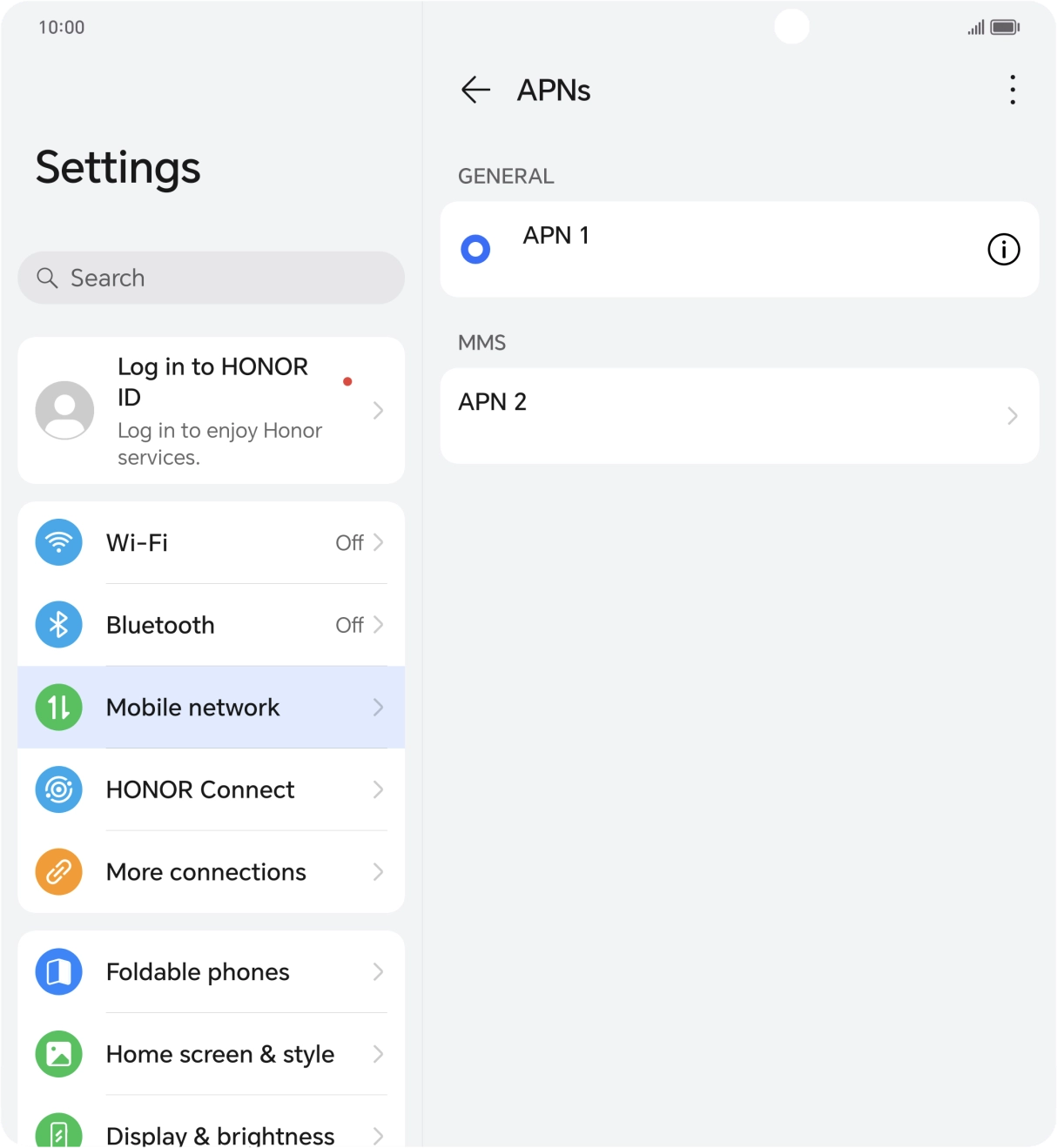
- Press Access Point Names (APNs).
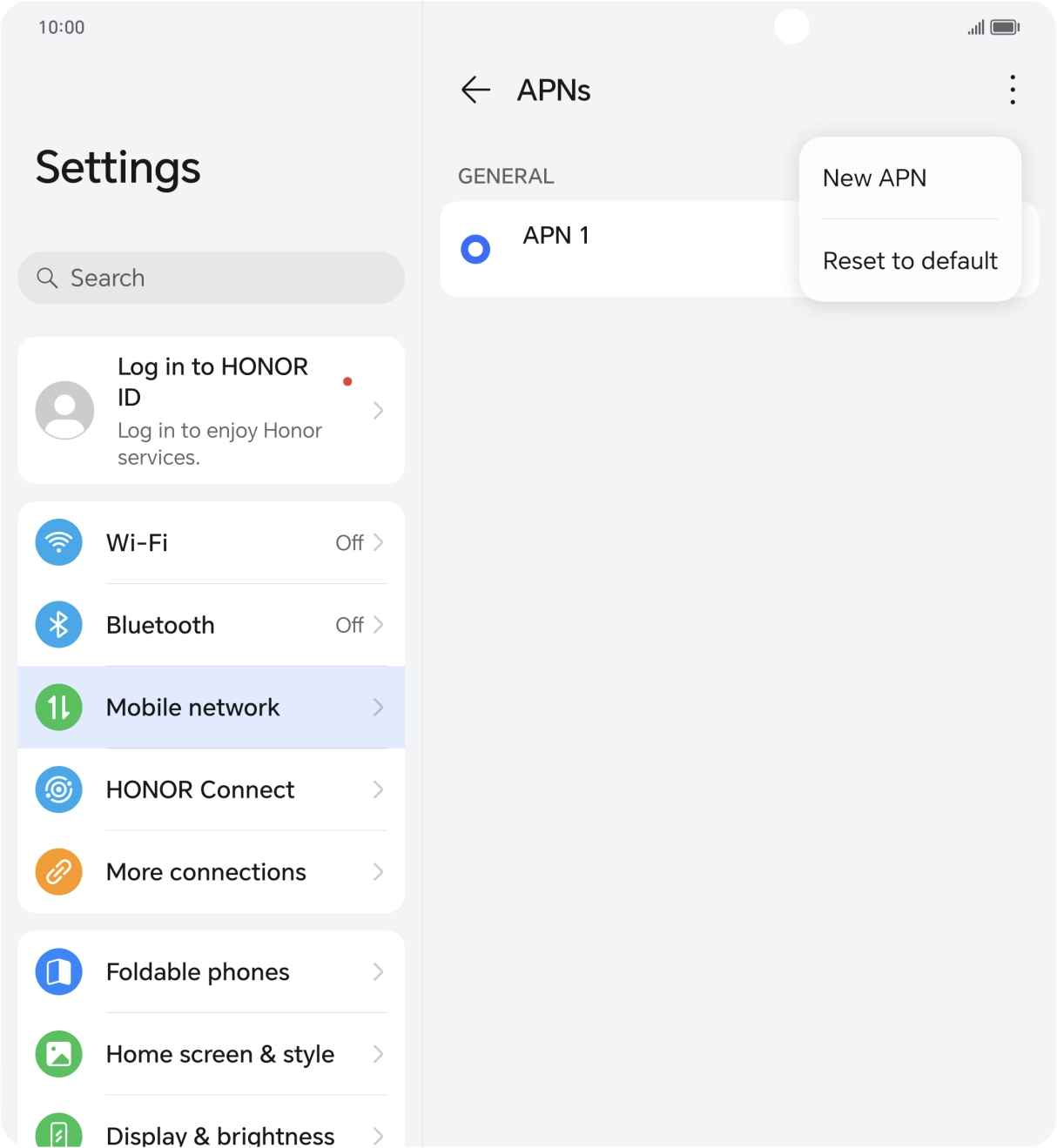
- Press the menu icon.
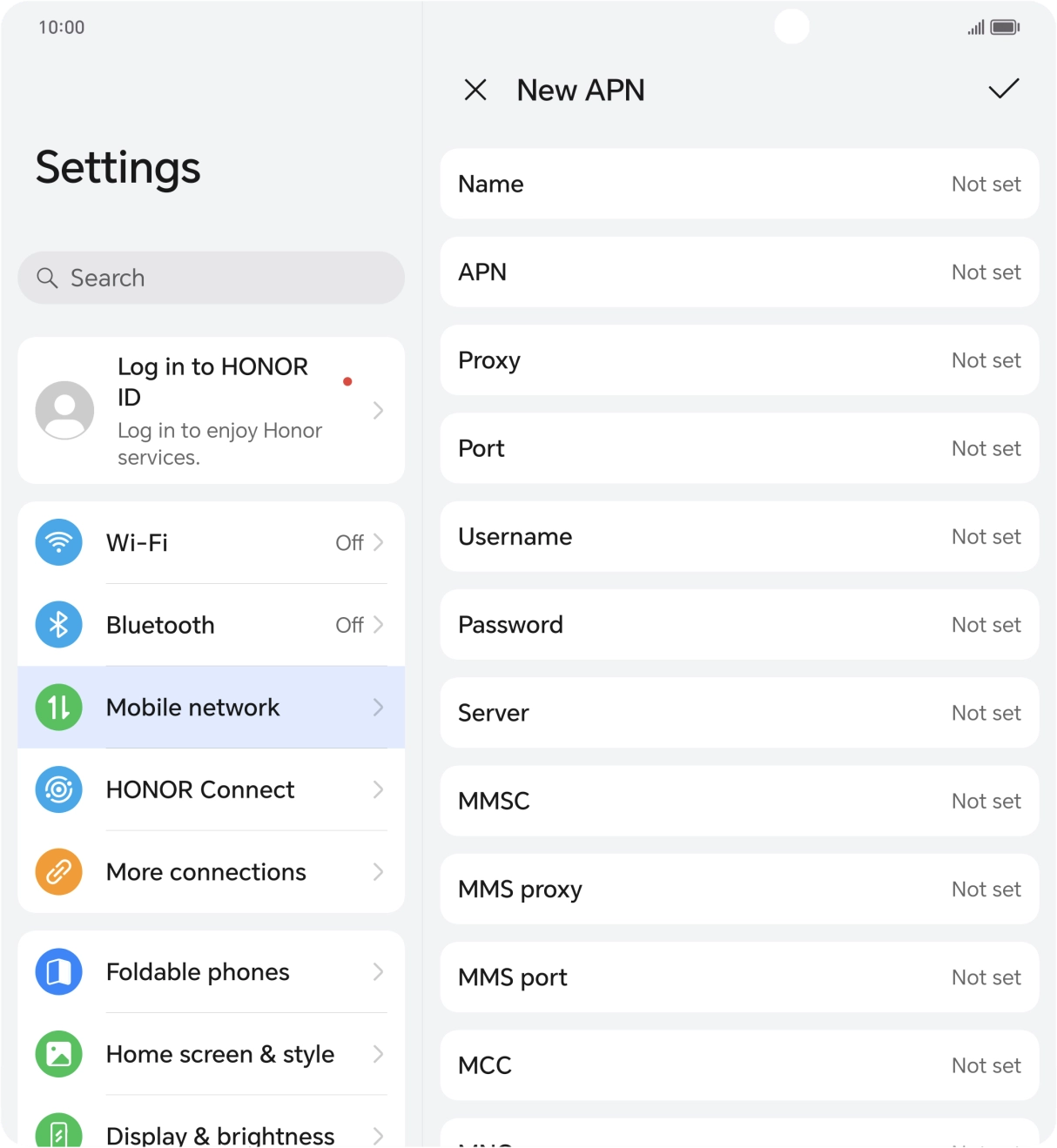
- Press New APN.
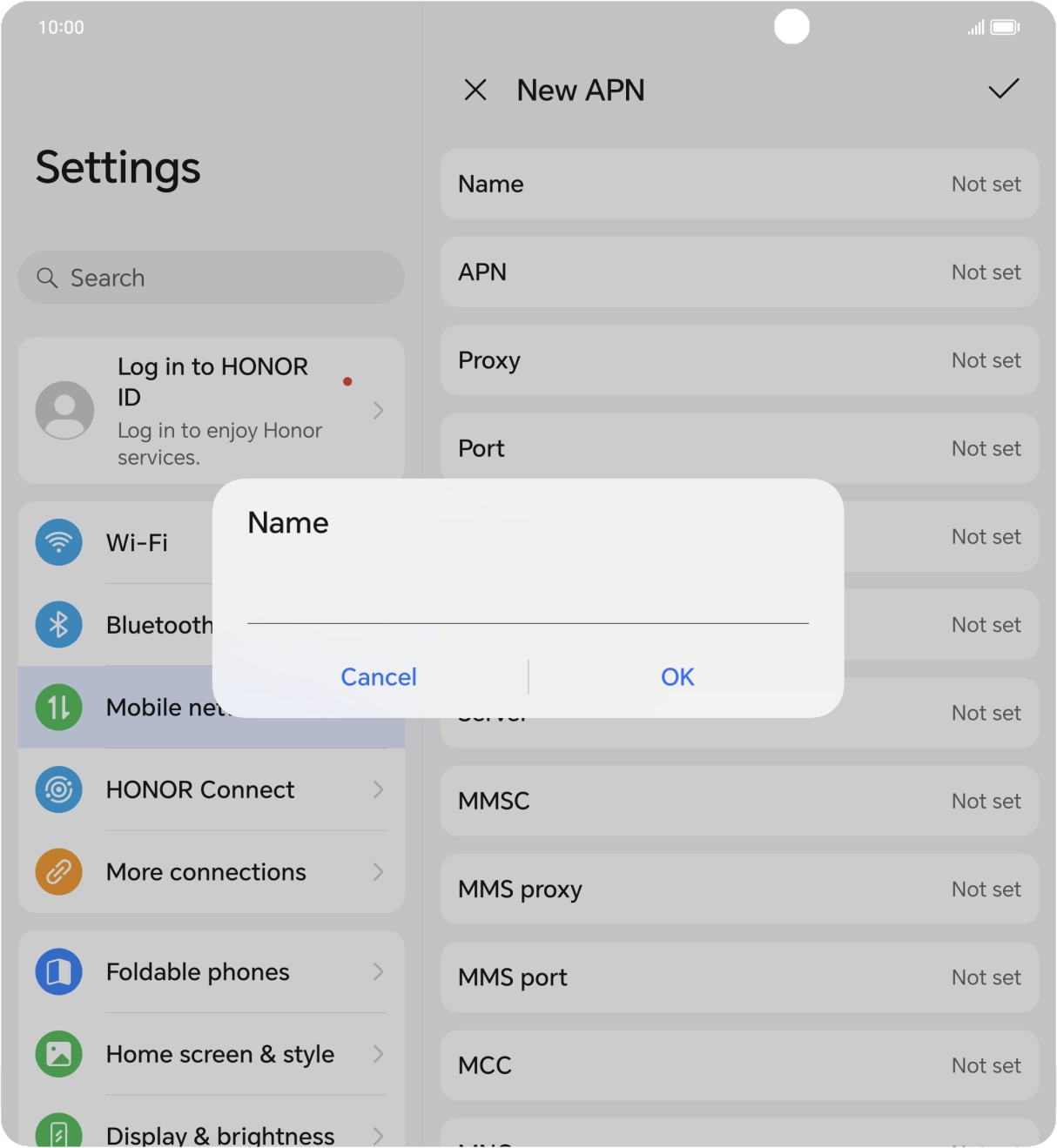
- Press Name.
- Key in O2 UK MMS and press OK.
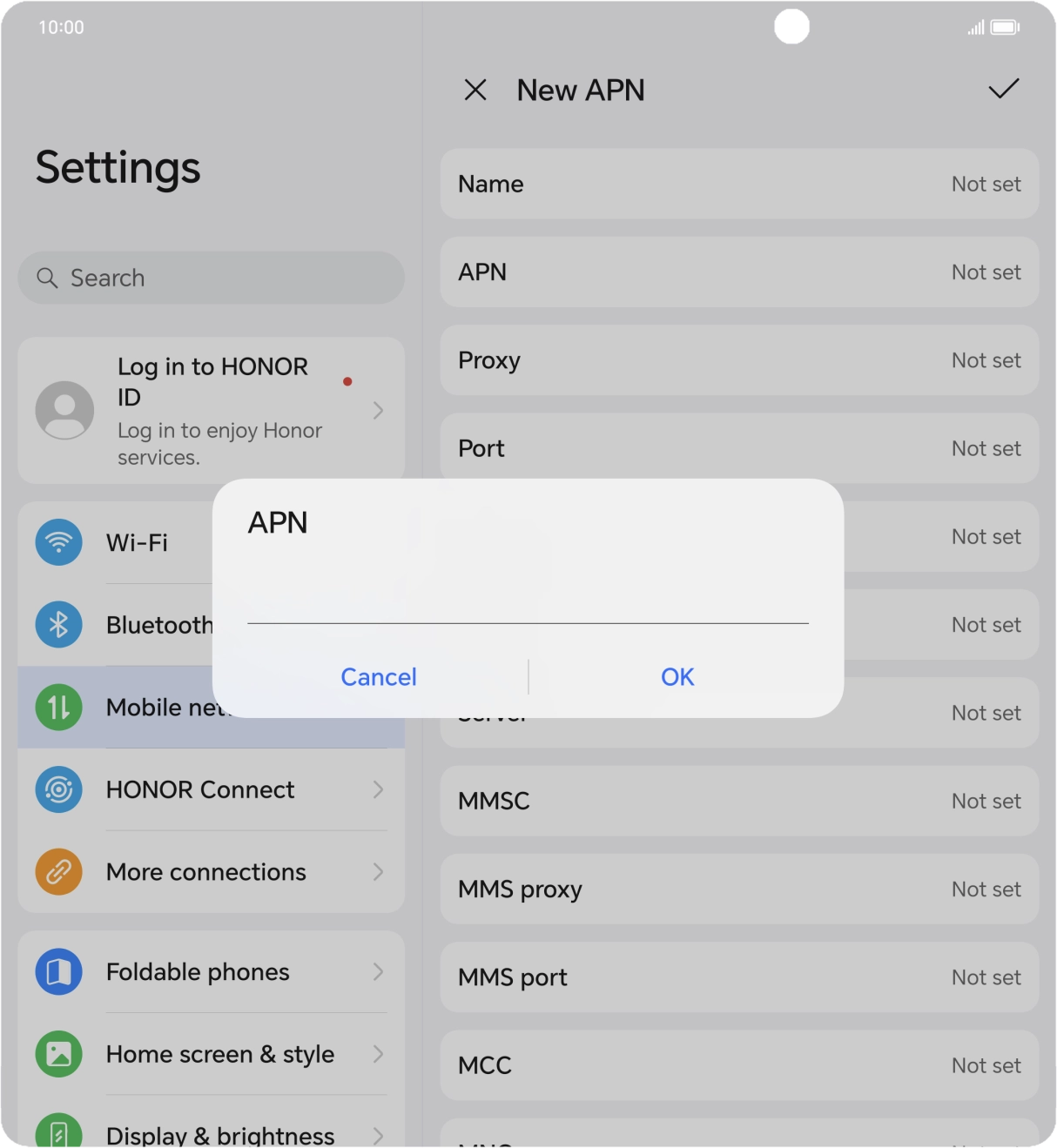
- Press APN.
- Key in wap.o2.co.uk and press OK.
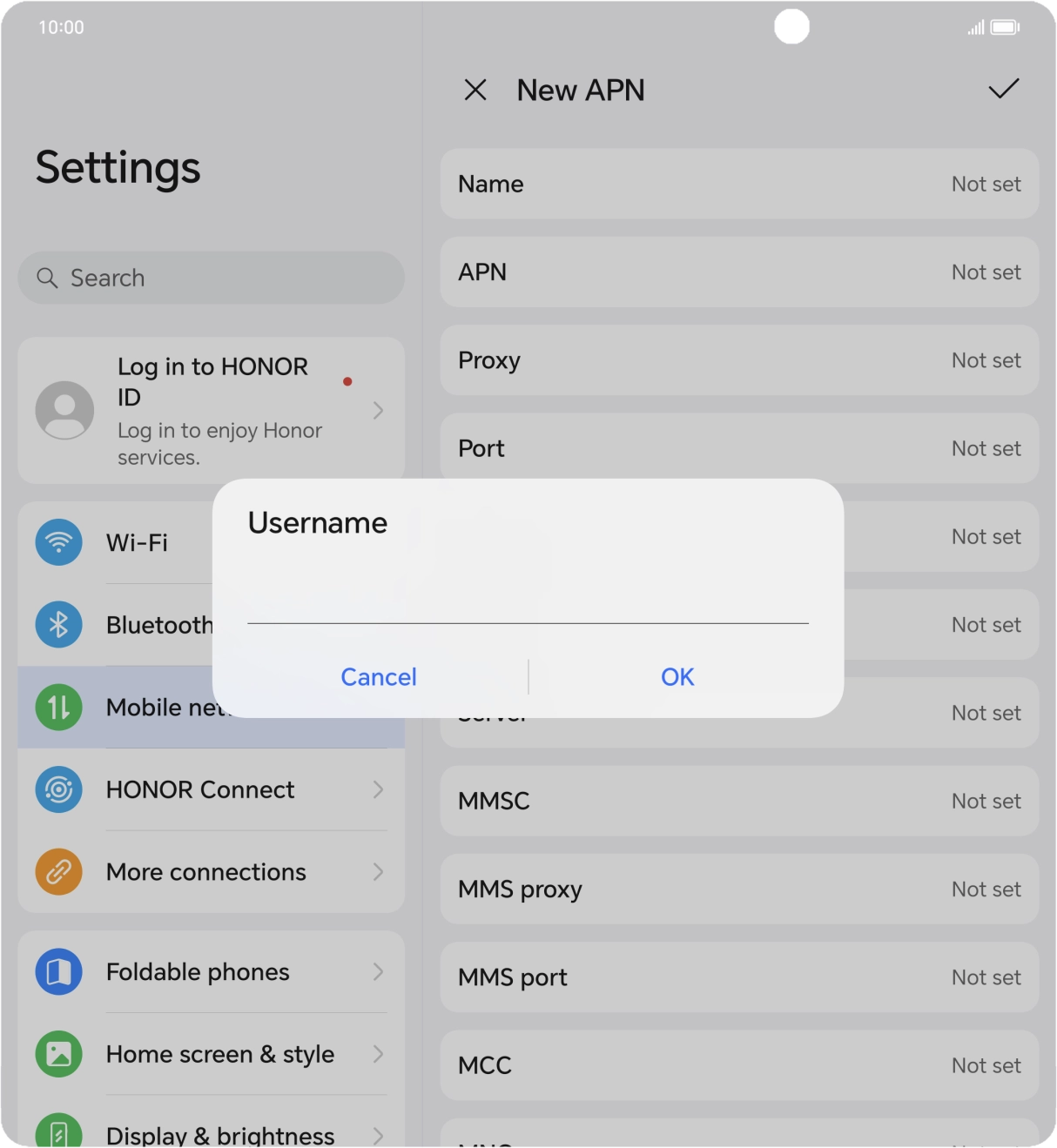
- Press Username.
- Key in o2wap and press OK.
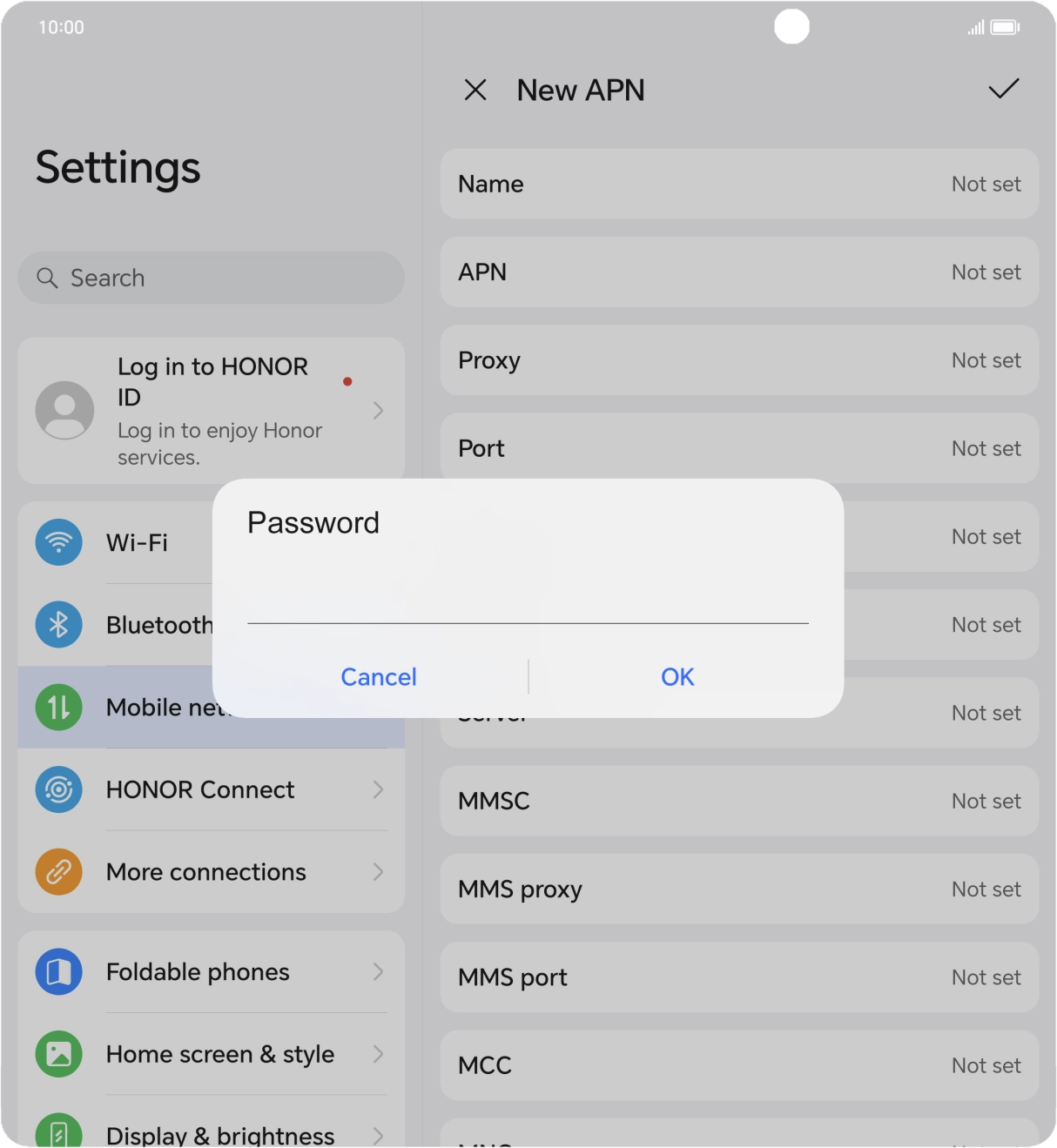
- Press Password.
- Key in password and press OK.
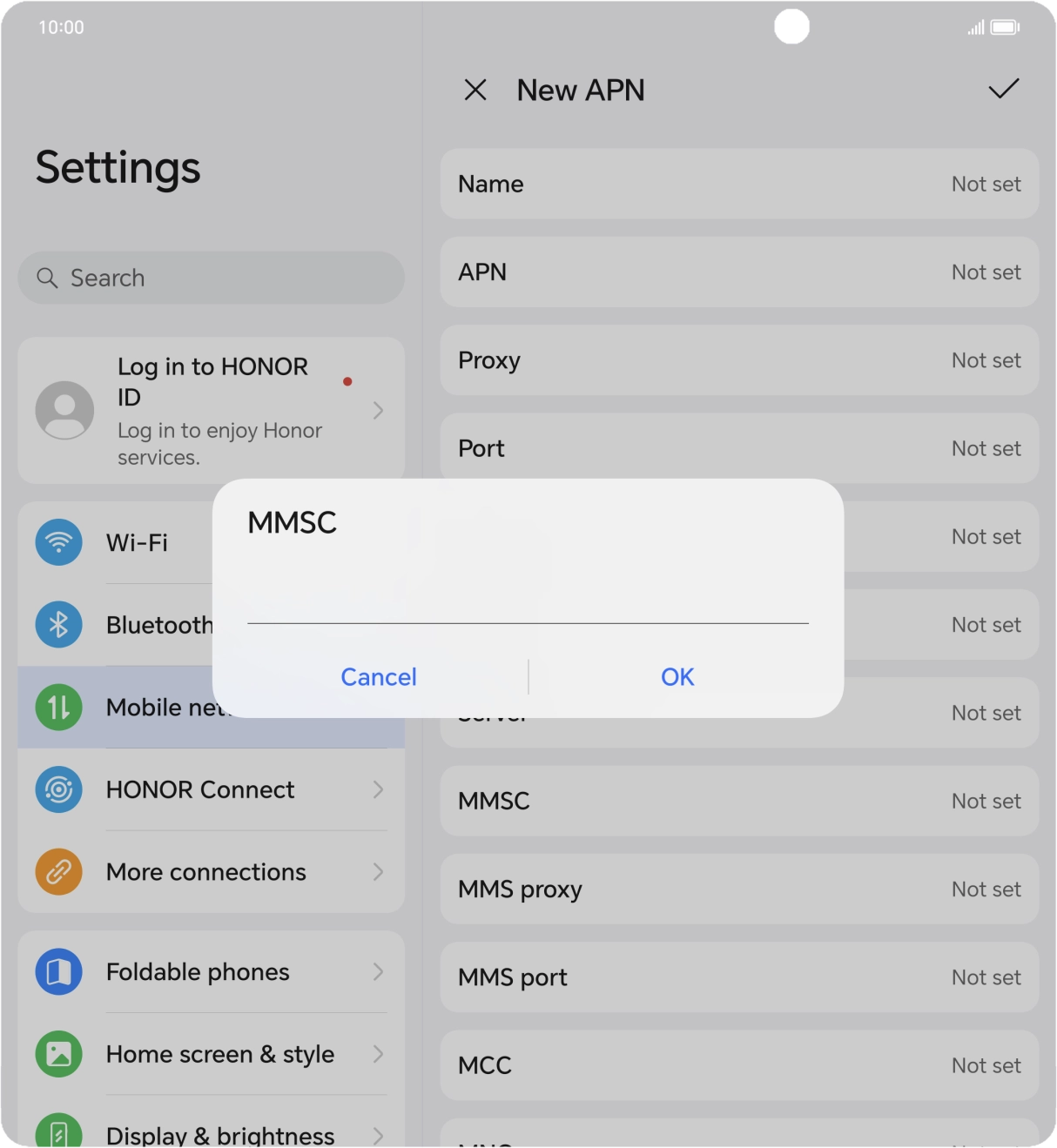
- Press MMSC.
- Key in http://mmsc.mms.o2.co.uk:8002 and press OK.
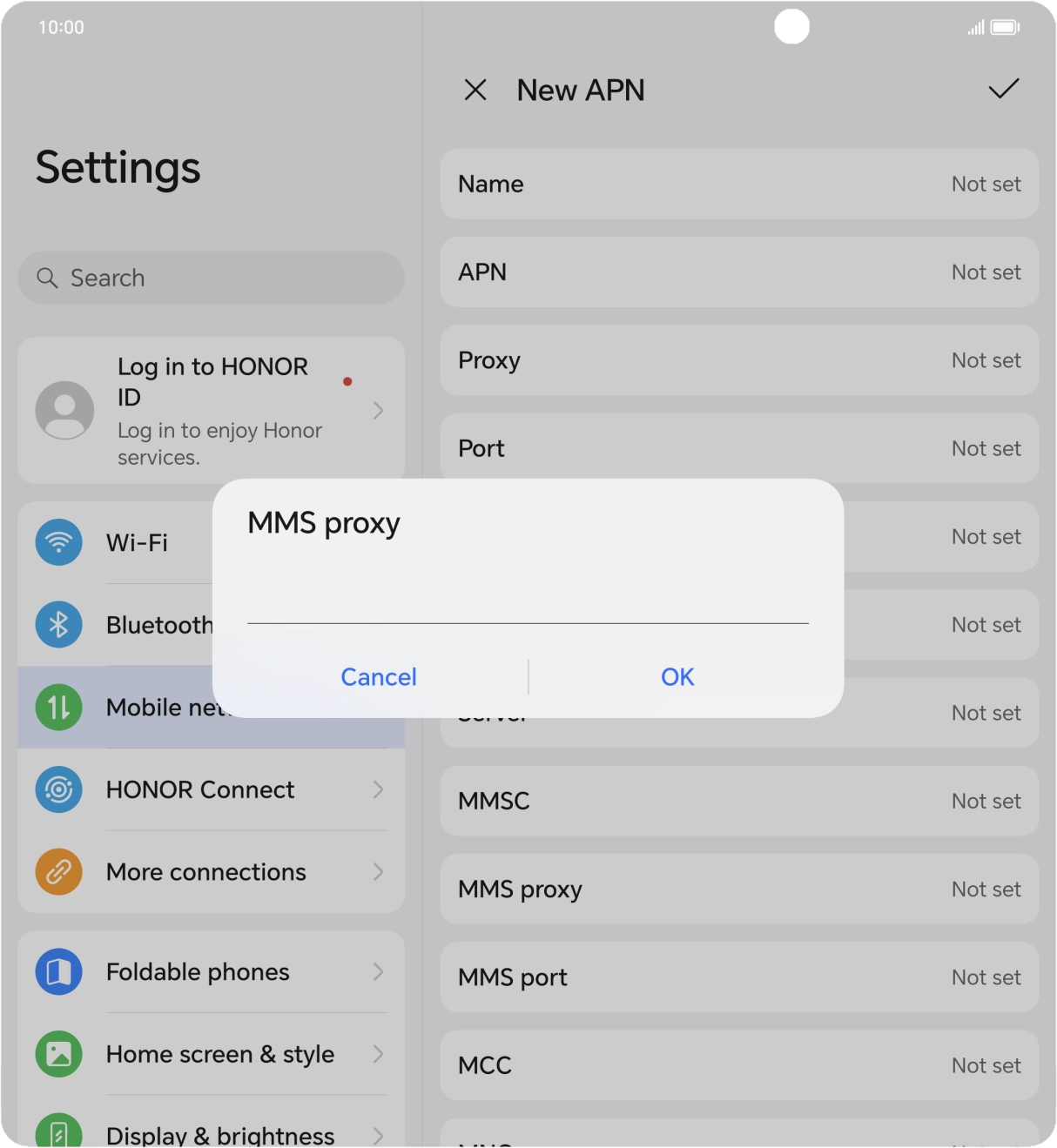
- Press MMS proxy.
- Key in 82.132.254.1 and press OK.
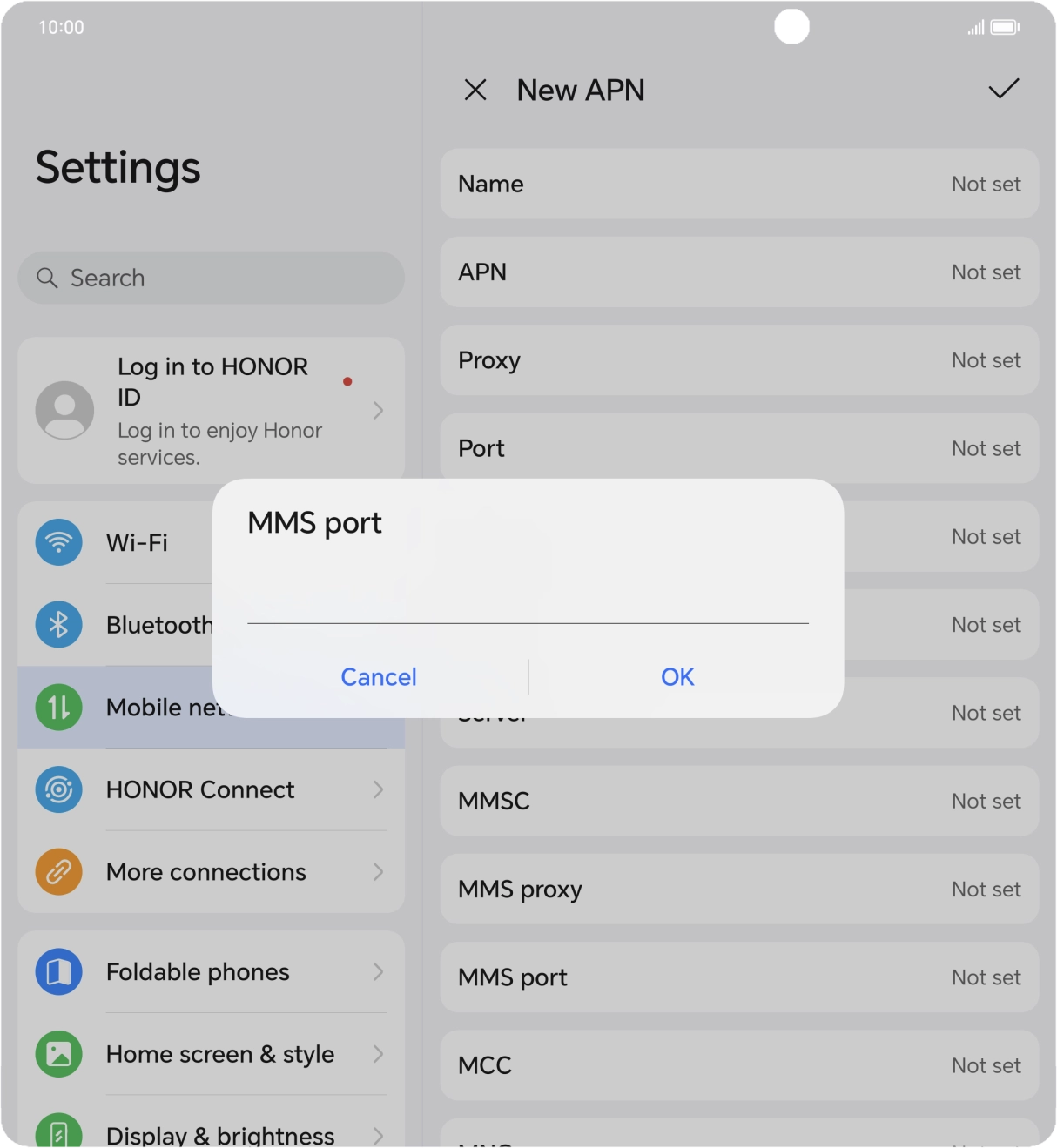
- Press MMS port.
- Key in 8080 and press OK.
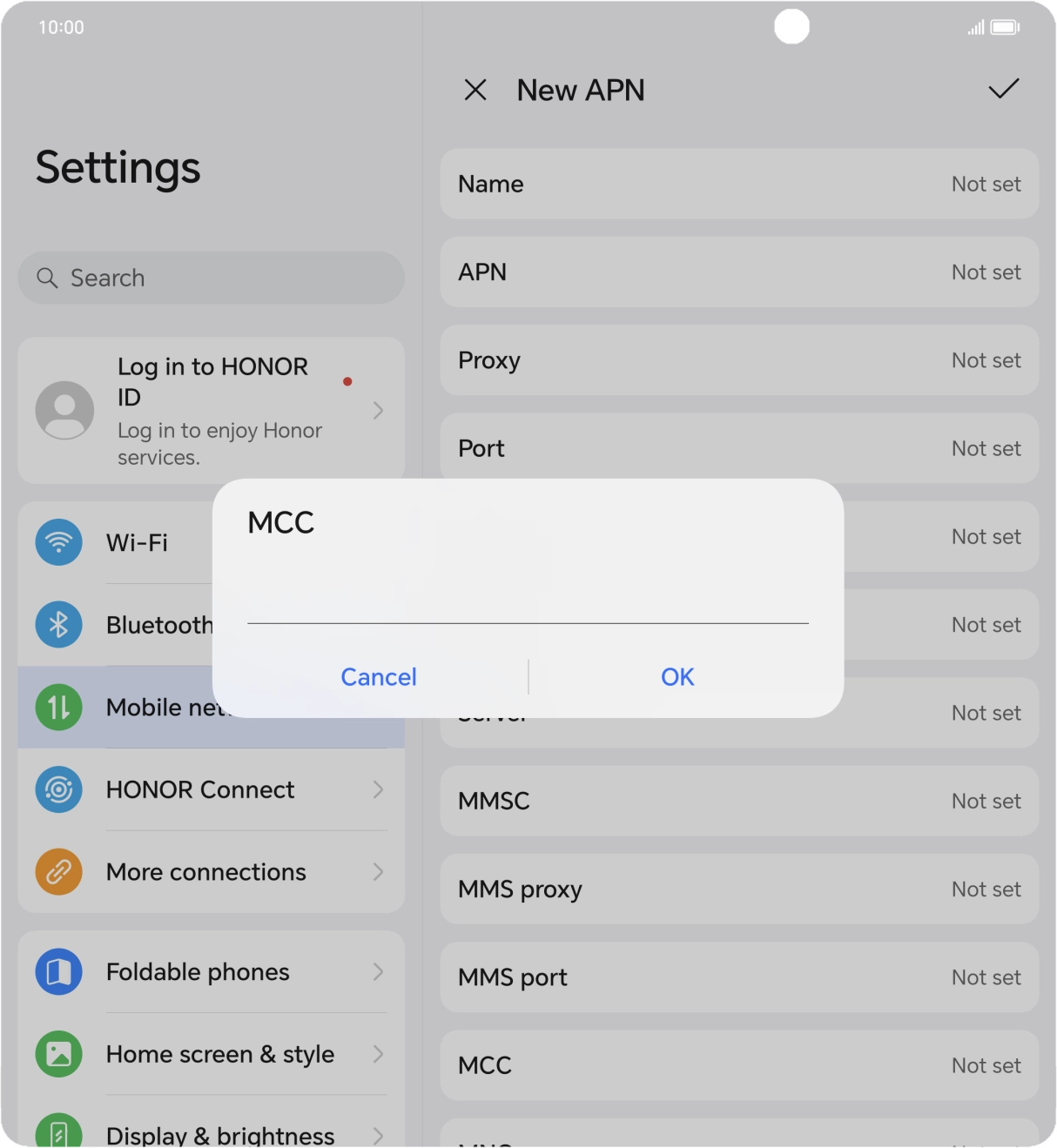
- Press MCC.
- Key in 234 and press OK.
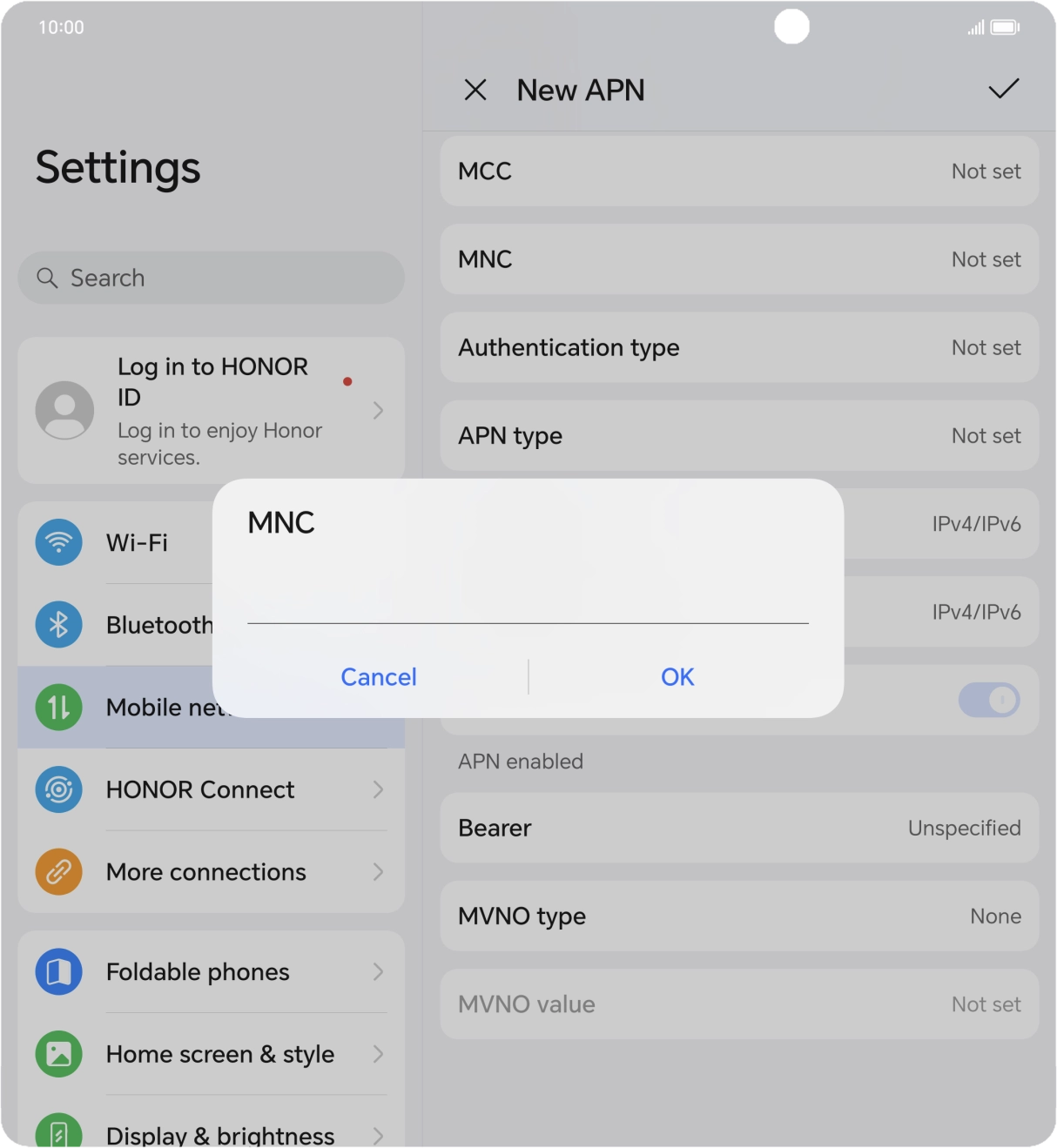
- Press MNC.
- Key in 10 and press OK.
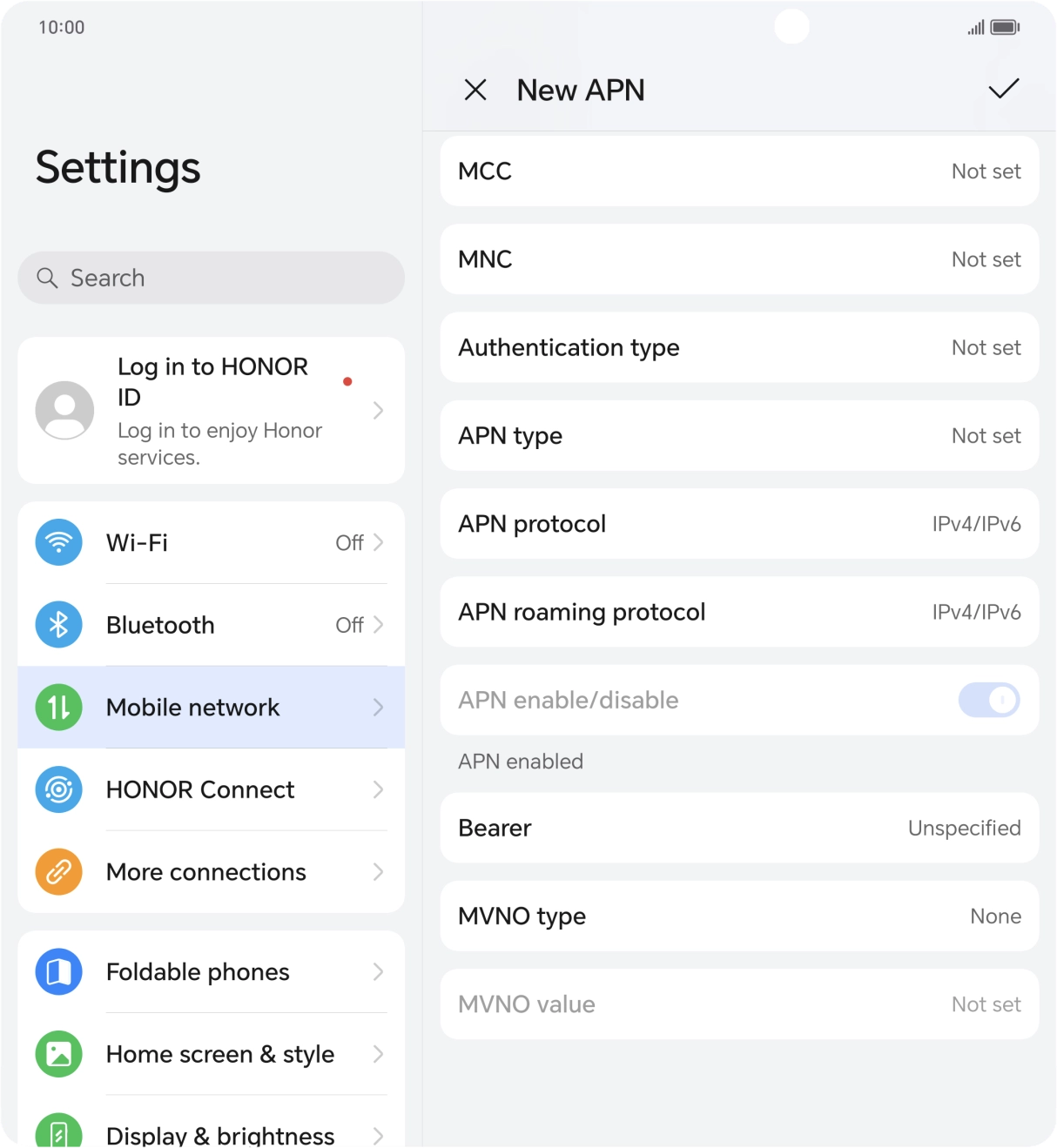
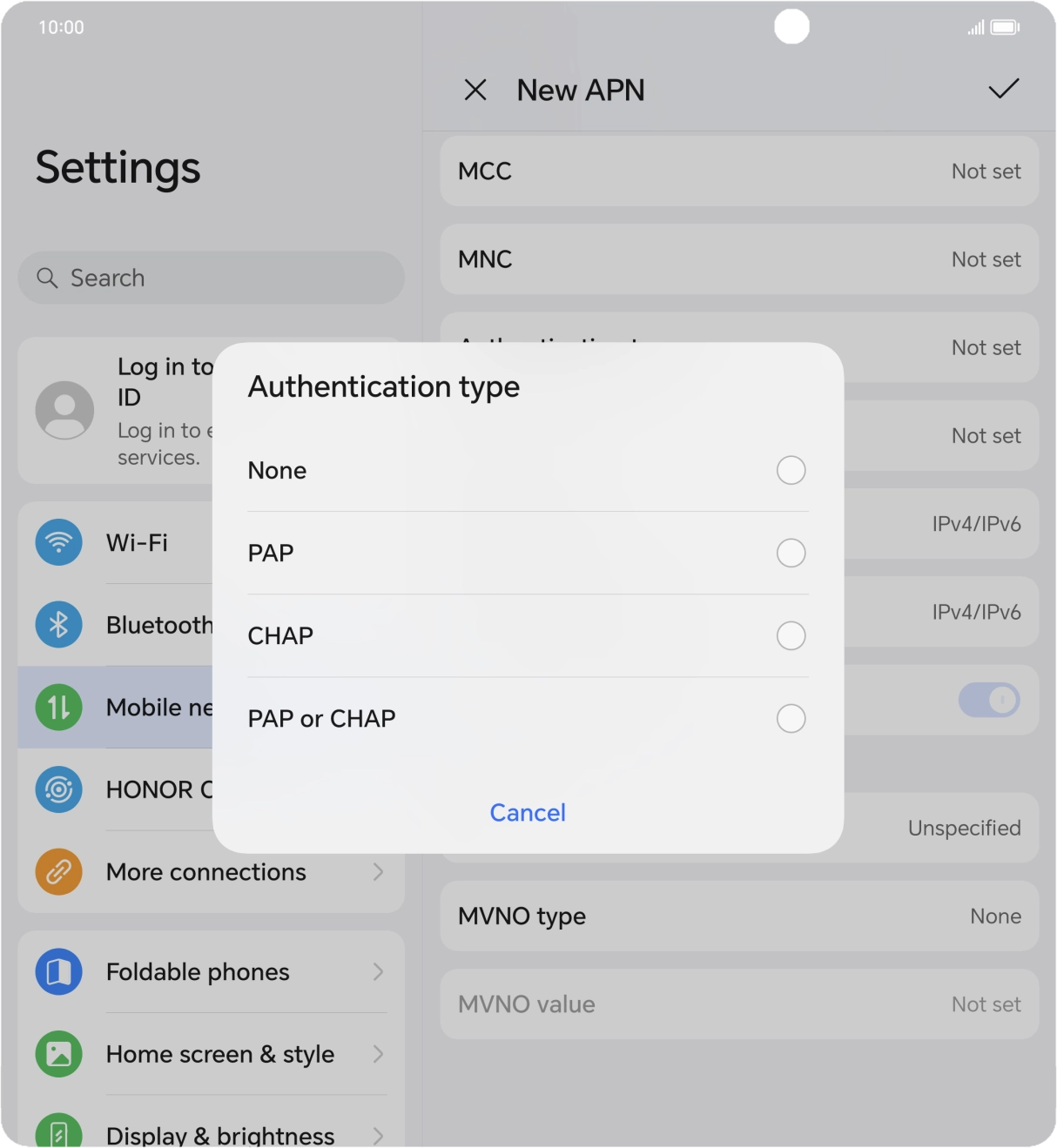
- Press Authentication type.
- Press PAP.
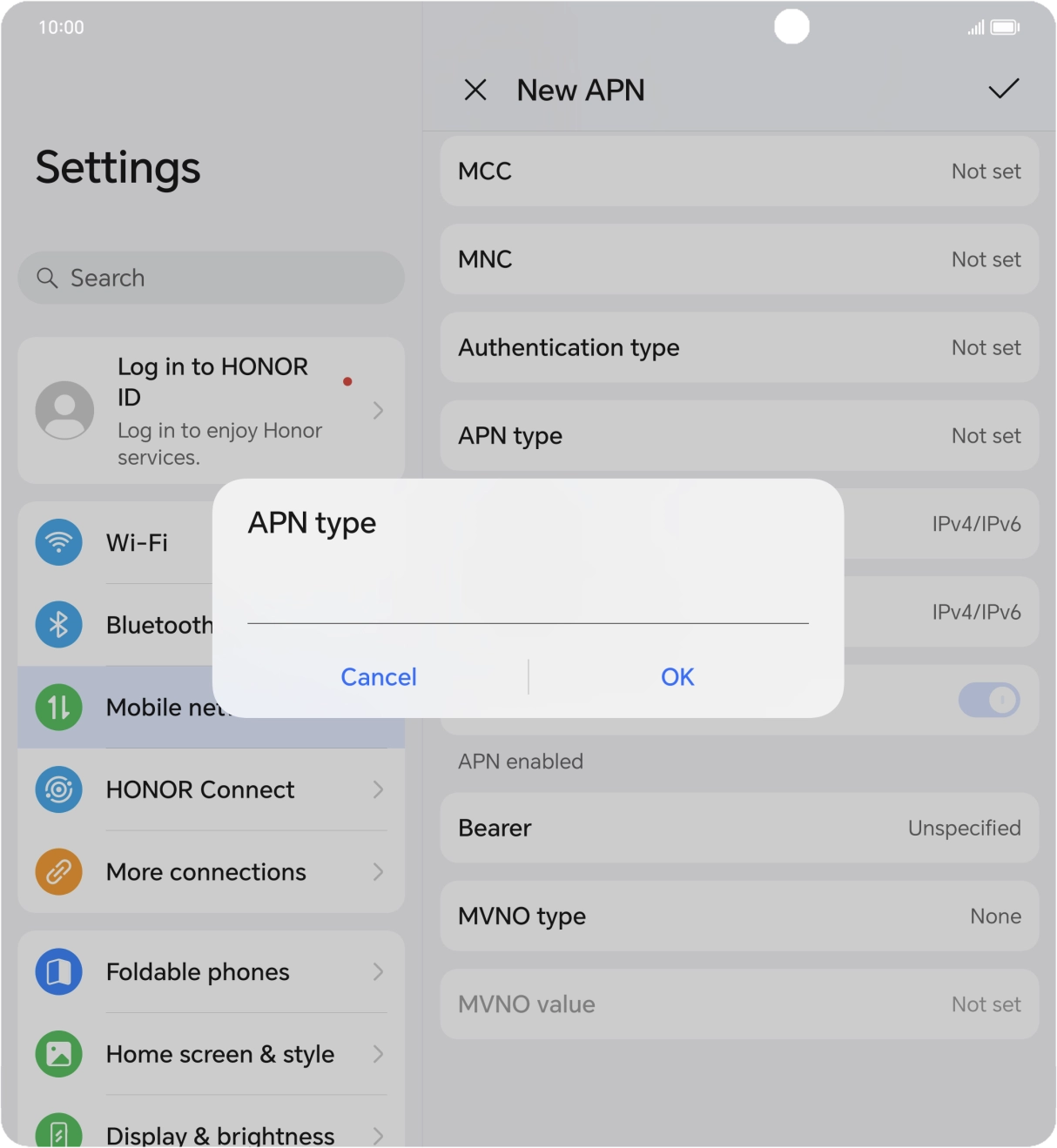
- Press APN type.
- Key in mms and press OK.
- Press the save icon.
- Slide your finger upwards starting from the bottom of the screen to return to the home screen.
1. Turn mobile data on or off
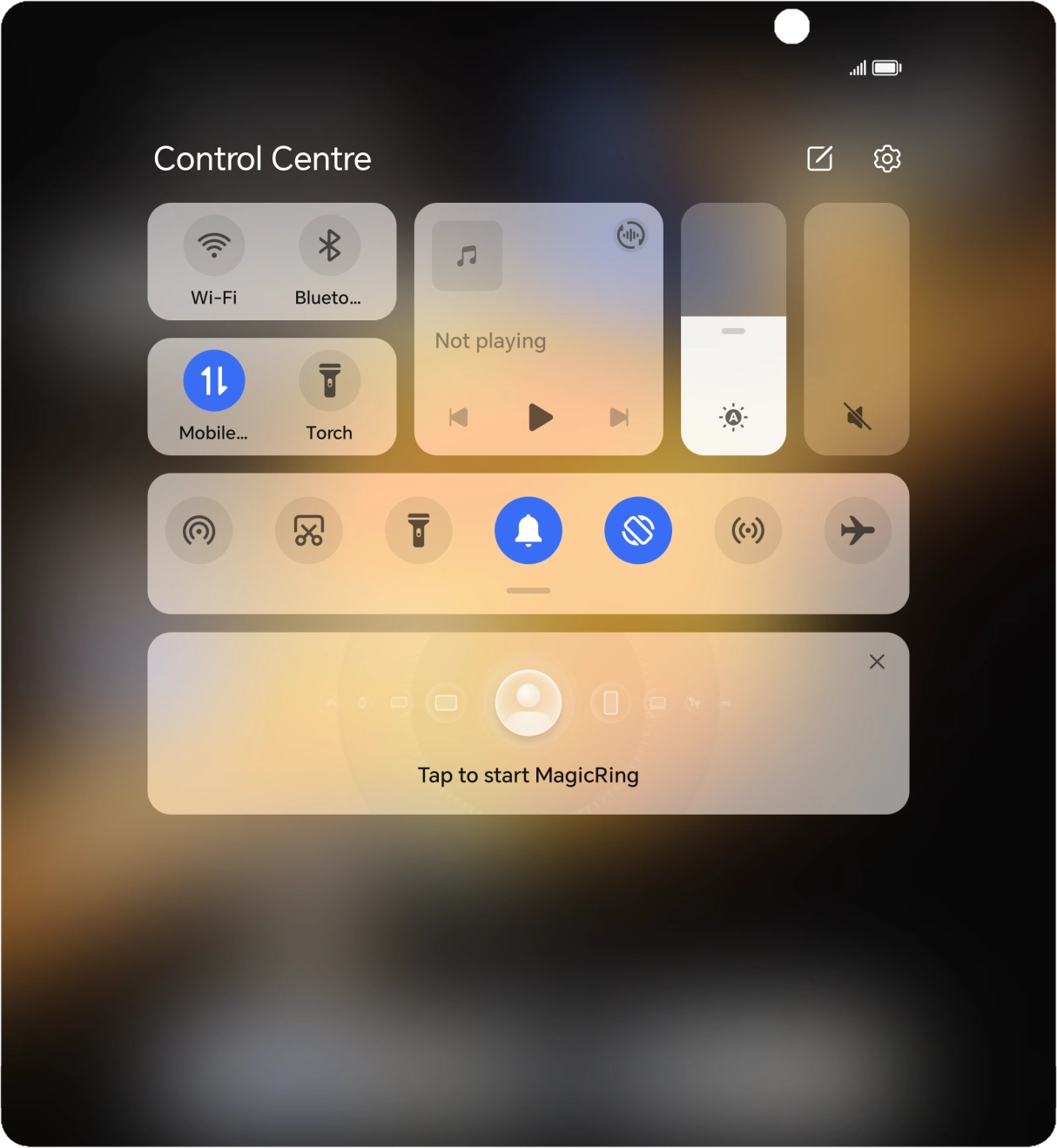
Slide two fingers downwards starting from the top of the screen.
- Slide two fingers downwards starting from the top of the screen.
- Press the mobile data icon to turn the function on or off.
- Press the settings icon.
- Press Mobile network.
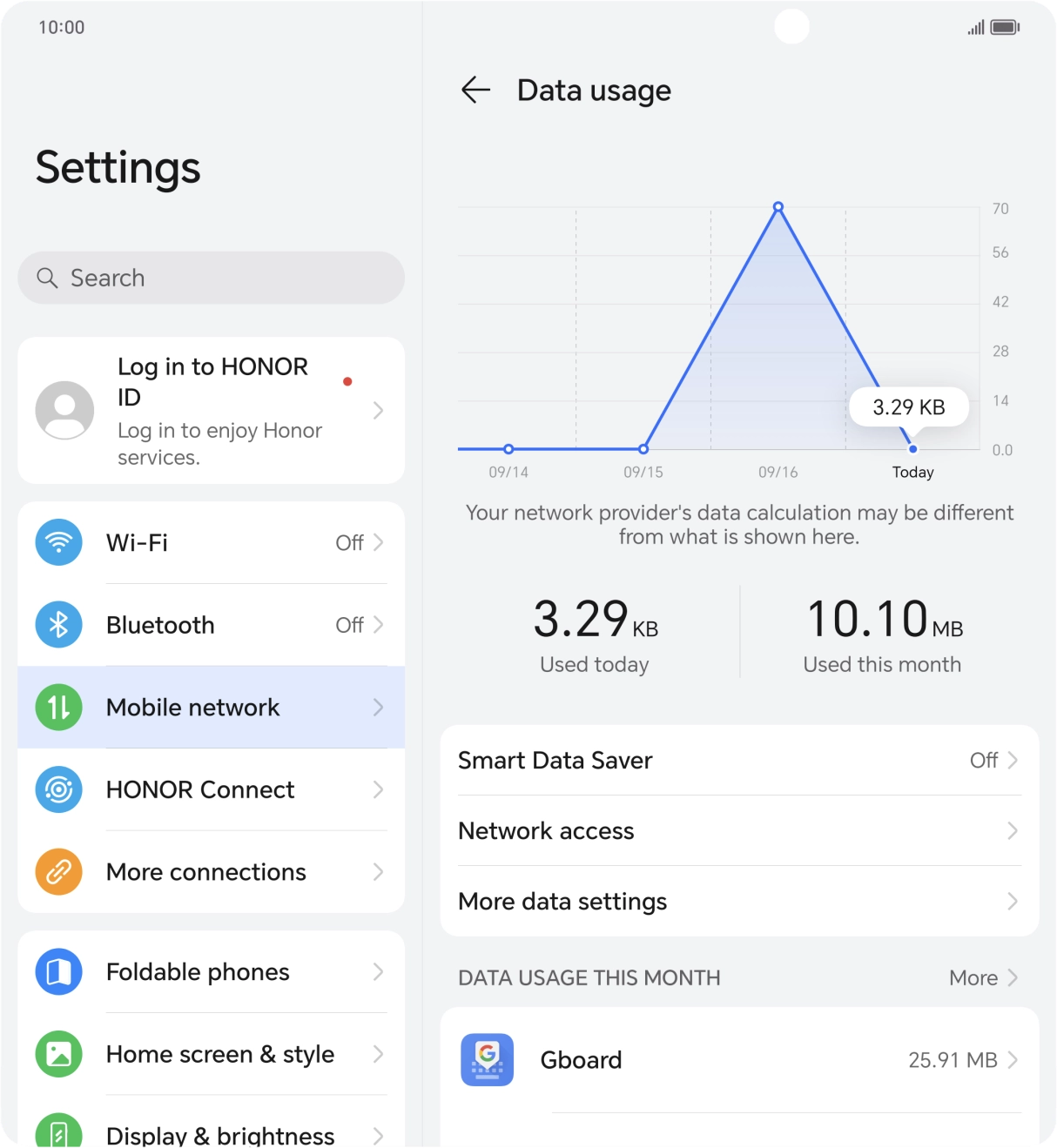
- Press Data usage.
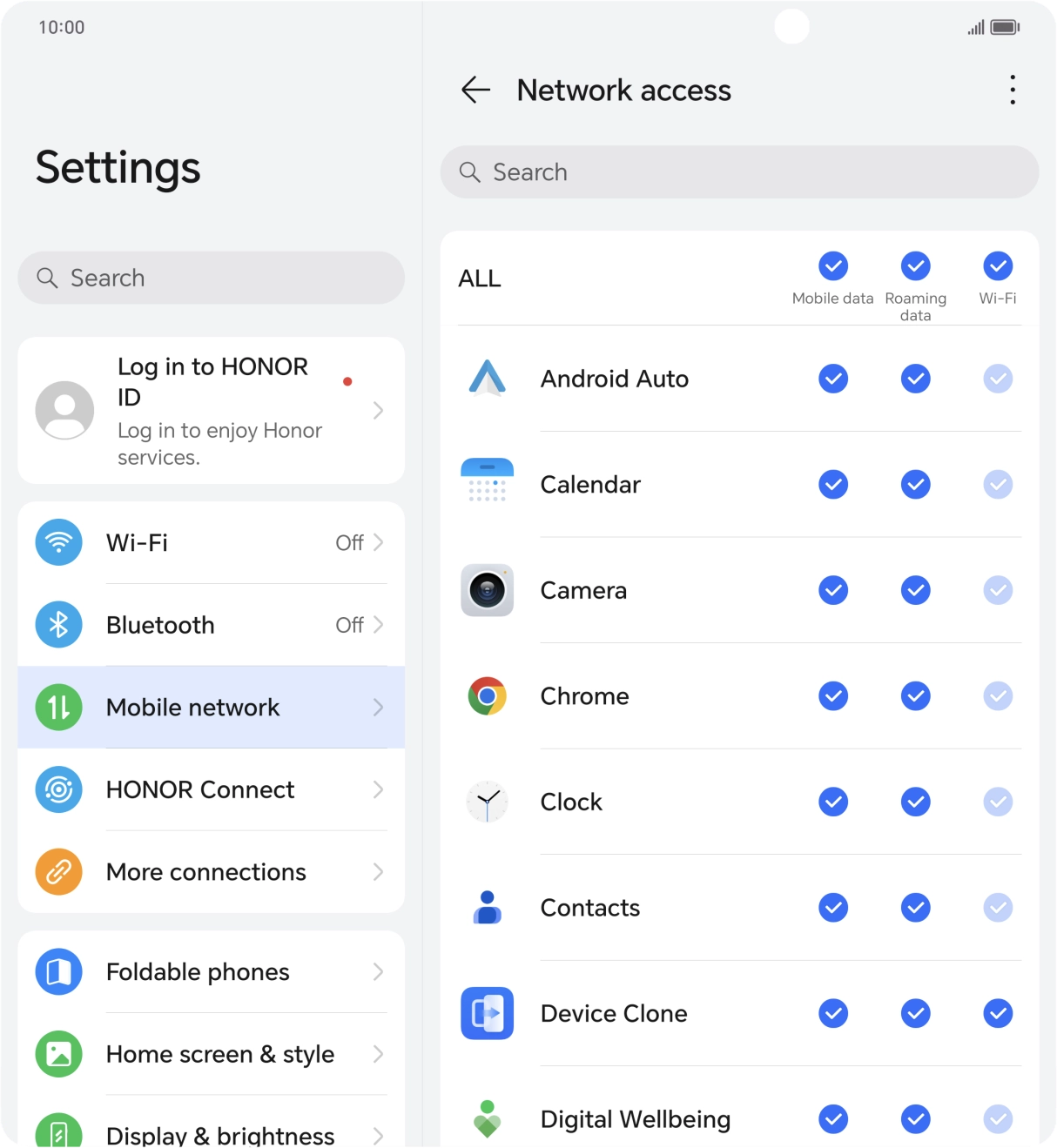
- Press Network access.
- Press the field in the "Mobile data" column next to the required app to turn the function on or off.
- Slide your finger upwards starting from the bottom of the screen to return to the home screen.
- Press the settings icon.
- Press Mobile network.
- Press Mobile data.
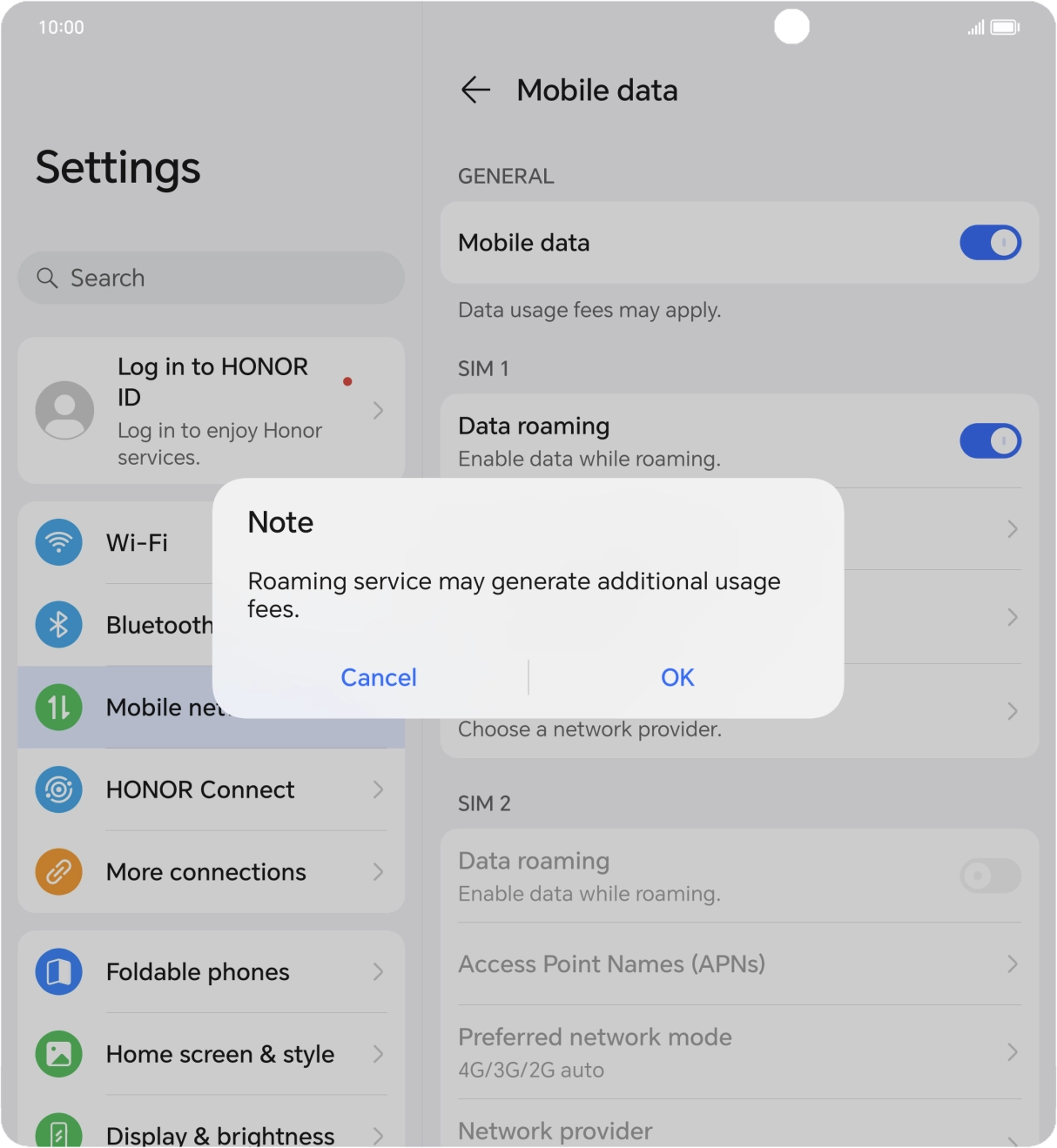
- Press the indicator next to 'Data roaming' to turn the function on or off.
- If you turn on the function, press OK.
- Slide your finger upwards starting from the bottom of the screen to return to the home screen.
Try sending a picture message to another number.