My HONOR 600 Pro uses a large amount of mobile data
If your phone uses a large amount of mobile data, there may be several causes of the problem.
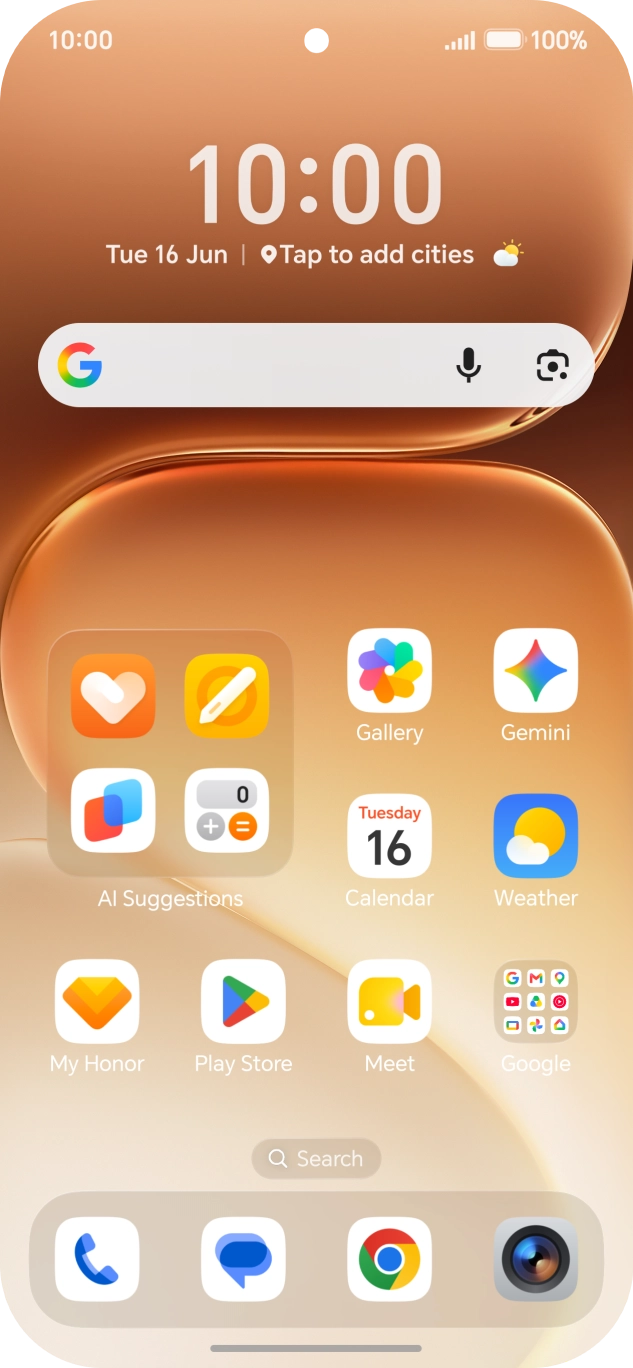
1. Turn mobile data on or off
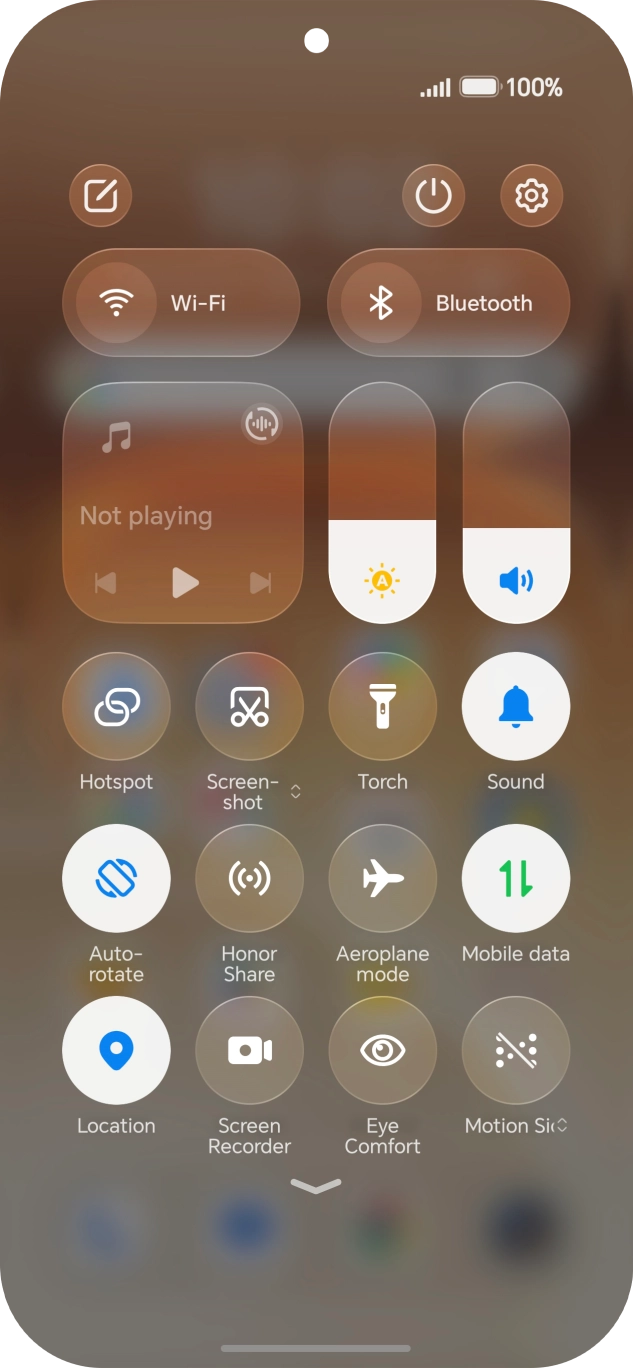
Slide your finger downwards starting from the top right side of the screen.
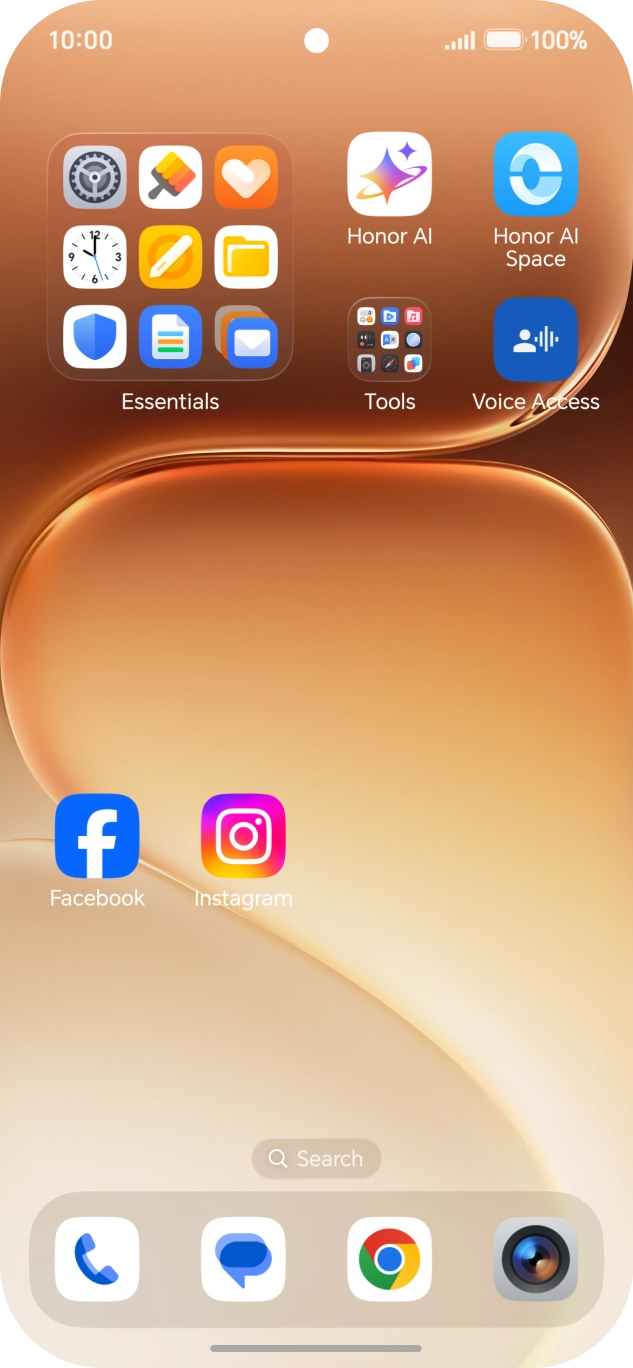
- Slide your finger downwards starting from the top right side of the screen.
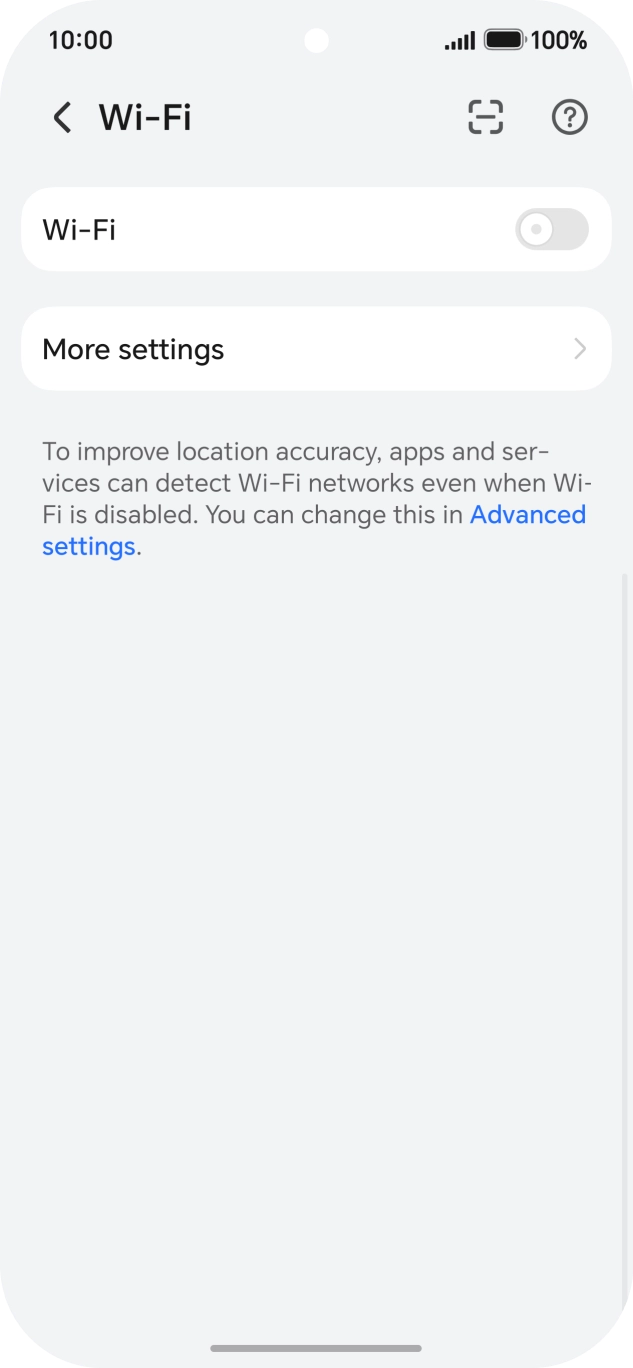
- Press the mobile data icon to turn the function on or off.
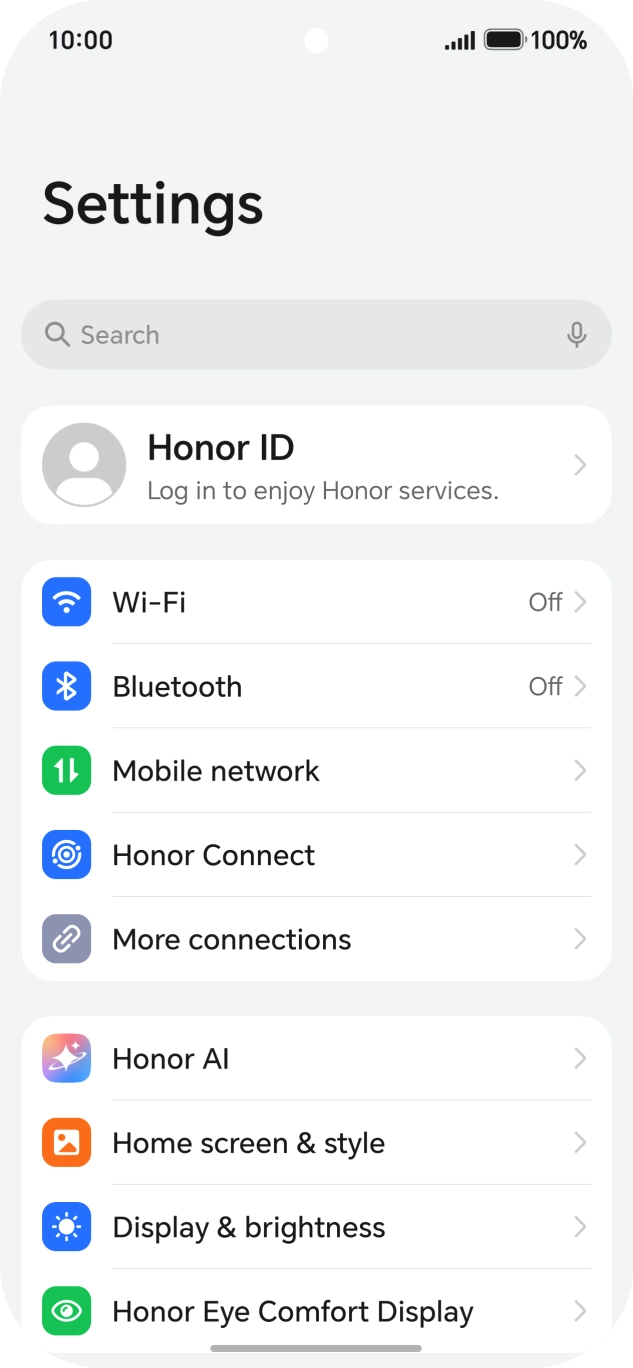
- Press the settings icon.
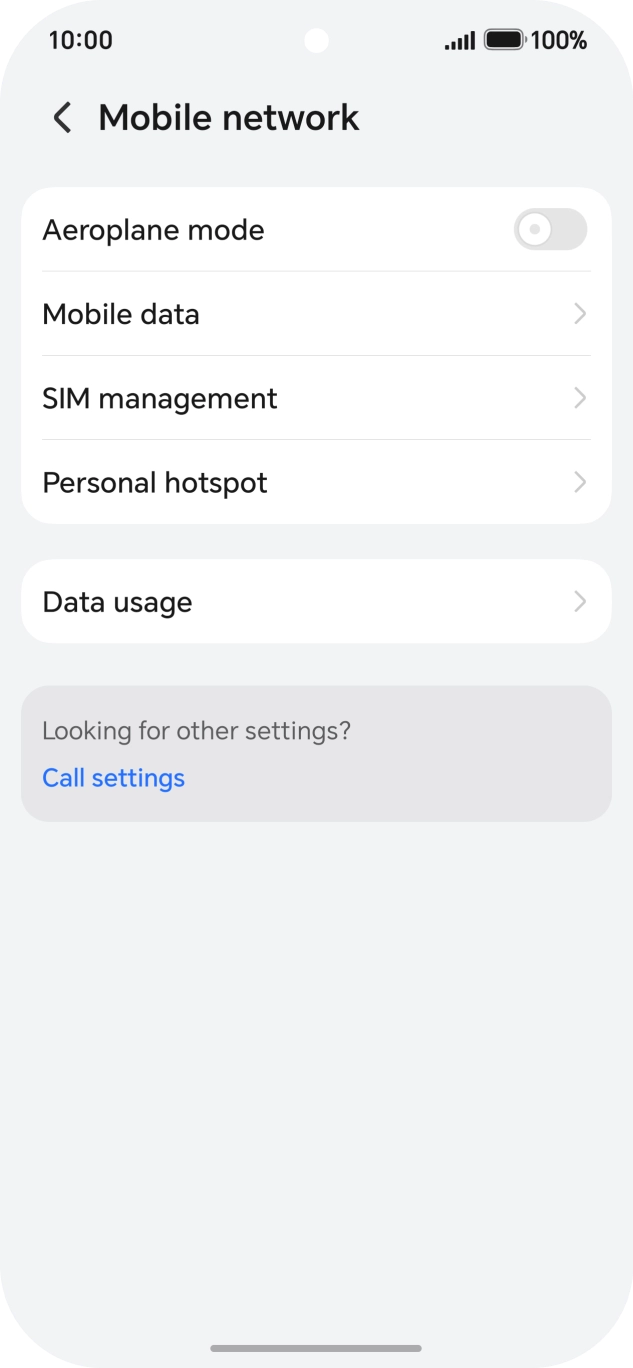
- Press Mobile network.
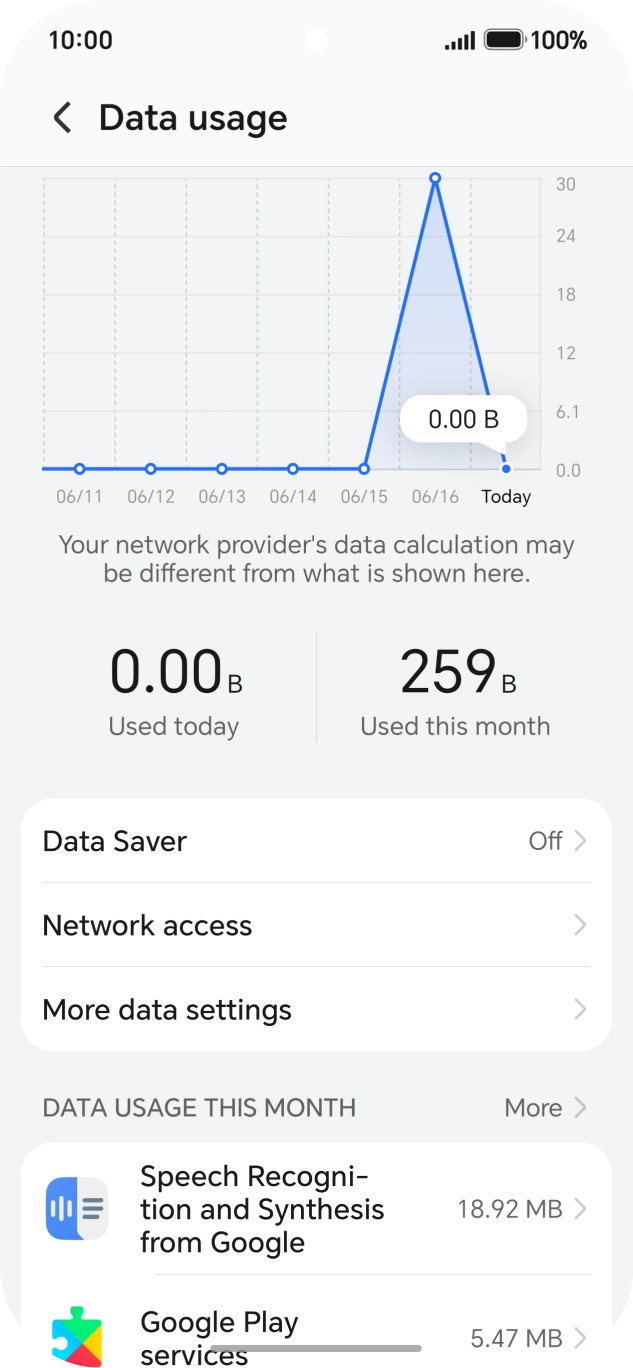
- Press Data usage.
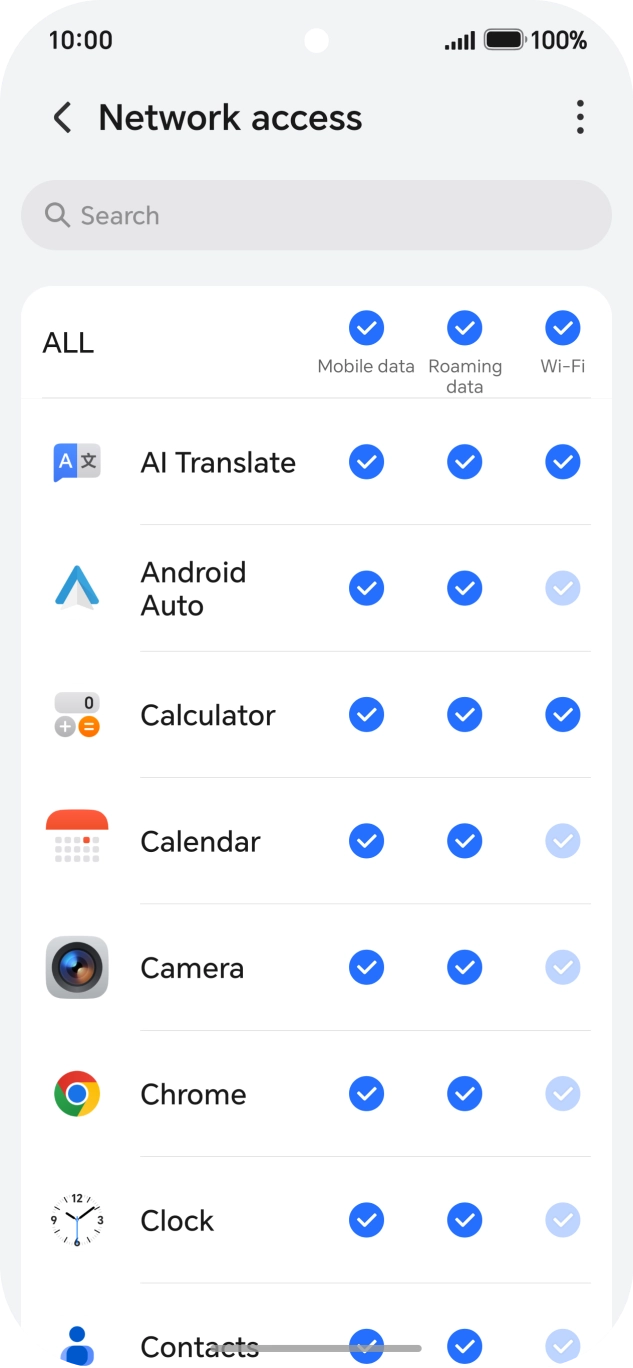
- Press Network access.
- Press the field in the "Mobile data" column next to the required app to turn the function on or off.
- Slide your finger upwards starting from the bottom of the screen to return to the home screen.
- Press the settings icon.
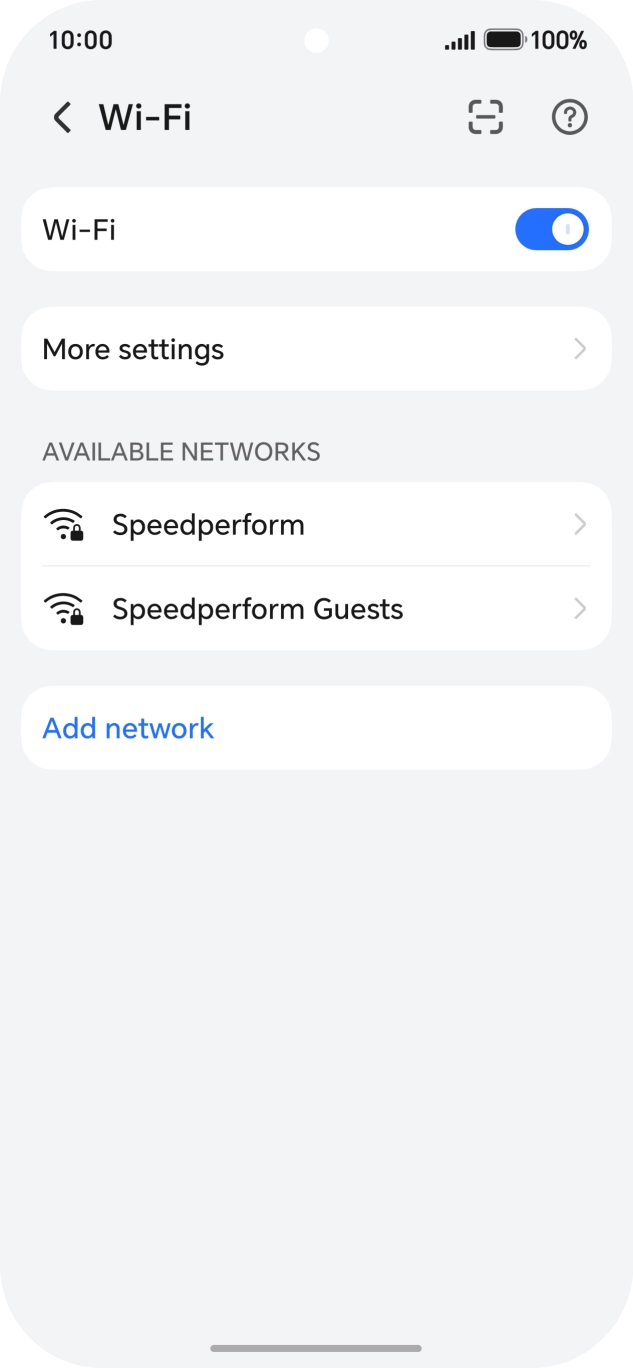
- Press Wi-Fi.
- Press the indicator next to 'Wi-Fi' to turn on the function.
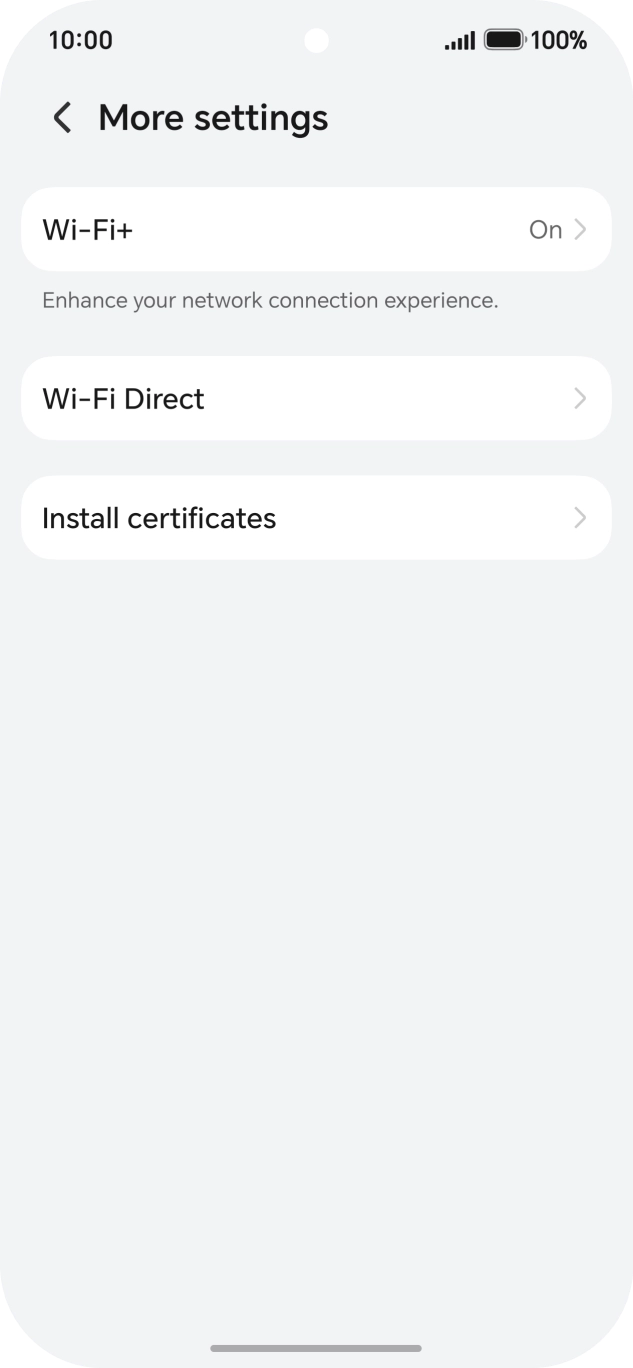
- Press More settings.
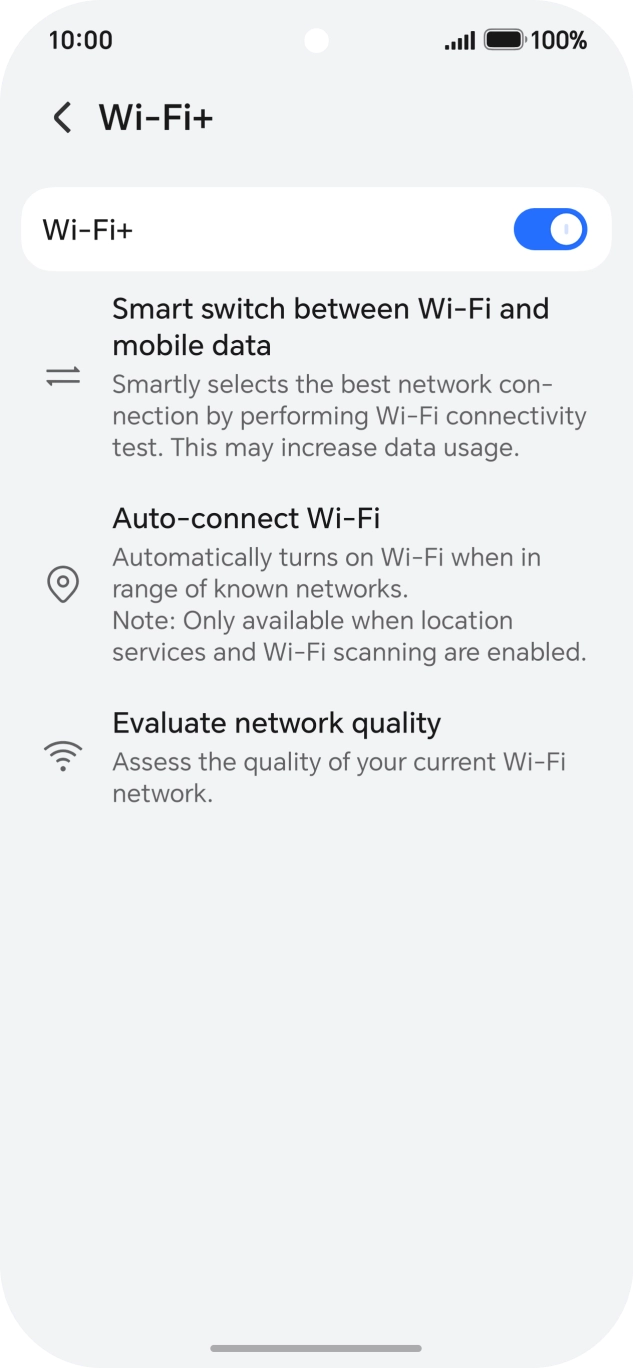
- Press Wi-Fi+.
- Press the indicator next to 'Wi-Fi+' to turn the function on or off.
- Slide your finger upwards starting from the bottom of the screen to return to the home screen.
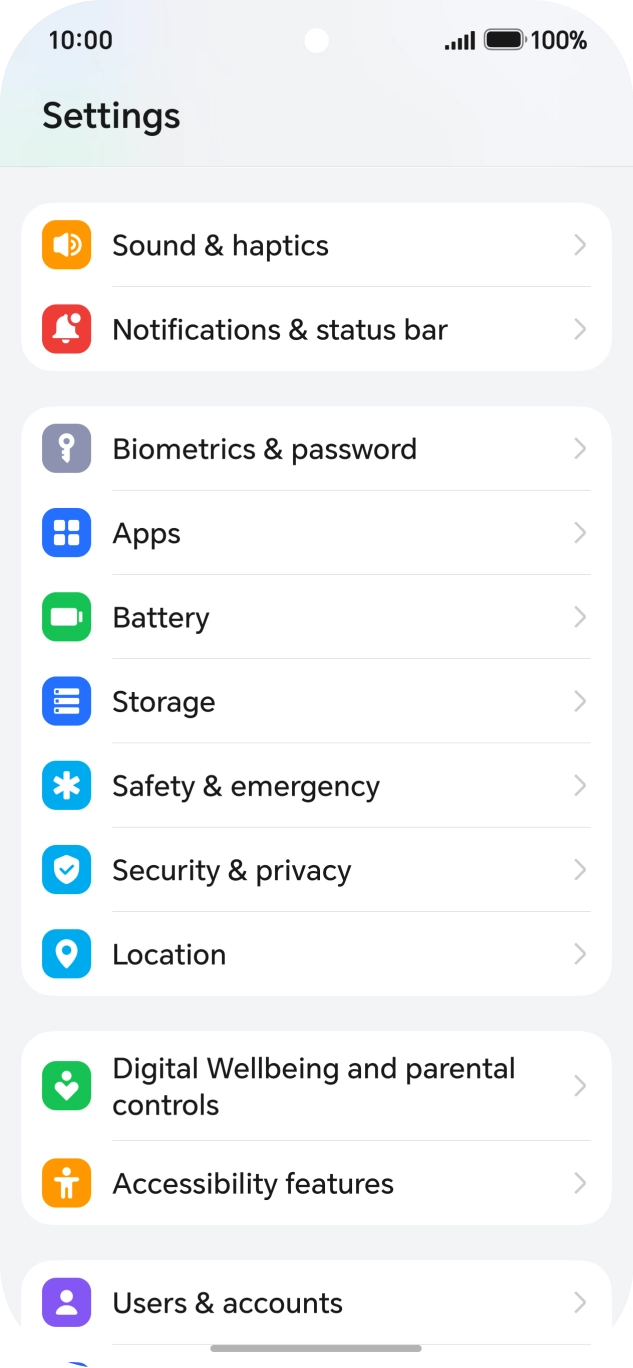
- Press the settings icon.
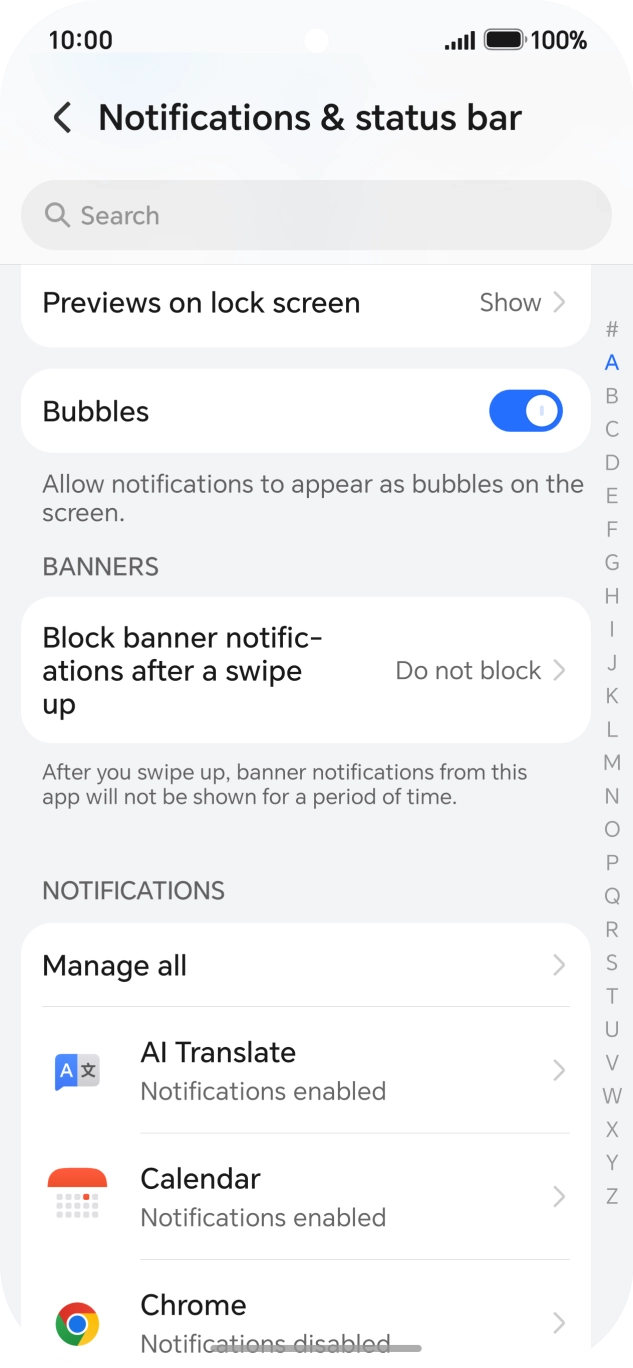
- Press Notifications & status bar.
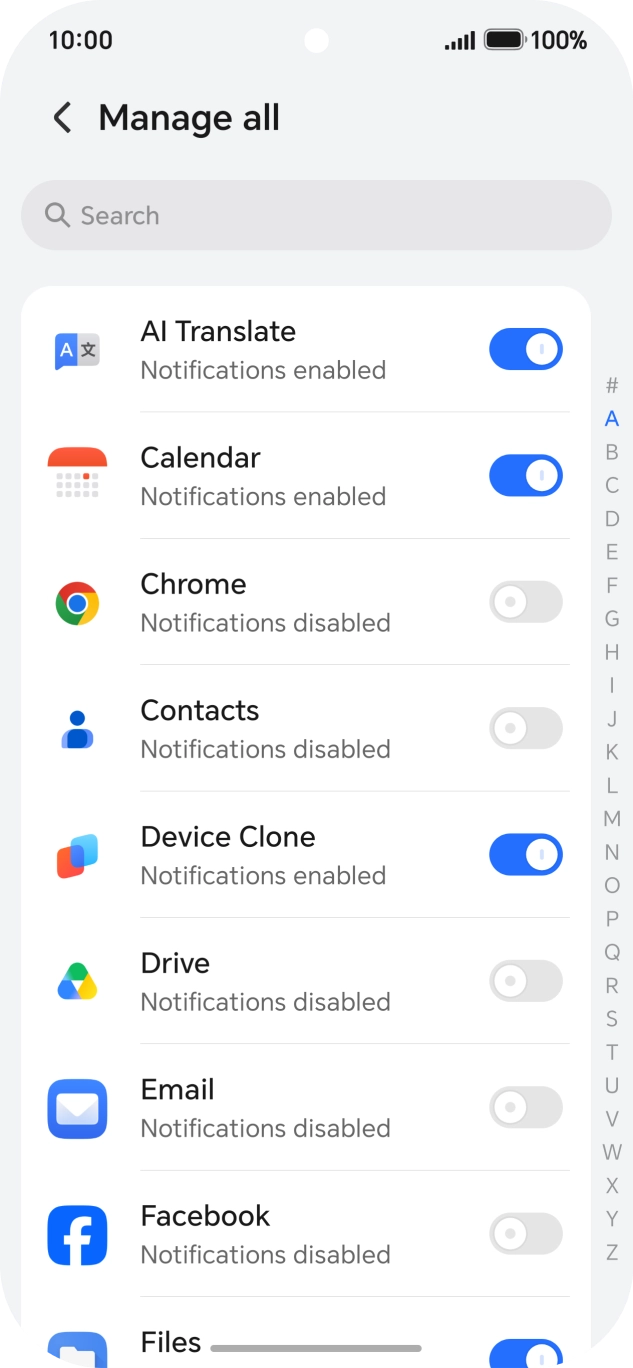
- Press Manage all.
- Press the indicators next to the required apps to turn the function on or off.
- Slide your finger upwards starting from the bottom of the screen to return to the home screen.
- Press the settings icon.
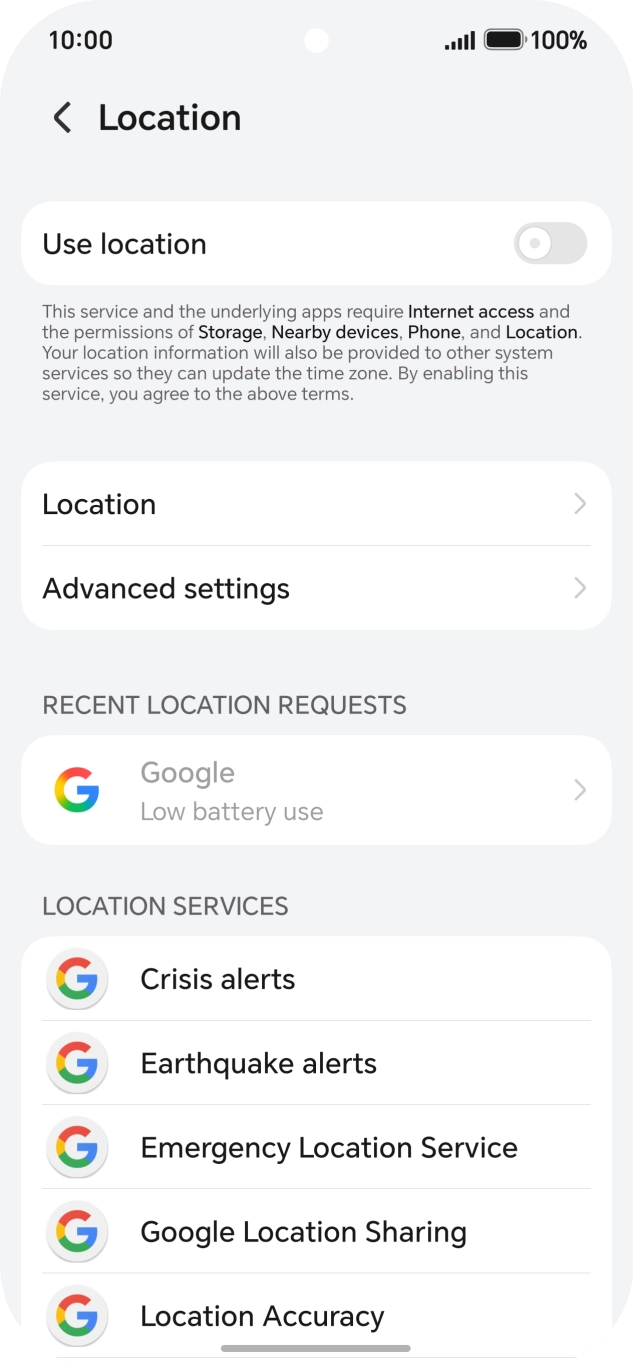
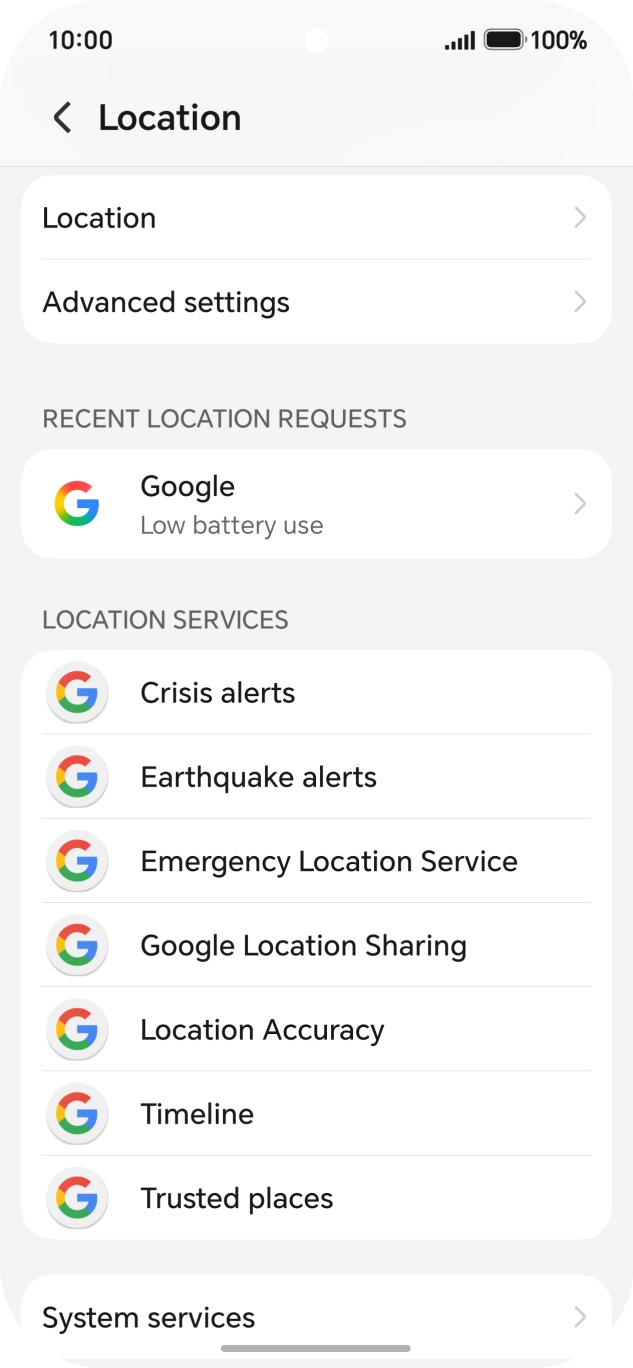
- Press Location.
- Press the indicator next to 'Use location' to turn the function on or off.If you turn on geotagging, your phone can find your position using GPS. If you turn off the function, you can't use any GPS functions on your phone.
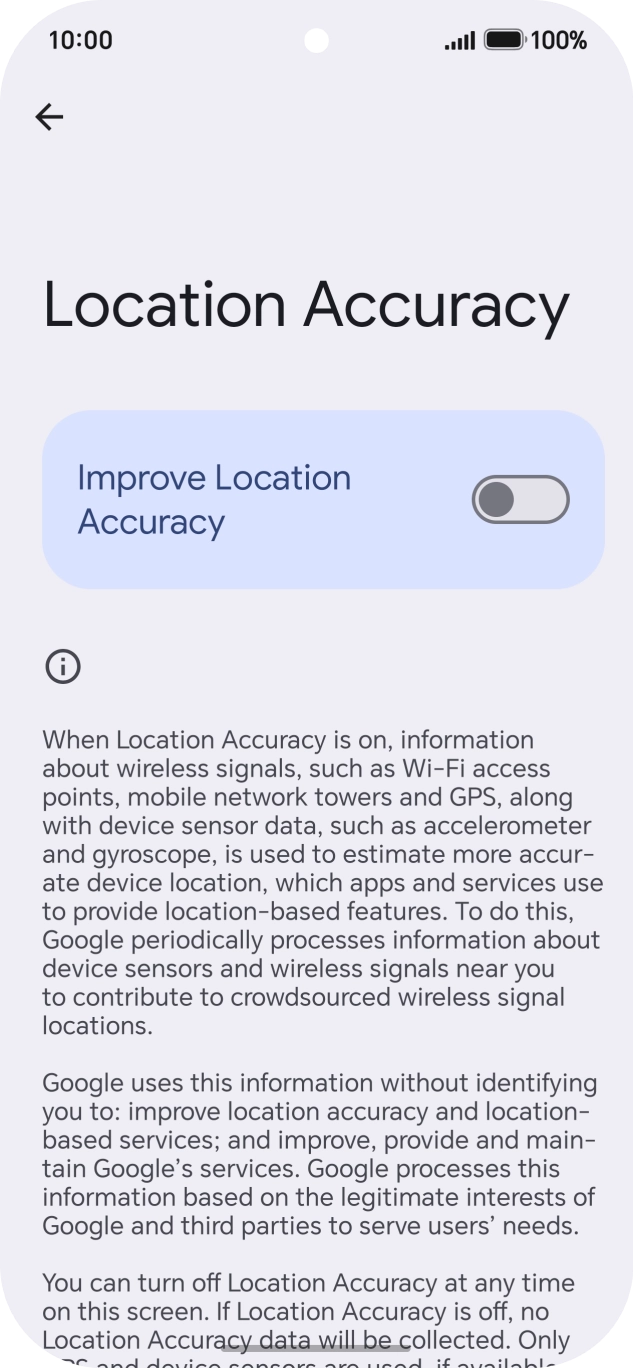
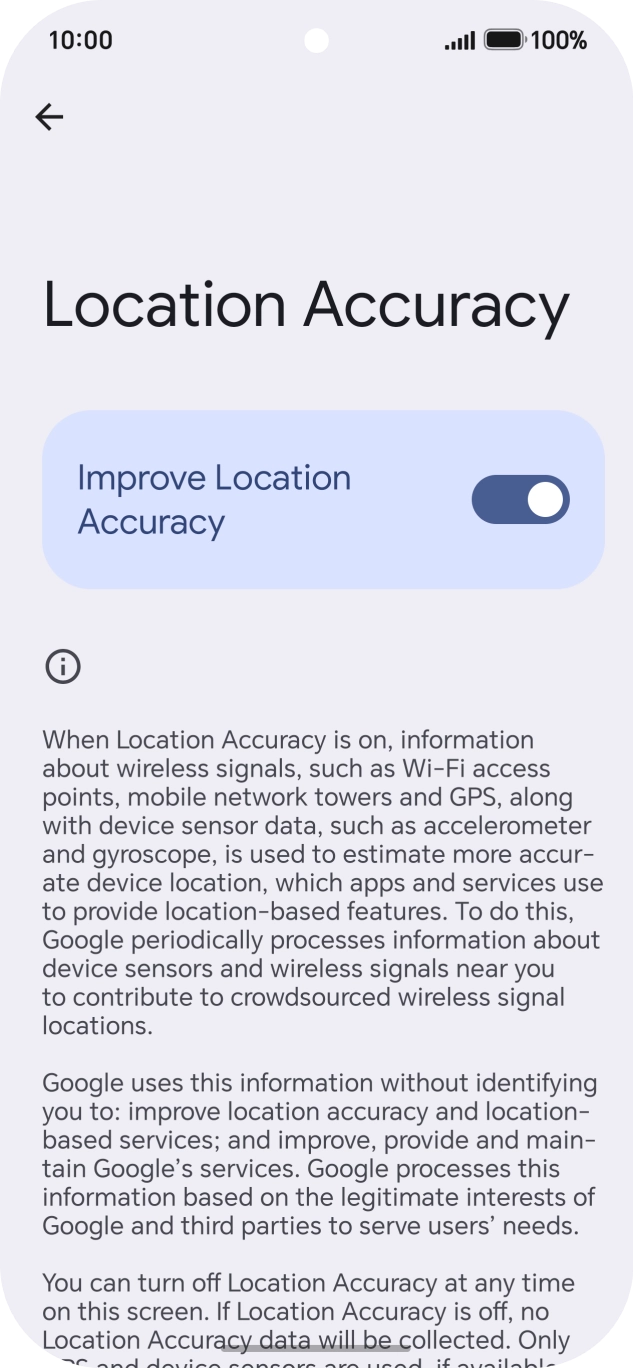
- Press Location Accuracy.
- If you press the indicator next to 'Improve Location Accuracy' to turn on the function, your phone can find your exact position using the GPS satellites, the mobile network and nearby WiFi networks. Satellite-based GPS requires a clear view of the sky.
- If you press the indicator next to 'Improve Location Accuracy' to turn off the function, your phone can find your exact position using the GPS satellites but it may take longer as there is no access to supplementary information from the mobile network or nearby WiFi networks.
- Press arrow left twice.
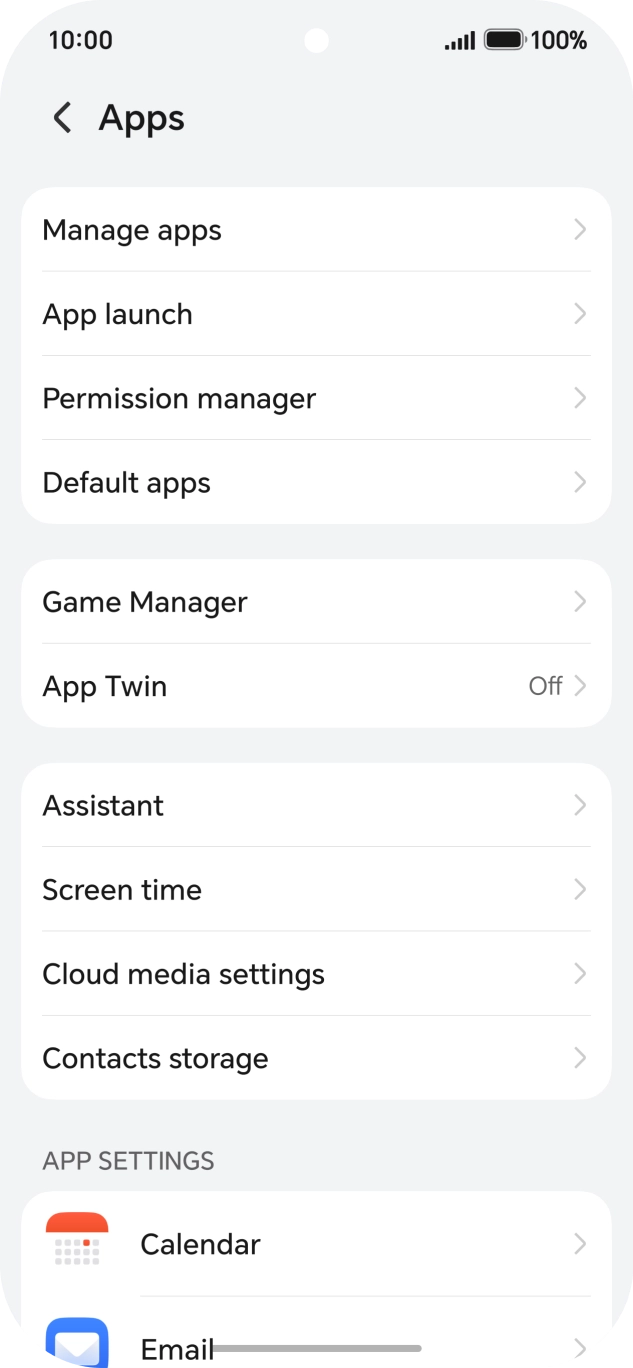
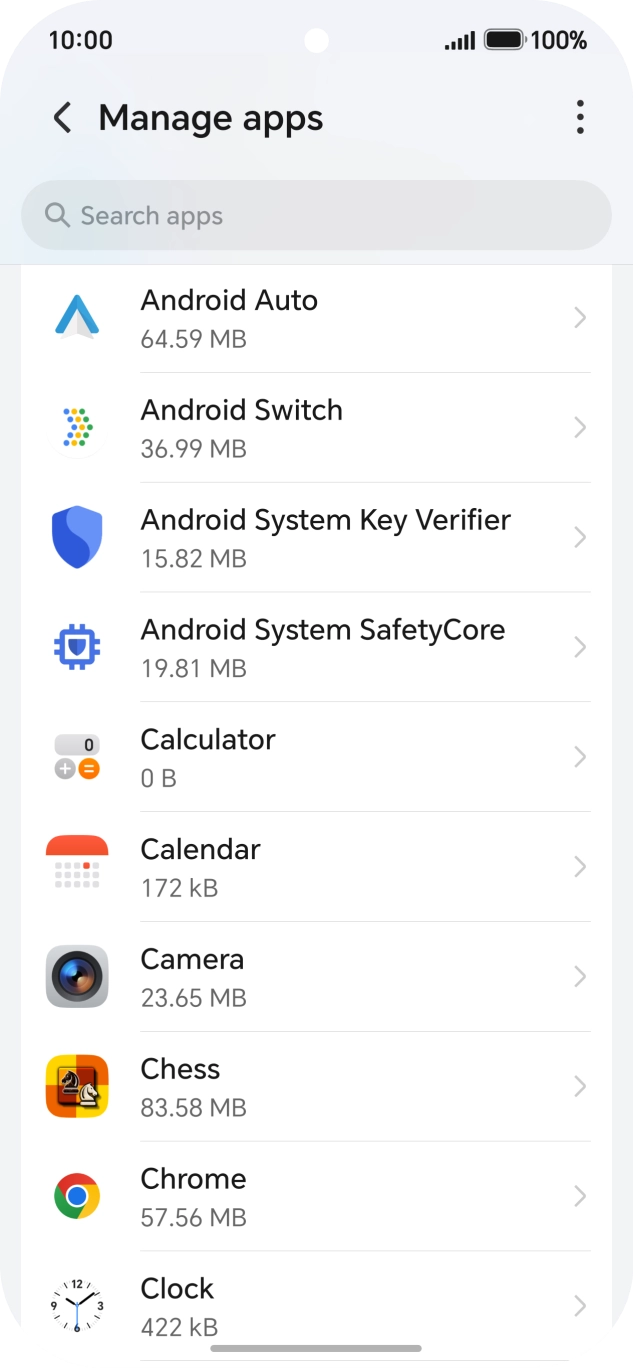
- Press Apps.
- Press Manage apps.
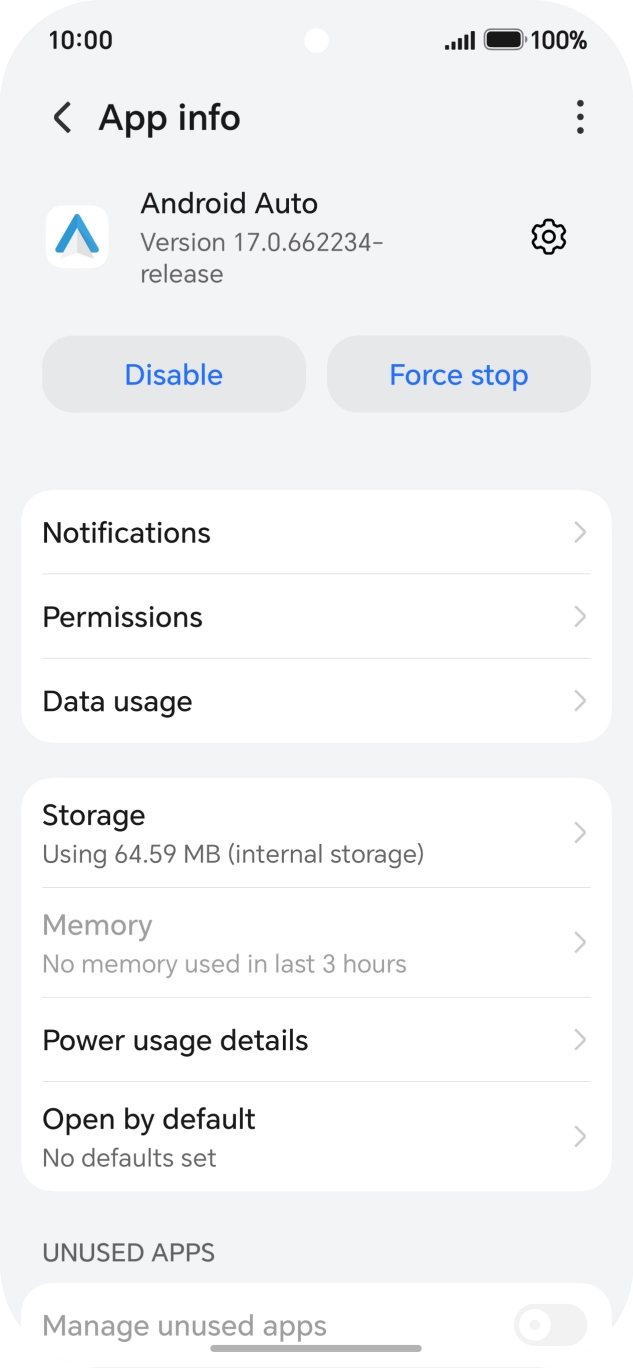
- Press the required app.
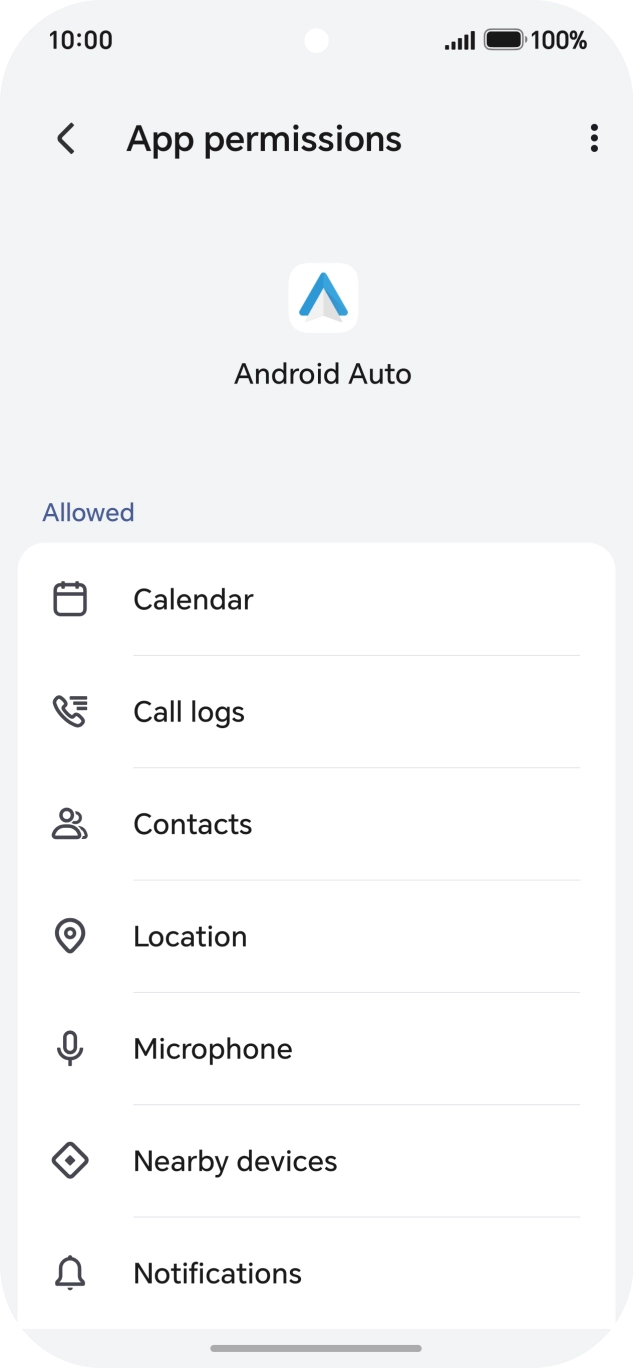
- Press Permissions.
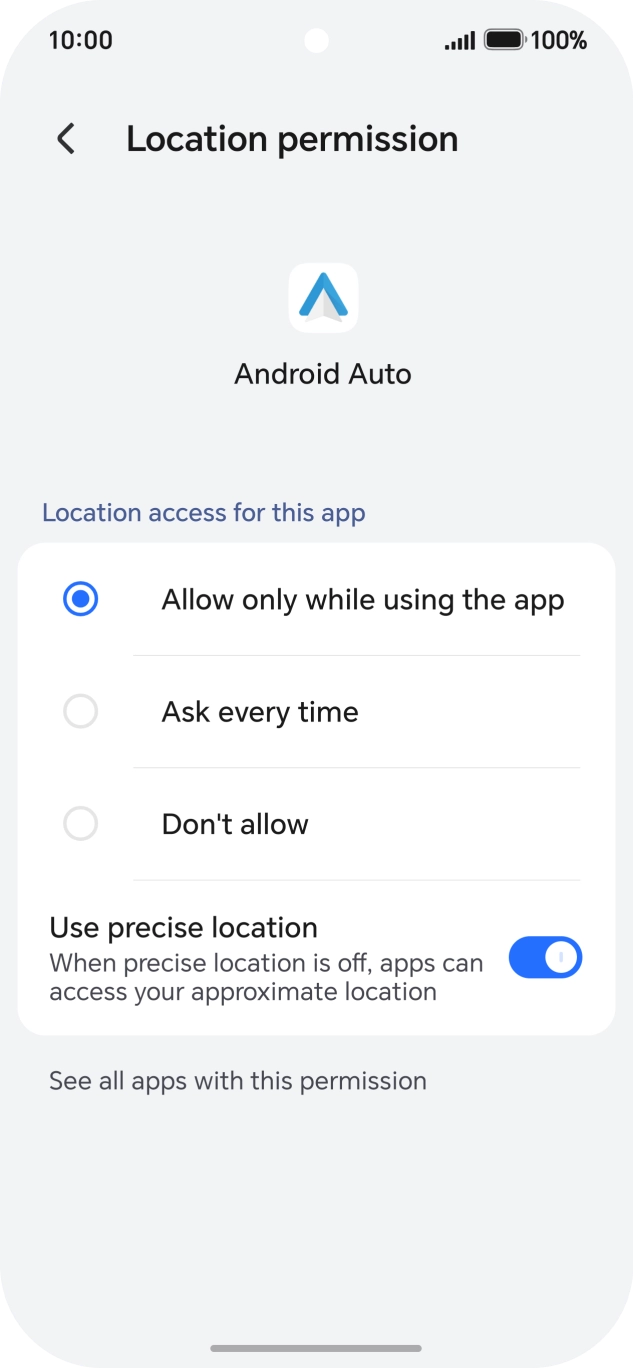
- Press Location.
- Press the required setting.
- Slide your finger upwards starting from the bottom of the screen to return to the home screen.
.