I have problems using the internet connection on my HONOR 200 5G
If you can't use your phone's internet connection, there may be several causes of the problem.
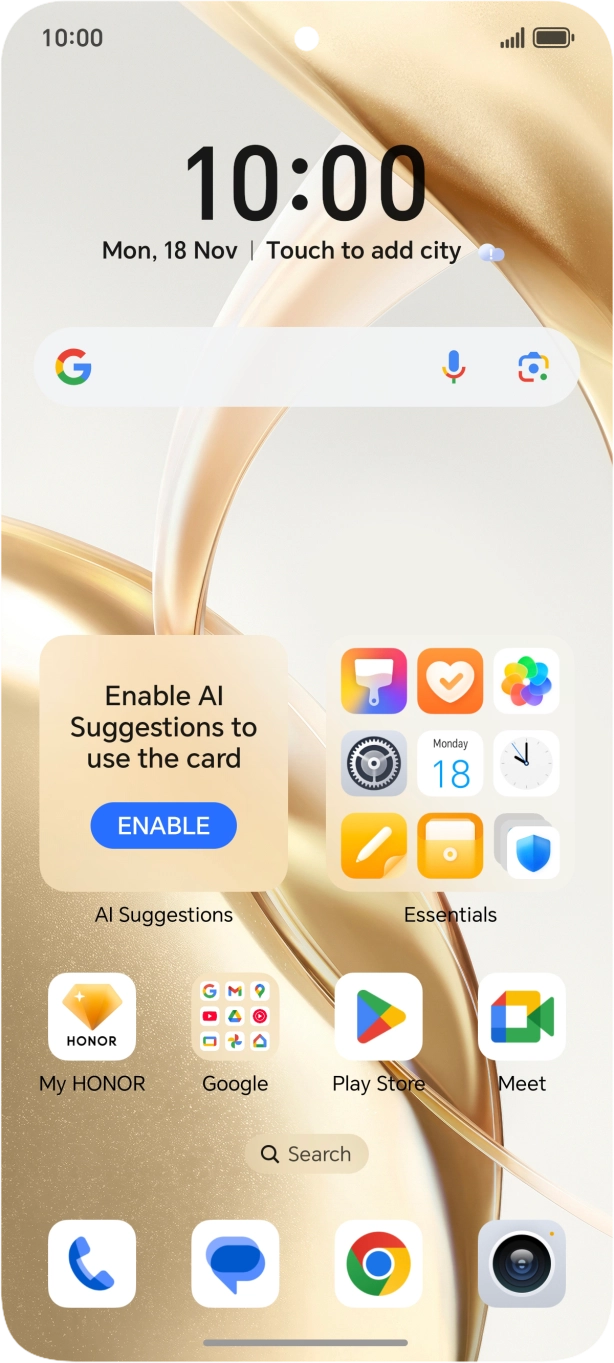
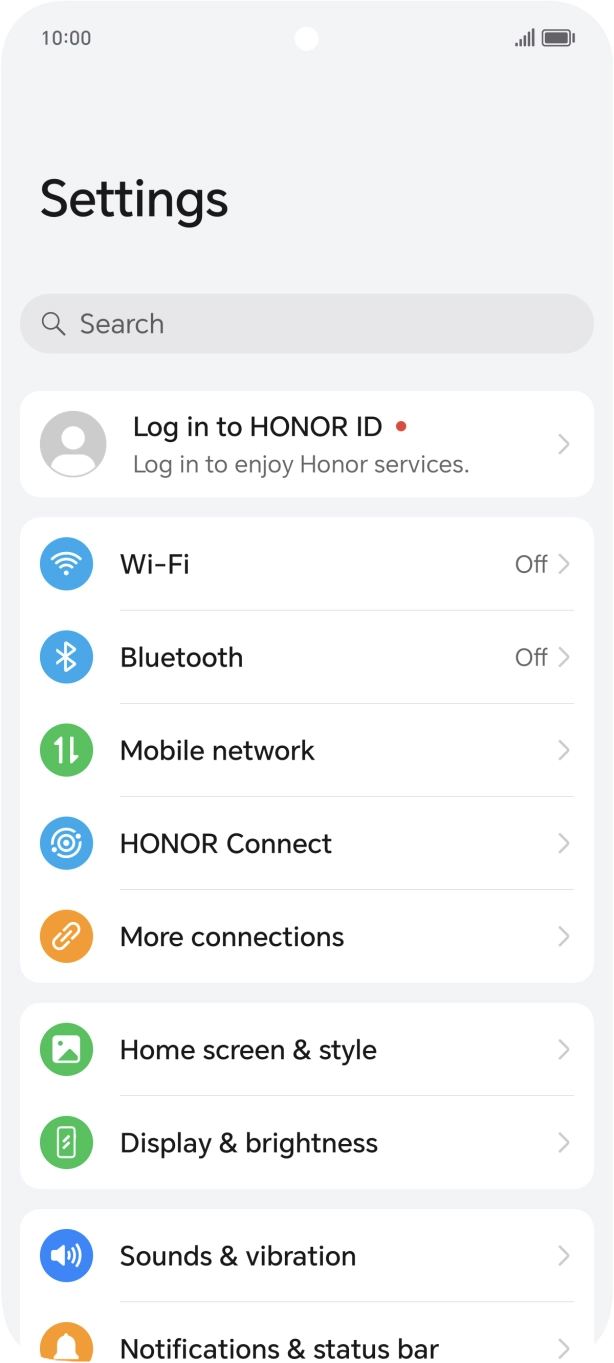
- Press the settings icon.
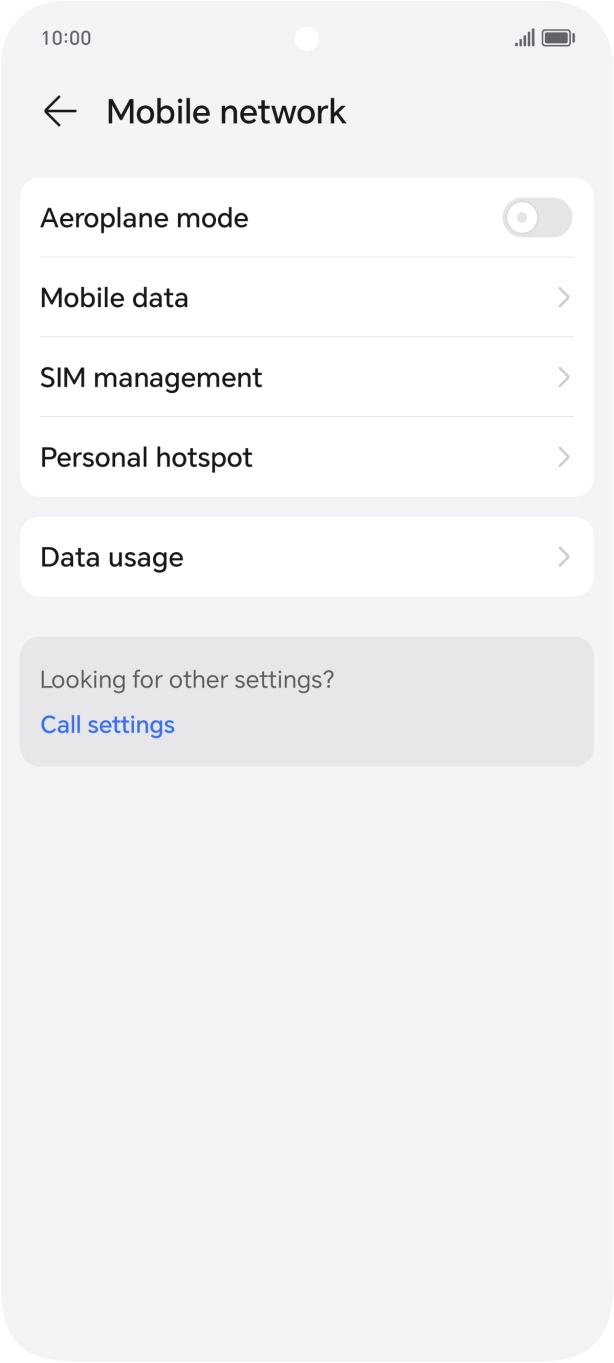
- Press Mobile network.
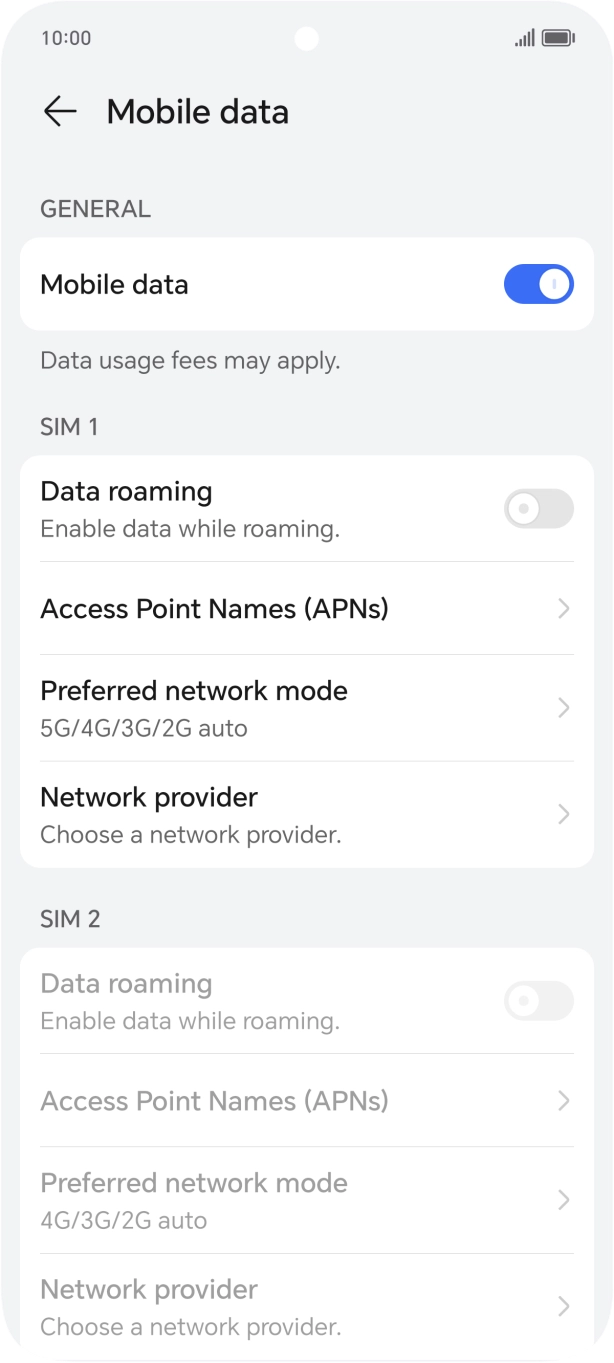
- Press Mobile data.
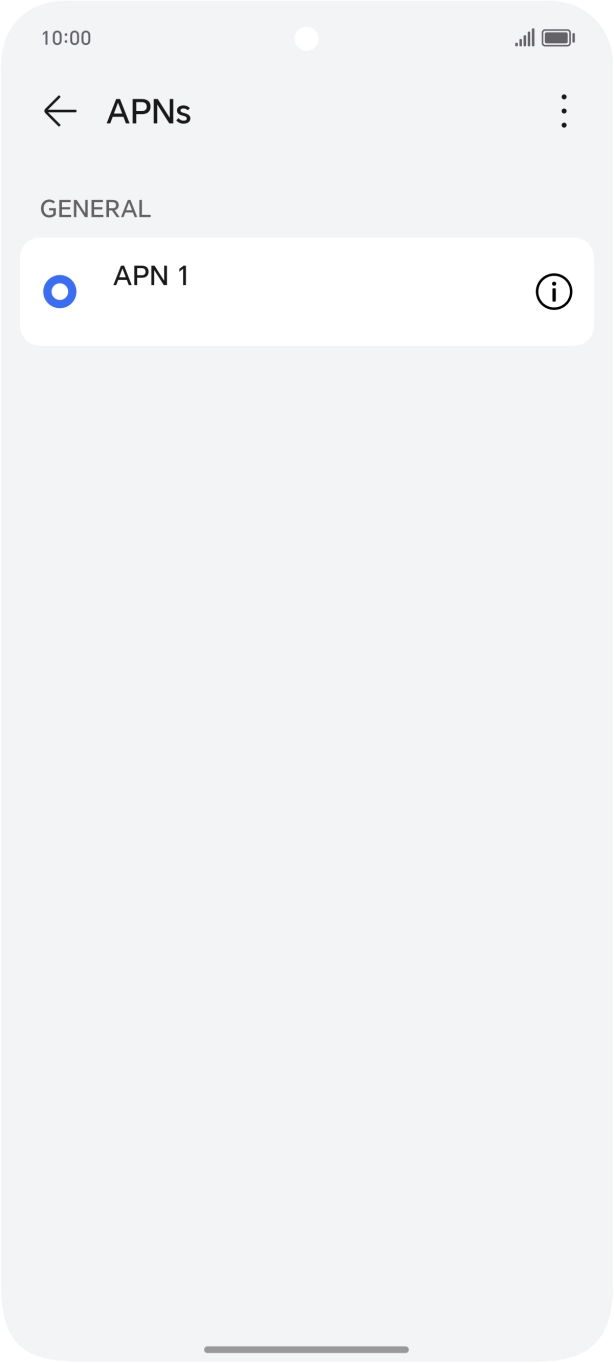
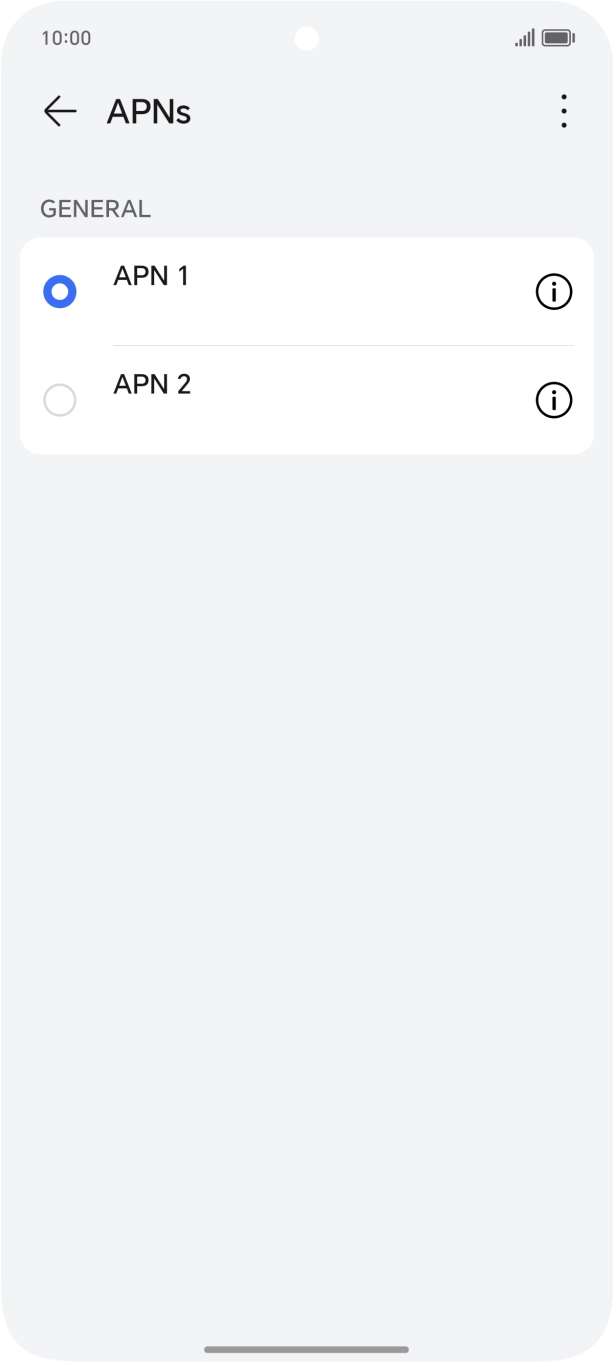
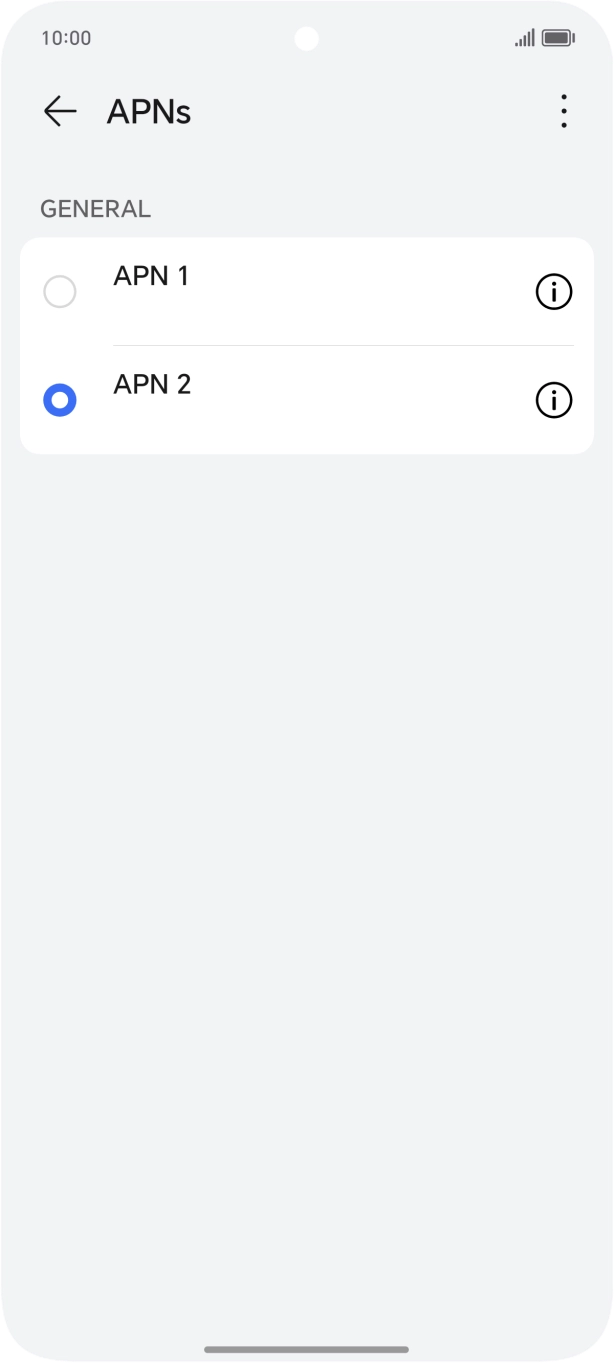
- Press Access Point Names (APNs).
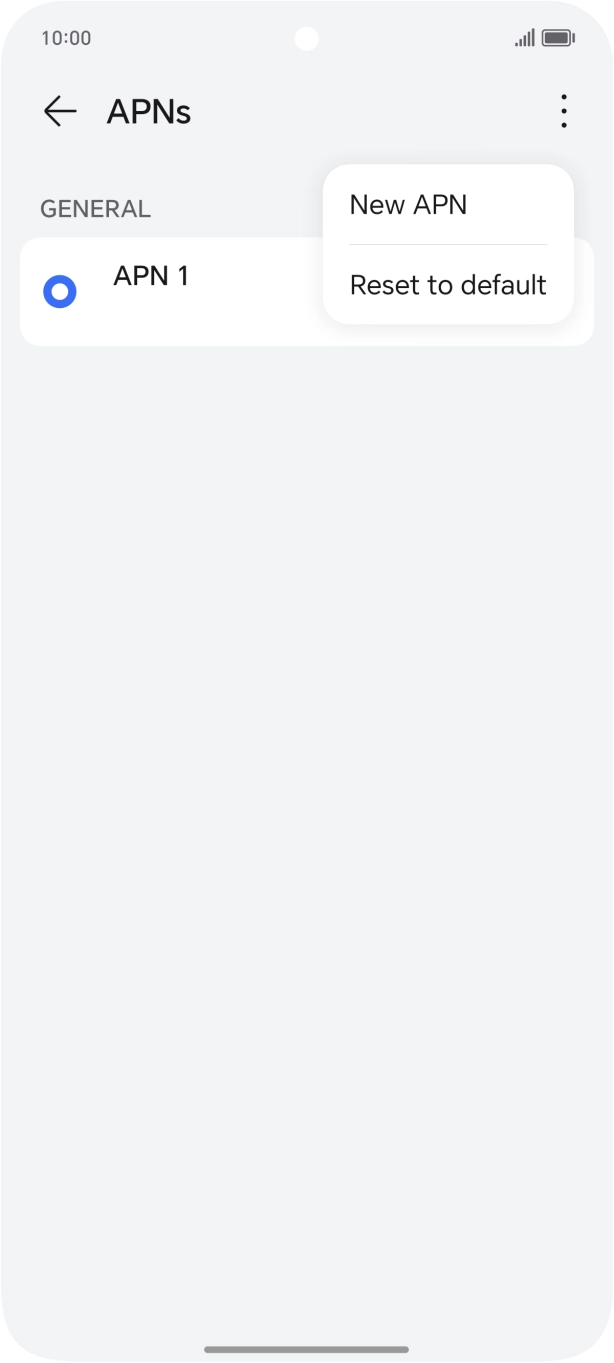
- Press the menu icon.
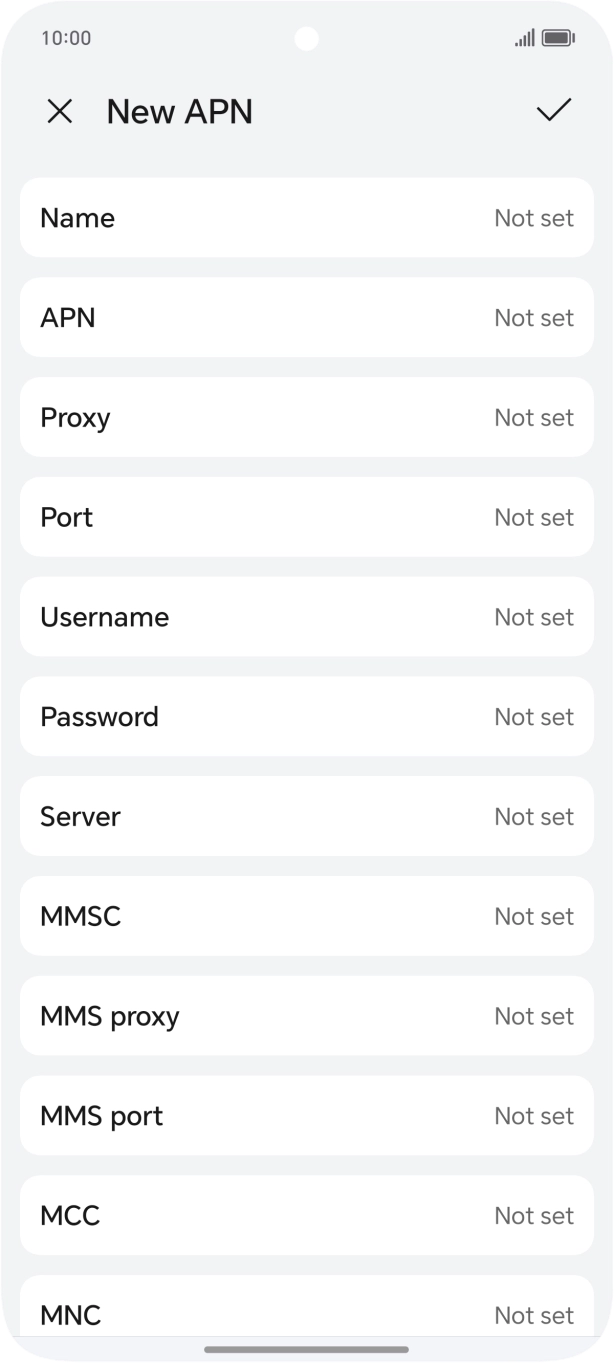
- Press New APN.
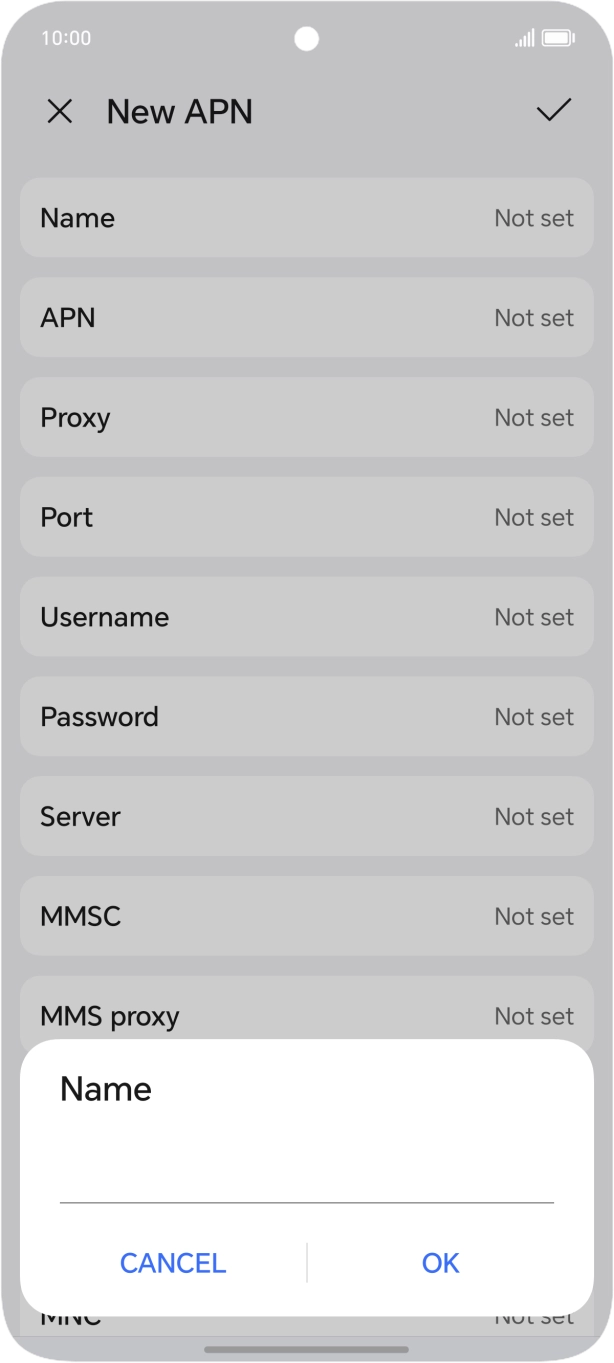
- Press Name.
- Key in O2 UK Internet and press OK.
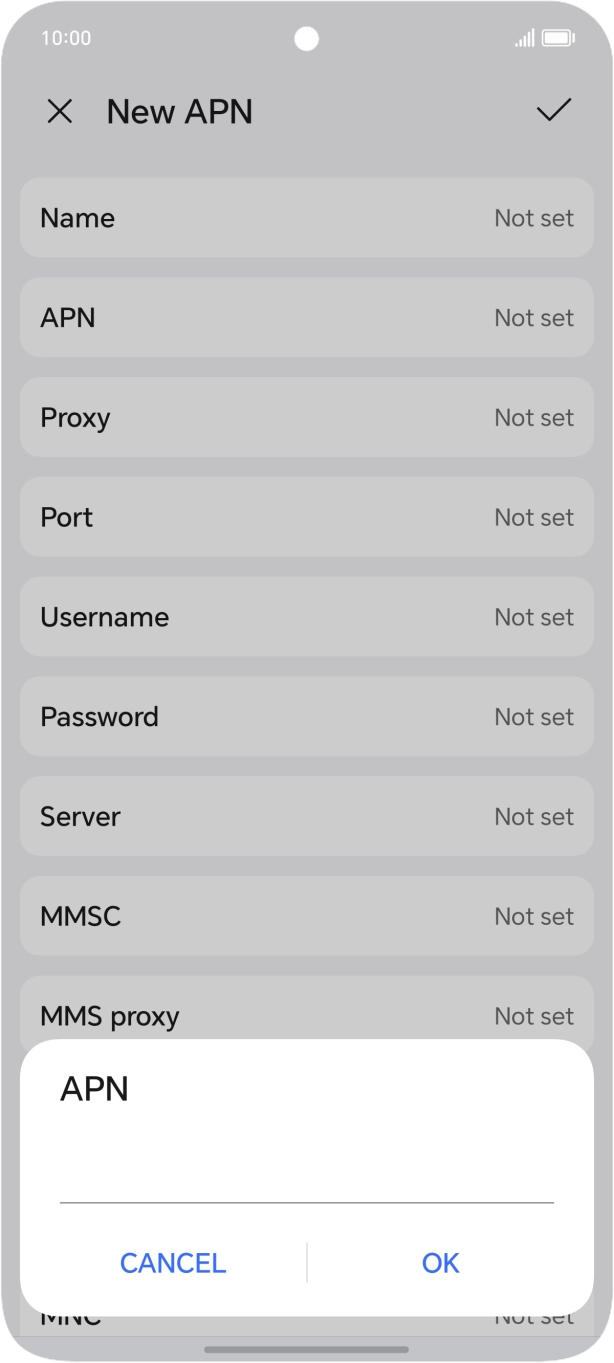
- Press APN.
- Key in mobile.o2.co.uk and press OK.
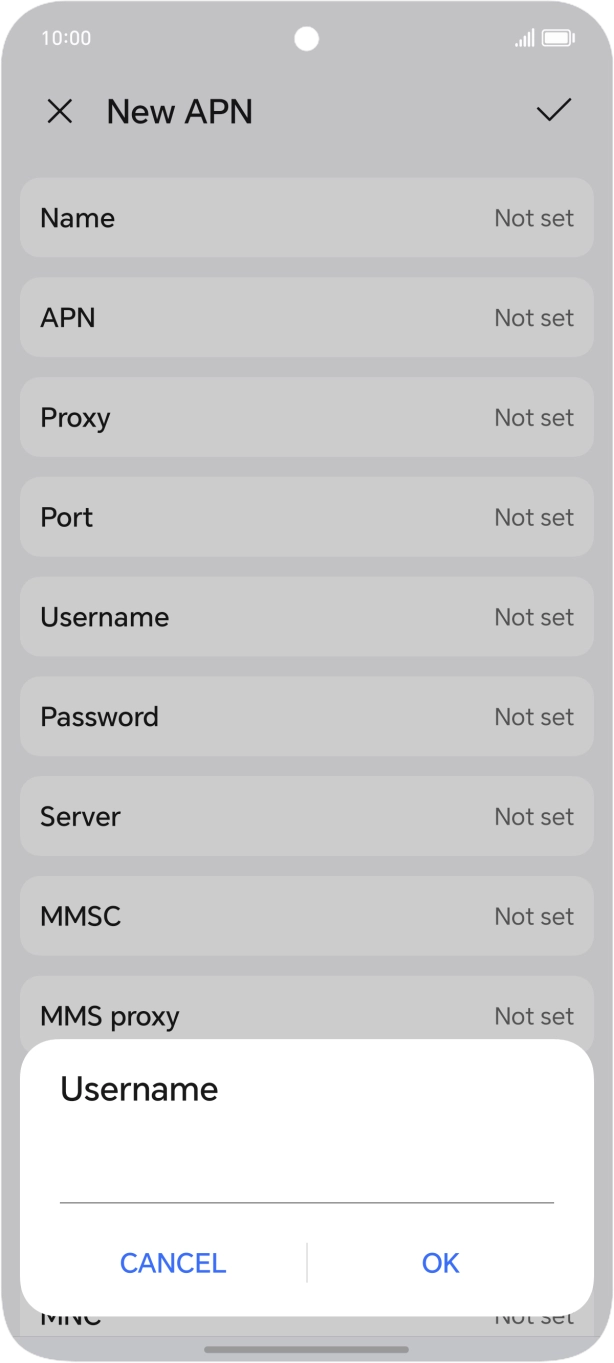
- Press Username.
- Key in o2 and press OK.
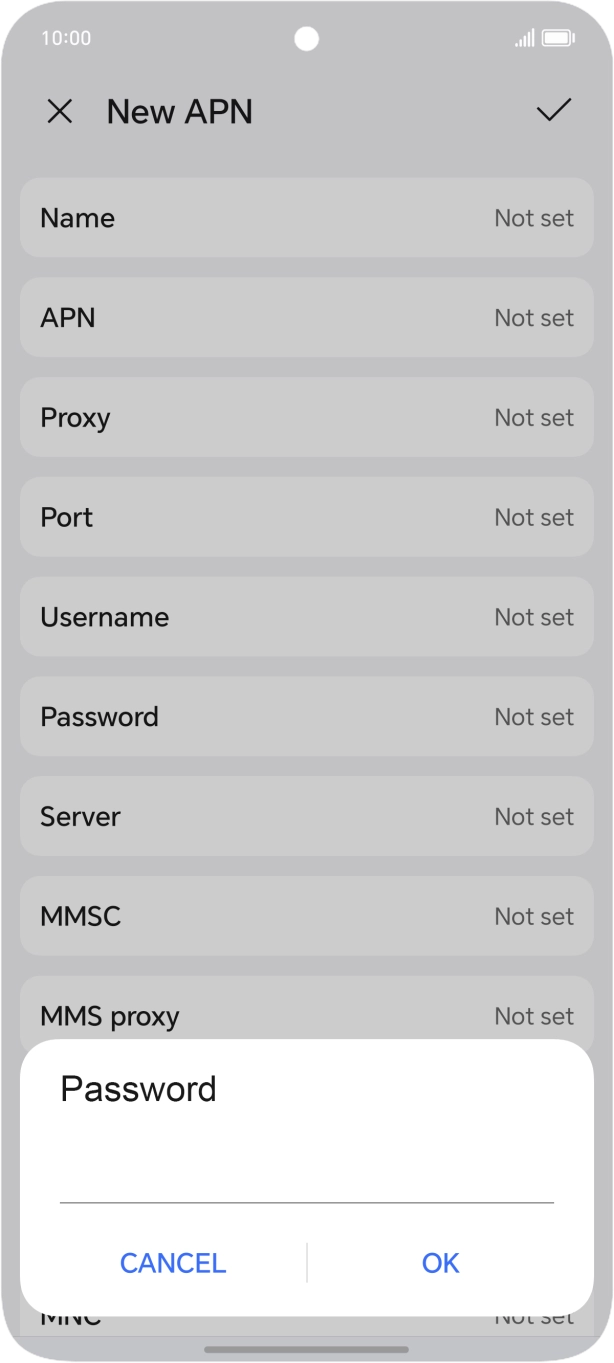
- Press Password.
- Key in p and press OK.
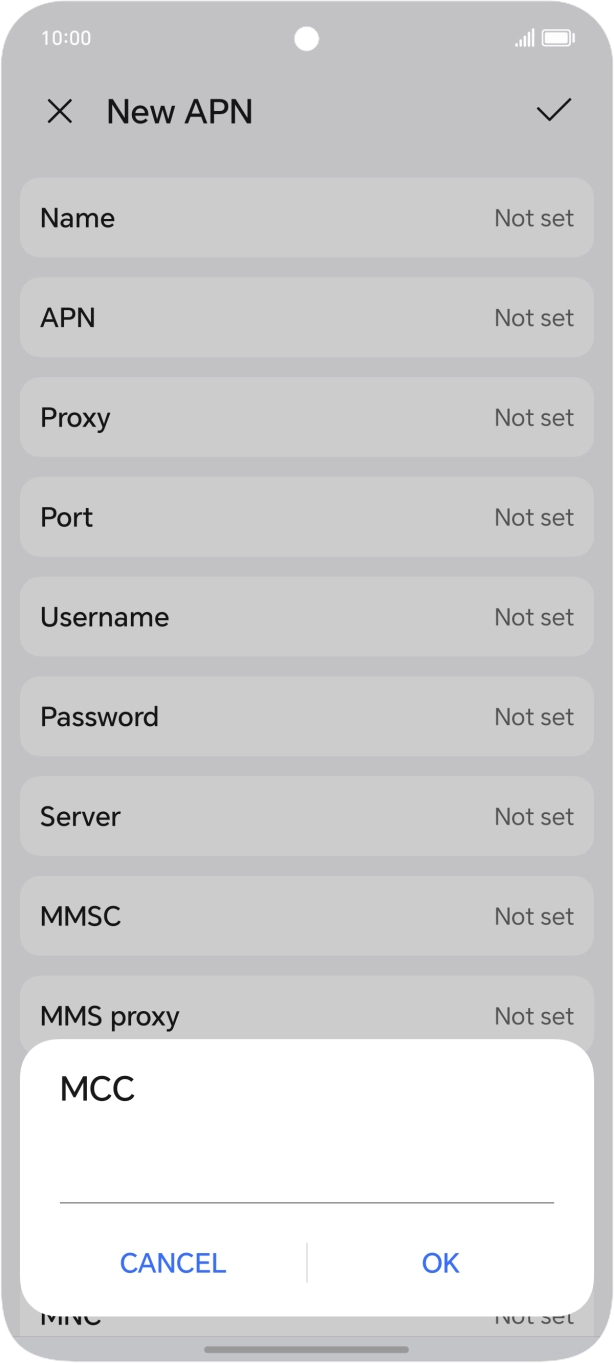
- Press MCC.
- Key in 234 and press OK.
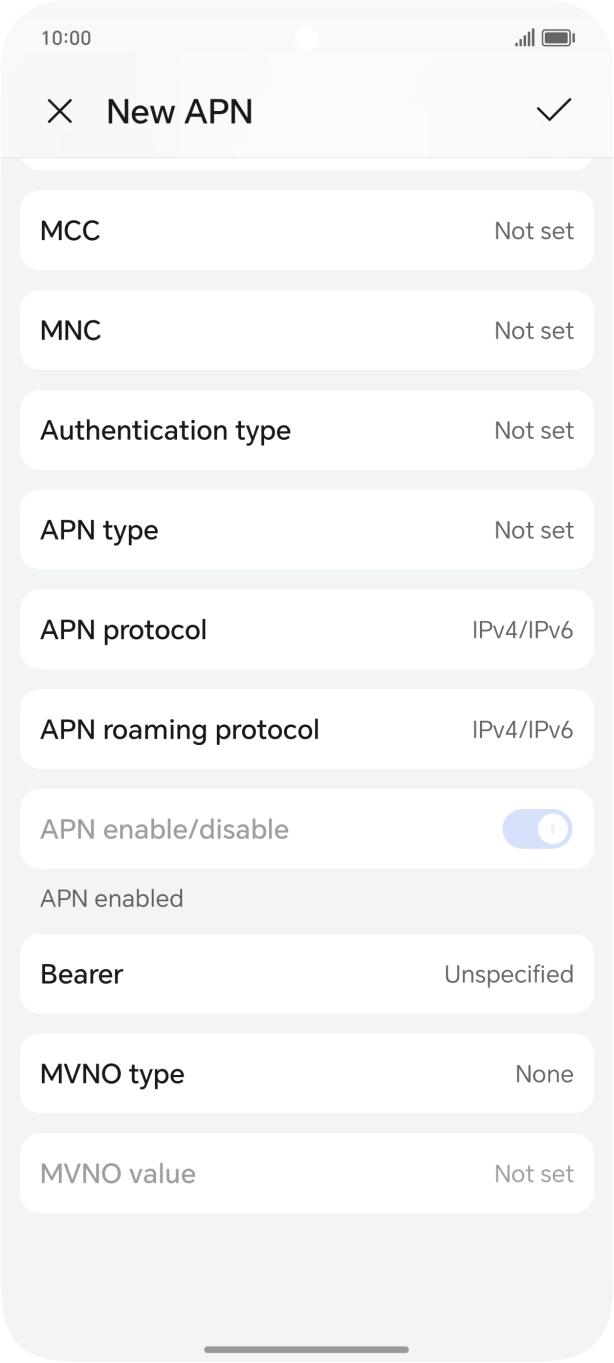
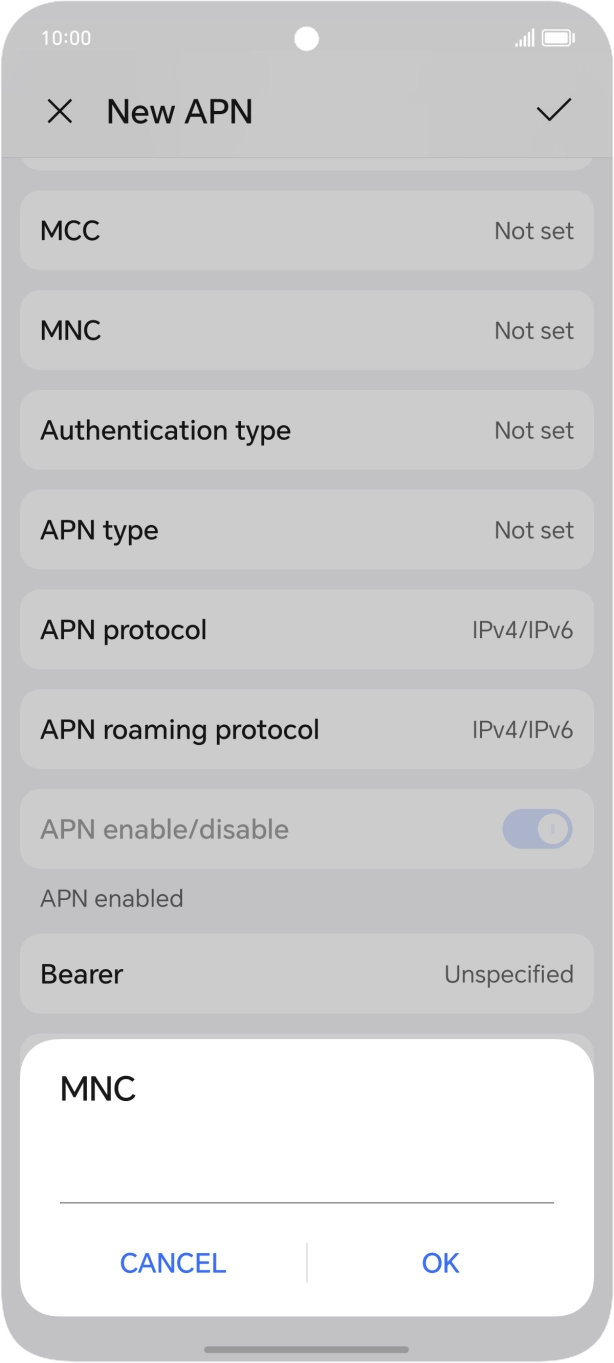
- Press MNC.
- Key in 10 and press OK.
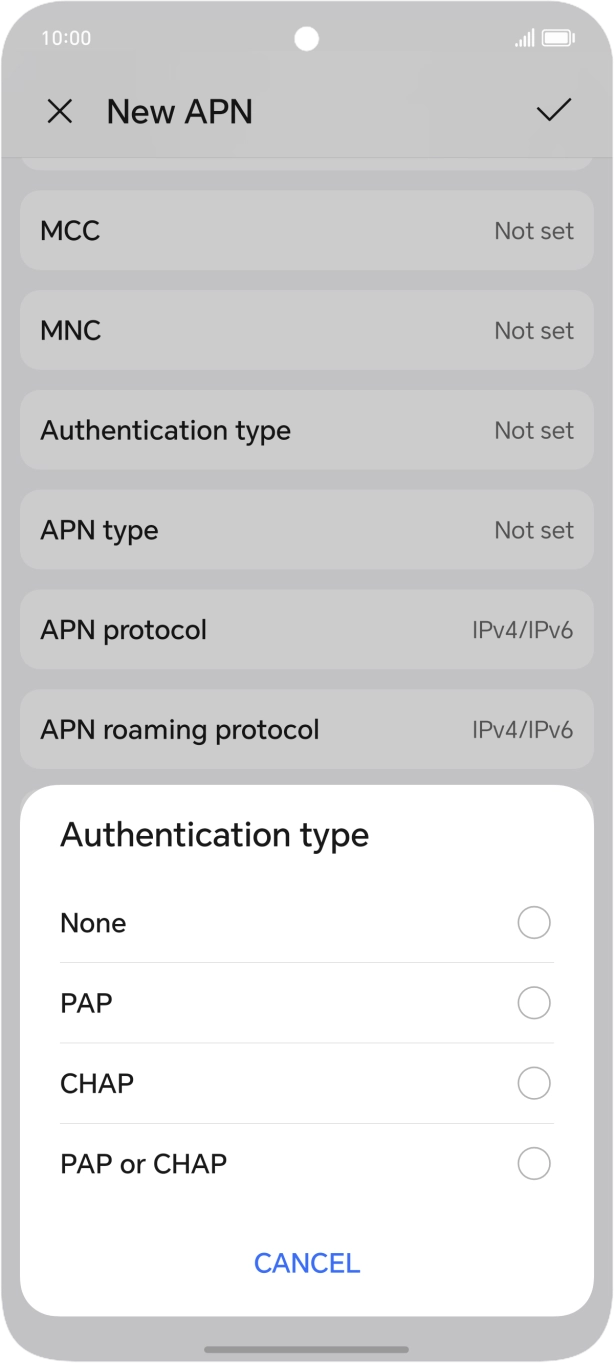
- Press Authentication type.
- Press PAP.
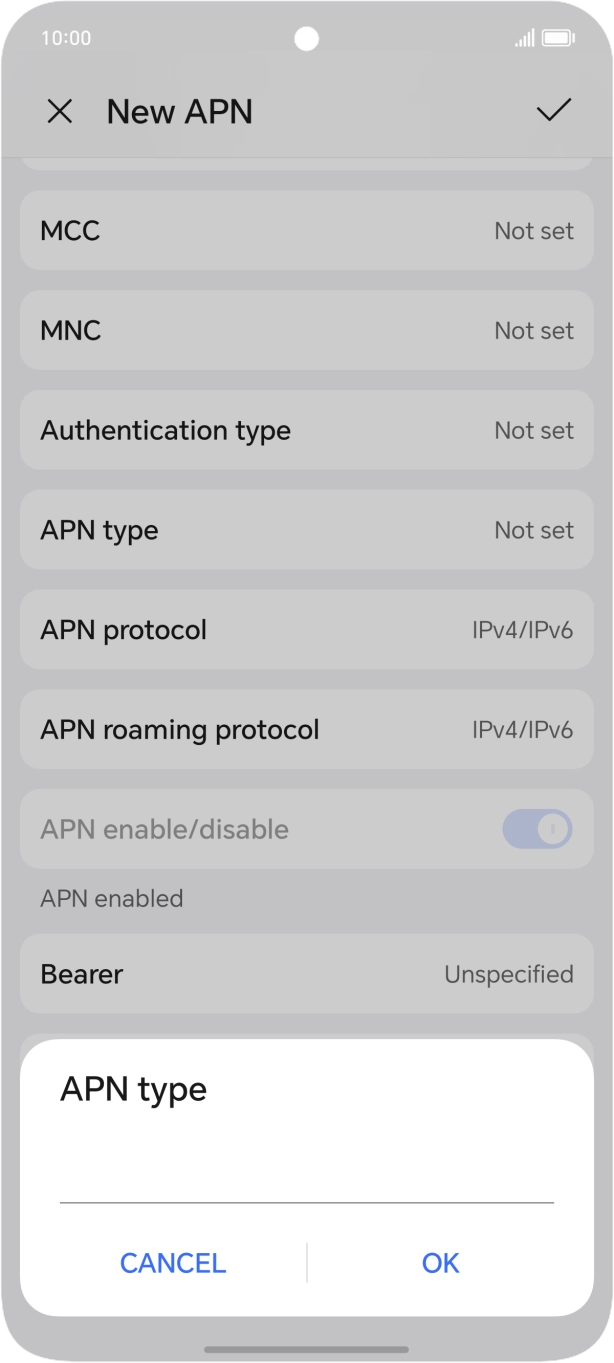
- Press APN type.
- Key in default and press OK.
- Press the confirm icon.
- Press the field next to the data connection to activate it.
- Slide your finger upwards starting from the bottom of the screen to return to the home screen.
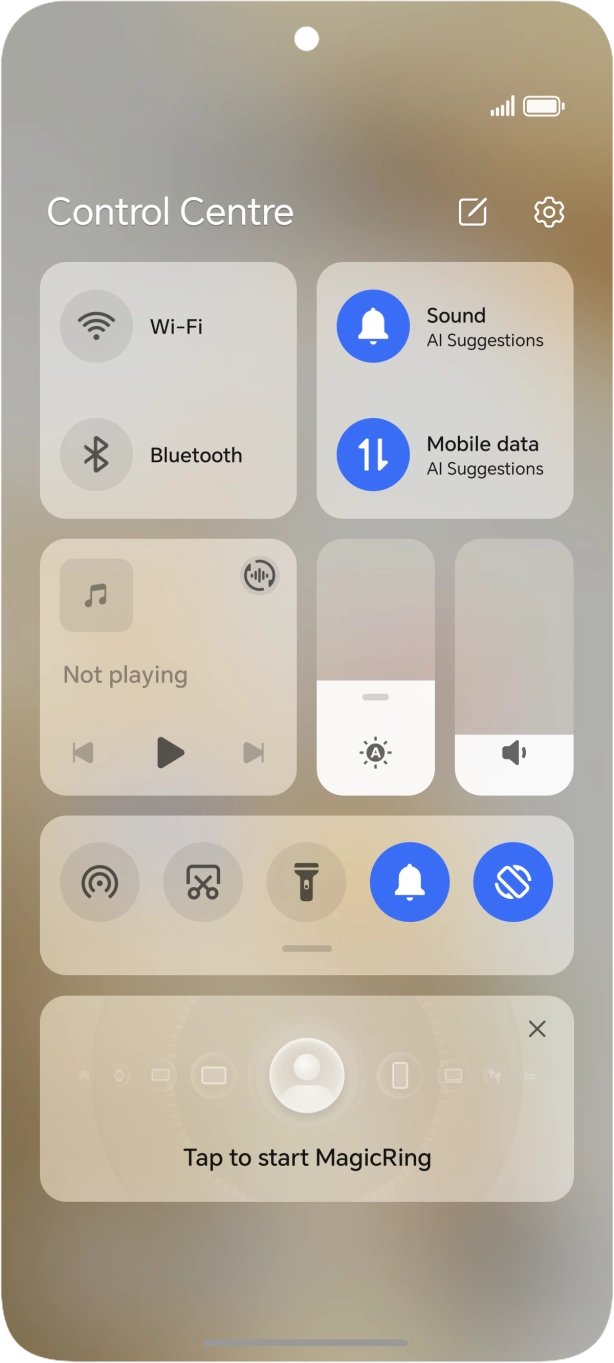
- Slide two fingers downwards starting from the top of the screen.
- Press the mobile data icon to turn the function on or off.
- Press the settings icon.
- Press Mobile network.
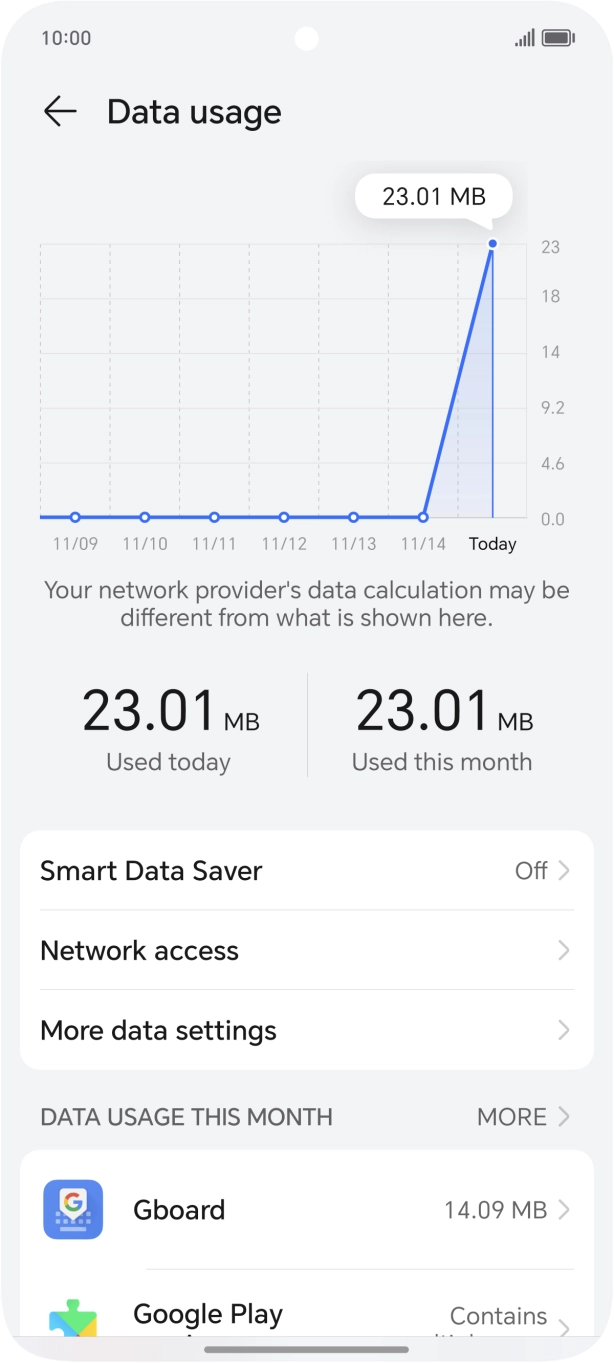
- Press Data usage.
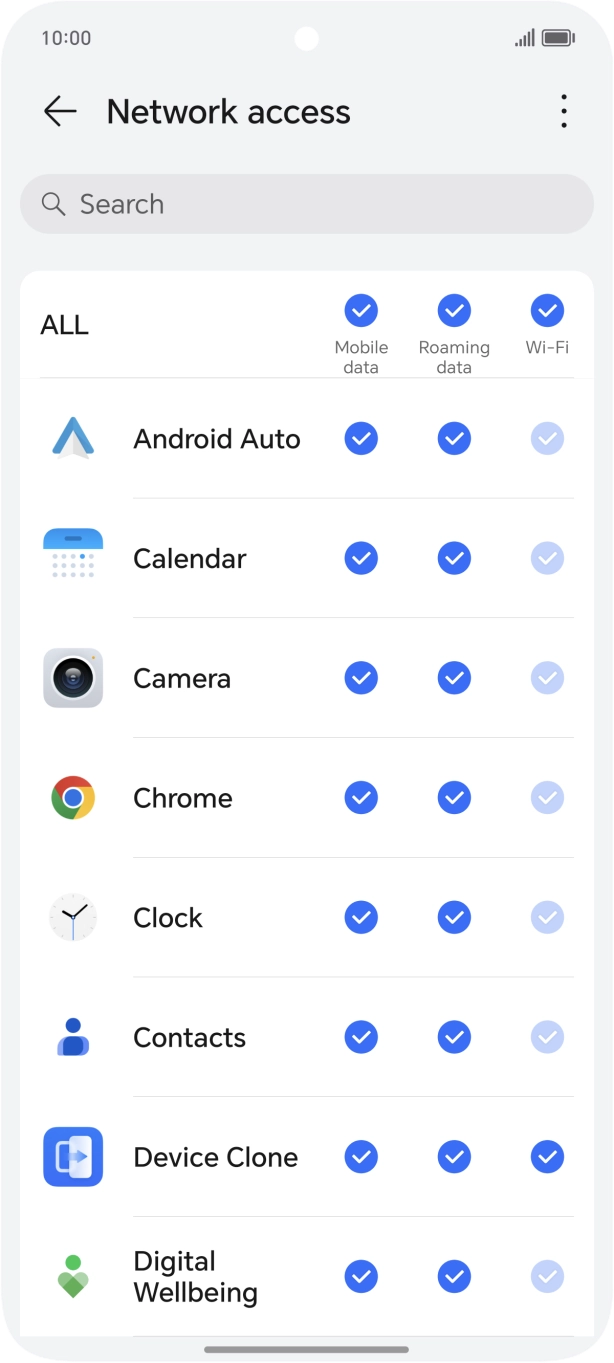
- Press Network access.
- Press the field in the "Mobile data" column next to the required app to turn the function on or off.
- Slide your finger upwards starting from the bottom of the screen to return to the home screen.
- Press the settings icon.
- Press Mobile network.
- Press Mobile data.
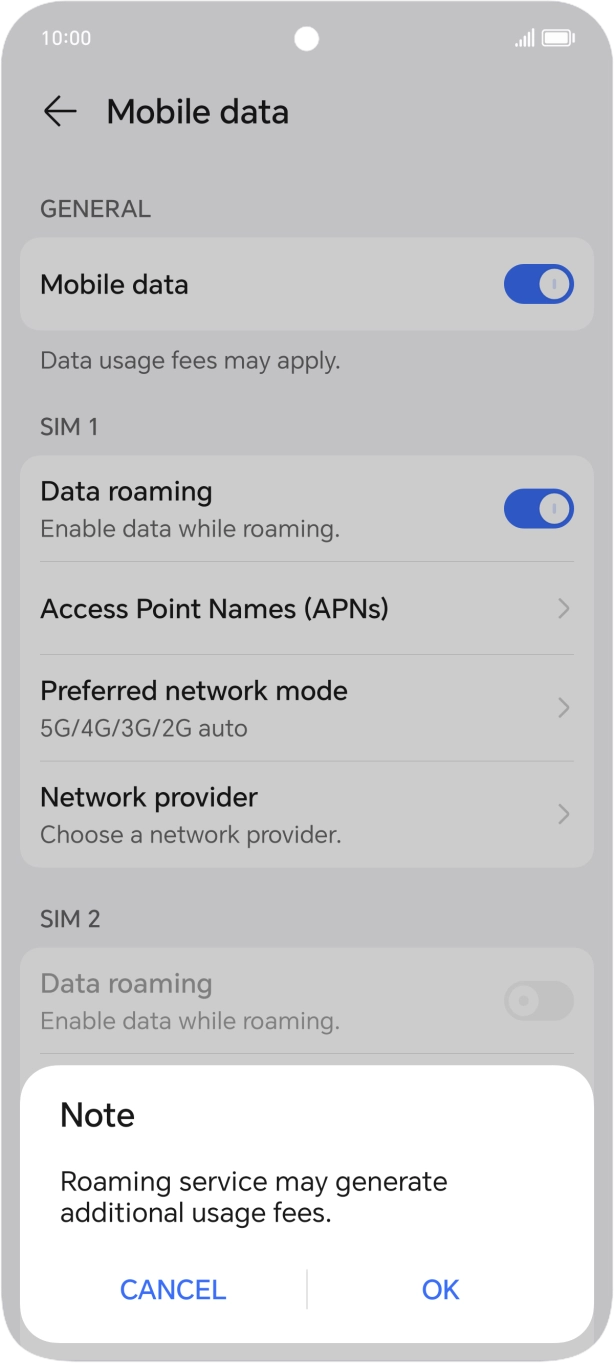
- Press the indicator next to 'Data roaming' to turn the function on or off.
- If you turn on the function, press OK.
- Slide your finger upwards starting from the bottom of the screen to return to the home screen.