I can't update the software on my Google Pixel Watch 3
If you can't update the software on your smartwatch, there may be several causes of the problem.
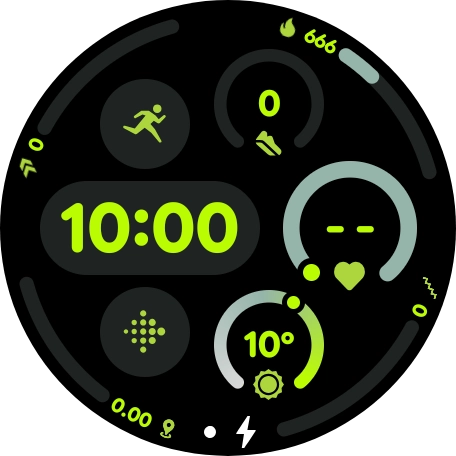
Step 1 of 3
Step 1 of 3
1. Charge your smartwatch
Connect the charger to a wall socket.
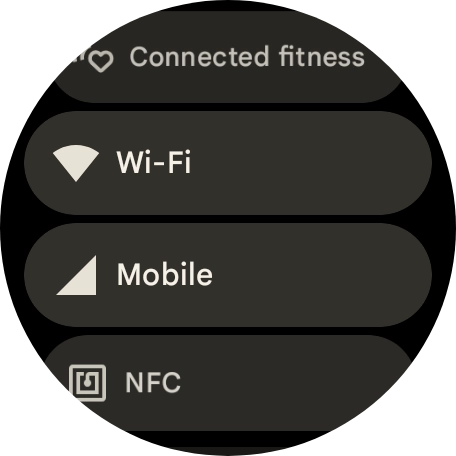
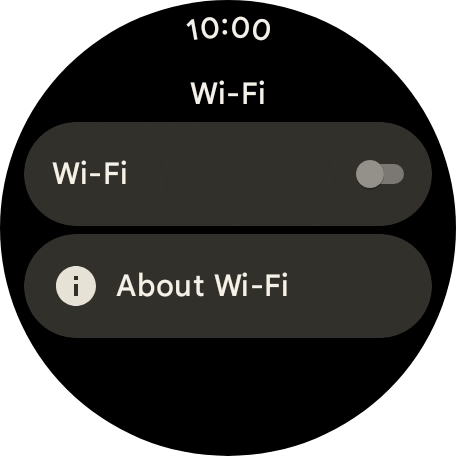
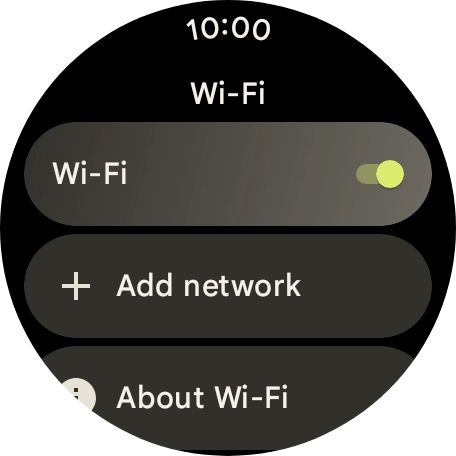
Step 1 of 6
Step 1 of 6
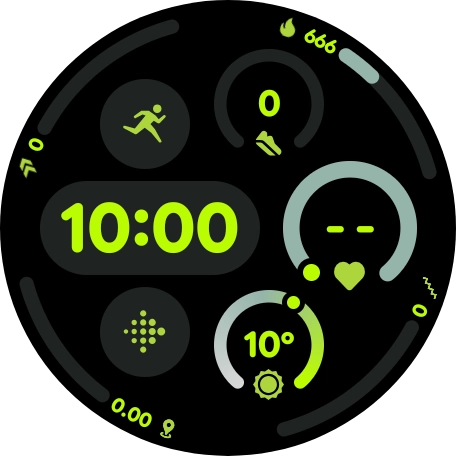
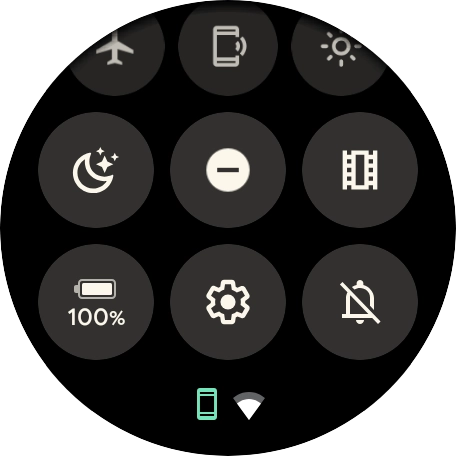
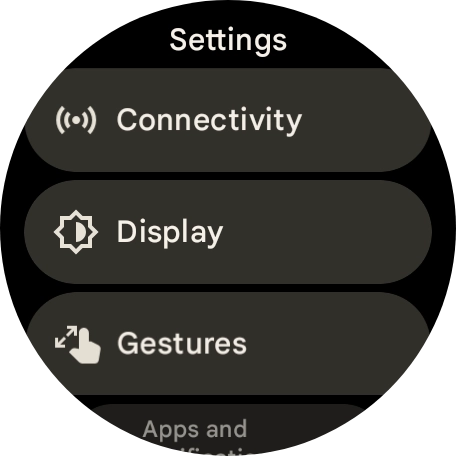
1. Find 'Wi-Fi'
Slide your finger downwards starting from the top of the screen.
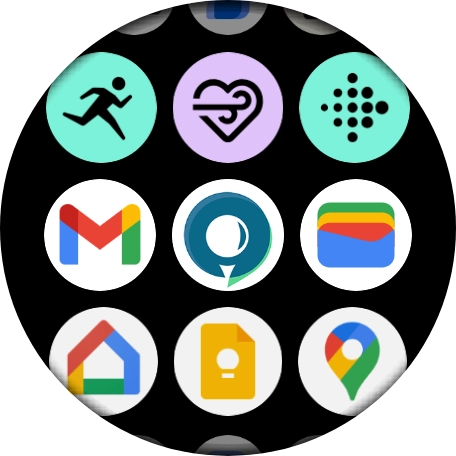
Step 1 of 4
Step 1 of 4
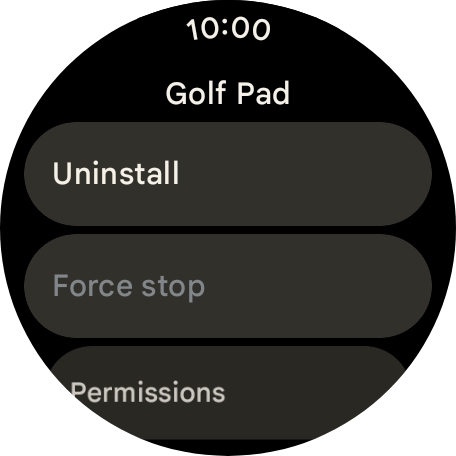
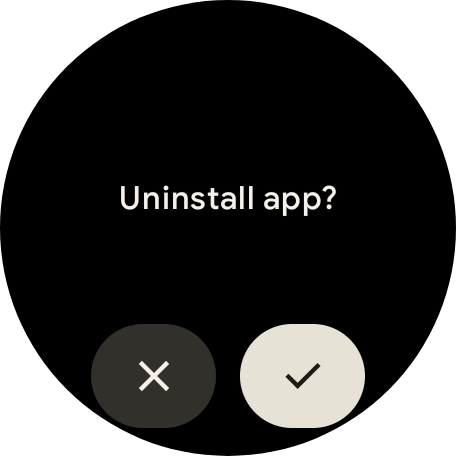
1. Uninstall apps
Press the crown.
1. Restart your smartwatch
Simultaneously, press the Crown and the Side key and keep them both pressed until your smartwatch restarts.
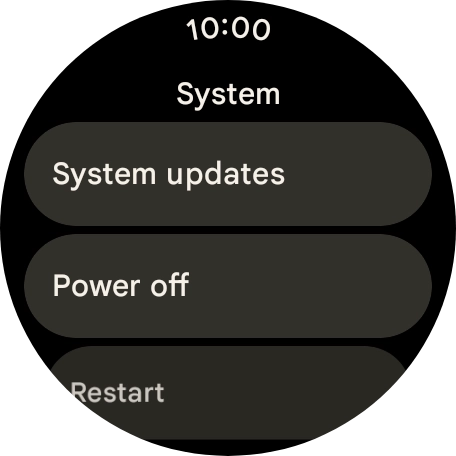
Step 1 of 4
Step 1 of 4
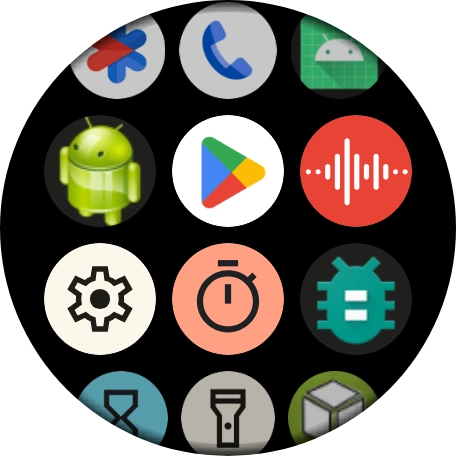
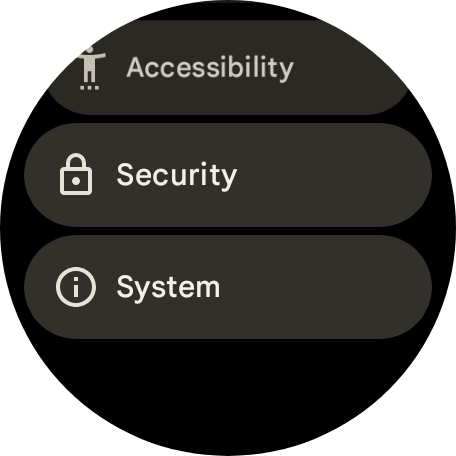
1. Update your smartwatch
Slide your finger downwards starting from the top of the screen.