How to personalise the home screen on your Google Pixel Watch 2
You can change many home screen settings, such as the watch face.
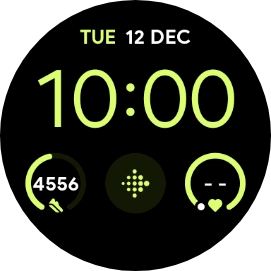
- Press and hold the middle of your watch.

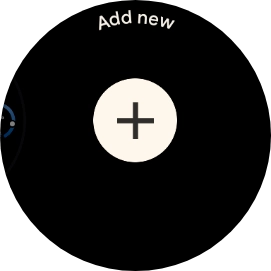
- Slide your finger left on the screen.
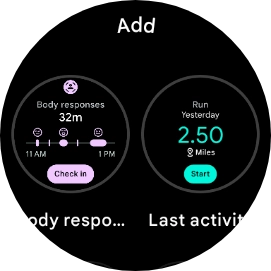
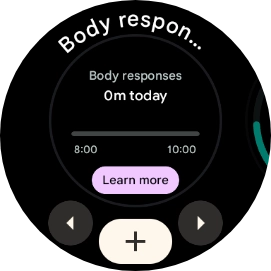
- Press the add icon.
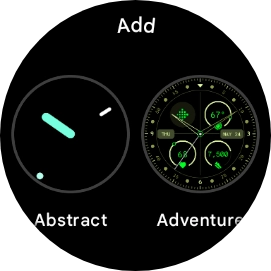
- Slide your finger upwards on the screen to see the available watch faces.
- Press the required watch face to add it.
- Press the crown.
- Press and hold the middle of your watch.
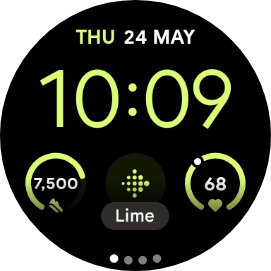
- Slide your finger right or left to see the available watch faces.
- Press the required watch face.
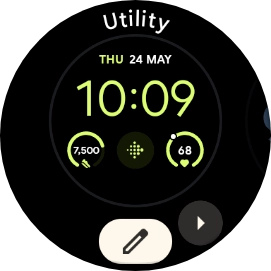
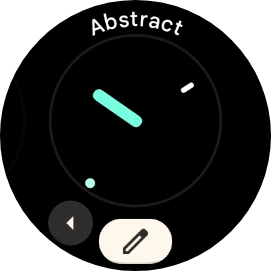
- Press and hold the middle of your watch.
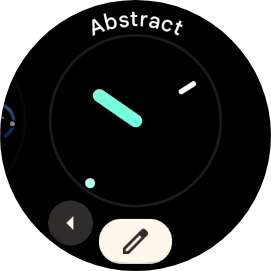
- Press the edit icon.
- Slide your finger on the screen to change between the different designs.
- Turn the crown to select the required colour theme.
- When you've selected the required design, press the crown.
- Slide your finger right or left on the screen.
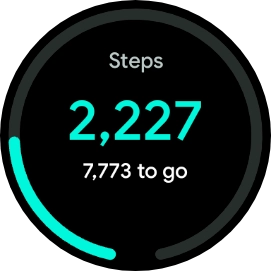
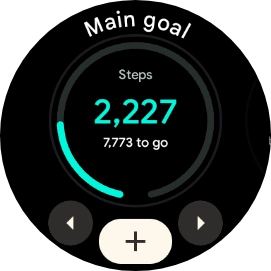
- Press and hold a widget.
- Press the add icon.
- Slide your finger upwards to see the available widgets.
- Press the required widget to add it.
- Press the crown.
- Slide your finger right or left on the screen to go to the required widget.
- Press and hold the required widget.
- Slide your finger upwards on the required widget to remove it.
- Press the crown to return to the home screen.