How to use split screen view on your Google Pixel 10
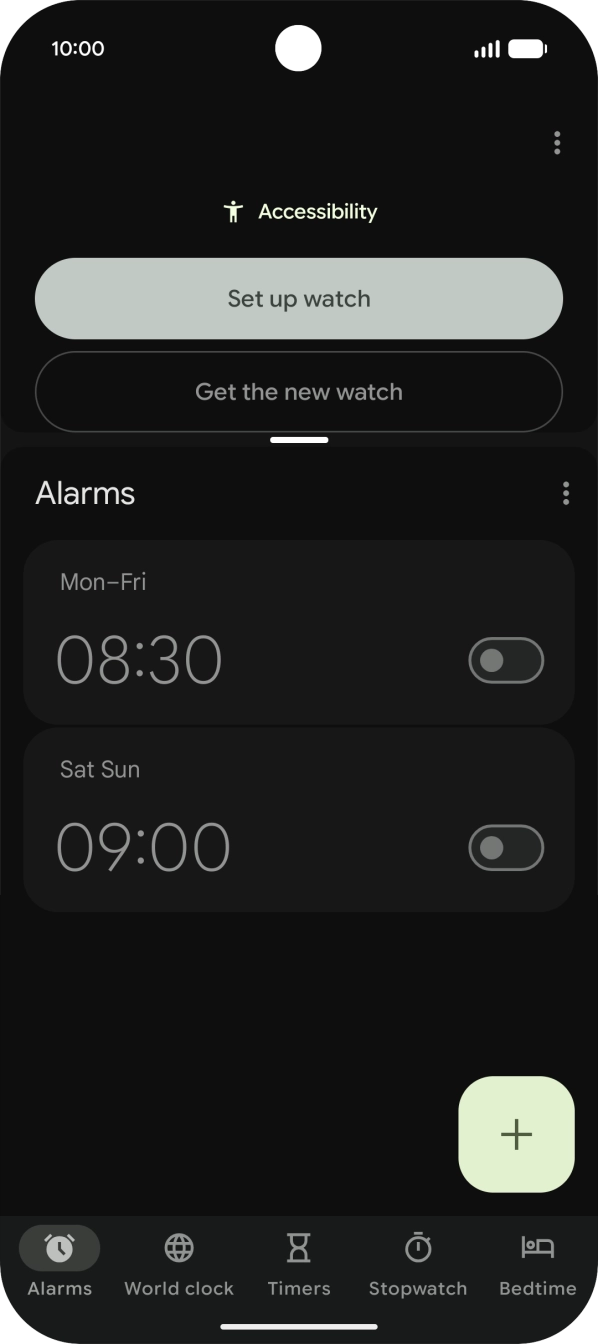
You can use multiple applications at the same time in split screen view.
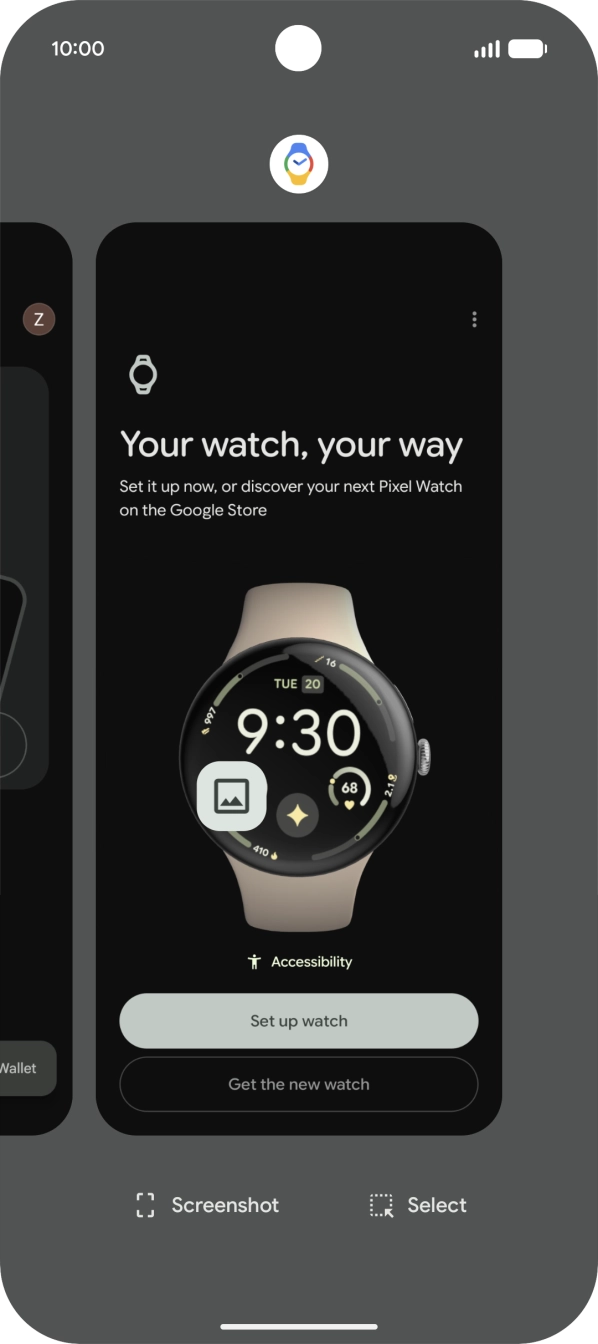
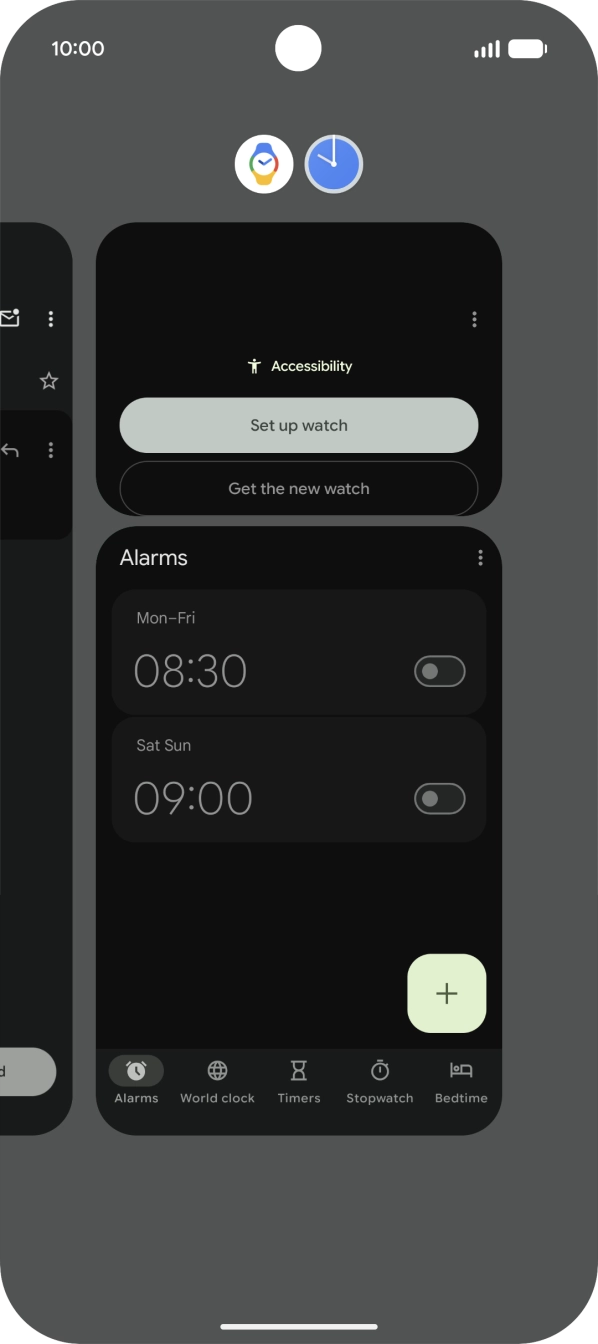
Slide your finger slowly upwards starting from the bottom of the screen until the list of running applications is displayed.
To use split screen view, you need to have opened the required applications.

- Slide your finger slowly upwards starting from the bottom of the screen until the list of running applications is displayed.To use split screen view, you need to have opened the required applications.
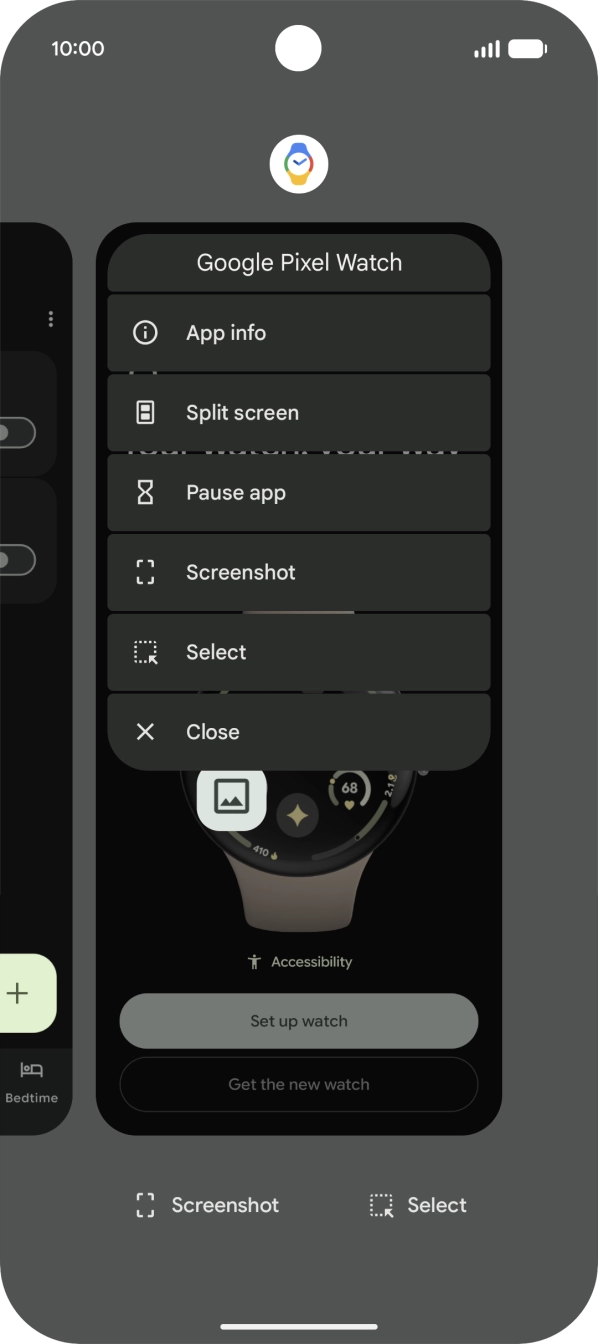
- Press the app icon above the required app.
- Press Split screen.
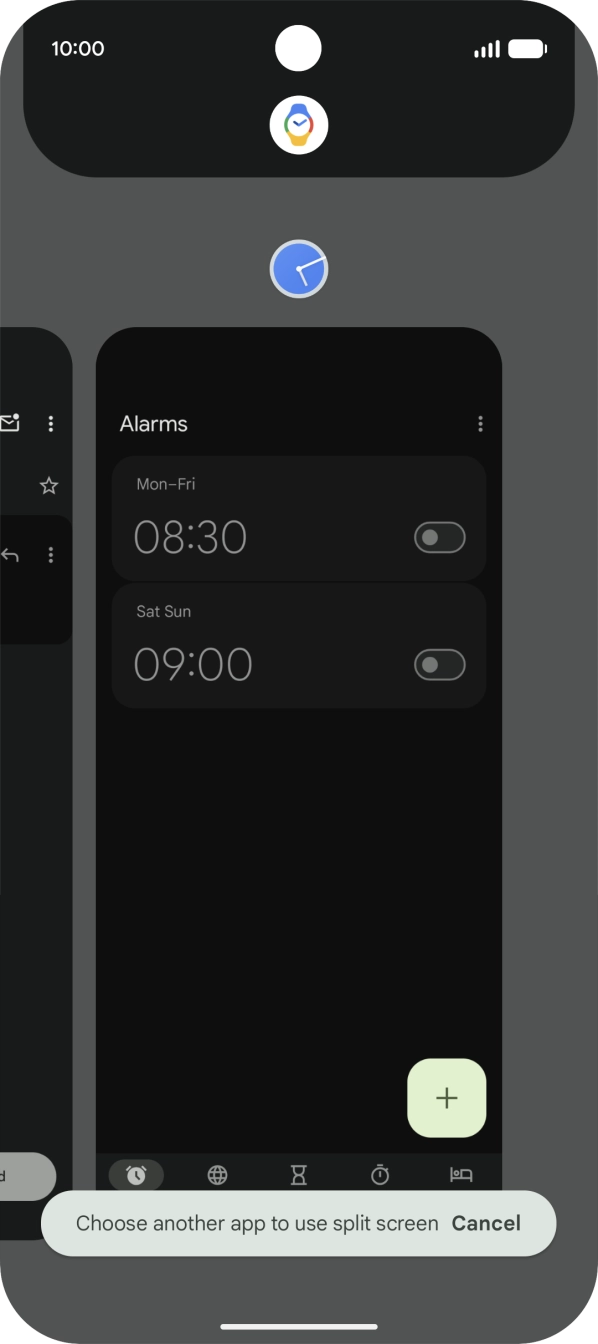
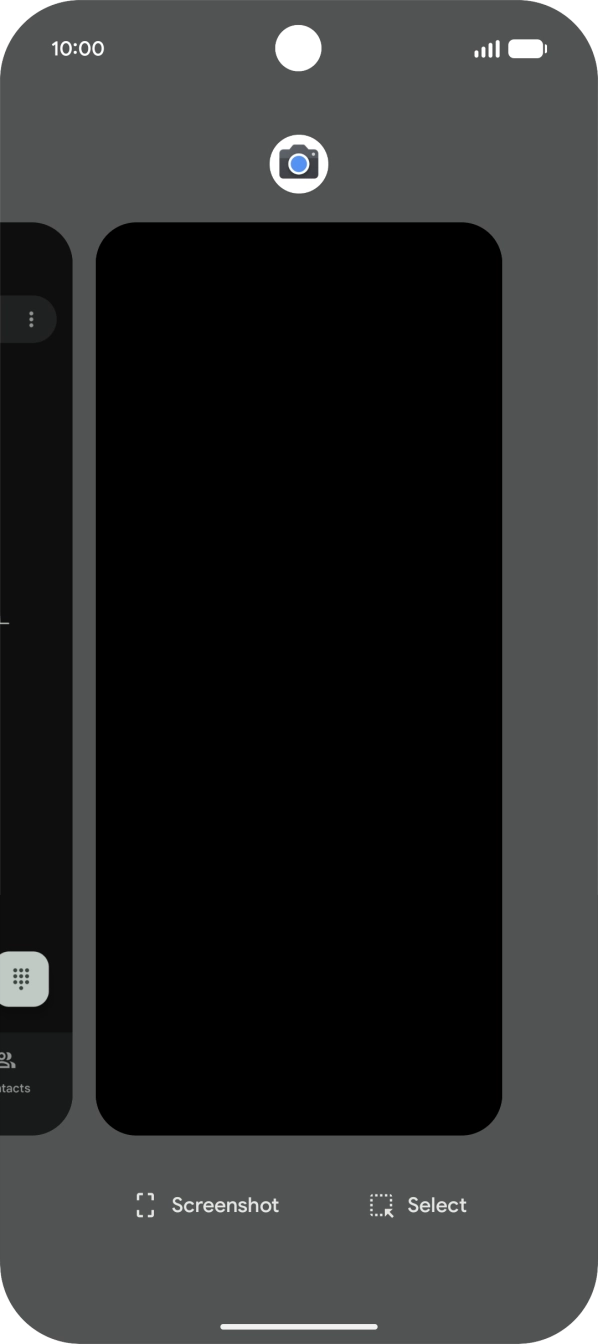
- Press the second application.
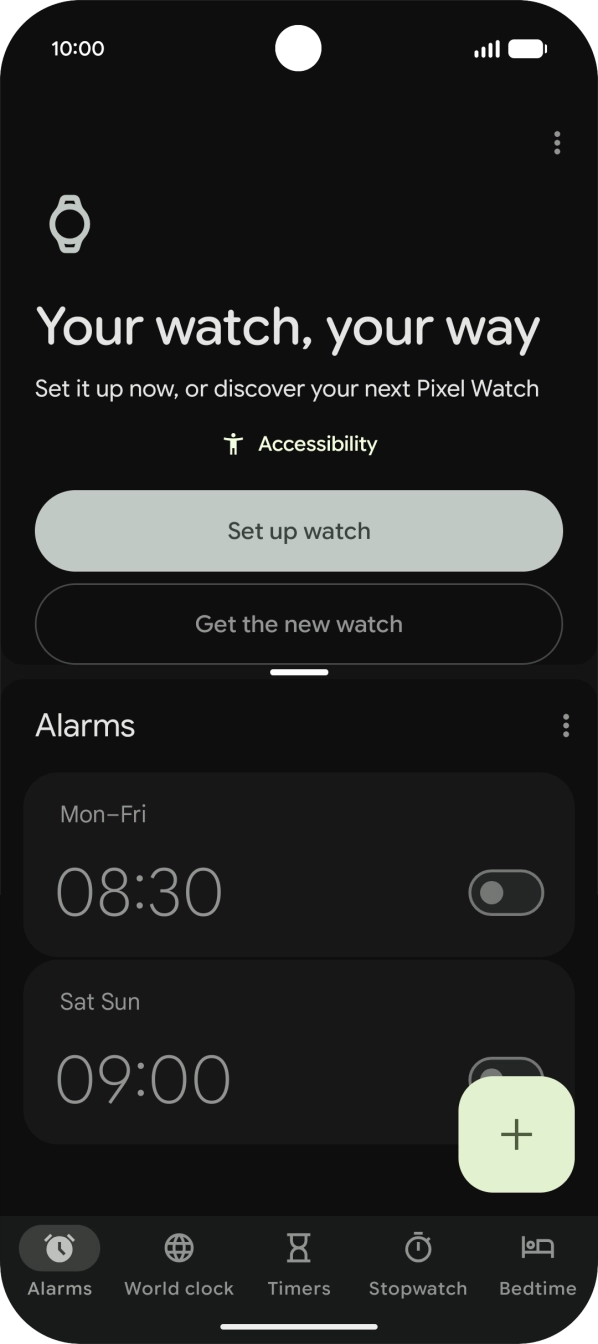
- The applications are now shown in split screen view and you can use both applications at the same time.
- Drag up or down on the screen to adjust the application windows to the required size.
- Slide your finger slowly upwards starting from the bottom of the screen until the list of running applications is displayed.
- Slide your finger upwards on the application group.
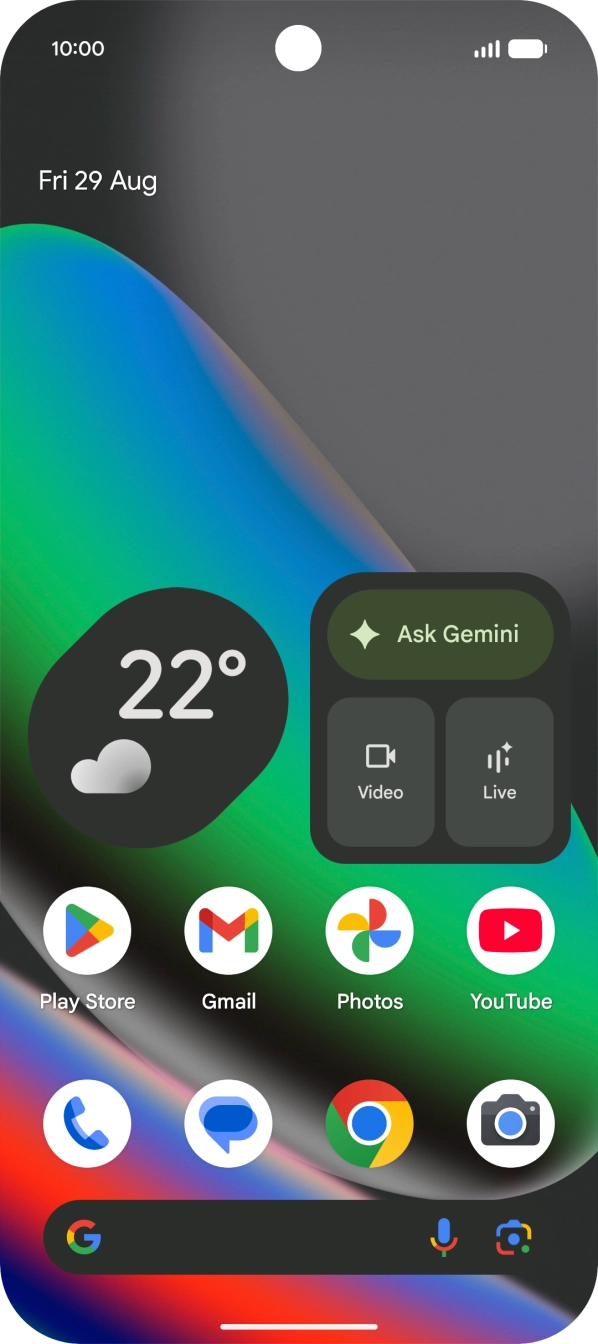
- Slide your finger upwards starting from the bottom of the screen to return to the home screen.