I have problems sending and receiving emails on my Doro 6620
If you can't send and receive emails, there may be several causes of the problem.
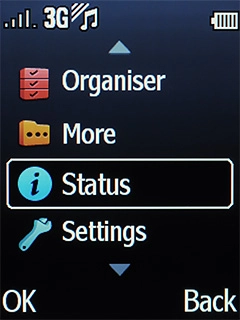
- Press the Navigation key.
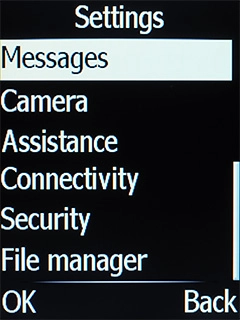
- Select Settings.
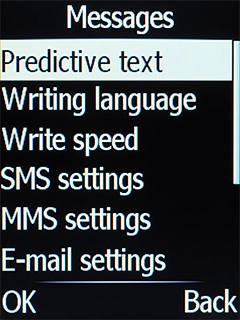
- Select Messages.
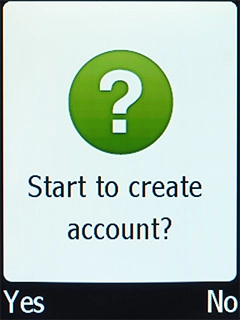
- Select E-mail settings.
- Press the Left selection key.
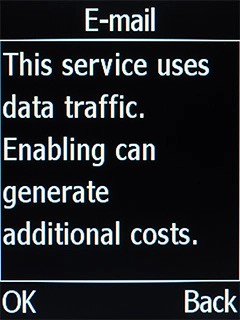
- Select OK.
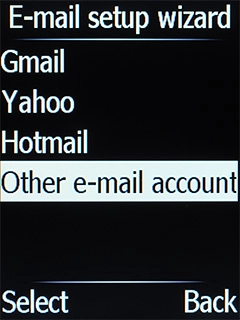
- Select Other e-mail accounts.If the name of your email provider is on the list, select this instead.
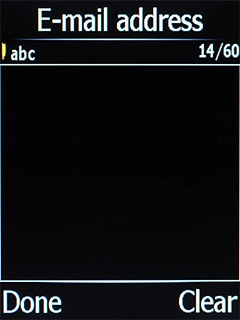
- Highlight the field below 'E-mail address' and key in your email address.
- Press the Navigation key.
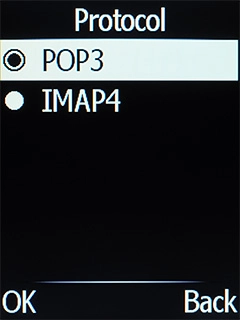
- Select POP3.
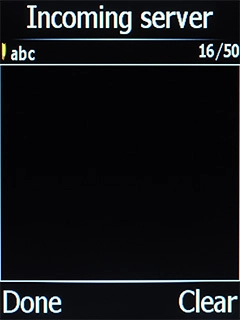
- Highlight the field below 'Incoming server' and key in the name of your email provider's incoming server.
- Press the Navigation key.
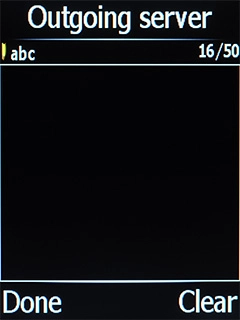
- Highlight the field below 'Outgoing server' and key in the name of your email provider's outgoing server.
- Press the Navigation key.
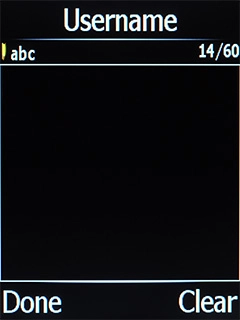
- Highlight the field below 'Username' and key in your username.
- Press the Navigation key.
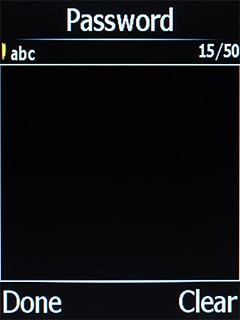
- Highlight the field below 'Password' and key in your password.
- Press the Navigation key.
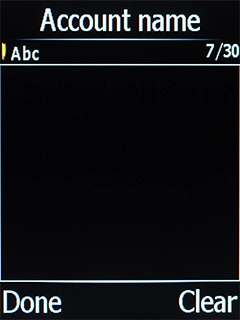
- Highlight the field below 'Account name' and key in the required name.
- Press the Navigation key.
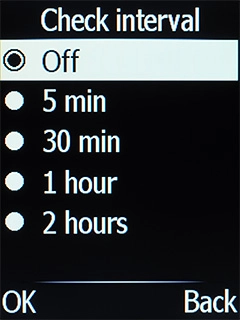
- Highlight the required setting.
- Press the Navigation key.
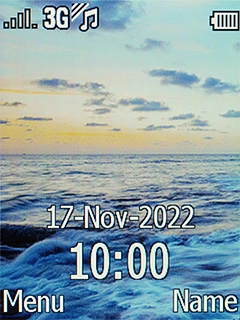
- Press Disconnect to return to the home screen.
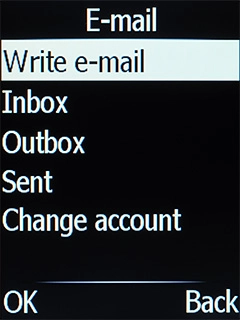
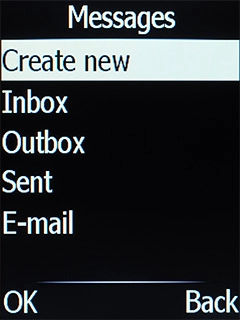
- Press the Message key.
- Select E-mail.
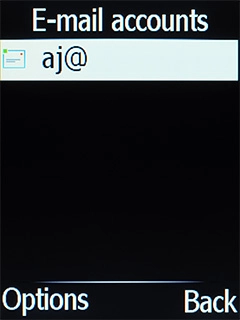
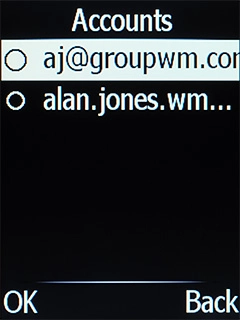
- Select Change account.
- Select the required email account.
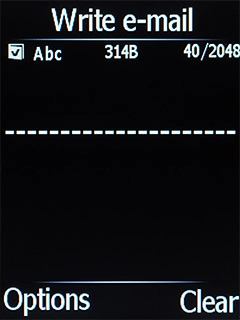
- Select Write e-mail.
- Highlight the text input field and write the text for your email.
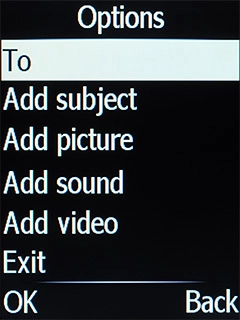
- Press the Left selection key.
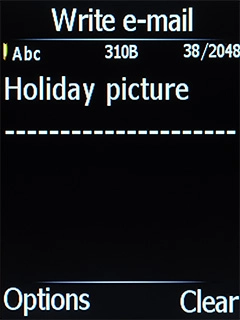
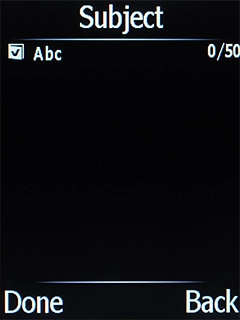
- Select Add subject.
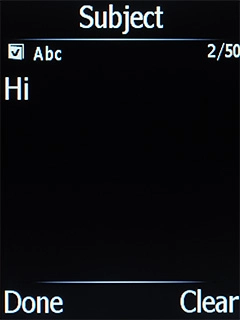
- Highlight the text input field and key in the required subject.
- Press the Left selection key.
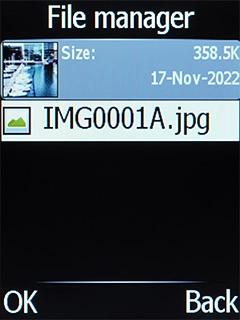
- Select Add picture.
- Go to the required folder and select the required file.
- Press the Left selection key.
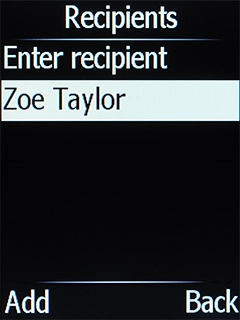
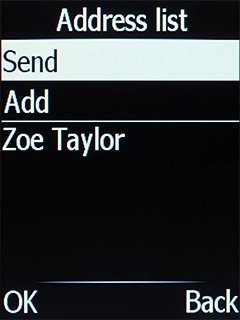
- Select To.
- Select the required contact.
- Press the Navigation key.
- Press Disconnect to return to the home screen.
Contact your email provider for the correct settings for the incoming or outgoing server.
- Press the Navigation key.
- Select Settings.
- Select Messages.
- Select E-mail settings.
- Press the Left selection key.
- Select OK.
- Select Other e-mail accounts.If the name of your email provider is on the list, select this instead.
- Highlight the field below 'E-mail address' and key in your email address.
- Press the Navigation key.
- Select IMAP4.
- Highlight the field below 'Incoming server' and key in the name of your email provider's incoming server.
- Press the Navigation key.
- Highlight the field below 'Outgoing server' and key in the name of your email provider's outgoing server.
- Press the Navigation key.
- Highlight the field below 'Username' and key in your username.
- Press the Navigation key.
- Highlight the field below 'Password' and key in your password.
- Press the Navigation key.
- Highlight the field below 'Account name' and key in the required name.
- Press the Navigation key.
- Highlight the required setting.
- Press the Navigation key.
- Press Disconnect to return to the home screen.