I can't use GPS navigation on my Apple Watch Ultra 4
If you can't use GPS navigation, there may be several causes of the problem.
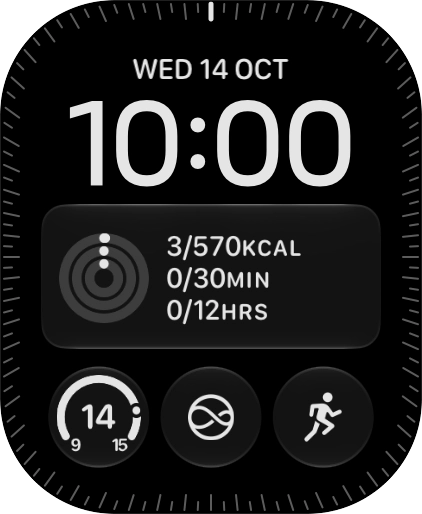
- Press the Digital Crown.
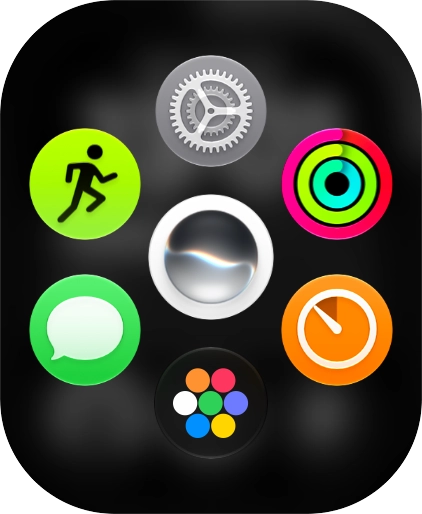
- Slide your finger upwards on the screen.
- Press the settings icon.
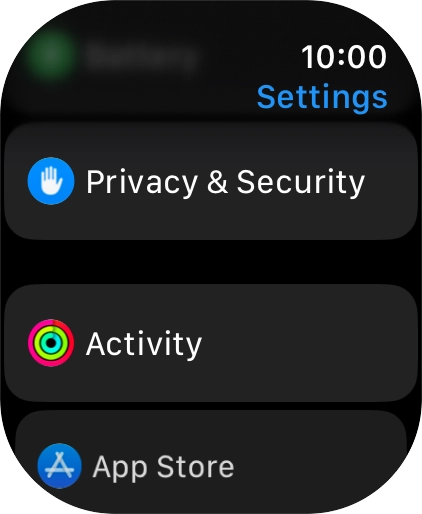
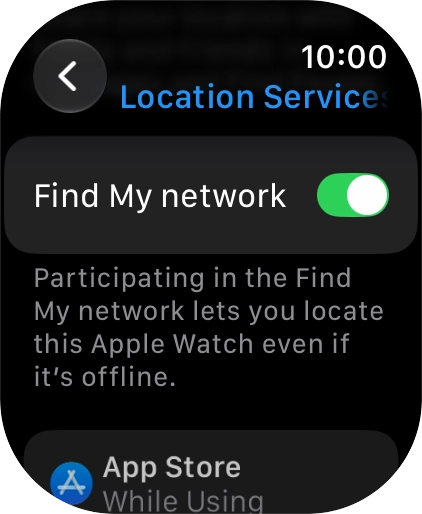
- Press Privacy & Security.
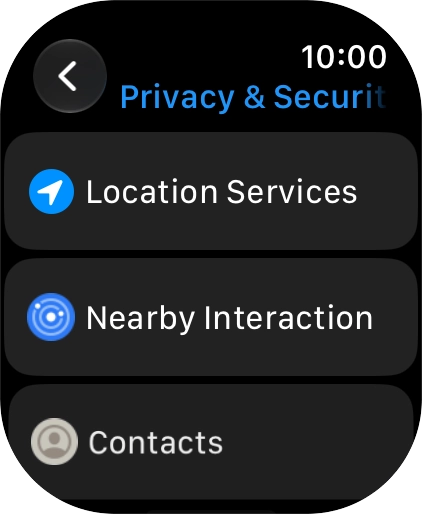
- Press Location Services.
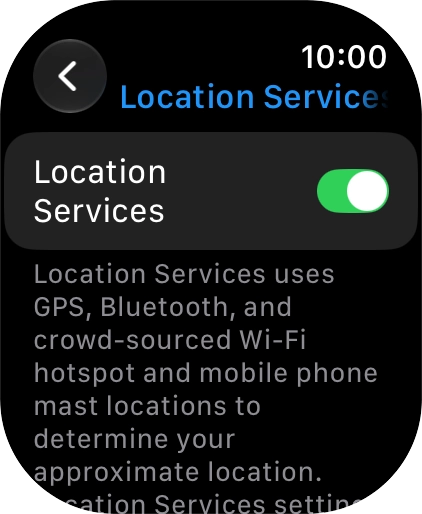
- Press the indicator next to 'Location Services' to turn the function on or off.If you turn on the function, your Apple Watch can find your position using GPS. If you turn off the function, you can't use any GPS functions on your Apple Watch.
- Press the Digital Crown several times to return to standby mode.
Go to a place with a clear view of the sky and wait a few minutes while your phone searches for a GPS signal.

- Press the Digital Crown.
- Slide your finger upwards on the screen.
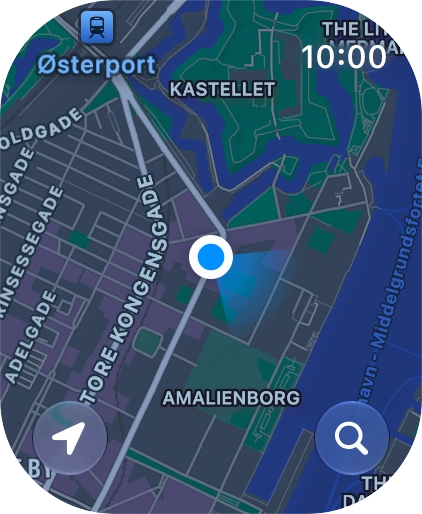
- Press the Maps icon.
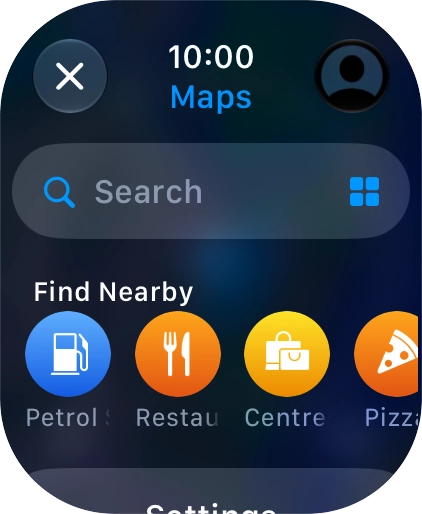
- Press the search icon.
- Press Search.
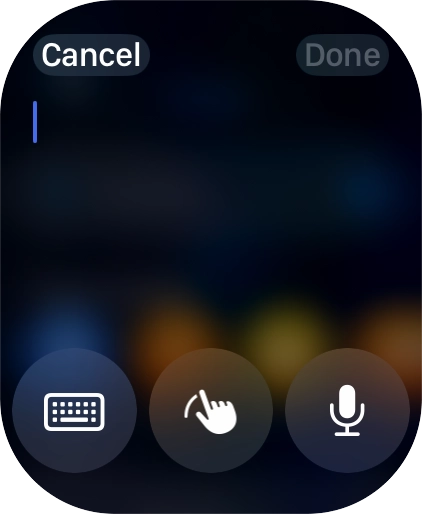
- Press the input icon.
- Press the microphone icon to turn on voice input.To use voice input, you need to turn on dictation.
- Say '[the required destination]'.
- Press Done.
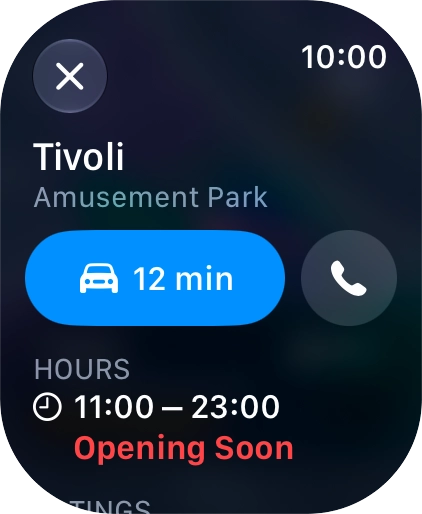
- Press the required destination.
- Press the input icon.
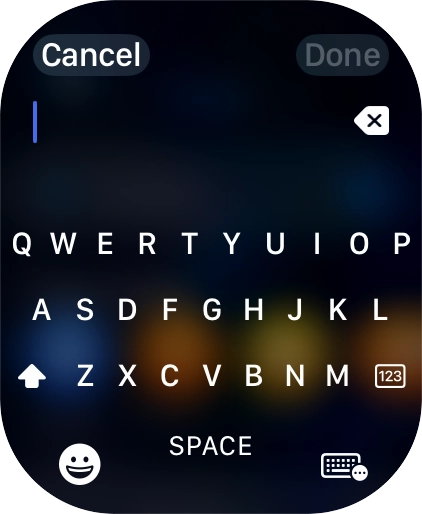
- Press the keypad icon.
- Key in the required destination and press Done.
- Press the required destination.
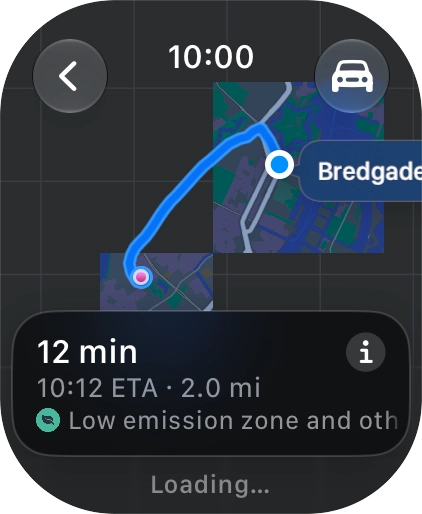
- Press the start journey icon.
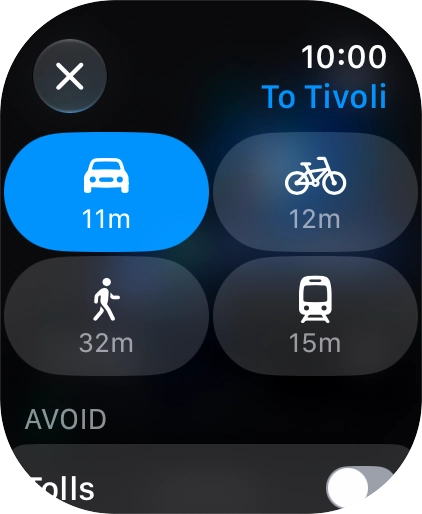
- Press the transport type icon.
- Press the required transport type.
- Turn the Digital Crown to see the suggested routes.
- Press the required route.
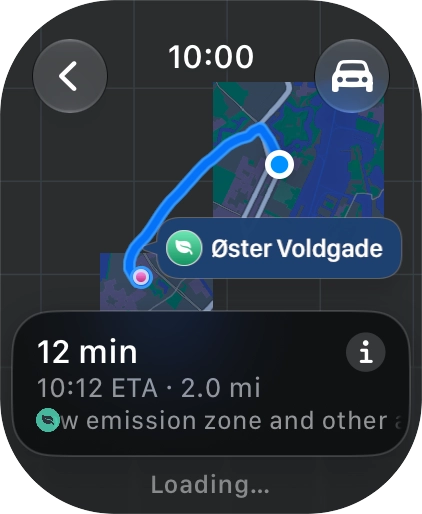
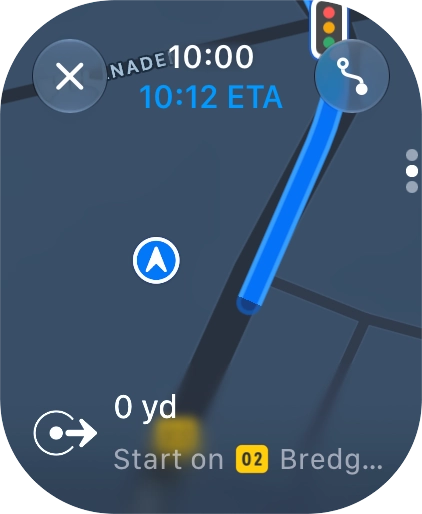
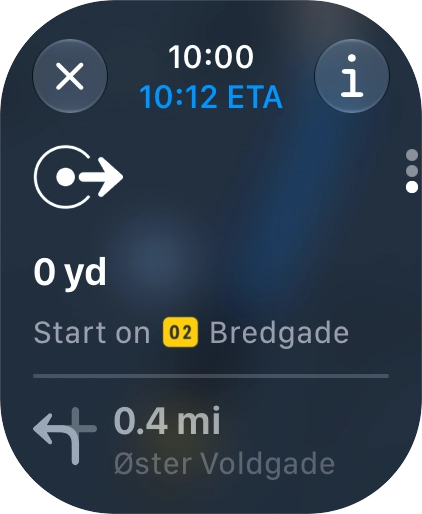
- Follow the instructions on the screen to go to the required destination.
- Slide your finger upwards on the screen to see an overview of the route.
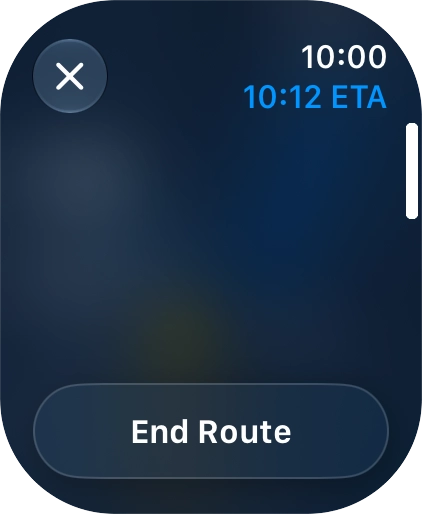
- Press the end icon.
- Press End Route.
- Press the Digital Crown several times to return to standby mode.


![Say '[the required destination]'. Say '[the required destination]'.](https://cdn.sp-selfservice.com/ml/201026-f-44a5f787-fec2-436b-9e03-fe7da6029ffa.png?width=646&height=786)