I can't update the software on my Apple Watch Ultra 3
If you can't update the software on your Apple Watch, there may be several causes of the problem.
Step 1 of 5
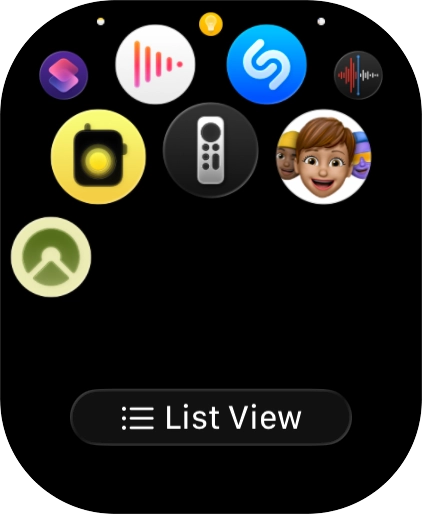
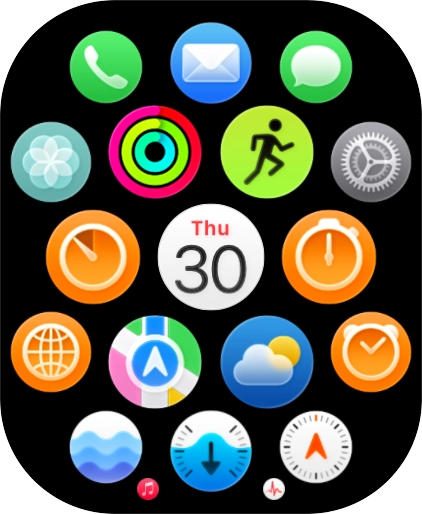
Press the Digital Crown.
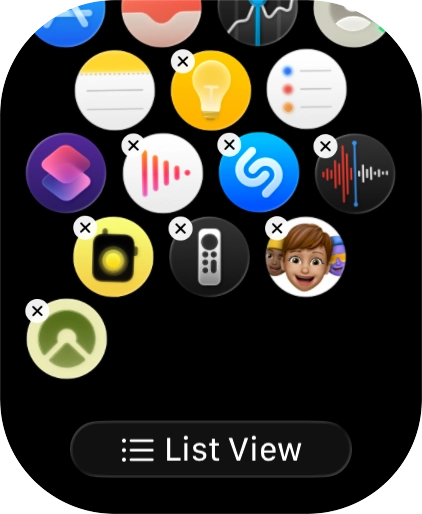
Press and hold the required app.
Press the delete icon next to the required app.
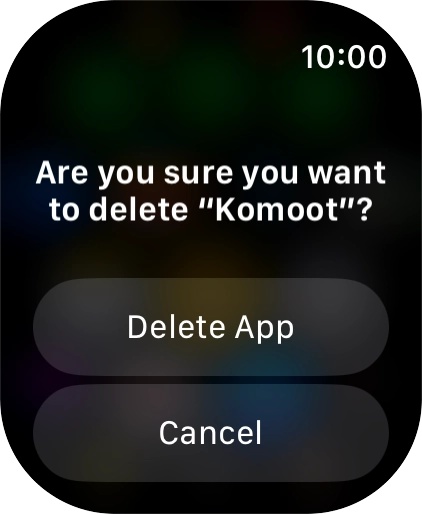
Press Delete App.
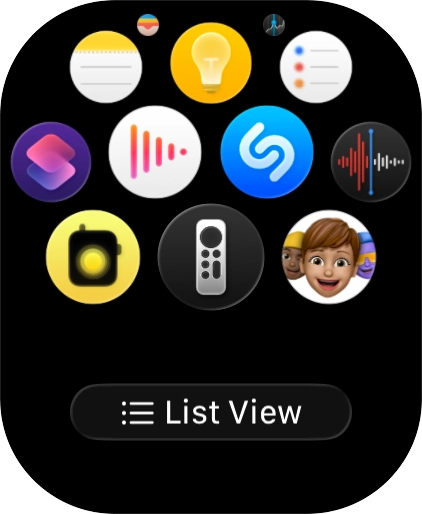
Press the Digital Crown to return to the home screen.
Press the Digital Crown and the Side button and keep them both pressed until your Apple Watch restarts.
Step 1 of 4
On your phone: Press Watch.
On your phone: Press My Watch.
On your phone: Press General.
On your phone: Press Software Update. If a new software version is available, it's displayed. Follow the instructions on the screen to update the Apple Watch software.
Step 1 of 3
Connect the charger to a wall socket.
Place the back of your Apple Watch on the magnetic charger allowing it to click into place.
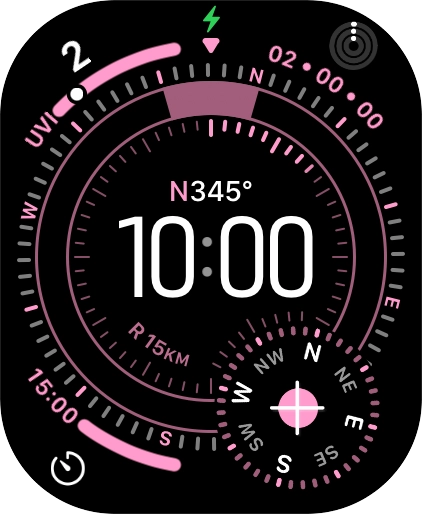
When the battery charging icon is displayed, charging is in progress.
Step 1 of 5
Press the Digital Crown.
Press the settings icon.
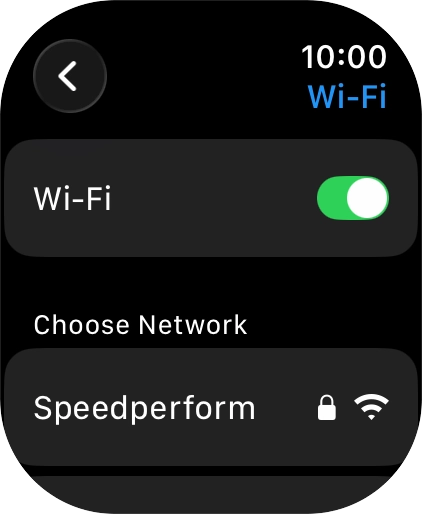
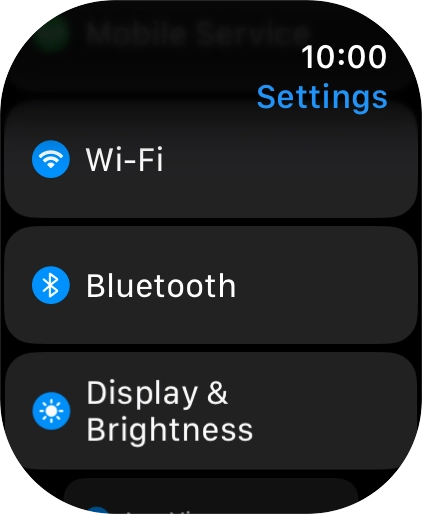
Press Wi-Fi.
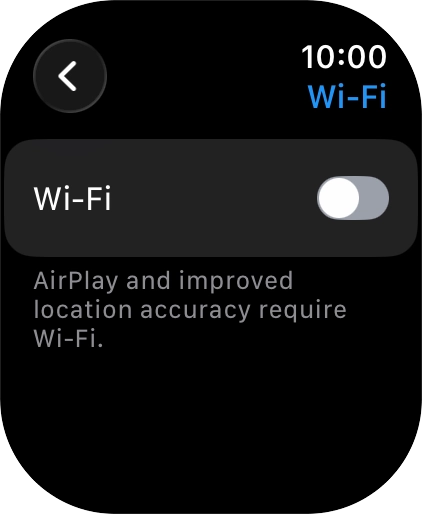
Press the indicator next to 'Wi-Fi' to turn the function on or off.
Press the Digital Crown several times to return to standby mode.