I can't play music on my Apple Watch Series 7
If you can't play music on your Apple Watch, there may be several causes of the problem.
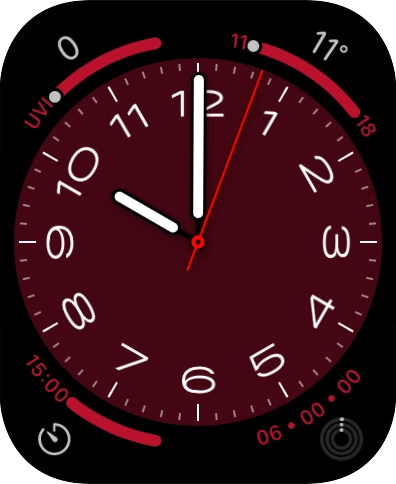
- On your phone: Press Watch.
- On your phone: Press My Watch.
- On your phone: Press Music.
- On your phone: Press Add Music... and go to the required playlist or album.
- On your phone: Press the add icon to transfer the audio files to your Apple Watch.The audio files are automatically synchronised with your Apple Watch when it's charging.
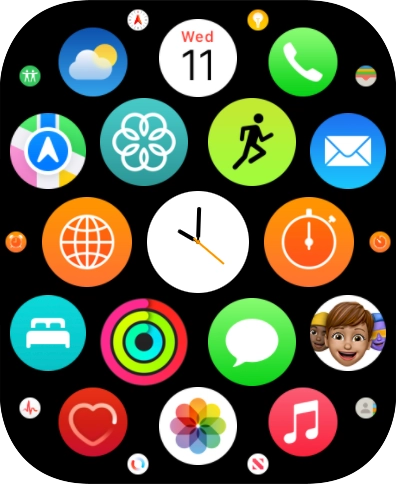
- Press the Digital Crown.
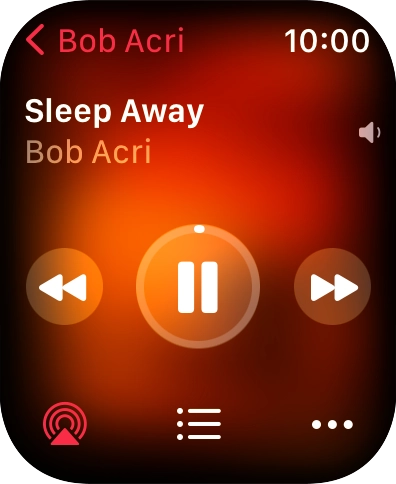
- Press the music player icon.
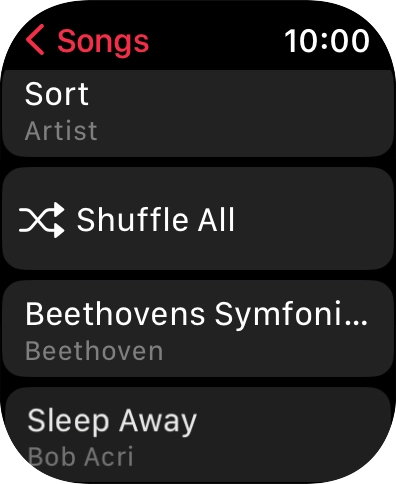
- Go to the required category or playlist and press the required audio file.
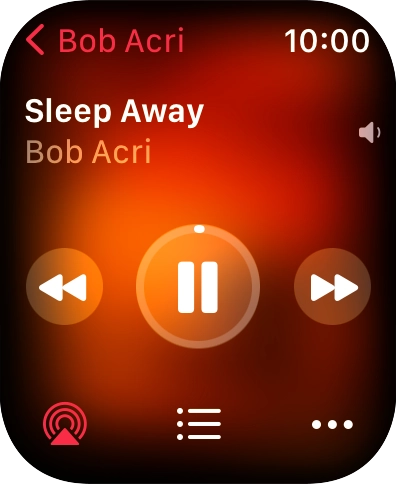
- Turn the Digital Crown to select the required volume.
- Press arrow right to go to the next audio file.
- Press arrow left twice to go to the previous audio file.
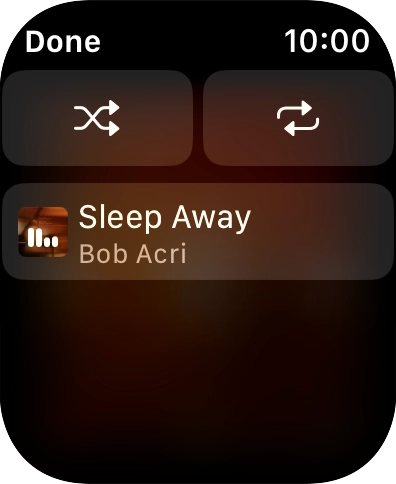
- Press the playback queue icon.
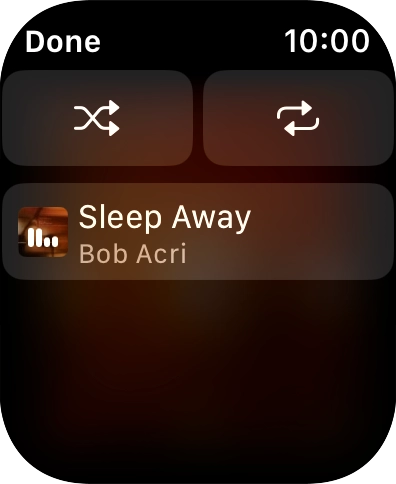
- Press the shuffle icon to turn the function on or off.
- Press the repeat icon to turn the function on or off.You can choose whether you want the music player to repeat one or more audio files.
- Press Done.
- Press the Digital Crown twice to return to the home screen.
Try playing another type of audio file.
Delete the damaged audio files and transfer the files from your phone to your Apple Watch again.
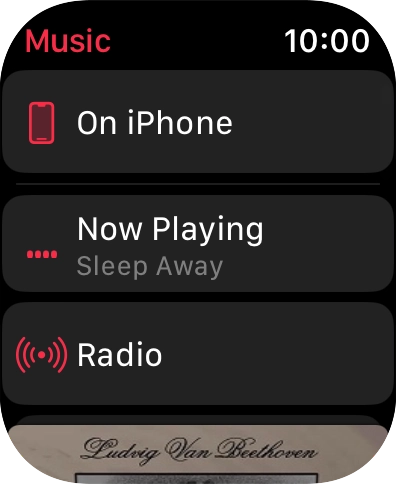
- On your phone: Press Watch.
- On your phone: Press My Watch.
- On your phone: Press Music.
- On your phone: Press the indicator next to 'Recent Music' to turn on automatic synchronisation of audio files.Playlists and albums which are often played back on your phone or you add to the phone library are automatically synchronised with your Apple Watch when it's charging.
- Press the Digital Crown.
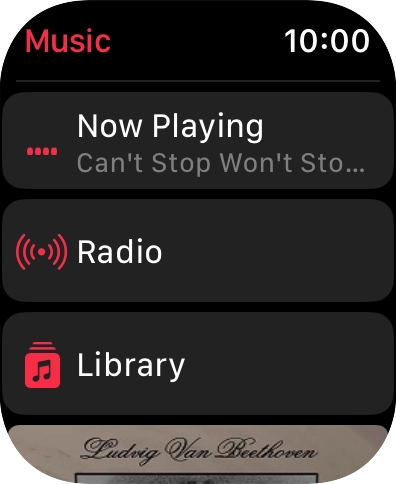
- Press the music player icon.
- Slide your finger downwards starting from the top of the screen to see the menu.
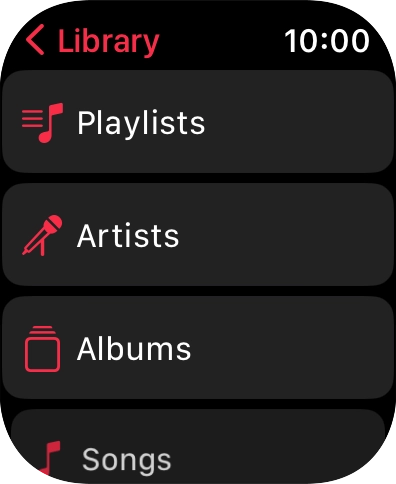
- Press Library.
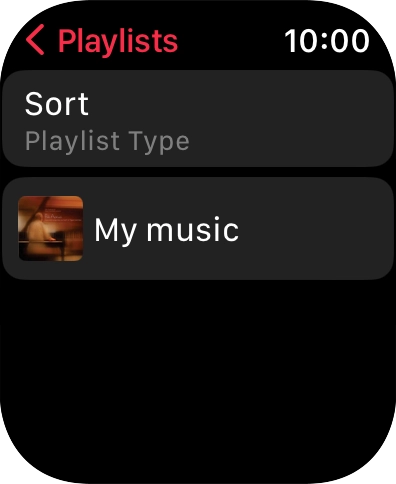
- Press Playlists.
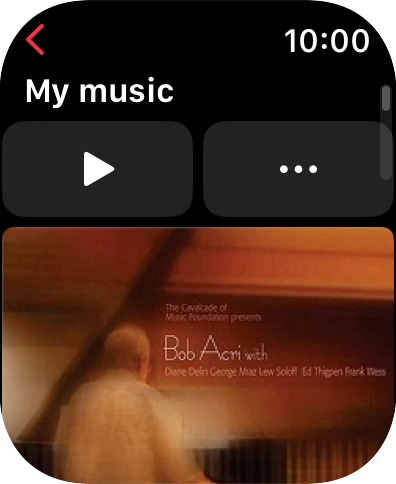
- Press the required playlist.
- Press the play icon to start the playback.
- Turn the Digital Crown to select the required volume.
- Press arrow right to go to the next audio file.
- Press arrow left twice to go to the previous audio file.
- Press the playback queue icon.
- Press the shuffle icon.
- Press the repeat icon to turn the function on or off.You can choose whether you want the music player to repeat one or more audio files.
- Press Done.
- Press the Digital Crown to return to the main menu.
- Press the Digital Crown.
- Press the music player icon.
- Slide your finger downwards starting from the top of the screen to see the menu.
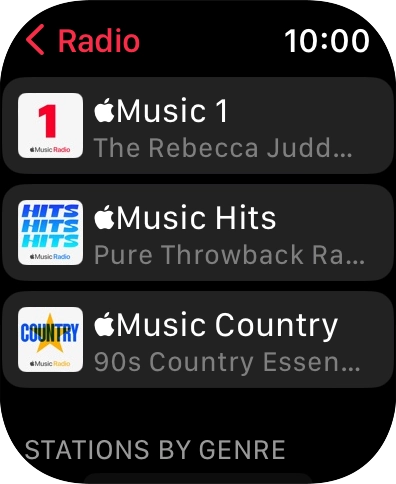
- Press Radio.
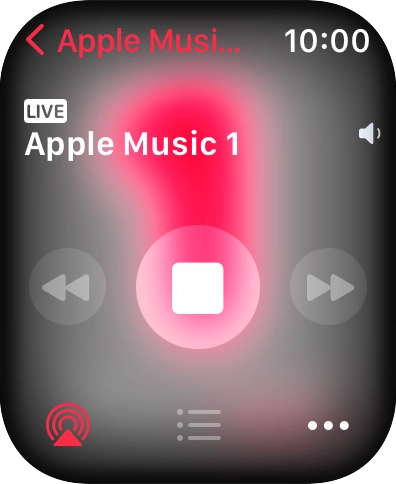
- Press the required radio station.
- Press arrow left to return to the list.
- Press the Digital Crown twice to return to the home screen.
Check that you're logged on to the selected music streaming service and have an active subscription.