How to use camera on your Apple iPhone Duo
You can take pictures with your phone's camera.
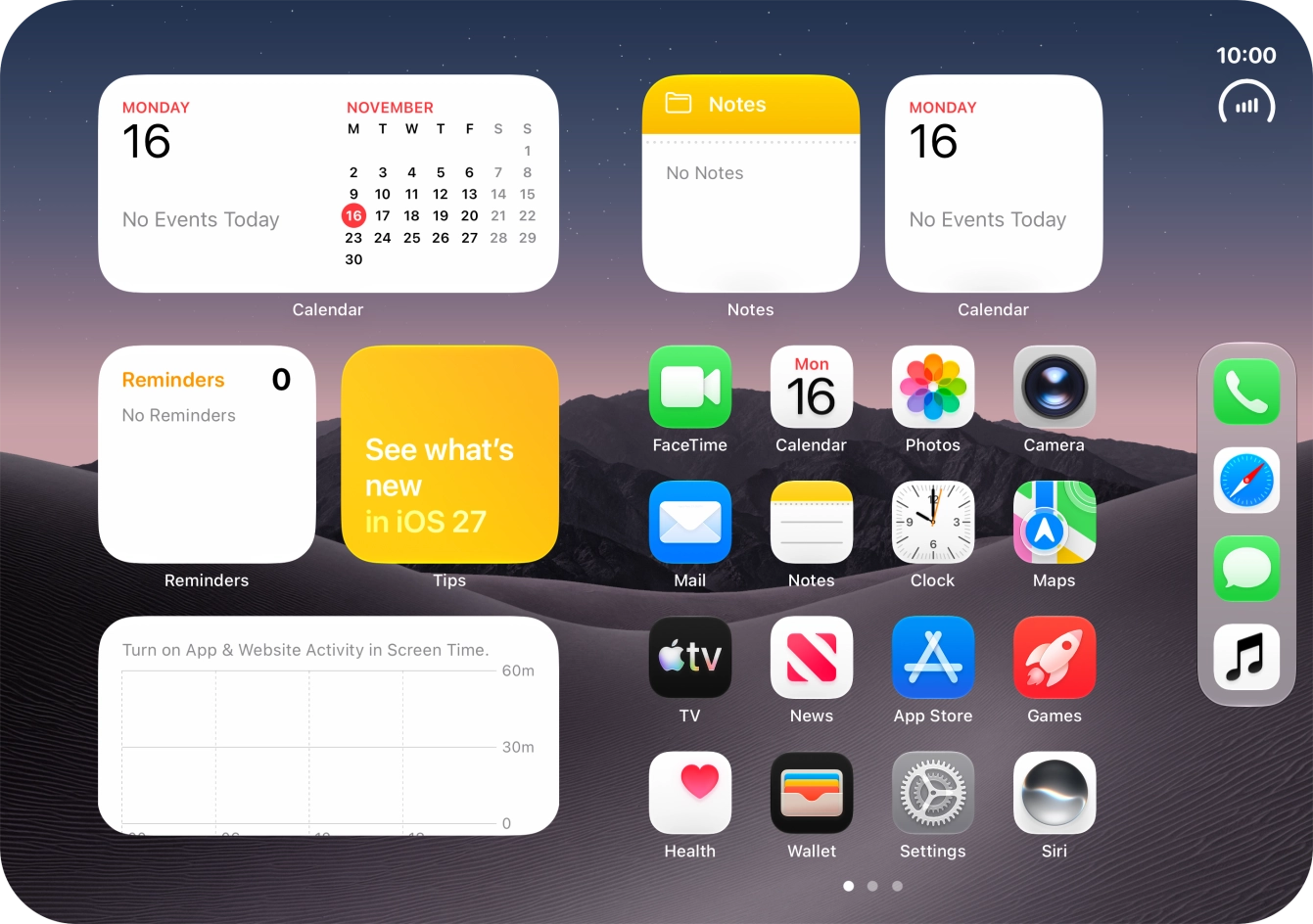
- Press Camera.
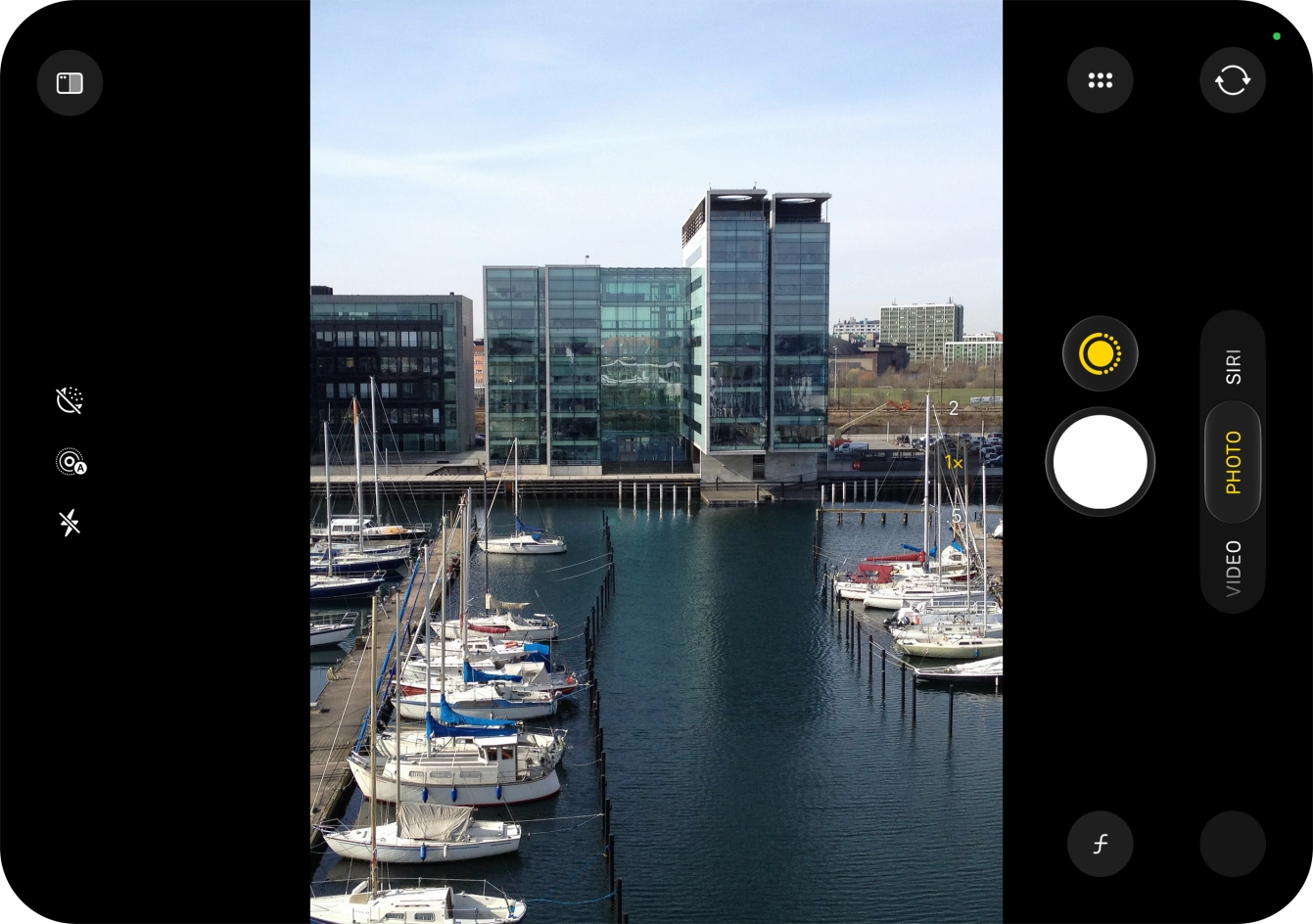
- Slide your finger up or down on the screen to select the required camera mode.
- Press the required icon and follow the instructions on the screen to select the required settings.
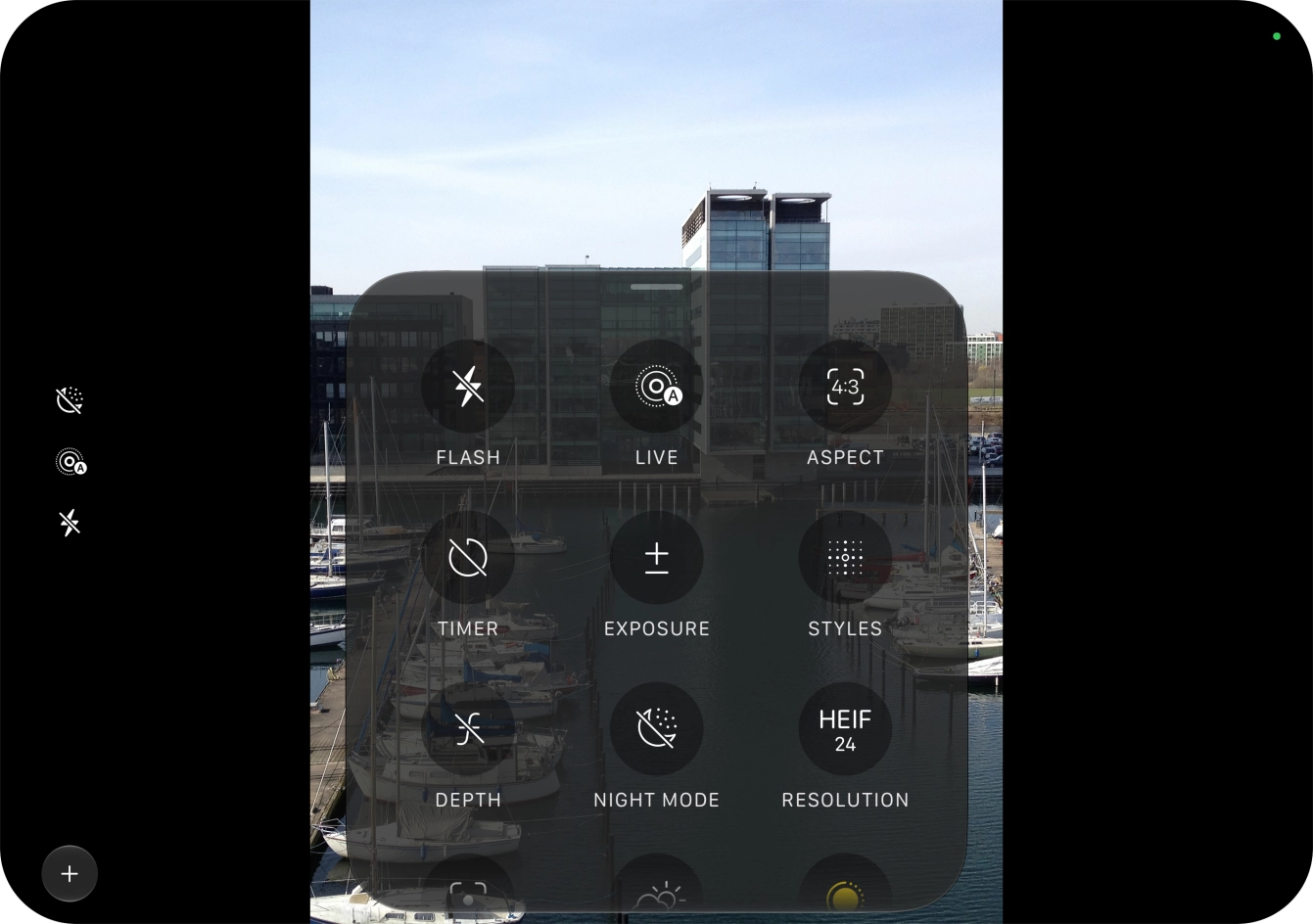
- Press the menu icon for more options.
- Press the required setting and follow the instructions on the screen to use the selected function.Please note that not all settings are available in all camera modes.
- Slide your finger downwards on the screen to return to the camera modes view.
- Press the camera switch icon to switch between the front and the back camera.Please note that it's not possible to switch camera in all camera modes.
- Point the camera lens at the required object.Drag two fingers together or apart to zoom in or out.
- Press the take picture icon.
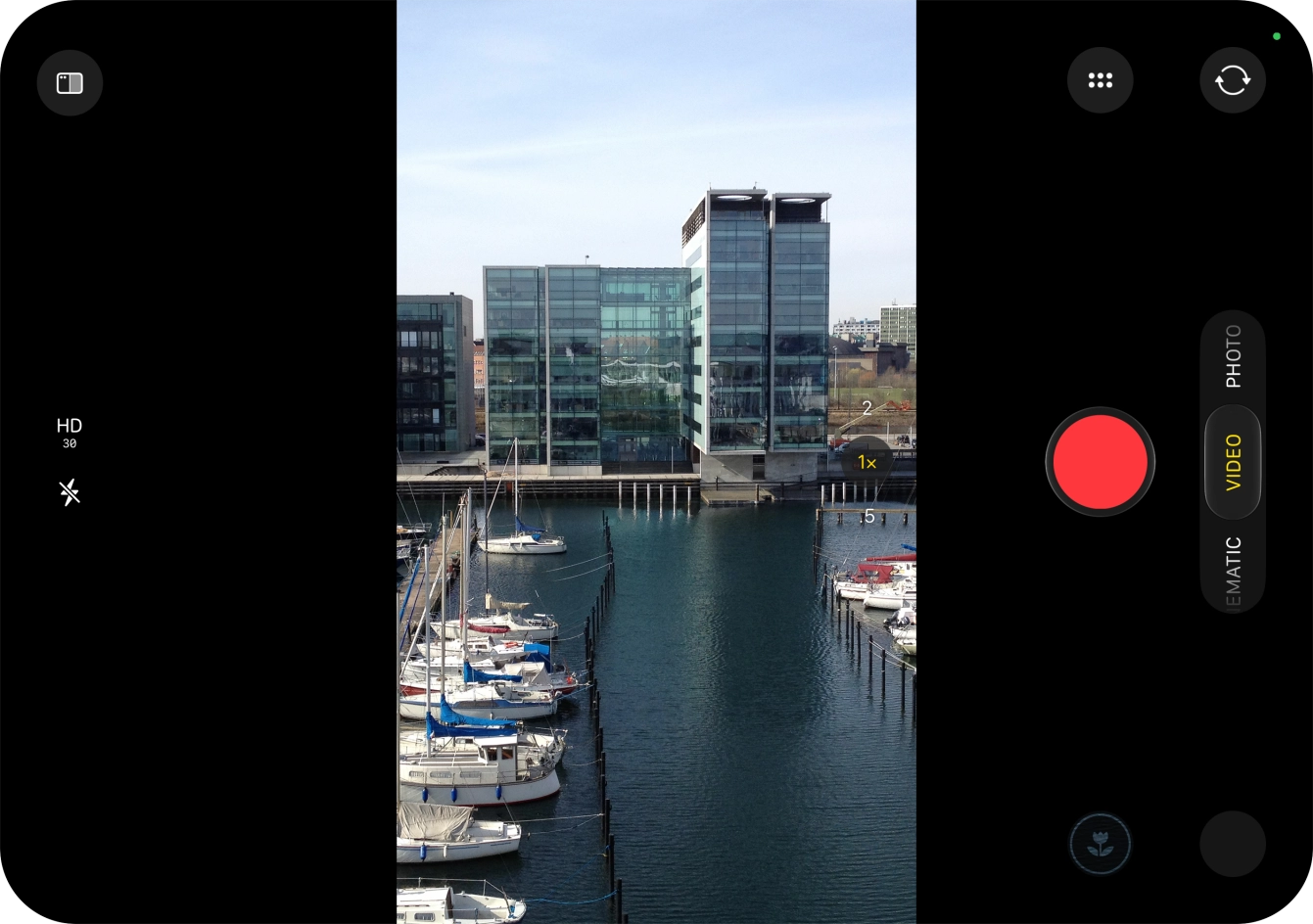
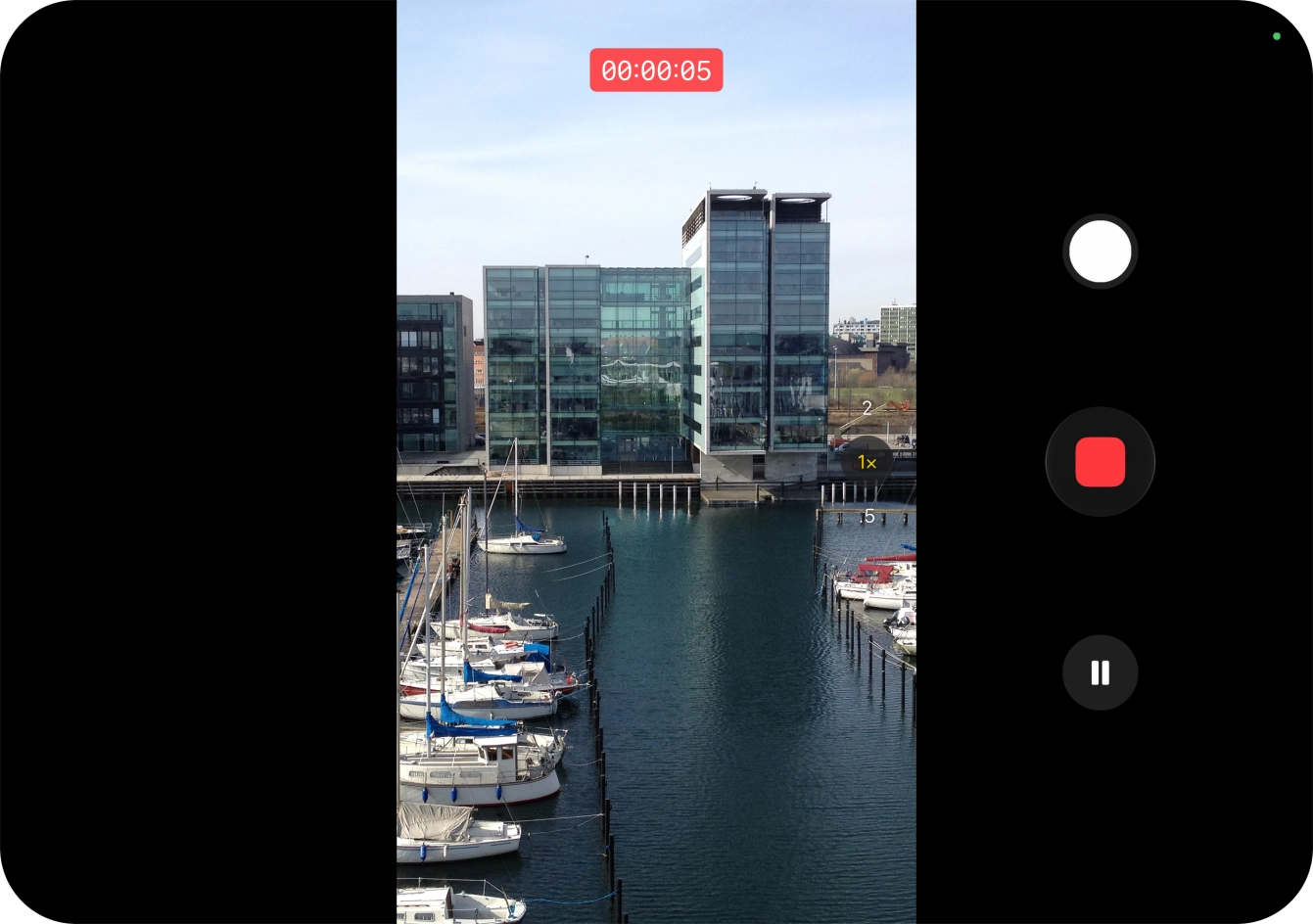
- Point the camera lens at the required object.Drag two fingers together or apart to zoom in or out.
- Press the record icon to start recording.
- Press the stop icon to stop the recording.
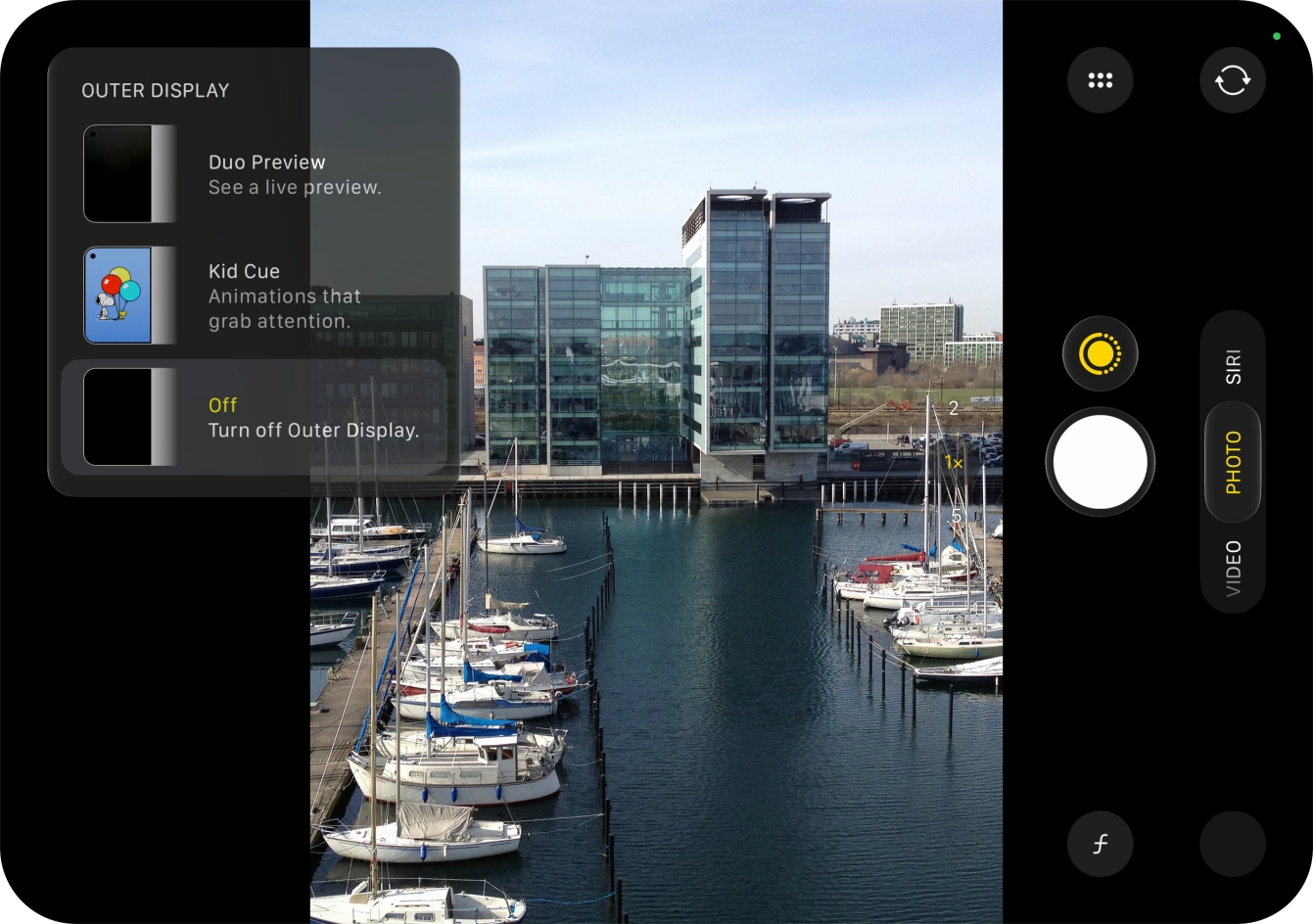
- Press the cover screen icon.
- To turn on photo preview on the cover screen, press Duo Preview.
- To turn on animation playback on the cover screen, press Kid Cue.You can play a fun animation on the cover screen to catch the attention of children and pets while taking a picture or recording a video.
- To turn off the cover screen while taking a picture or recording a video, press Off.
- Slide your finger upwards starting from the bottom of the screen to return to the home screen.
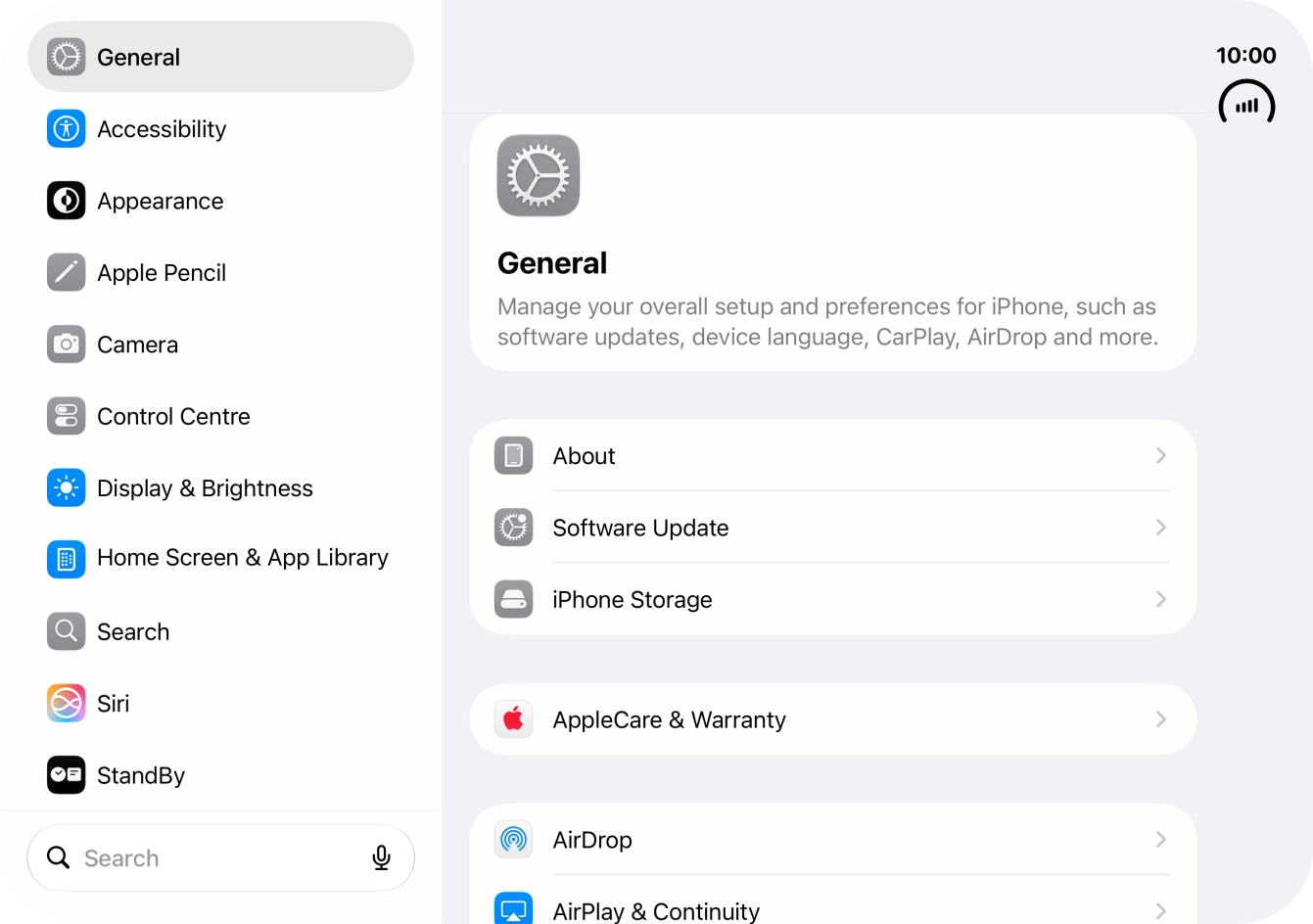
- Press Settings.
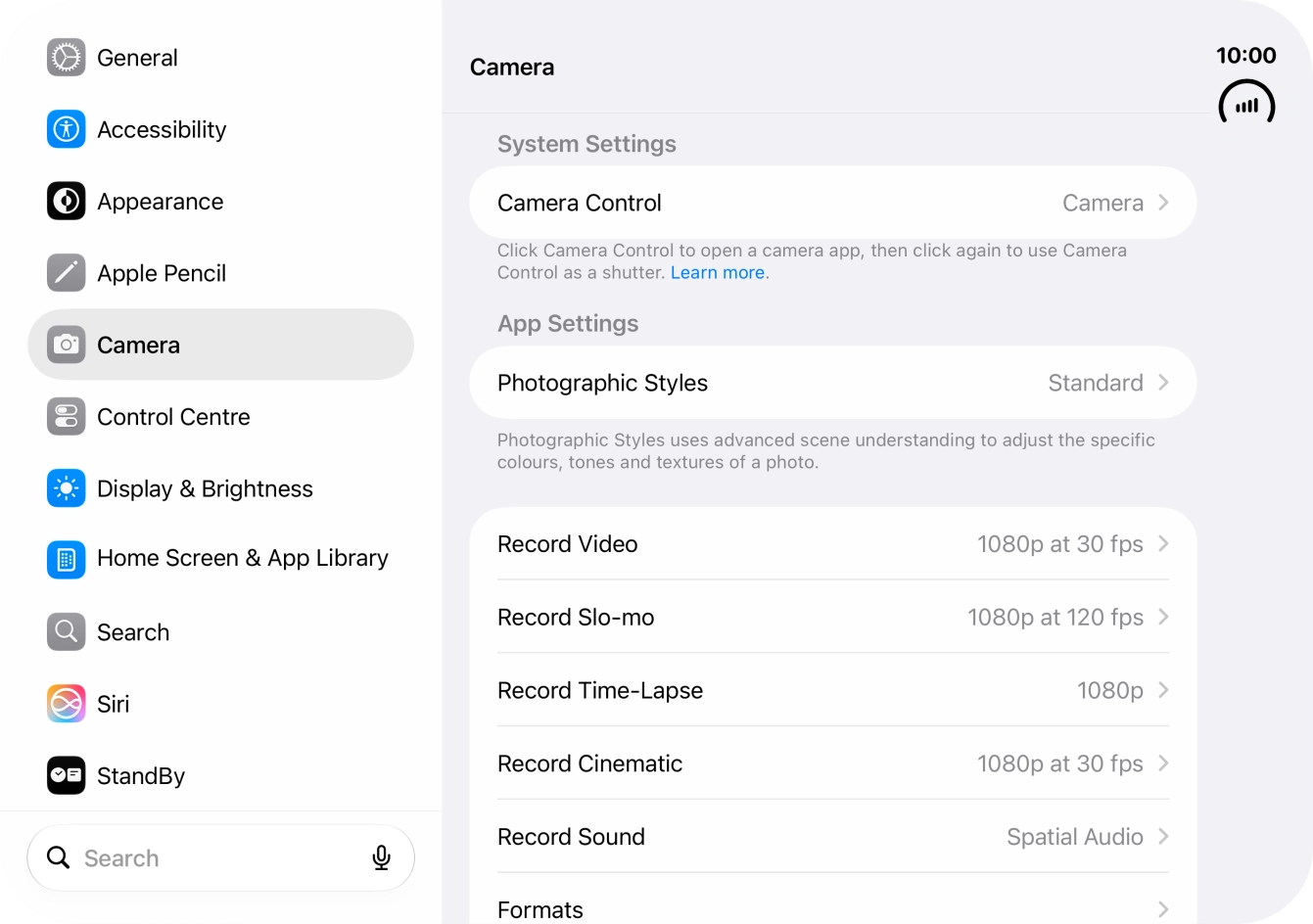
- Press Camera and follow the instructions on the screen to select more camera settings.
- Slide your finger upwards starting from the bottom of the screen to return to the home screen.