Version:
Operating SystemiOS 26
iOS 26
iOS 18
How to use camera on your Apple iPhone 16 Pro Max
You can take pictures with your phone's camera.
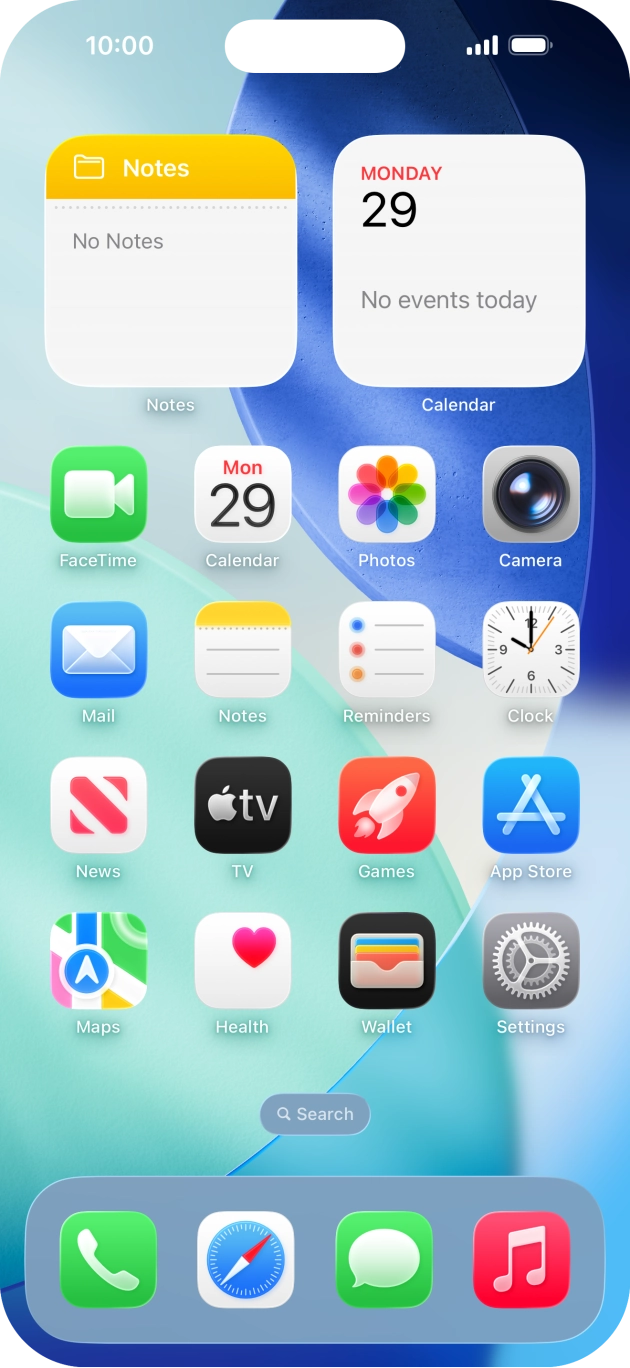
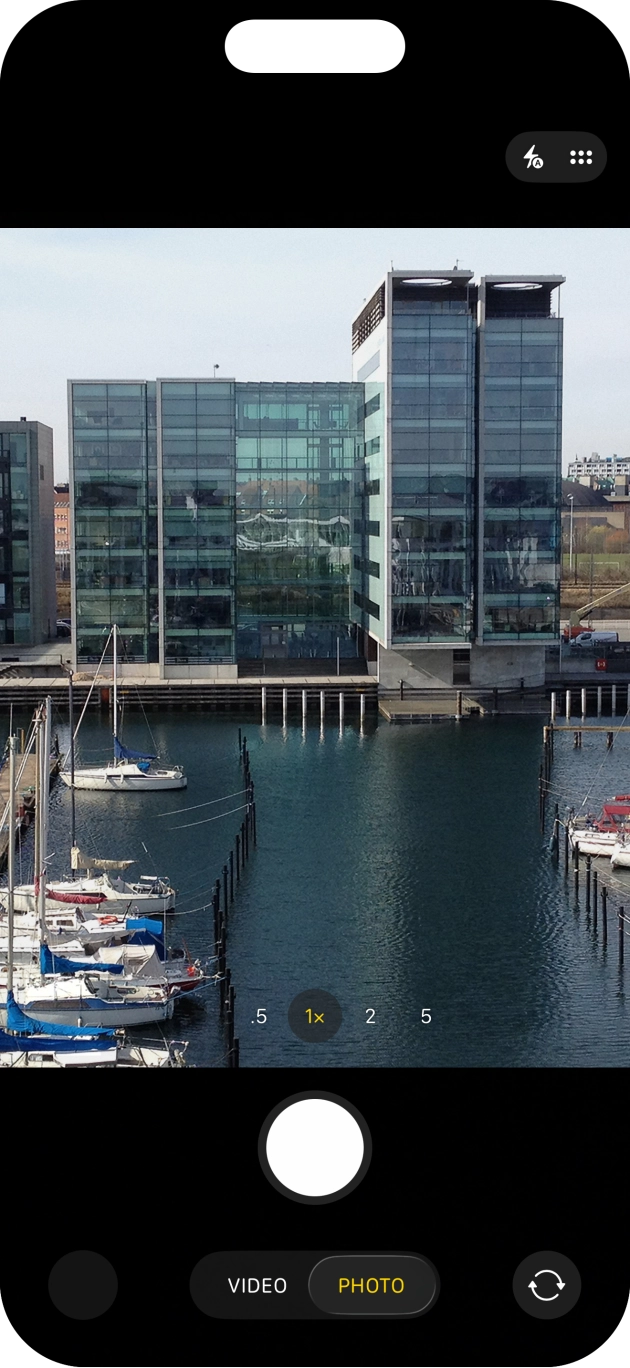
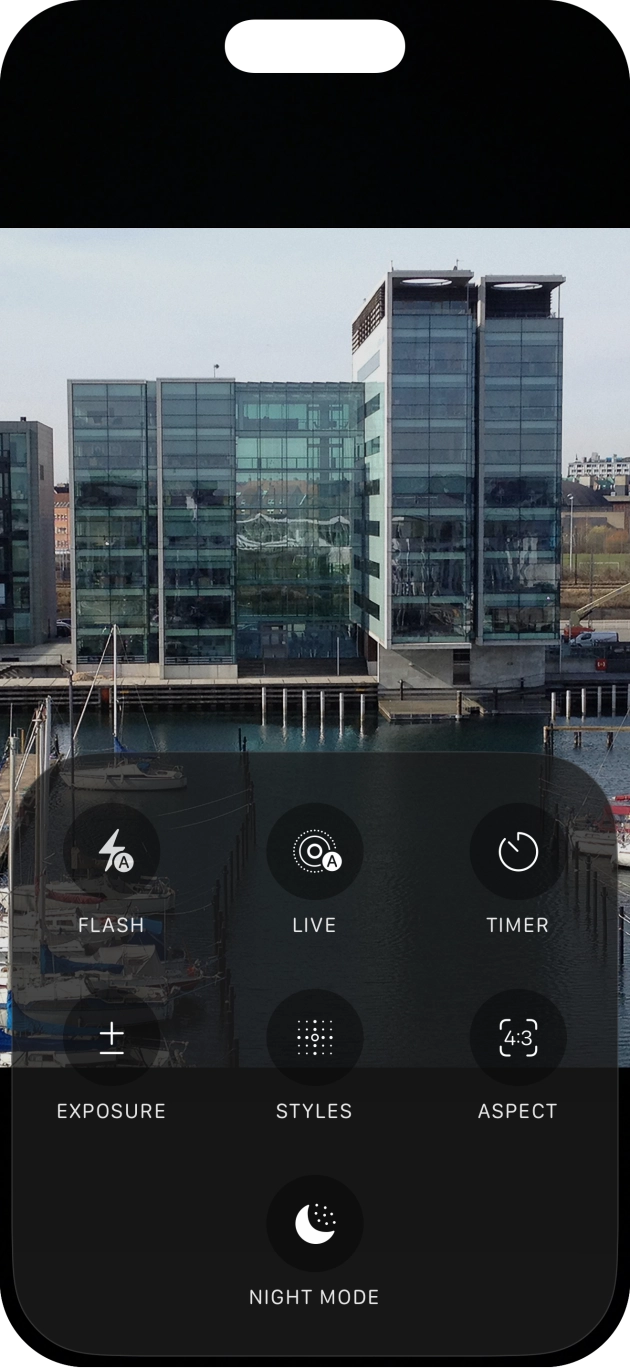
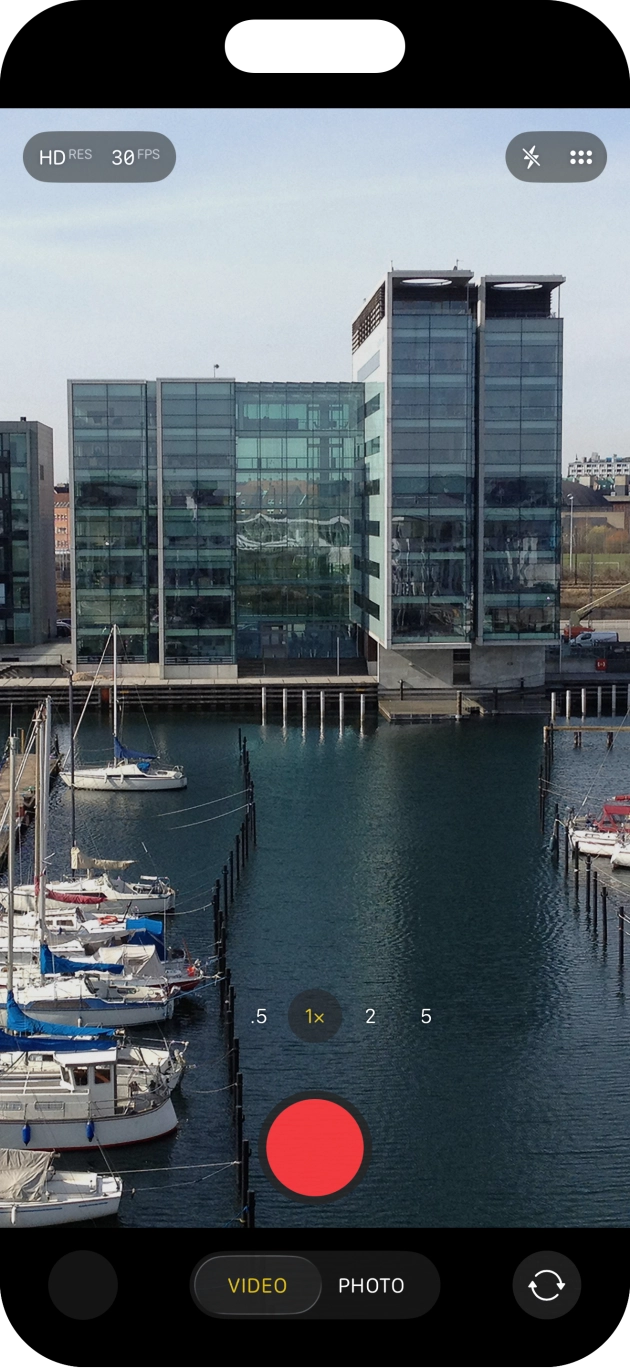
- Press Camera.
- Slide your finger right or left on the screen to select the required camera mode.
- Press the required icon and follow the instructions on the screen to select the required settings.
- Slide your finger upwards on the screen to see more settings.
- Press the required setting and follow the instructions on the screen to use the selected function.Please note that not all settings are available in all camera modes.
- Slide your finger downwards on the screen to return to the camera modes view.
- Press the camera switch icon to switch between the front and the back camera.Please note that it's not possible to switch camera in all camera modes.
- Point the camera lens at the back of your phone at the required object.Drag two fingers together or apart to zoom in or out.
- Press the take picture icon.
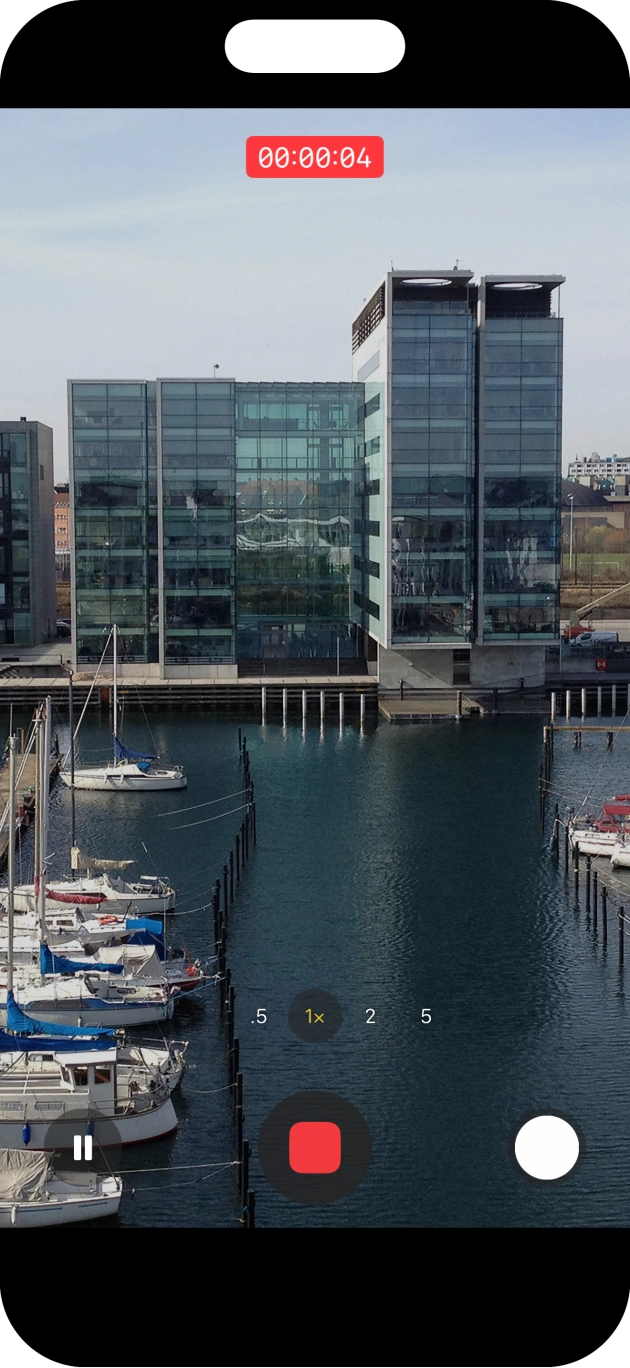
- Point the camera lens at the back of your phone at the required object.Drag two fingers together or apart to zoom in or out.
- Press the record icon to start recording.
- Press the stop icon to stop the recording.
- Slide your finger upwards starting from the bottom of the screen to return to the home screen.
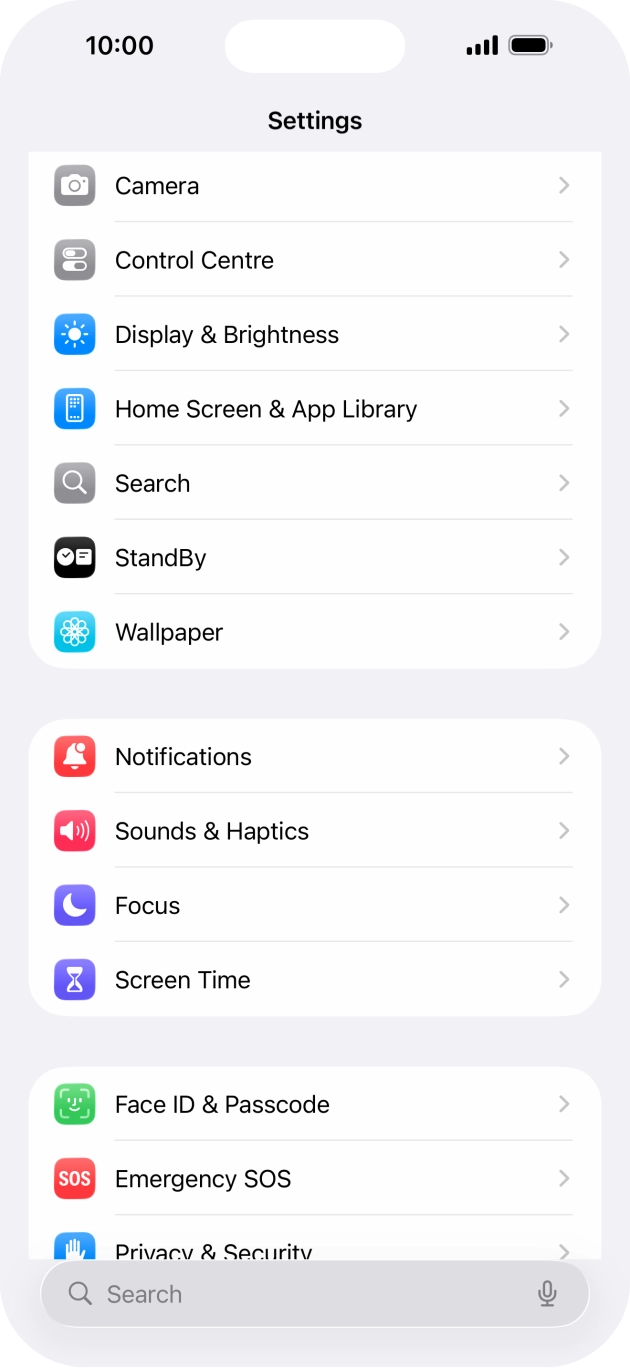
- Press Settings.
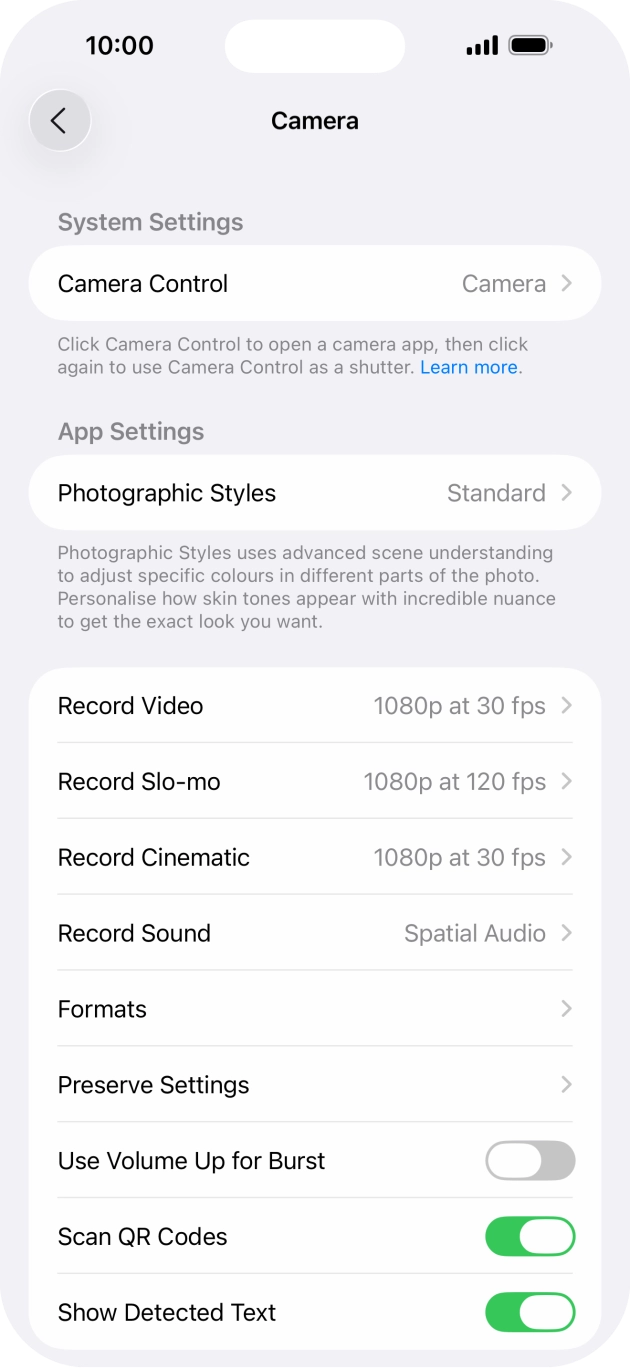
- Press Camera and follow the instructions on the screen to select more camera settings.
- Slide your finger upwards starting from the bottom of the screen to return to the home screen.