How to activate your Apple Watch Series 9
You need to activate your Apple Watch before using it for the first time and after a factory reset.
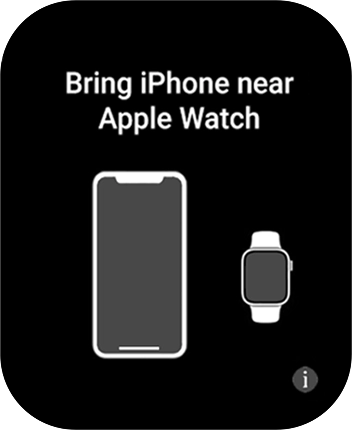
1. Connect your Apple Watch and your phone
Place your Apple Watch next to your phone.
Make sure Bluetooth is turned on on your phone.
- Place your Apple Watch next to your phone.Make sure Bluetooth is turned on on your phone.
- On your phone: Press Continue and follow the instructions on your phone to place the watch face in the middle of your phone's camera viewfinder.
- On your phone: When this screen is displayed, your Apple Watch is connected to your phone.
- On your phone: Press Set Up for Myself.
- On your phone: Press Set Up as New Apple Watch.If you've backed up content previously, you can restore the content.
- On your phone: Press the required setting and select on which wrist you want to wear the watch.
- On your phone: Press Continue.
- On your phone: Press Agree.
- On your phone: Press Enter Password.
- On your phone: Key in the password for your Apple ID and press Sign In.
- On your phone: Press the required setting.
- On your phone: Follow the instructions on the screen to turn on the lock code or press Don't Add Passcode.
- On your phone: Press Don't Use Passcode.
- On your phone: Follow the instructions on the screen to select the required settings and press Continue.
- Press OK.
- On your phone: Follow the instructions on the screen to select the required settings and press Continue.
- On your phone: Follow the instructions on the screen to select the required activity settings or press the required setting.
- On your phone: Follow the instructions on the screen to select sleep settings or press Skip.
- On your phone: Press the indicators to turn the required settings on or off.
- Press Continue.
- On your phone: Press Continue.
- On your phone: Follow the instructions on the screen to set up mobile data on your Apple Watch or press Not Now.See how to set up mobile data later after activation.
- On your phone: Press Continue.
- On your phone: Wait a moment while the activation of your Apple Watch is completed and press Done.