
What is a mobile hotspot and how do I use it?
Mobile hotspots are an easy way to share your 4G or 5G connection when there’s no WiFi available. Here’s everything you need to know.

|
Laura Ward Last updated 28 August 2026 |
quality(75))
What is a mobile hotspot?
A mobile hotspot is a small device or feature on your smartphone that allows you to share your internet connection with other devices like laptops, tablets or other phones. It works by taking the cellular data signal from your mobile network (like 4G or 5G) and turning it into a WiFi signal that other devices can connect to – just like they would with a regular WiFi network at home or at a café.
Mobile hotspots are especially handy when you're in a place with no public WiFi or if the available WiFi is slow or unsafe. So, if you're traveling and need to use your laptop to catchup on work or watch a video, but there’s no WiFi available, you can turn on your mobile hotspot to get connected at any time.
How do I get a better hotspot connection?
The speed and reliability of the internet connection depend on the strength of your network signal. If you're in an area with weak mobile network coverage, your hotspot connection might be slower or less stable. If it’s patchy, try moving to a different area to boost your connectivity.
The number of devices connected to your hotspot can impact the internet speed. If more devices are using the hotspot at the same time, it’s more likely to slow down your connection, especially if they're doing data-heavy activities like streaming videos or downloading files. When your signal is weaker, it’s best to only connect the devices you need to make sure your connection isn’t under too much strain.
How do I turn on mobile hotspot?
 Creating a mobile hotspot is quick and easy. The steps are slightly different depending on whether you're using an iPhone, an Android phone or an external hotspot device.
iPhone
Start by opening the Settings app
Tap ‘Personal Hotspot’ or ‘Cellular’ > ‘Personal Hotspot’
Toggle the switch to turn on ‘Allow Others to Join’
If it's your first time setting up a hotspot, create a strong password to keep your connection secure
On your other device, go to WiFi settings > find your iPhone's hotspot name and enter the password
Hotspots usually work better on newer iPhone models. Need an upgrade? Check out the latest and greatest iPhone deals at O2.
Android
Go to the Settings app
Tap ‘Network & Internet’ > ‘Hotspot & Tethering’
Tap ‘WiFi Hotspot’ and toggle it on
You can customise the hotspot name and set a secure password in the settings
On the other device, go to WiFi settings > search for your hotspot name in the WiFi list and enter the password
Using a Portable WiFi hotspot device
Turn on the power button > find the WiFi name and password – you can usually find these on the screen or sticker on the device
On your other device, go to Wi-Fi settings > find the hotspot name and enter the password
Monitor data use – external hotspot devices often have an app or display to check how much data you're using
Via USB tethering
If you don't want to use WiFi, you can connect your phone to a laptop or computer using a USB cable.
On an iPhone, enable ‘Personal Hotspot’ and select USB Only if prompted
On an Android, go to ‘Hotspot & Tethering’ settings and enable USB Tethering
Your computer should automatically detect the internet connection through the USB.
Why is my mobile hotspot not working?
 It’s usually related to your mobile plan or phone settings. Here are some common issues and steps to fix them:
Weak network signal
The most common reason your mobile hotspot might not be working is a weak network signal. If you’re in an area with poor mobile network coverage, the hotspot won’t be able to connect properly to the internet. Try moving to a location where you have a stronger signal, like near a window or outside and check if that improves the connection.
Mobile data is off or not working
A mobile hotspot needs your mobile data to be turned on. Make sure you have an active data connection on your phone or hotspot device. You can check this by trying to browse the web on your phone using regular internet.
If it’s not working, you might need to restart your phone, check your mobile plan to make sure you have enough data left, or contact your carrier if there’s a network issue.
Hotspot is disabled
Sometimes, the hotspot feature may not be turned on properly. Double-check your phone’s settings to make sure that the mobile hotspot is enabled.
On iPhone, go to Settings > Personal Hotspot and make sure it’s turned on
On Android, go to Settings > Network & Internet > Hotspot & Tethering and turn on the hotspot
Double-check that the hotspot password you’ve set is entered correctly when trying to connect another device.
Too many devices connected
If too many devices are connected to your hotspot, it can slow down or stop working. Try disconnecting a few and see if that helps. Some phones and hotspot devices have a limit on how many can connect at once and exceeding that limit can cause issues.
Data limits or plan restrictions
If you’ve reached your data limit or your mobile data plan doesn’t allow hotspot use, the mobile hotspot might stop working. Check with your provider to make sure your plan supports hotspot usage and that you haven’t exceeded your data limit. Some carriers also limit hotspot speeds after a certain amount of data has been used, which might cause the connection to feel slow or patchy.
Can I use WiFi to create a mobile hotspot?
No, you can’t use regular WiFi to create a mobile hotspot. A mobile hotspot relies on a cellular data connection, like 4G or 5G, to share internet access with other devices. When you turn on a mobile hotspot, it uses your device’s network data to create a WiFi network that other devices can connect to.
If you're already connected to WiFi and need to share that connection with other devices, you can use a feature called WiFi tethering on some devices. But this is different from a traditional mobile hotspot because the internet is coming from a WiFi connection, not from a cellular network. In this case, your device is acting like a mini WiFi router for the connected devices.
Managing your battery and data usage
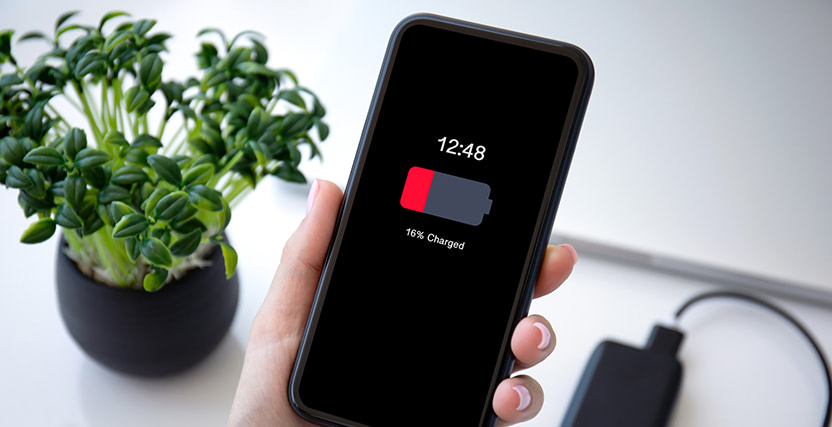 While mobile hotspots are handy for staying connected when WiFi isn't available, it’s important to check your battery and data allowance as you go.
Watching videos, downloading large files or gaming can be the most power-hungry activities. If you have an unlimited data plan, you’re covered. If not, be sure to check your mobile network app to see how much data you’ve used. Many mobile hotspot plans have data limits, so it’s important to monitor your usage.
Mobile hotspots can also drain your phone’s battery quicker than usual. When you use your phone as a hotspot, it's working harder to send out a WiFi signal and maintain a strong connection, which can cause the battery to run down faster. If you’re using the hotspot for a long time, we recommend keeping your phone plugged into a charger.
Is a mobile hotspot as fast as home WiFi?
 Not usually. While a mobile hotspot can be fast, its speed and stability are heavily affected by network signal strength and number of connected devices.
Wired fibre or cable connections easily deliver speeds from 100Mbps to over 1,000Mbps, compared to mobile hotspots which typically deliver 10Mbps to 50Mbps on standard 4G or 5G cellular networks. Speed and reliability also depend heavily on your distance to the nearest cell tower and local network congestion.
Looking for a portable hotspot to take on the road? Check out our mobile broadband devices.
Related articles
quality(75))
Technology
Best phones for satellite signal
Get even greater connectivity with O2 Satellite
quality(75))
Technology
Digital packing list for travel
Stay connected across Europe this summer
quality(75))
Technology
All about the O2 network
From improving coverage across the UK to sending a text