I have problems sending and receiving emails on my OPPO Find X2 Pro
If you can't send and receive emails, there may be several causes of the problem.
1. Find 'Users & Accounts'
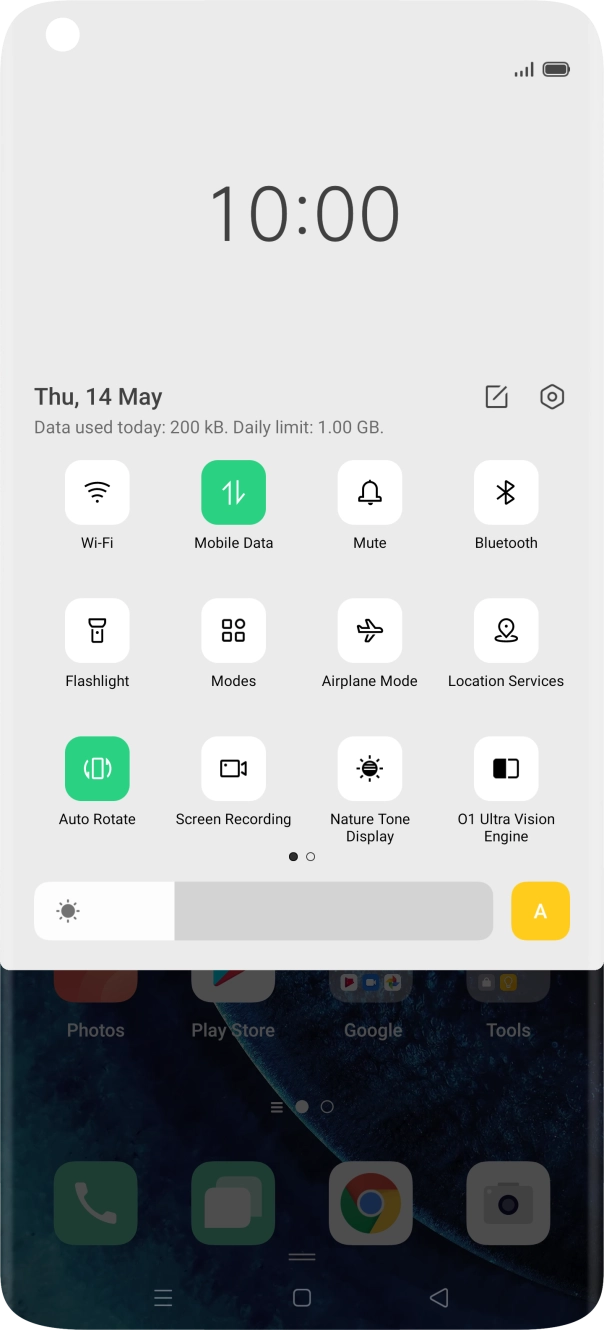
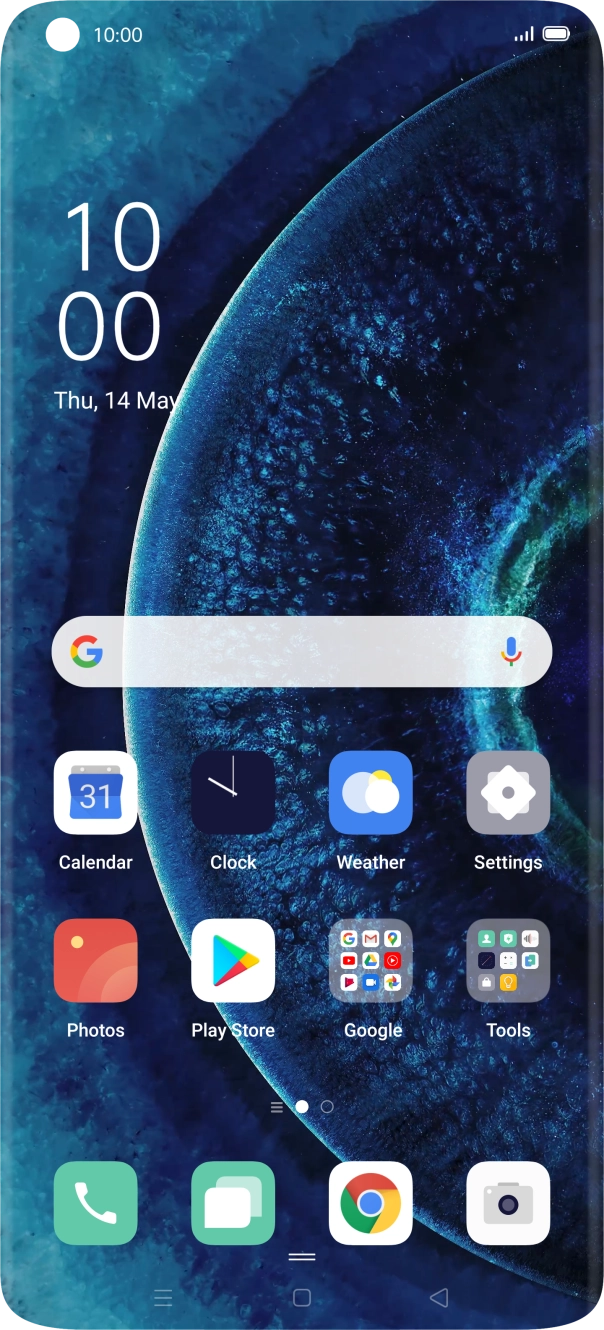
Slide two fingers downwards starting from the top of the screen.
- Slide two fingers downwards starting from the top of the screen.
- Press the settings icon.
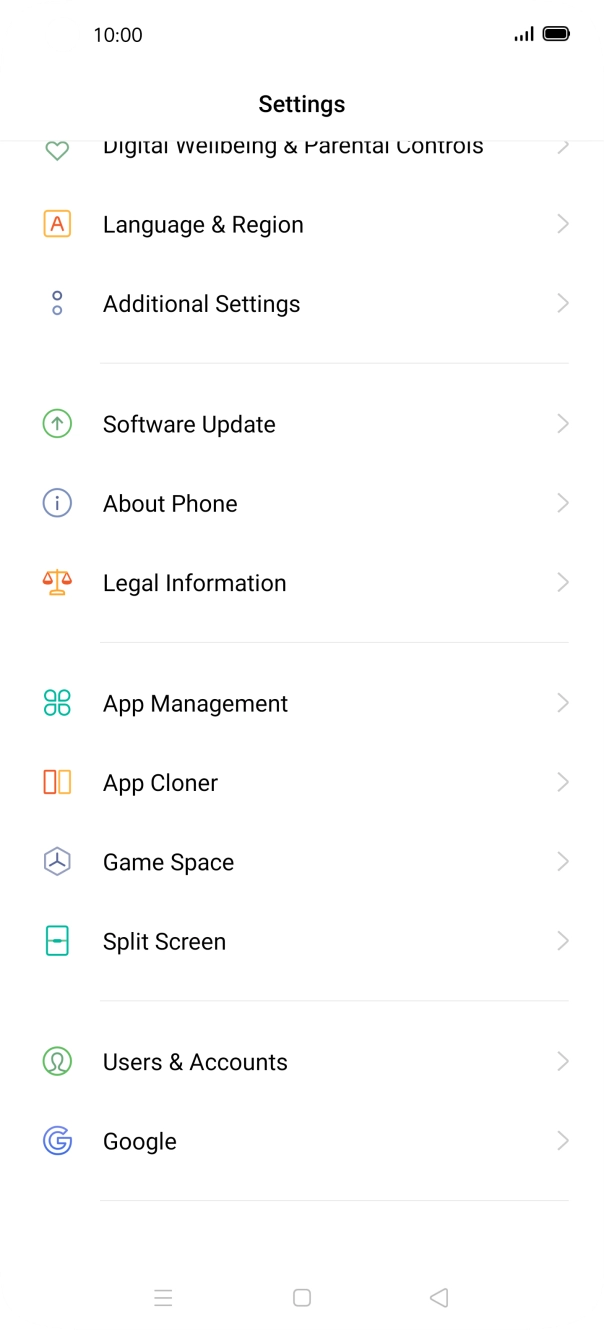
- Press Users & Accounts.
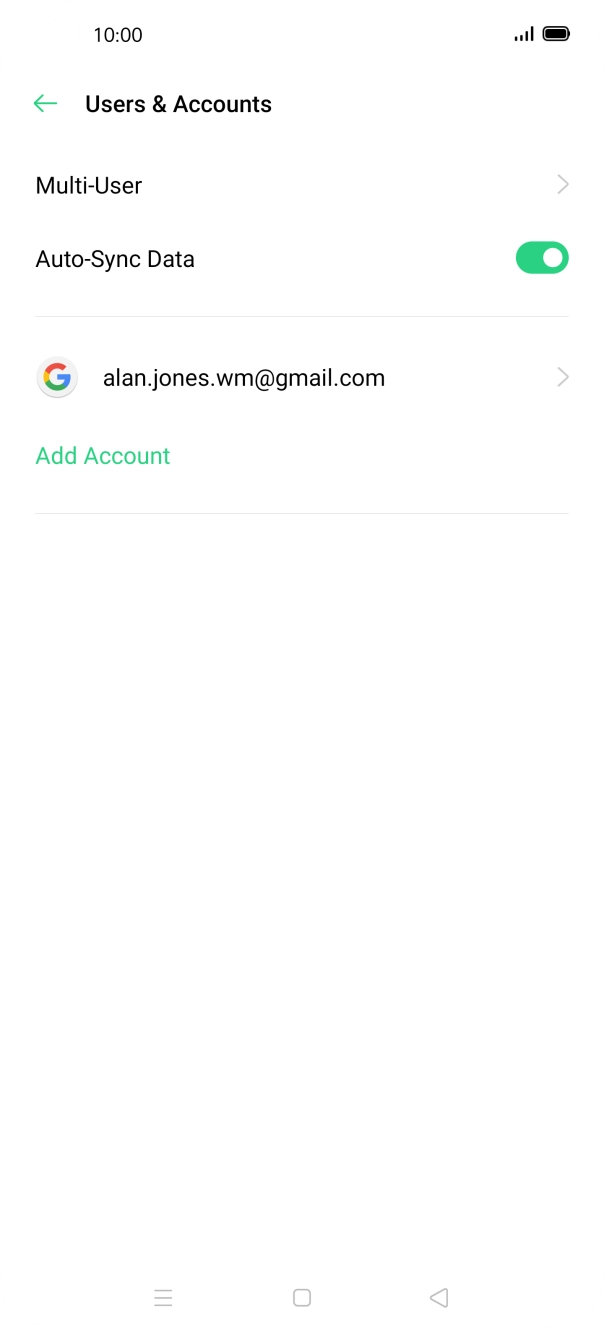
- Press Add Account.
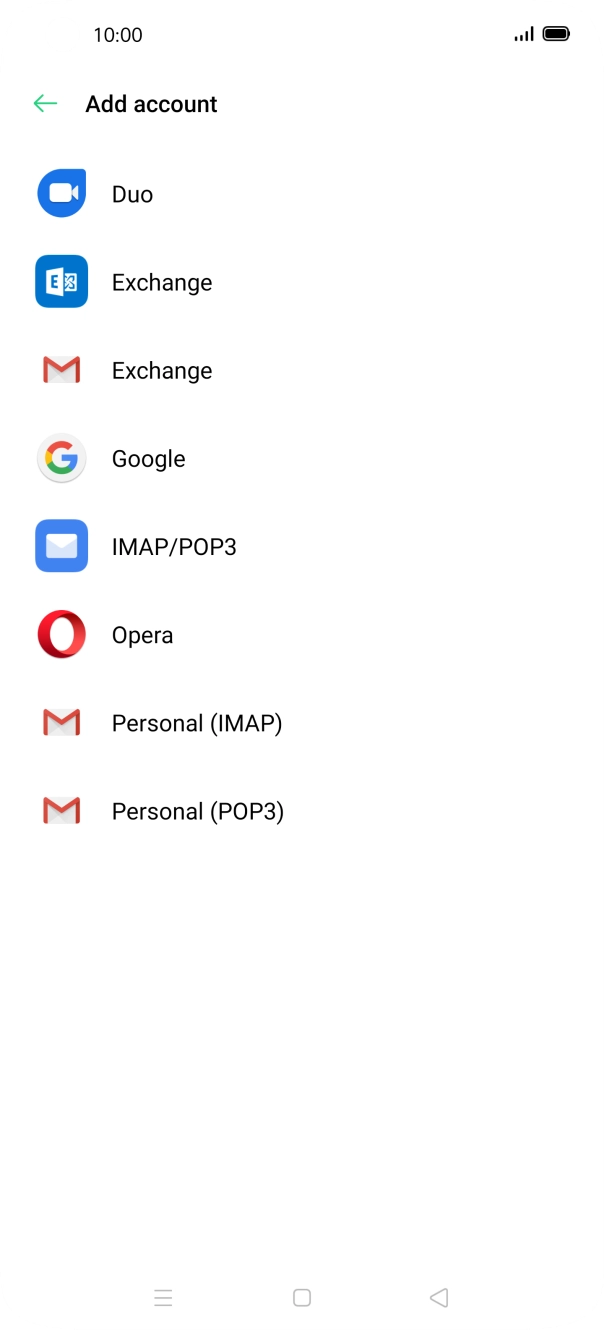
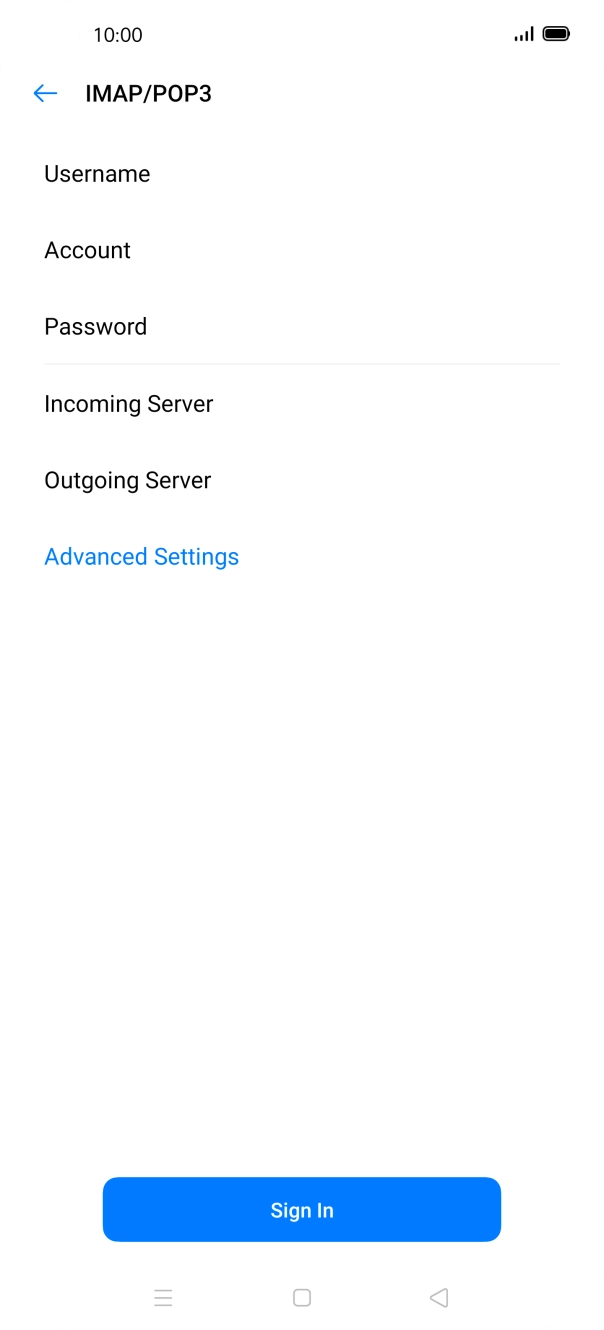
- Press IMAP/POP3.
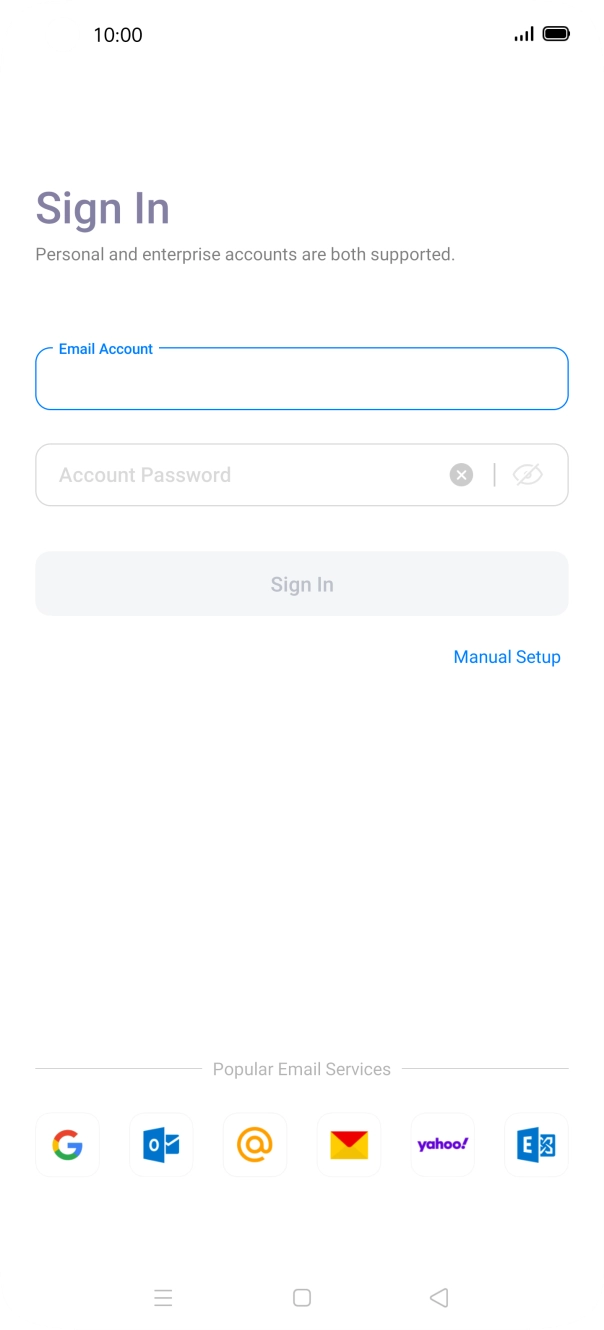
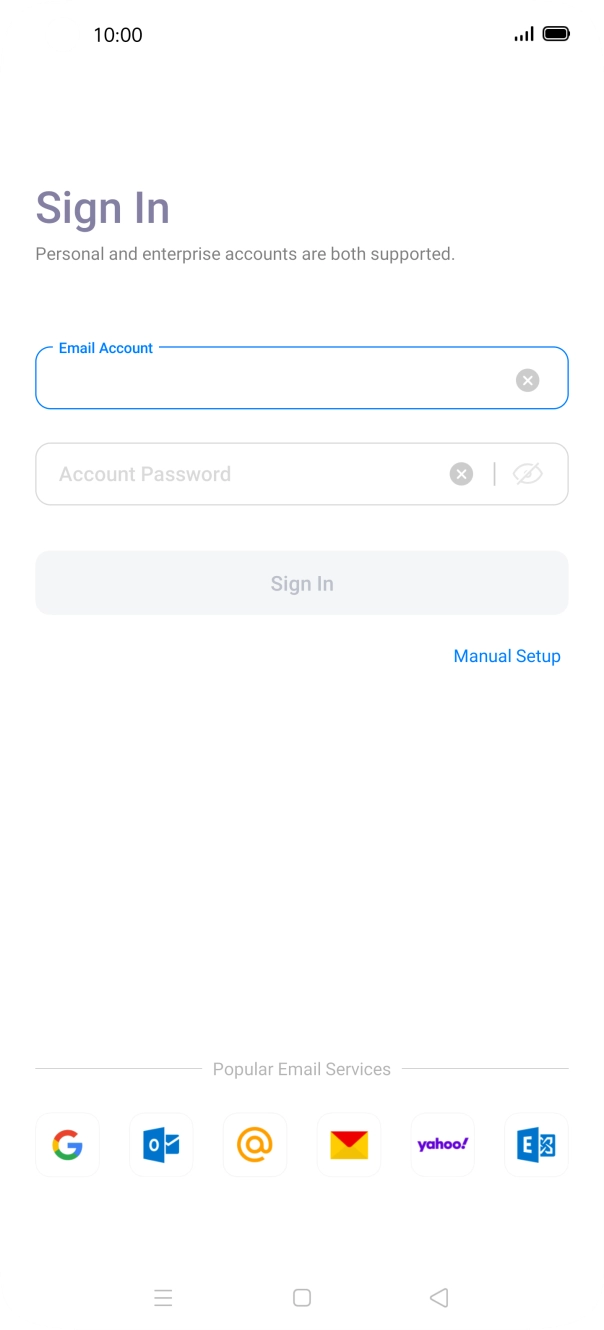
- Press the field below 'Email Account' and key in your email address.
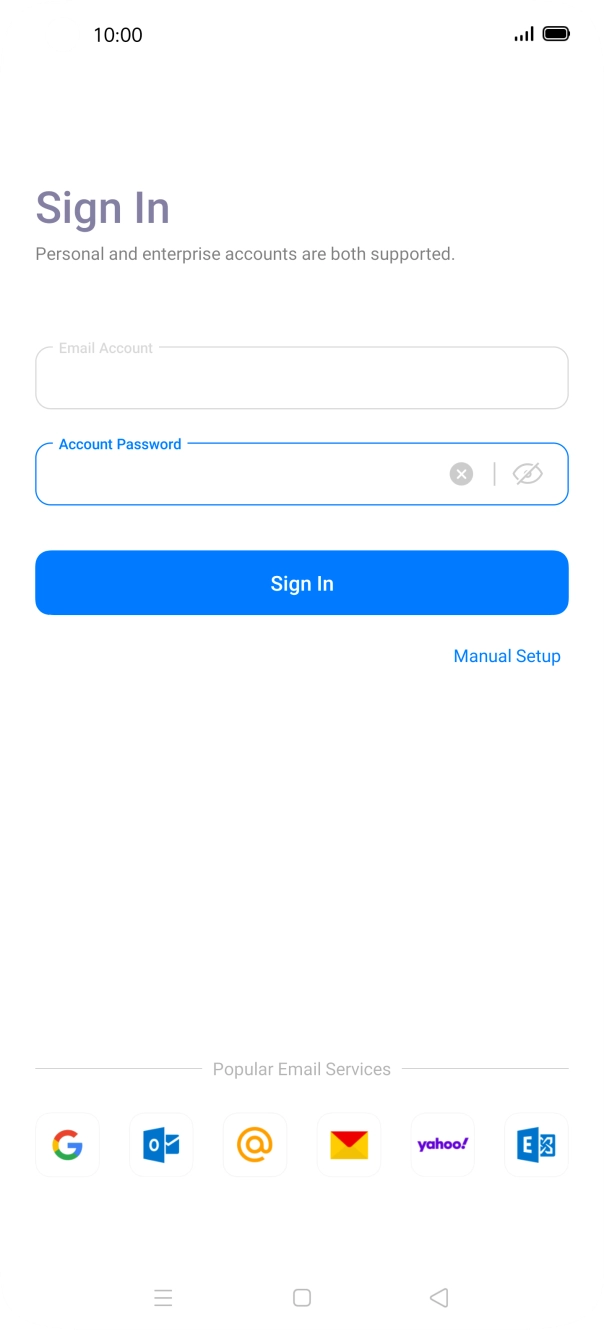
- Press Account Password and key in the password for your email account.
- Press Sign In.
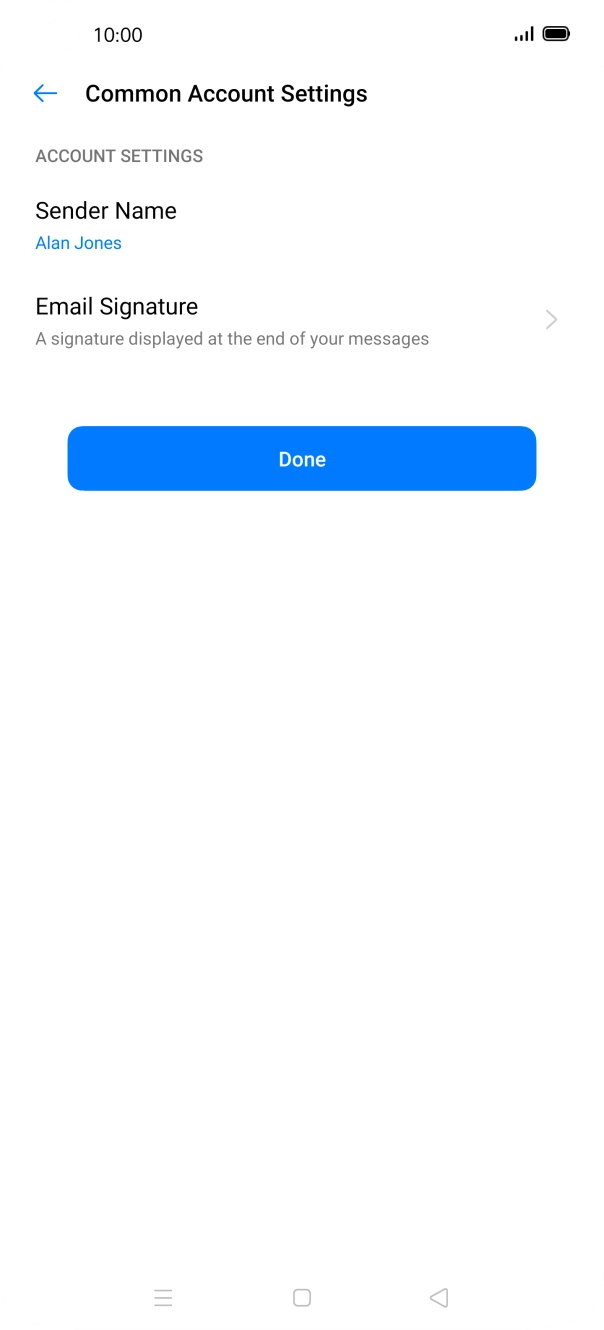
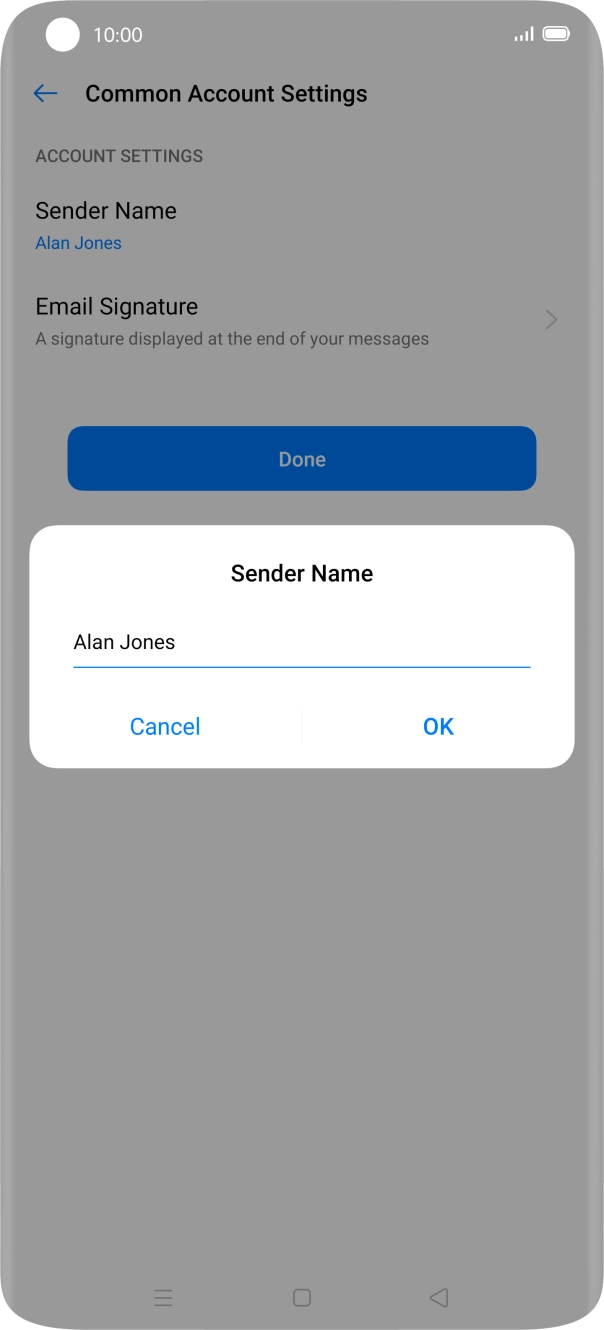
- Press Sender Name and key in the required sender name.
- Press OK.
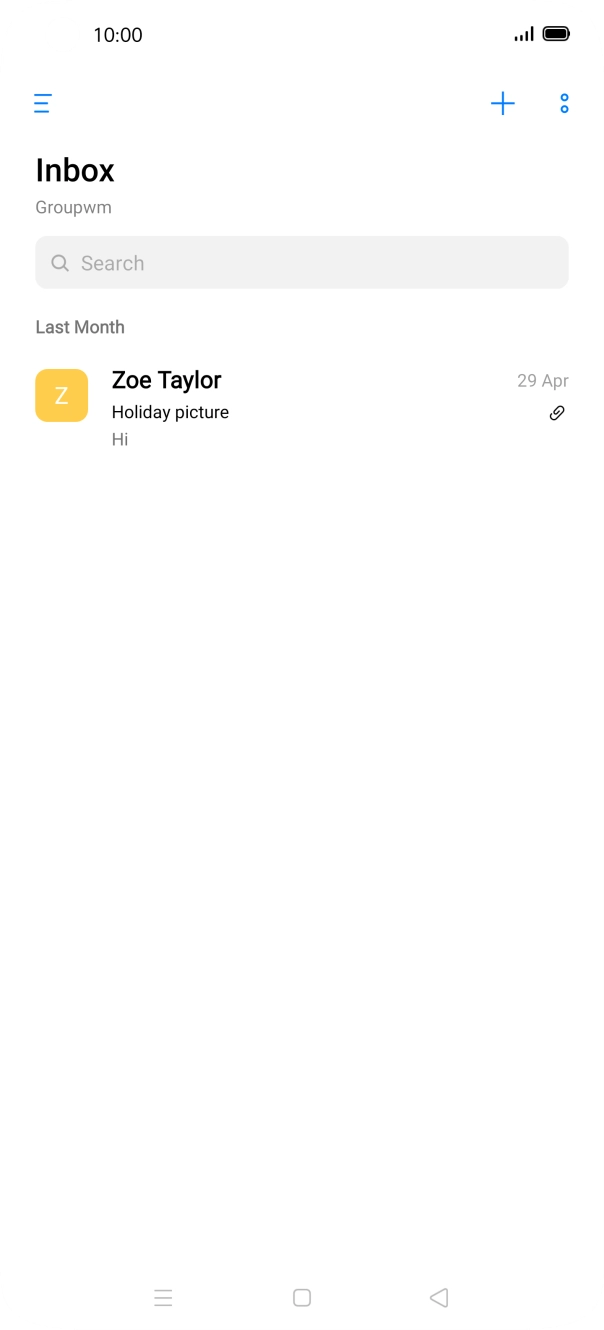
- Press Done.
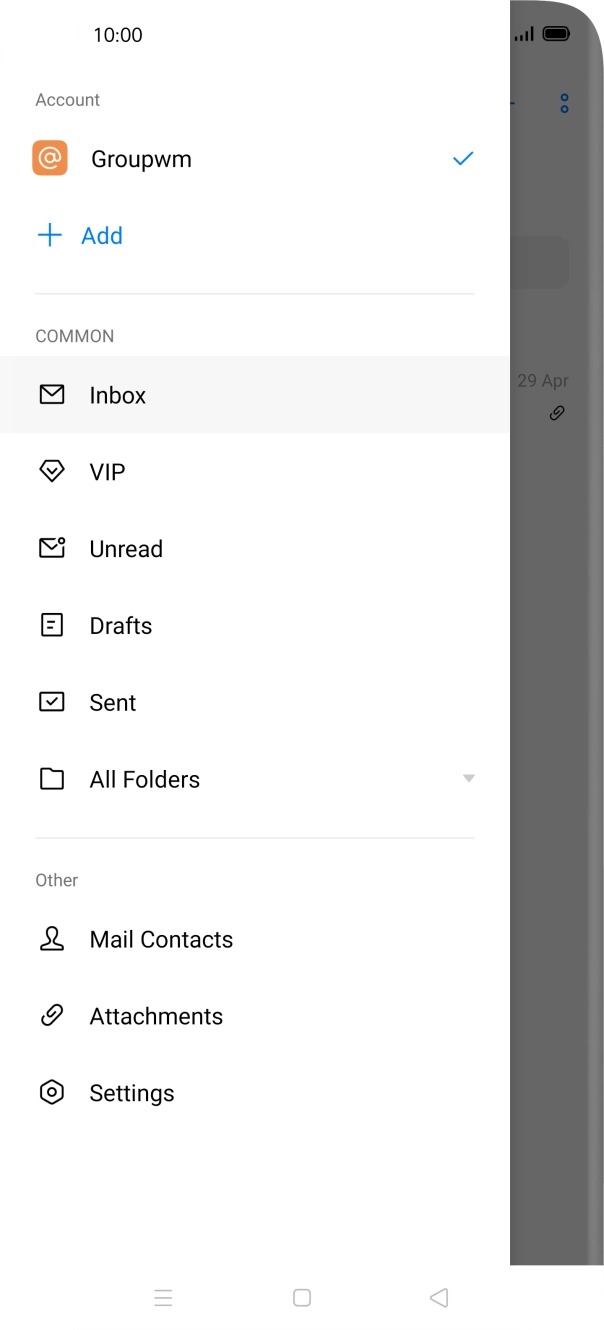
- Slide your finger right starting from the left side of the screen.
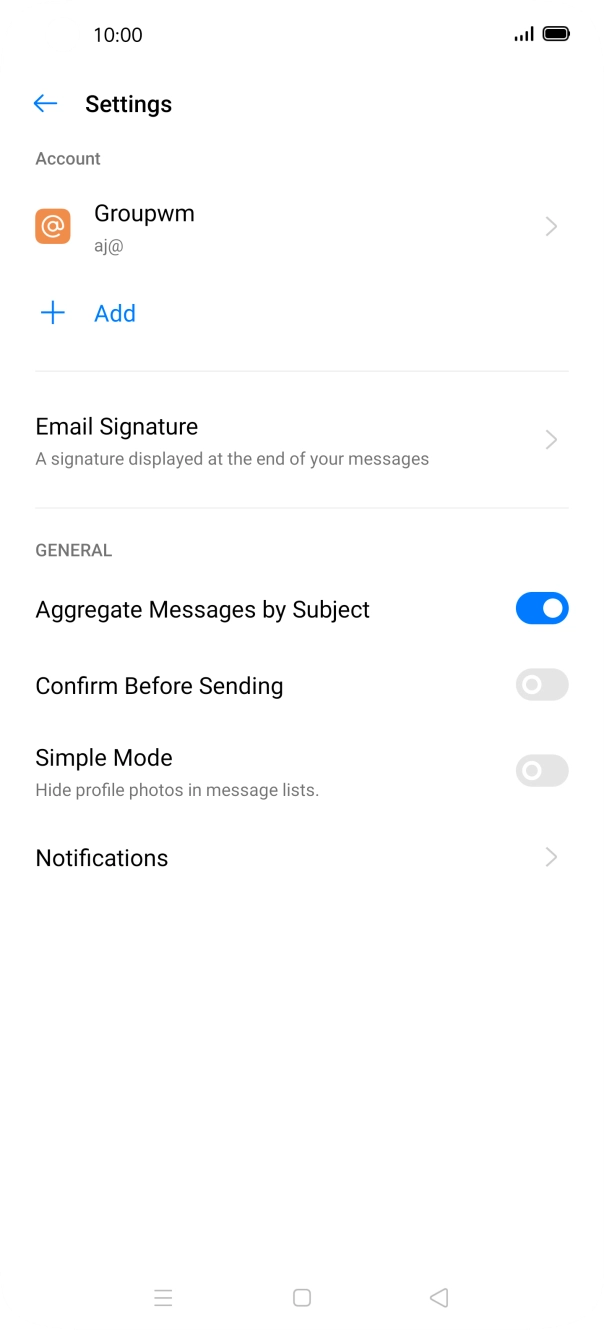
- Press Settings.
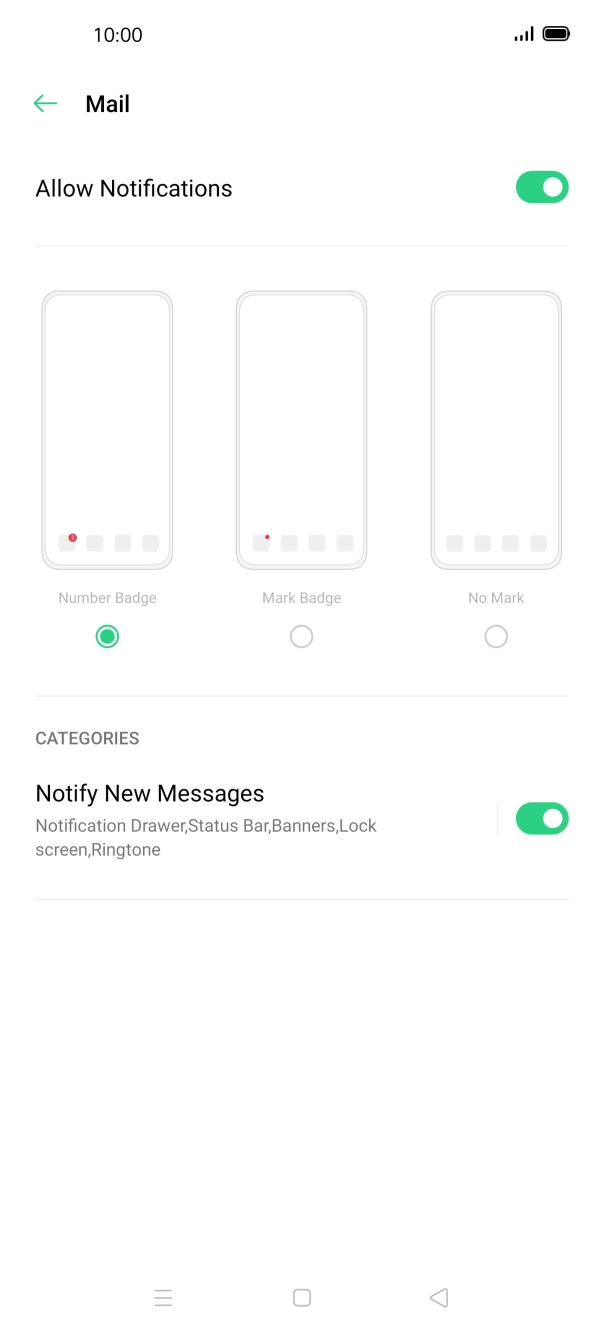
- Press Notifications.
- Press the indicator next to 'Allow Notifications' to turn the function on or off.
- Press the Return key.
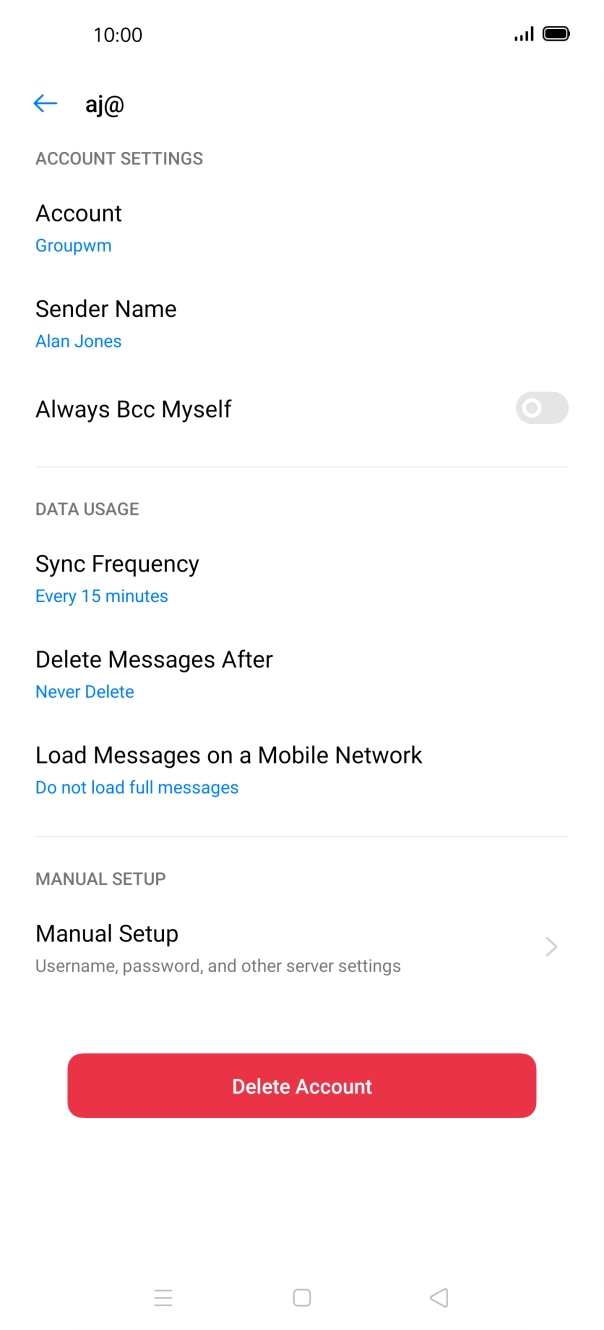
- Press the required email account.
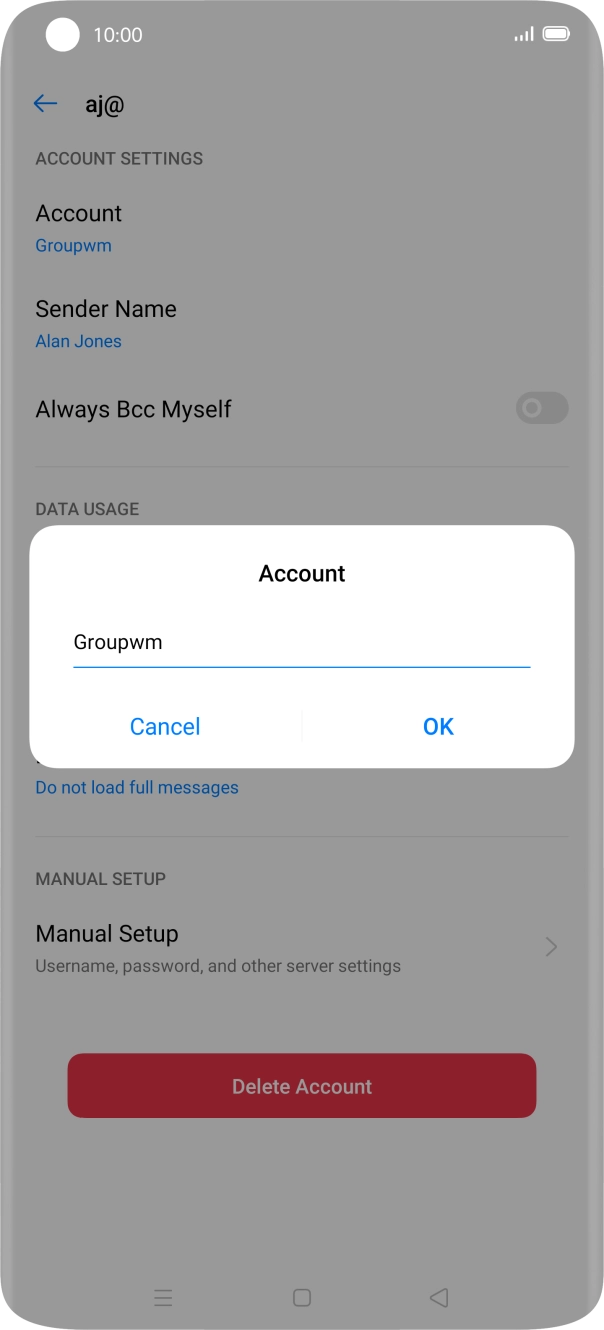
- Press Account and key in the required name.
- Press OK.
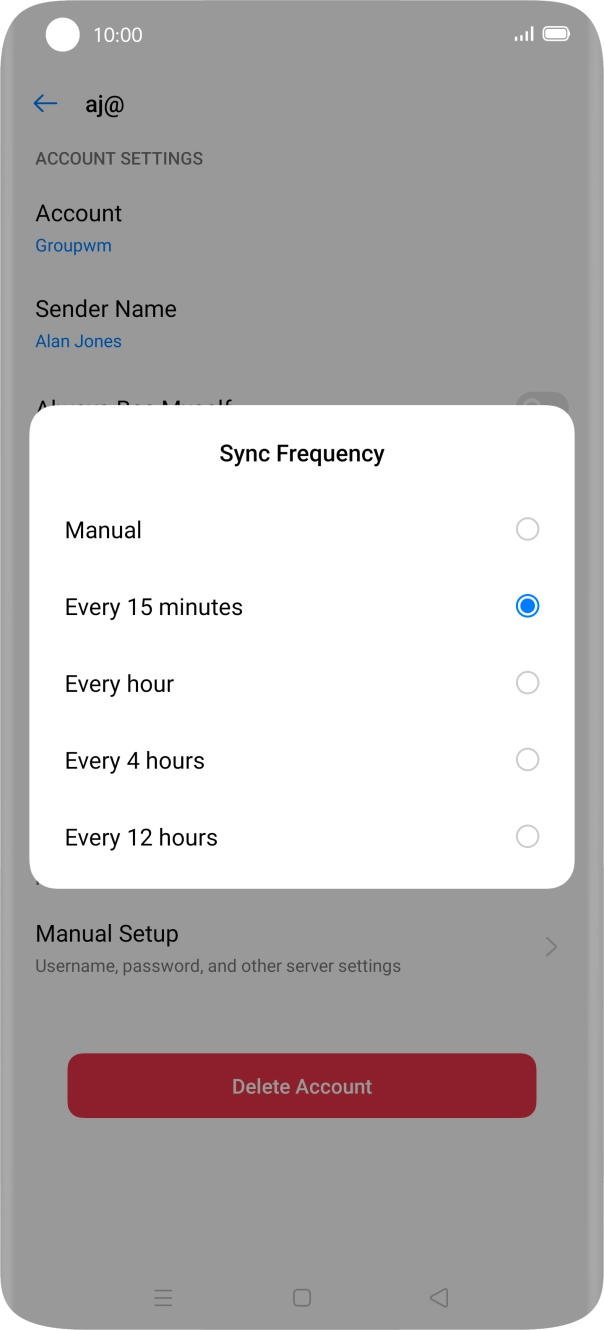
- Press Sync Frequency.
- Press the required setting.
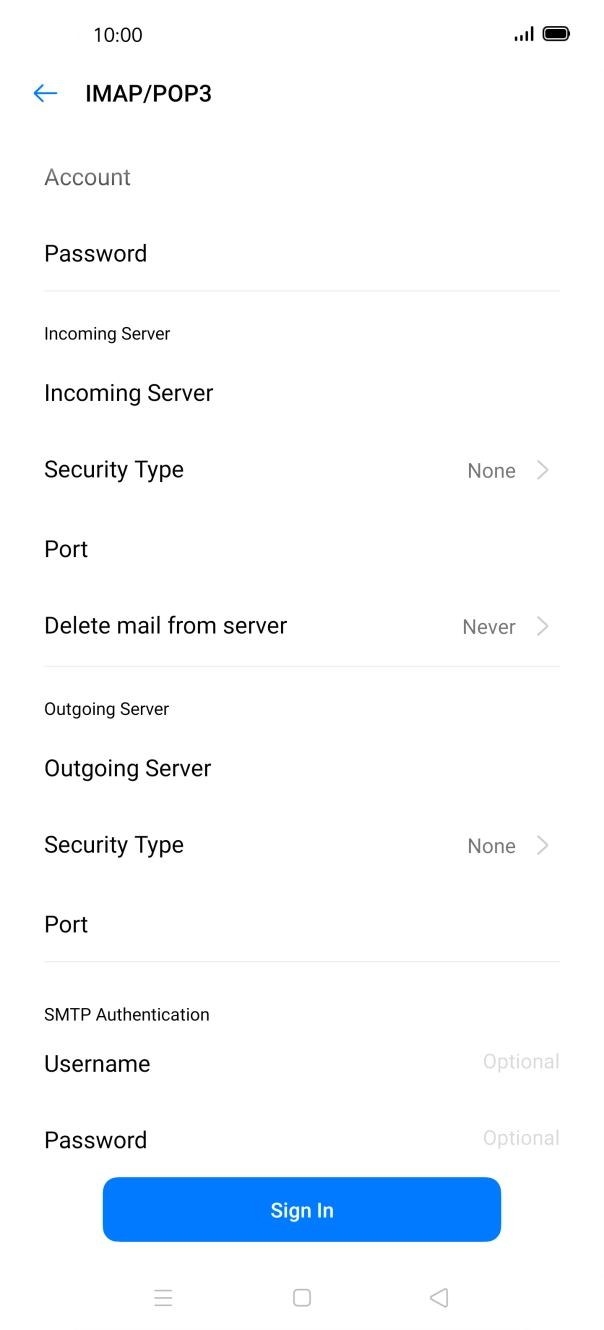
- Press Manual Setup.
- Press Advanced Settings.
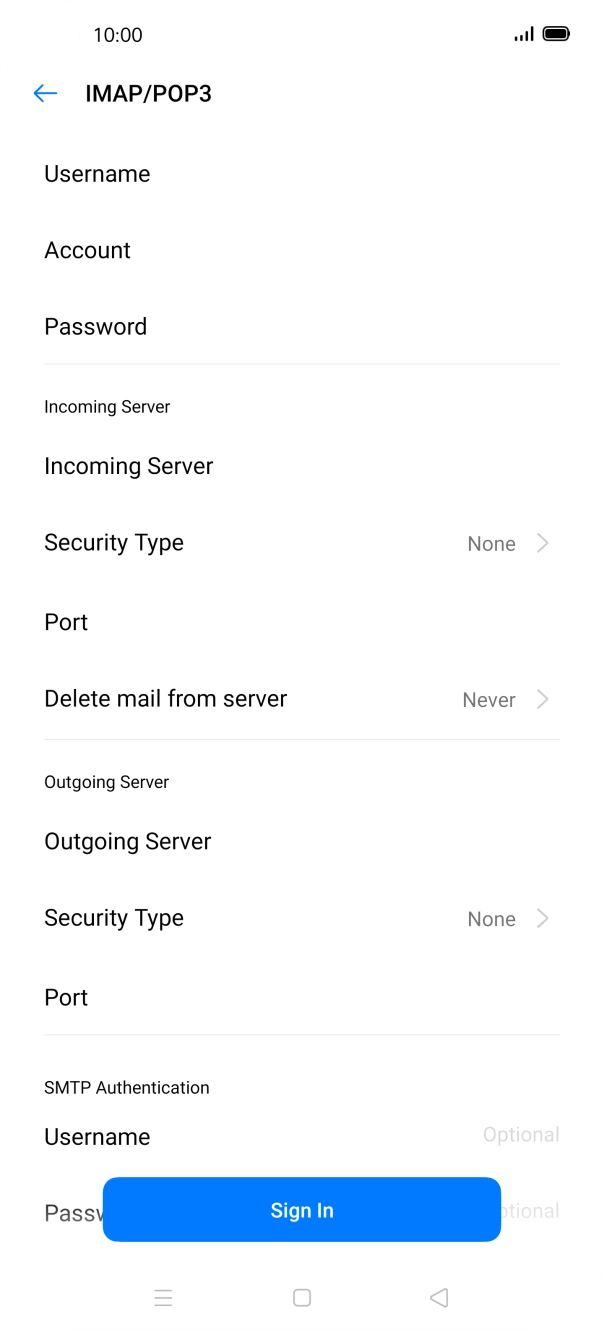
- Press Username and key in the username for your email account.
- Press Incoming Server and key in the name of your email provider's incoming server.
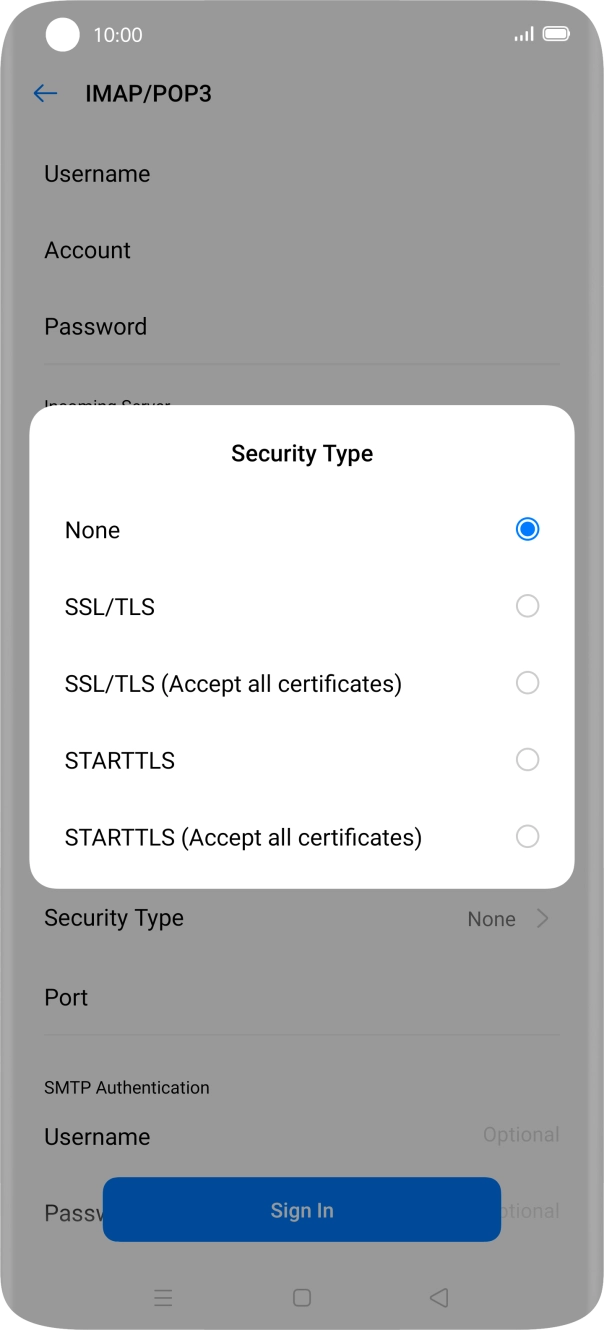
- Press Security Type.
- Press None.
- Press Port and key in 110.
- Press Outgoing Server and key in the name of your email provider's outgoing server.
- Press Security Type.
- Press None.
- Press Port and key in 25.
- Press Username and key in the username for your email provider's outgoing server.
- Press Password and key in the password for your email provider's outgoing server.
- Press Sign In.
- Press the Home key to return to the home screen.
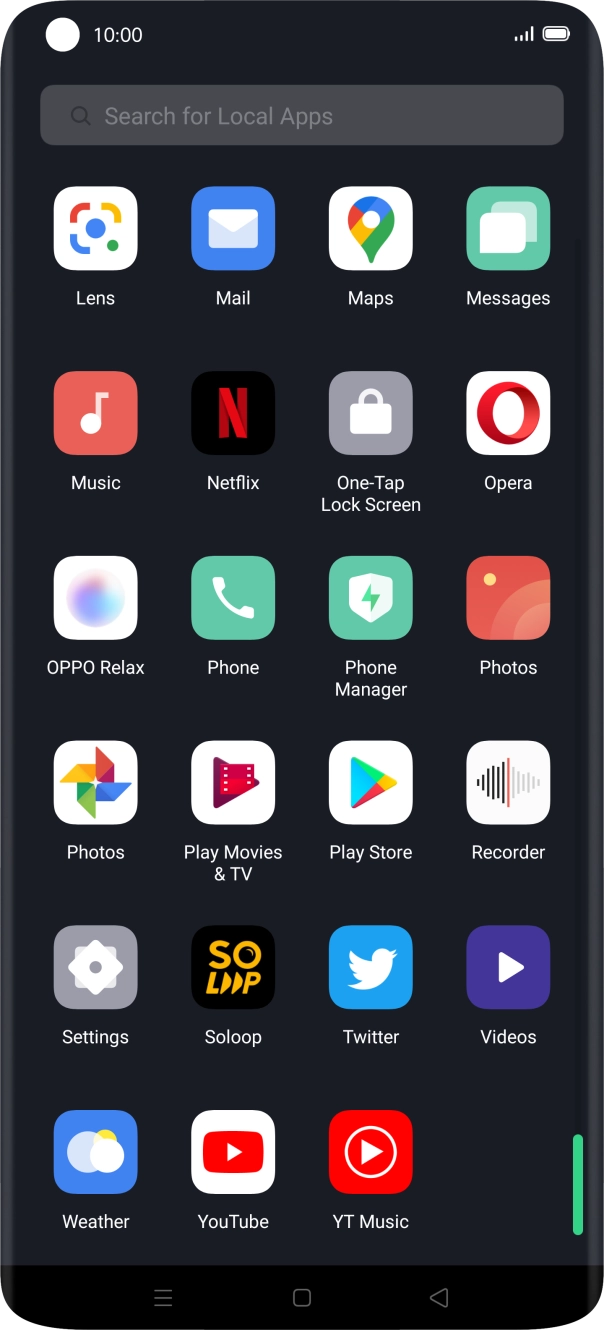
- Slide your finger upwards on the screen.
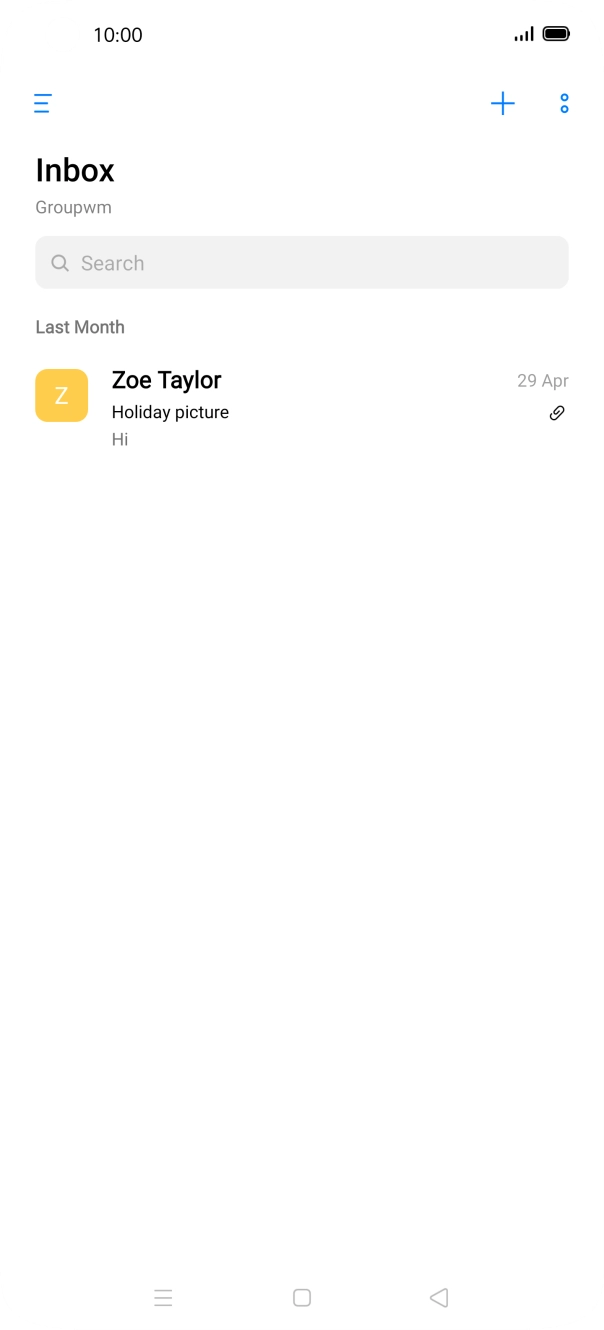
- Press Mail.
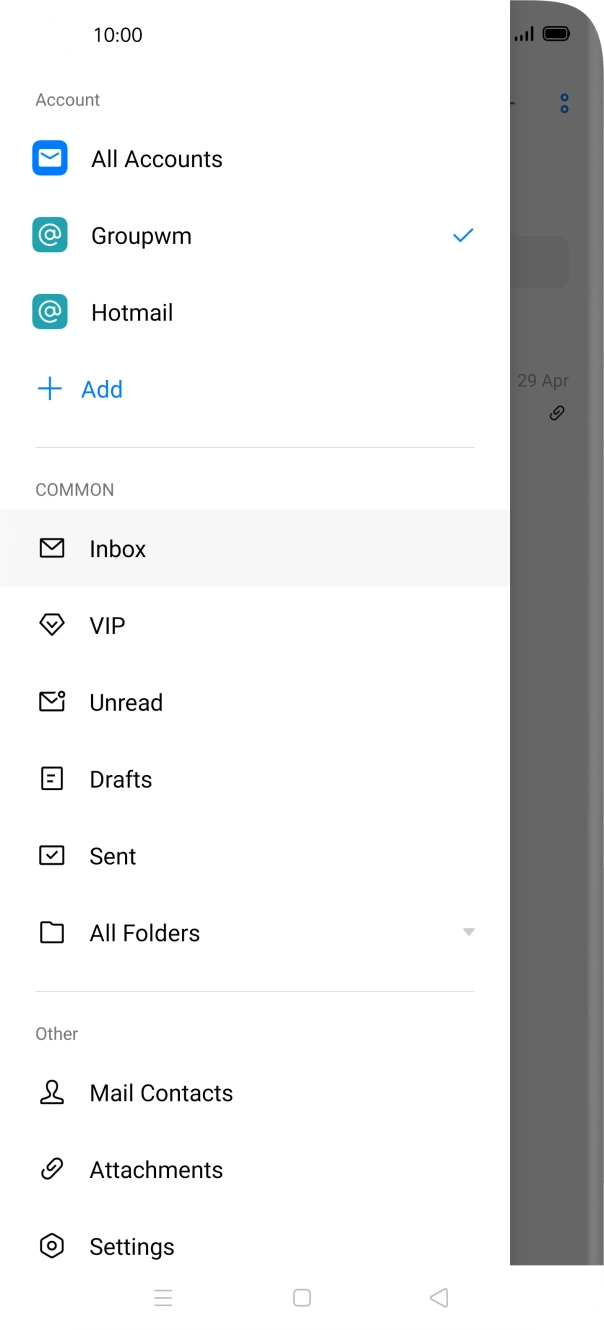
- Slide your finger right starting from the left side of the screen.
- Press the required email account.
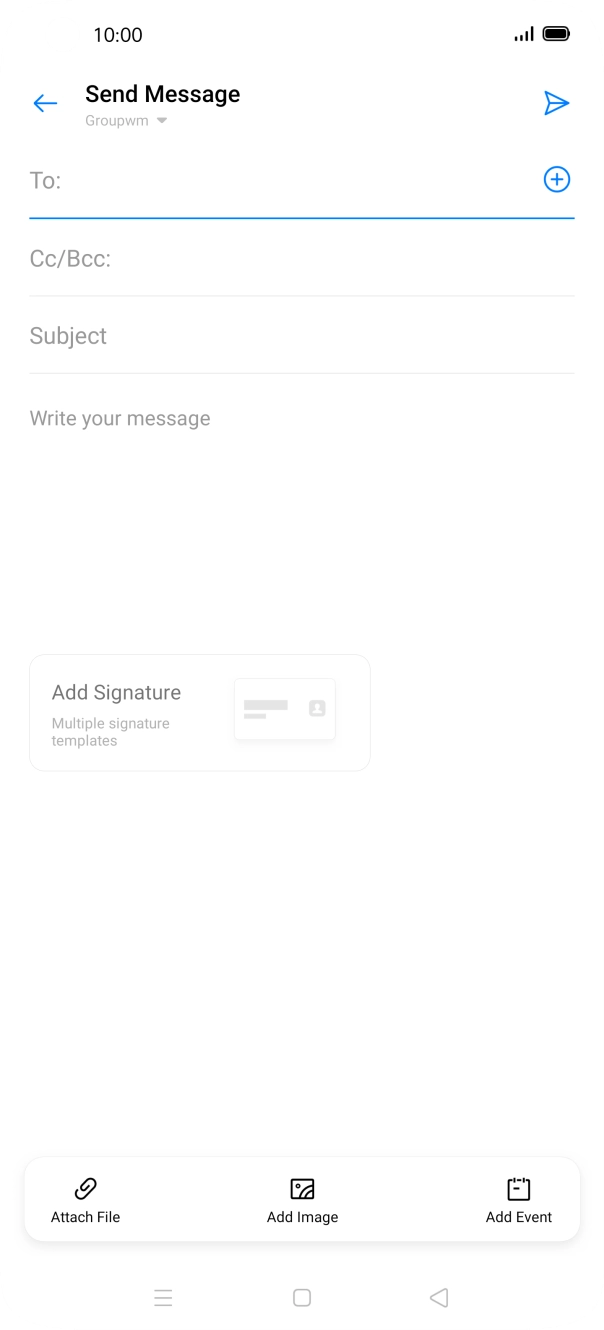
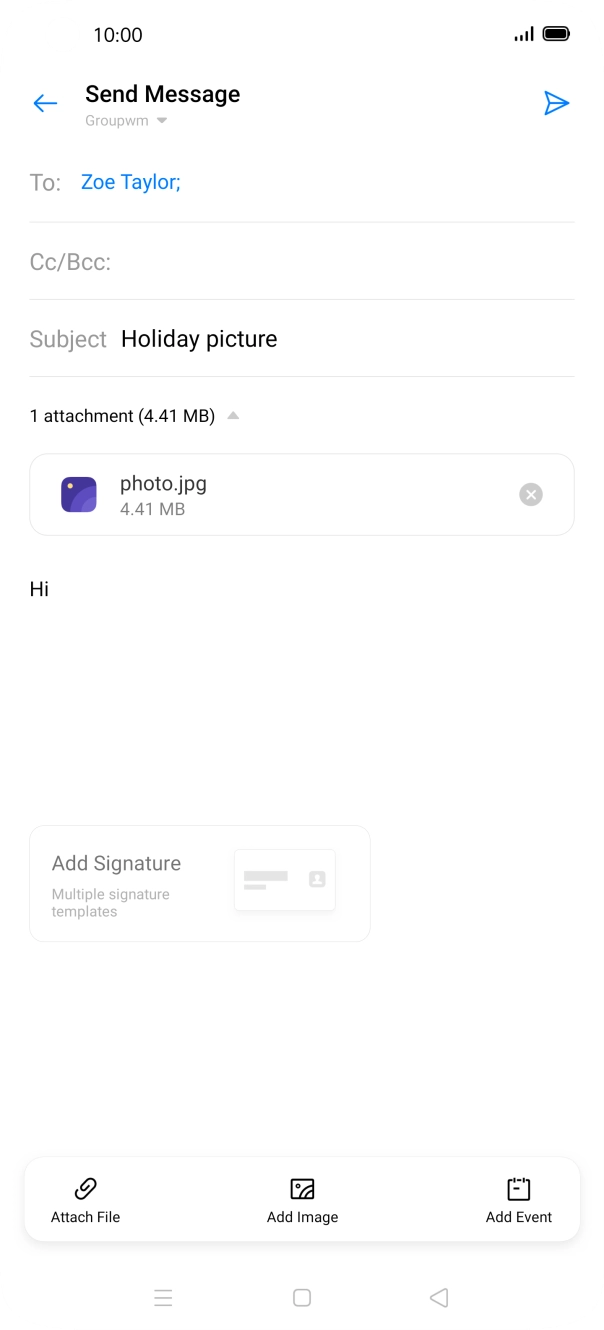
- Press the new email icon.
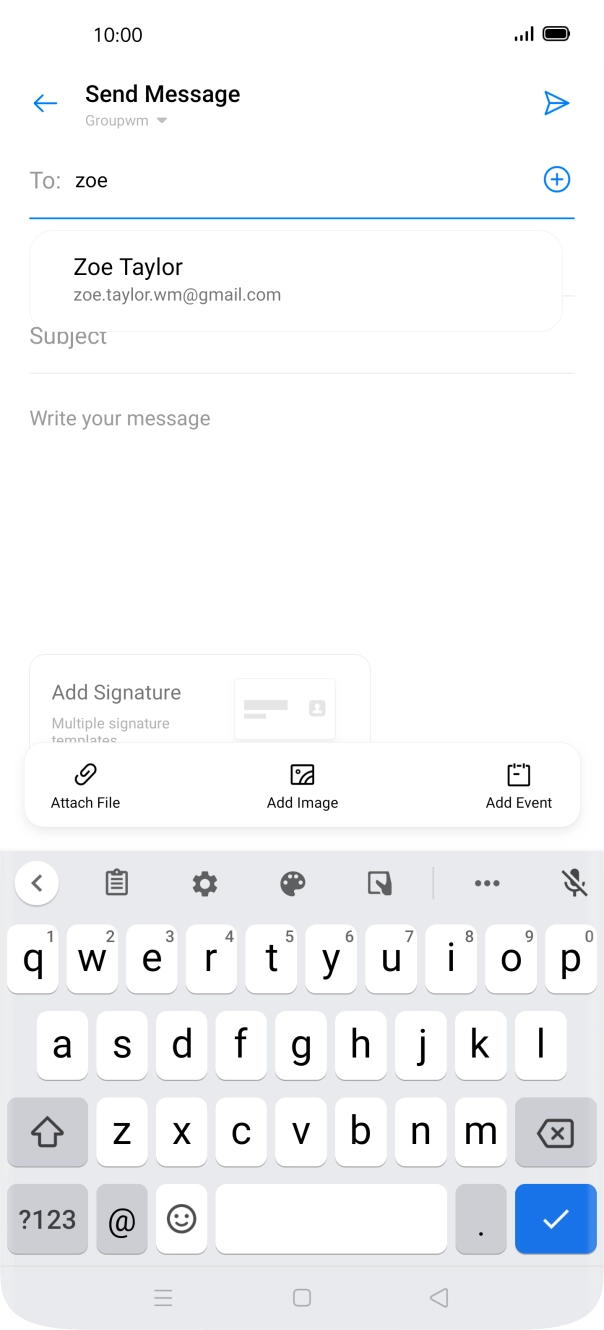
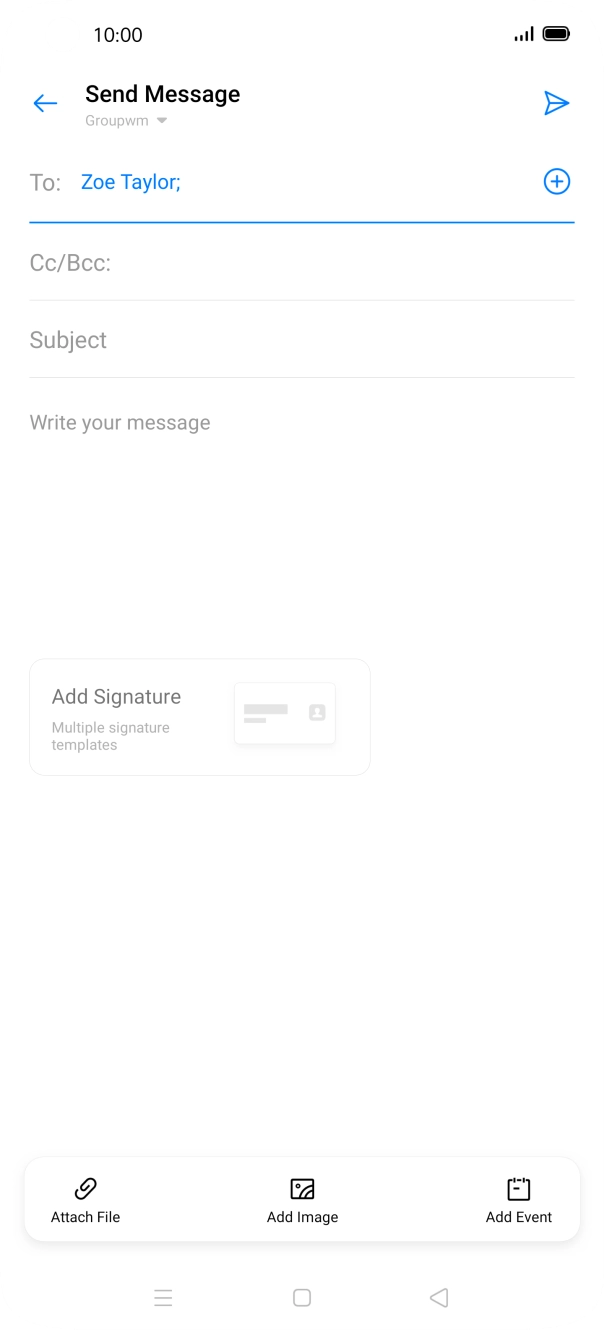
- Press the field next to 'To:' and key in the first letters of the recipient's name.
- Press the required contact.
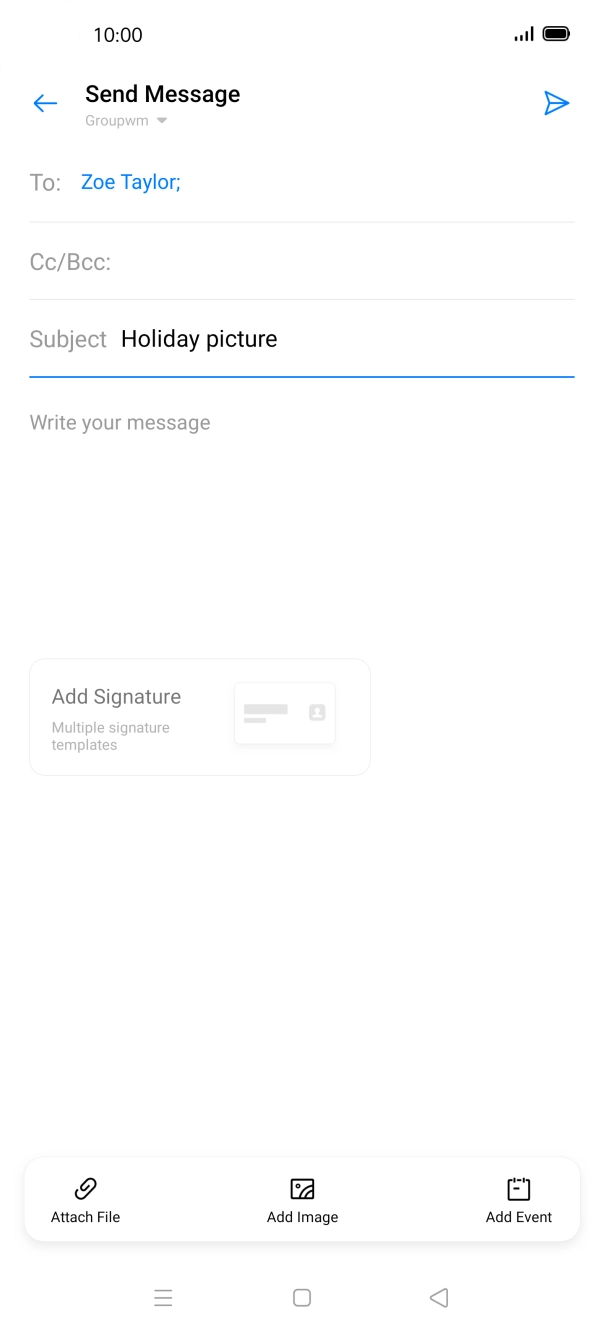
- Press Subject and key in the required subject.
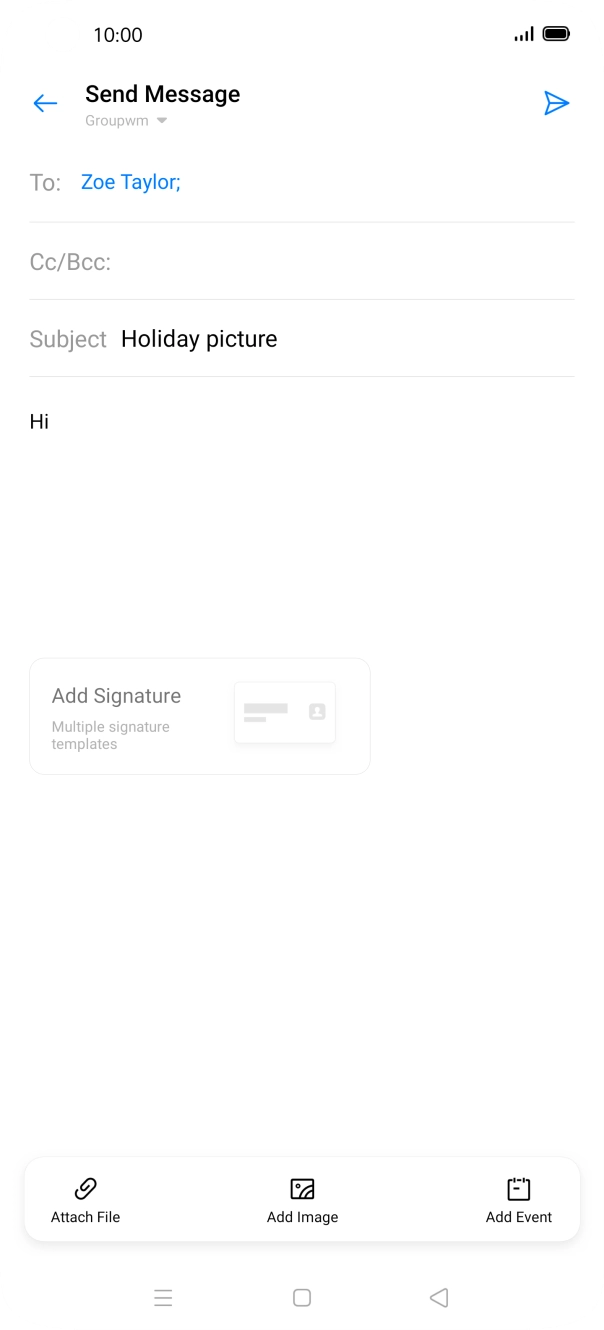
- Press the text input field and write the text for your email.
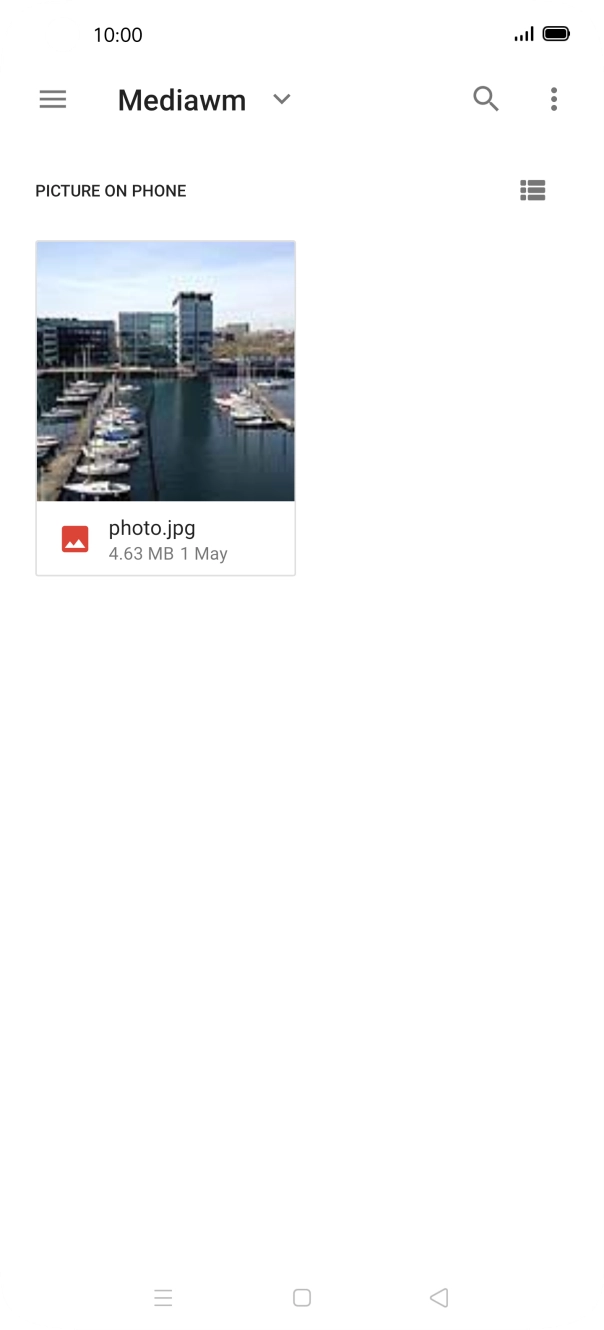
- Press Attach File and go to the required folder.
- Press the required file.
- Press the send icon when you've finished your email.
- Press the Home key to return to the home screen.
Contact your email provider for the correct settings for the incoming or outgoing server.
1. Find 'Users & Accounts'
Slide two fingers downwards starting from the top of the screen.
- Slide two fingers downwards starting from the top of the screen.
- Press the settings icon.
- Press Users & Accounts.
- Press Add Account.
- Press IMAP/POP3.
- Press the field below 'Email Account' and key in your email address.
- Press Account Password and key in the password for your email account.
- Press Sign In.
- Press Sender Name and key in the required sender name.
- Press OK.
- Press Done.
- Slide your finger right starting from the left side of the screen.
- Press Settings.
- Press Notifications.
- Press the indicator next to 'Allow Notifications' to turn the function on or off.
- Press the Return key.
- Press the required email account.
- Press Account and key in the required name.
- Press OK.
- Press Sync Frequency.
- Press the required setting.
- Press Manual Setup.
- Press Advanced Settings.
- Press Username and key in the username for your email account.
- Press Incoming Server and key in the name of your email provider's incoming server.
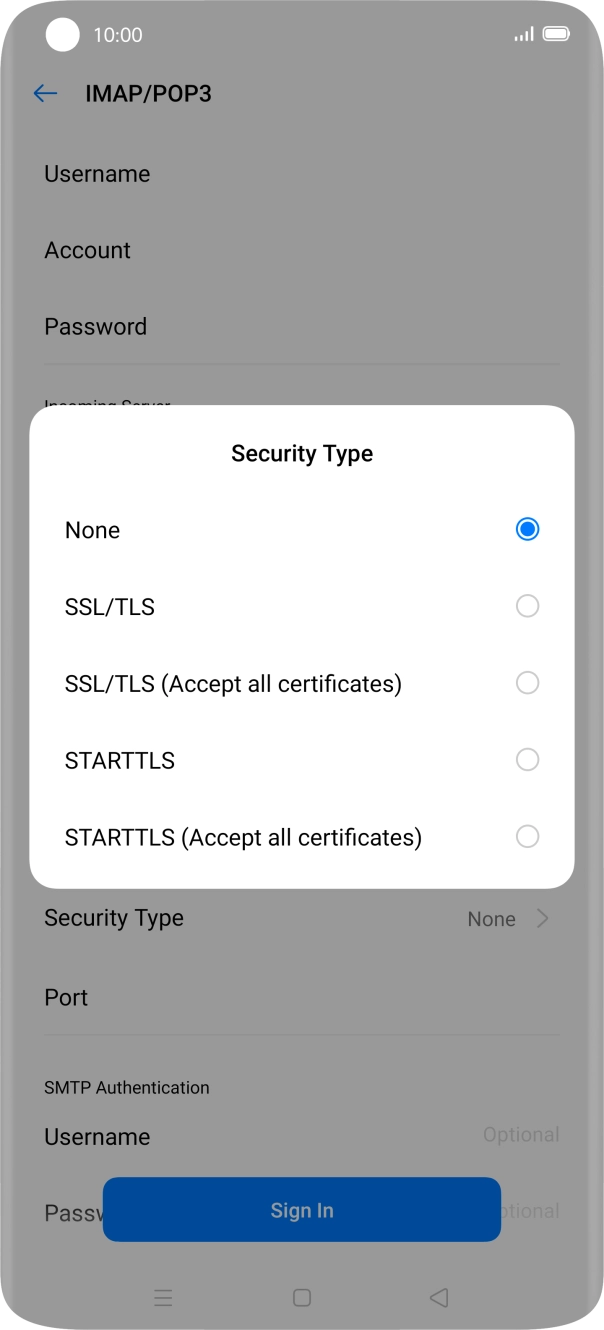
- Press Security Type.
- Press None.
- Press Port and key in 143.
- Press Outgoing Server and key in the name of your email provider's outgoing server.
- Press Security Type.
- Press None.
- Press Port and key in 25.
- Press Username and key in the username for your email provider's outgoing server.
- Press Password and key in the password for your email provider's outgoing server.
- Press Sign In.
- Press the Home key to return to the home screen.