You have been successfully logged out
Best Apple iPhone Deals & Pay Monthly Contracts

There’s an iPhone just for you
Lightning-fast performance. Advanced cameras. Built-in privacy features. Long battery life.
You’re going to love your new iPhone. Choose yours today.
Shop iPhone

Our iPhone range
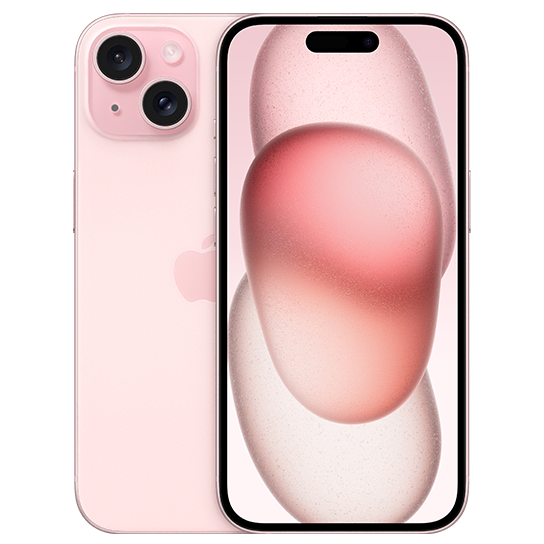
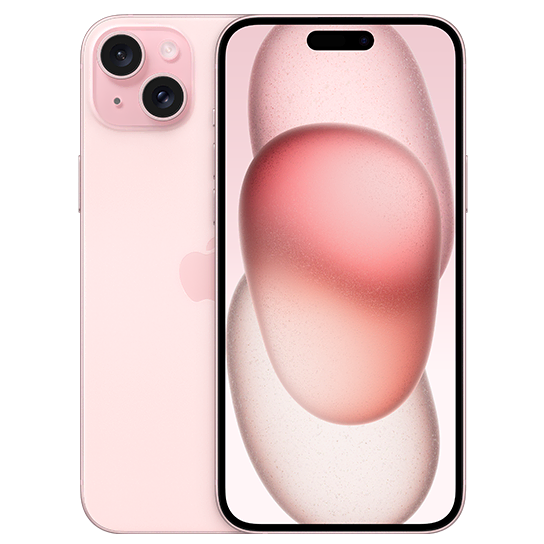
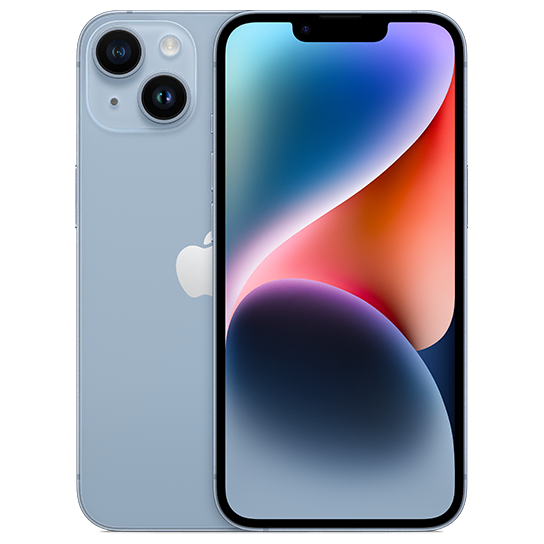

Discover iPhone
Find out more about iPhone, choose the one for you and pick from our best iPhone offers.



Every day. More extraordinary.
iOS 17 lets you express yourself like never before.
Send calls to voicemail and see a live transcript of the message. Personalise your phone calls with Contact Posters. And make your iPhone even more useful with StandBy.
Enhance your every day with Apple iPhone.
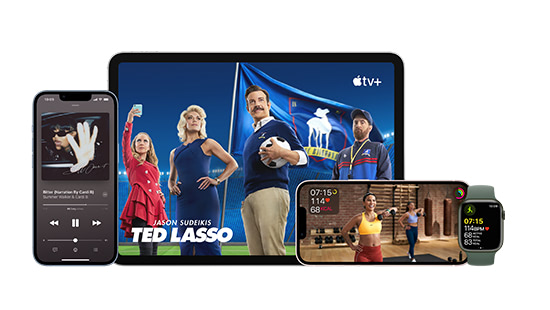
Get more out of your iPhone
With Apple TV+, you can stream Apple Original series and films, including compelling dramas, ground-breaking documentaries, kids’ entertainment, and comedies—with new Apple Originals added every month.
Apple Fitness+ features onscreen metrics from Apple Watch to keep you motivated. Choose from 11 workout types, including HIIT, pilates, strength, and yoga. And video and audio guided meditations help train your mind.
And get up to six months' free Apple Music on us. With Apple Music, you can play 75 million songs ad-free, online or off. Immerse yourself in spatial audio with Dolby Atmos. And unlock amazing definition with lossless audio, at no extra cost.
Find your perfect iPhone
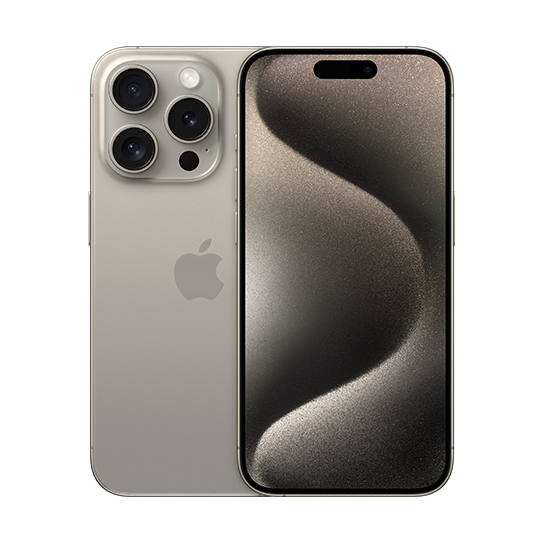
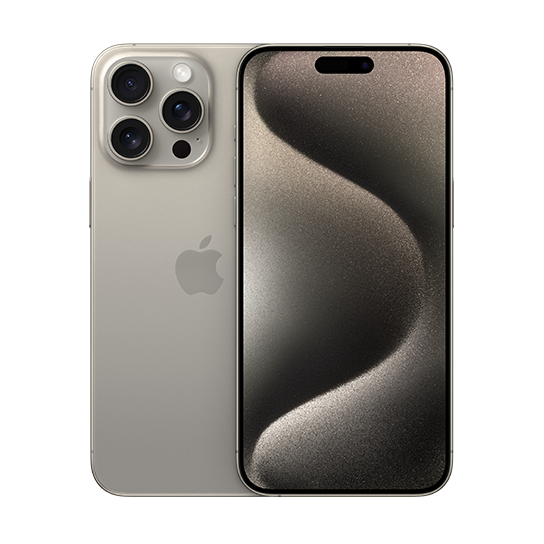
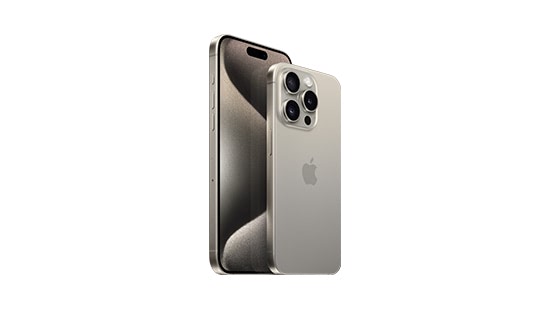
Experience the new iPhone 15 & iPhone 15 Plus. Featuring an improved A16 chip, a 6.1-inch Super Retina XDR OLED display, enhanced sensors on the 48MP main camera, Dynamic Island, and more. Or why not check out iPhone 15 Pro and iPhone 15 Pro Max in the latest iPhone 15 series?
Take a look at our iPhone SE deals, where you’ll find lots to love and less to spend. Or maybe you prefer iPhone 14, with just the right amount of everything.
If you’d like to drop down a generation, iPhone 13 remains a powerful and feature-rich member of the Apple family. And you can choose between a new or refurbished iPhone. Whichever you choose, iPhone has everything you'll need.
Can’t decide? Take a look at our iPhone plans and pick the one that works best for you.
Ready to choose?




Why get Apple iPhone with O2?


FAQs
- What’s the latest iPhone model?
The latest iPhone models are the Apple iPhone 15 range. iPhone 15, iPhone 15 Plus, iPhone 15 Pro, and iPhone 15 Pro Max released in September 2023.
You can compare our iPhone 15 deals here.
- Which iPhone has the best camera?
iPhone 15 Pro Max sets the benchmark for smartphone camera quality.
Featuring a 48MP Main Camera, 12MP Ultra-Wide Camera, plus new for iPhone 15 Pro Max, a 12MP Telephoto lens with up to 6x zoom. Every detail is enhance on iPhone 15, with advanced low-light technology and improved sensors. And for the professional, iPhone 15 Pro Max takes things to the next level.
Learn more about iPhone 15 Pro Max.
- Where can I compare iPhone models?
You can compare iPhone models right here. We have our own comparison tool so you can see how each iPhone stacks up against one another. Simply choose up to three difference handsets. Click 'Compare'. It's that simple.
You can find our iPhone comparison tool here.- Which iPhone has the biggest screen?
iPhone 15 Pro Max has a 6.7-inch OLED Super Retina XDR OLED display – making it the largest iPhone screen. Plus, the reduced bezel size makes it feel evern bigger. It also features the best iPhone display quality, allowing for an even better iPhone experience.
Shop for iPhone 15 Pro Max here.
- Is iPhone water resistant?
Many devices use an IP rating to measure water and dust resistance.
Every Apple handset released after iPhone 11 has an IP rating of IP68, apart from iPhone SE (IP67), meaning according to testing, a product with an IP68 rating will survive in 6m of water for up to 30 mins.
To find out more about a device’s IP rating, search our iPhone range.- How long does iPhone’s battery last?
This will depend entirely on the individual model and how you use your iPhone, but the newest iPhone 15 range allows for up to 25 hours of video playback (on selected models).
Older models typically won’t give you the same performance, so keep this in mind when you search our iPhone range.
- What accessories can I buy for iPhone?
Whether it's the latest AirPods, a powerful 20W charger or the new MagSafe range, an extensive range of accessories work perfectly with your new iPhone.
- What iPhone deals do O2 offer?
We have many different price options for iPhone to suit everyone. You can view all our pre-built Pay Monthly plans and deals here, or you can build your own plan. Whatever works for you.
You can compare our iPhone deals here.